Error Establishing a Database Connection After Migration
Error establishing a database connection means WordPress could not log in to its MySQL or MariaDB database, so it cannot load any content. After a migration, it is almost always a mismatch between wp-config.php and the database details on the new host. This guide shows how to read the more detailed version of the error, check each setting in order, and fix it without editing the database blindly.
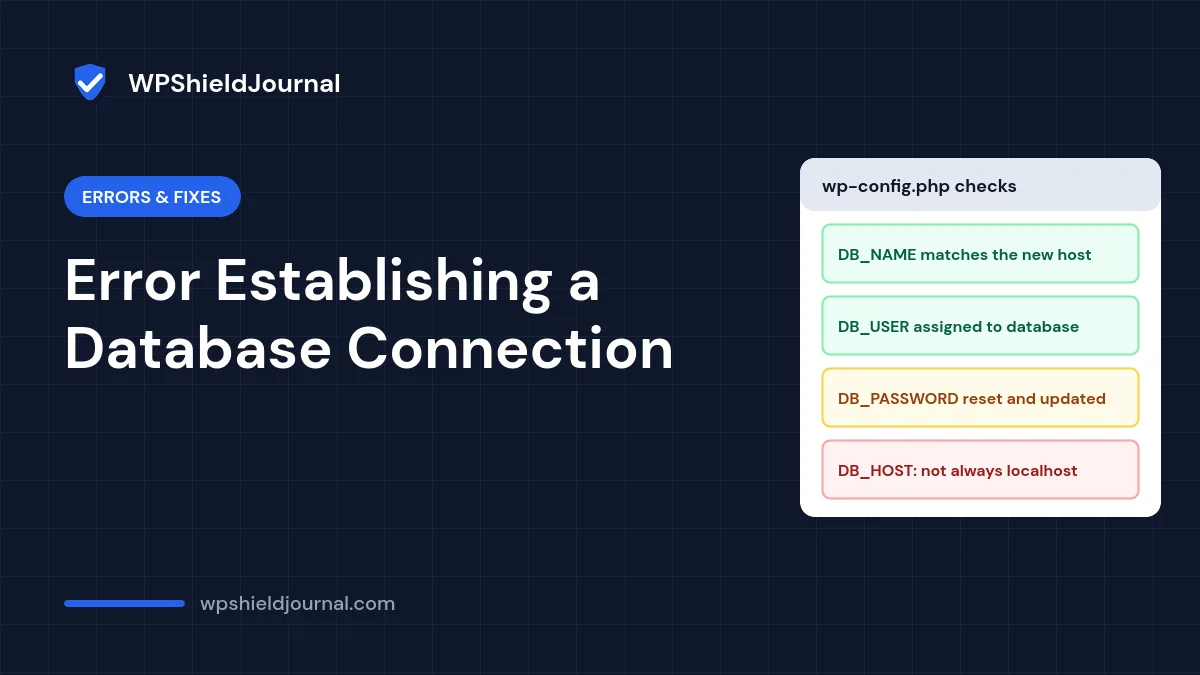
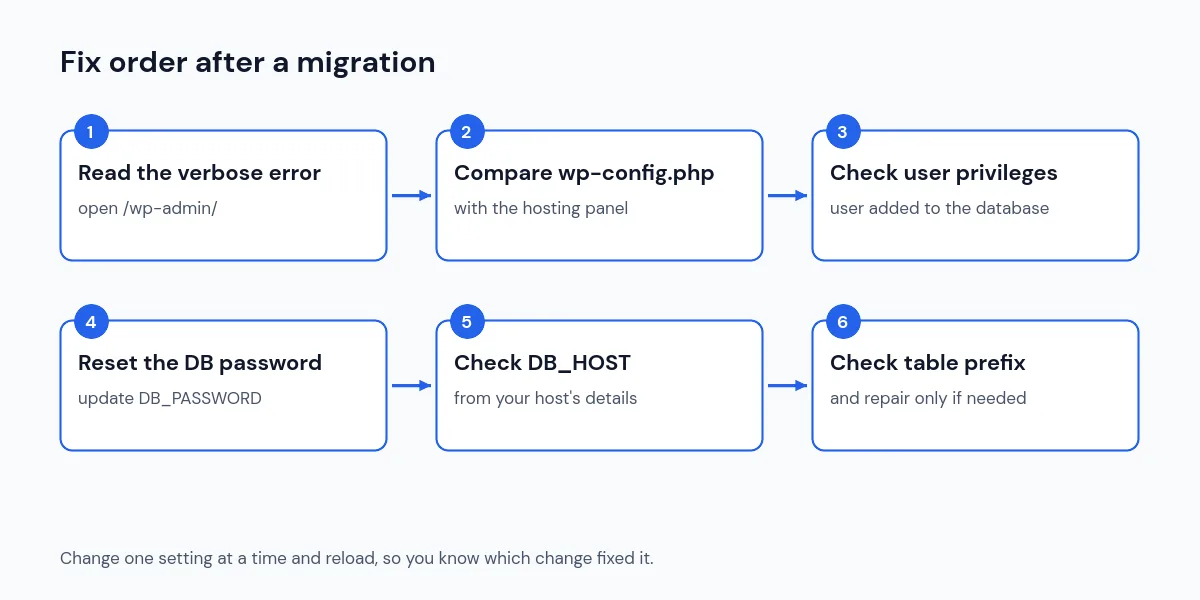
Quick answer: Open yoursite.com/wp-admin/ to see a more detailed message. Then compare DB_NAME, DB_USER, DB_PASSWORD and DB_HOST in wp-config.php with the database details in your new hosting panel. Make sure the user is assigned to the database, reset the database password if unsure, and update wp-config.php to match.
Why error establishing a database connection happens
WordPress reads four settings from wp-config.php on every request and uses them to connect to the database. If any one is wrong, or the database server is not responding, it stops and shows this error. Common causes after a move:
- The new host created the database with a different name or username prefix.
- The password in
wp-config.phpis still the old host’s password. - The database user exists but was never given permission to use the database.
DB_HOSTis still set to the old server, or tolocalhostwhen the new host uses a separate database server.- The database server itself is down or has reached its connection limit (a hosting-side issue).
Do not run search-and-replace or repair tools yet. If WordPress cannot connect, those tools cannot help, and changing data before the connection works only adds risk. Take a copy of wp-config.php before editing it.
Step 1: Read the detailed error message
Visitors only ever see the short message. WordPress shows more detail when the request comes from the admin area. We checked this in the WordPress core files on this site: the dead_db() function prints the short message on the front end, but in wp-admin it shows the full database error.
Visit https://yourdomain.com/wp-admin/ and compare what you see with this table:
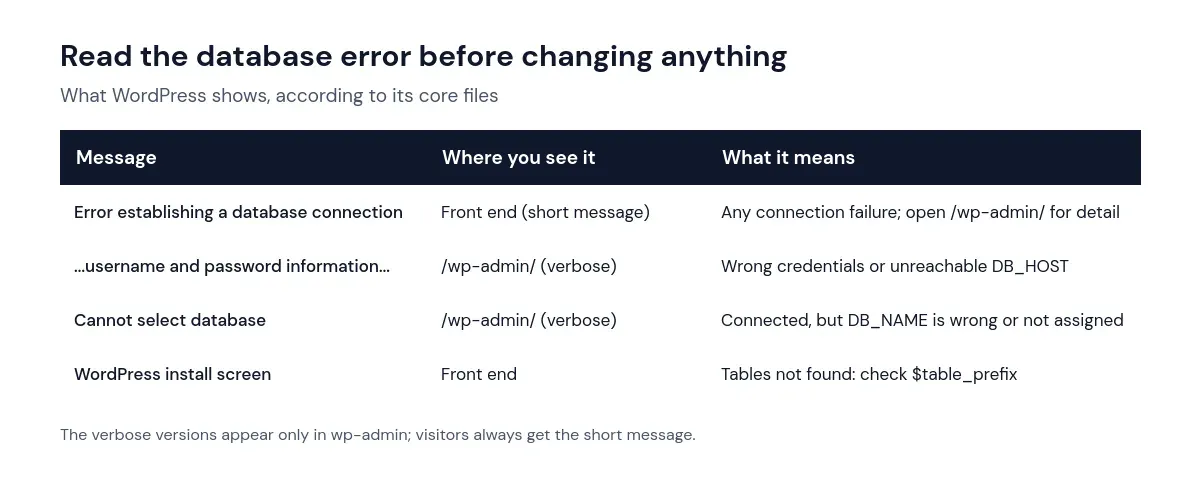
If it says Cannot select database, WordPress reached the database server and logged in, so the username, password and host are fine. Focus on DB_NAME and on whether that user has access to that database.
Step 2: Compare wp-config.php with your hosting panel
Open wp-config.php in the root folder of your WordPress files using your host’s file manager or SFTP. Find these lines:
define( 'DB_NAME', 'database_name_here' );
define( 'DB_USER', 'username_here' );
define( 'DB_PASSWORD', 'password_here' );
define( 'DB_HOST', 'localhost' );
Then open the databases section of your hosting control panel and compare each value character by character. Many hosts add an account prefix such as u123456789_ to both database names and usernames. A database called wordpress on the old host may now be u123456789_wordpress.
Never paste your real wp-config.php contents, passwords or salts into forums, chat tools or support tickets. Share the error message instead.
Step 3: Check that the user is assigned to the database
On most control panels, creating a database user and creating a database are separate steps. If the user was never linked to the database, WordPress can log in but cannot open the database, which produces the “Cannot select database” message. In your hosting panel, confirm the user is listed against the database with full privileges.
A quick independent check: log in to phpMyAdmin (or your host’s database tool) with the same username and password that are in wp-config.php. If that login fails, the credentials are wrong. If it works but the database is not listed, the privileges are missing.
Step 4: Reset the database password if you are unsure
Passwords copied from an old host, or containing characters that were mangled during copy and paste, are a frequent cause. Set a new password for the database user in the hosting panel, then update the DB_PASSWORD line to match. Keep the single quotes around it. If the password contains a single quote, either choose a different password or escape it as \'.
Step 5: Check DB_HOST on the new server
localhost works on many shared hosts, but not all. Some hosts run the database on a separate server and give you a hostname or IP address instead, sometimes with a port such as :3306. Copy the exact value from your host’s database details page or documentation. If you migrated between two accounts on the same host, DB_HOST may not need to change at all.
Step 6: If you now see the install screen, check the table prefix
If the error disappears but WordPress shows its installation screen, it connected successfully but could not find its tables. That usually means $table_prefix in wp-config.php does not match the prefix used in the imported database (for example wp_ versus wp8f_). Look at the table names in phpMyAdmin and set the prefix to match. Do not run the installer, as that creates a new, empty site.
If WordPress reports that tables are damaged or unavailable, you can use the built-in repair tool. Add this line to wp-config.php: Our guide to repairing WordPress database tables covers this step in more detail.
define( 'WP_ALLOW_REPAIR', true );Then visit https://yourdomain.com/wp-admin/maint/repair.php. The repair page works without logging in, so remove the line as soon as you have finished, as the page itself warns.
How to confirm the database connection is fixed
- Load the home page and a few posts in a private browser window.
- Log in to the dashboard and open Tools → Site Health to check for remaining database warnings.
- Purge your page cache and CDN so nobody sees a cached error page.
- If you also changed the site URL during migration and cannot log in, follow our guide to login problems after a migration.
When the problem is the host, not your settings
If the settings are correct, phpMyAdmin works, and the error comes and goes, the database server may be overloaded or have reached its connection limit. Errors such as “Too many connections” or “max_user_connections” in your host’s error log point in that direction. Contact your host with the time the error occurred. Heavy bot traffic or a plugin opening many connections can trigger it, which your host can confirm from their logs.
Frequently asked questions
Can a plugin cause this error?
Not usually. WordPress connects to the database before it loads any plugins. A plugin can contribute indirectly, for example by flooding the server with requests, but incorrect credentials and hosting issues are far more common.
Do I need to edit the database itself?
No. This error is about connecting to the database, not the data inside it. Only change data once WordPress connects successfully, and back it up first.
Why does the site work on the old host but not the new one?
The files and database were copied, but the credentials belong to each host. The old wp-config.php still points to the old database name, user and server. See the official guide to moving WordPress for the full migration checklist, and the wp-config.php documentation for every database setting.
For the complete migration process, see how to migrate WordPress to a new host without downtime.
Summary
Treat error establishing a database connection as a credentials check. Read the verbose message in /wp-admin/, compare all four database settings with your hosting panel, confirm the user has privileges, reset the password if in doubt, and set the correct DB_HOST. Only after WordPress connects should you look at the table prefix or the repair tool.