Can’t Log In to WordPress After Migration? How to Fix the Login Redirect Loop
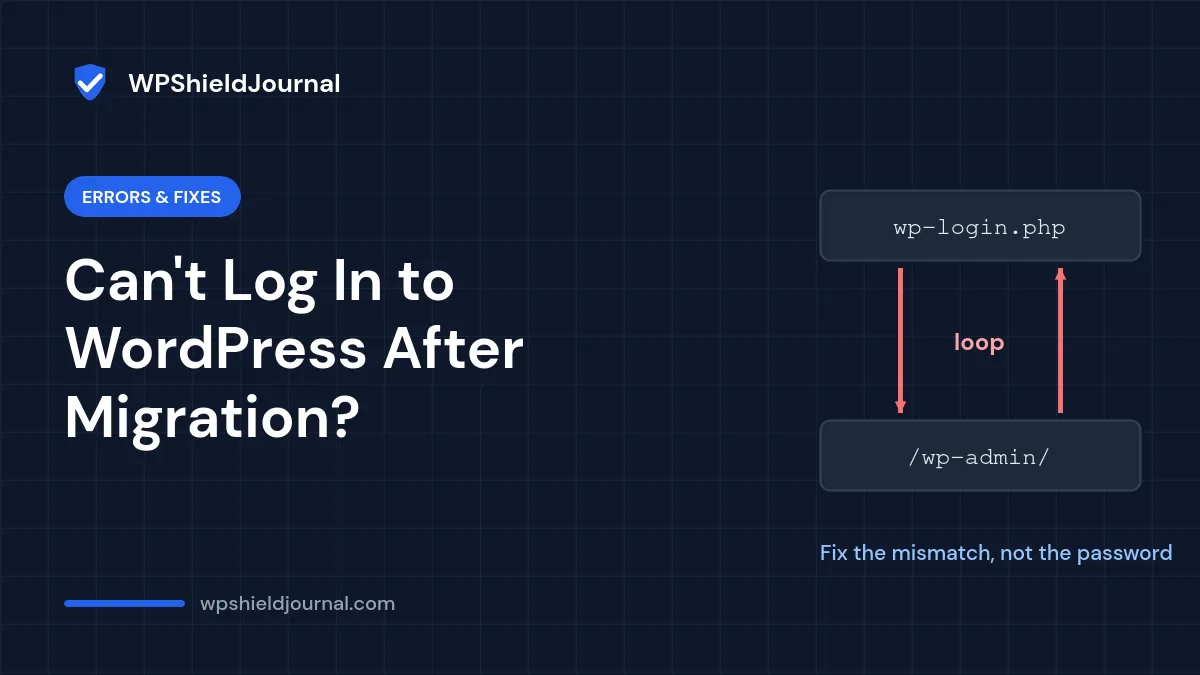
Can’t log in to WordPress after migration? You moved your site to a new host or domain, the homepage loads, but you cannot get into the dashboard. You enter the right username and password and WordPress sends you straight back to the login page, bounces you to the old domain, or the browser stops with ERR_TOO_MANY_REDIRECTS.
Your password is rarely the problem. A login loop means WordPress accepted your details but could not keep you logged in, usually because the site address, HTTPS setup or cookies no longer match after the move. If the whole site, not only the login page, fails with ERR_TOO_MANY_REDIRECTS, see our guide to fixing too many redirects.
Quick answer: clear your cookies for the site and try a private window. If that fails, check that the siteurl and home values in the database exactly match the new address, including https:// and www or no www. If you use Cloudflare or another proxy, make sure WordPress knows the connection is HTTPS. Then rule out .htaccess rules and plugins.
Why you can’t log in to WordPress after migration: match your symptom
| What happens | Most likely cause | Go to |
|---|---|---|
| Returned to the login page after logging in, no error | Cookies or a site URL mismatch | Steps 1 and 2 |
| Redirected to the old domain | siteurl / home still point to the old address | Step 2 |
| ERR_TOO_MANY_REDIRECTS on the login page or the whole site | HTTP/HTTPS mismatch, often behind Cloudflare or a proxy | Step 3 |
| Loop only after a specific plugin loads, or a 500 error | Security, caching or redirect plugin, or old .htaccess rules | Steps 4 and 5 |
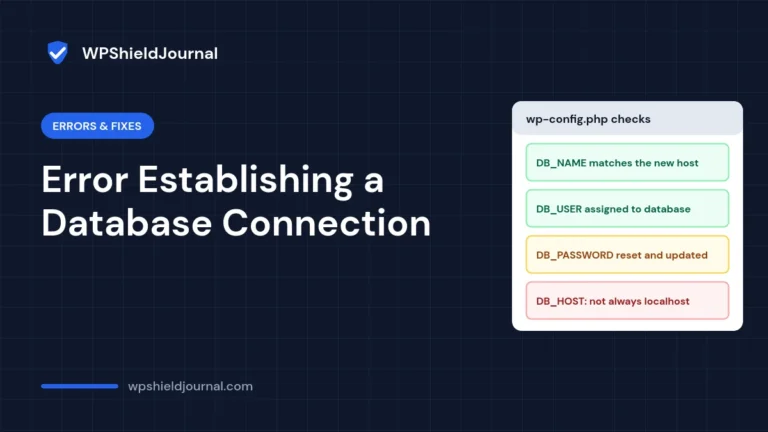
| “Error establishing a database connection” instead of a login page | Wrong database details in wp-config.php | Not a login loop; fix the database settings first |
Before you start
- A backup of the migrated site (files and database), in case an edit goes wrong.
- Access to your hosting file manager or SFTP, and to phpMyAdmin or WP-CLI.
- The exact new address of the site, for example
https://example.com.
Step 1: Rule out stale cookies
Login cookies are tied to a domain and path. Cookies left from the old site or a temporary URL can stop the new session from working. If the login page says cookies are blocked, see cookies are blocked due to unexpected output.
- Open a private browser window and try logging in at
https://your-domain/wp-login.php. - If that works, delete the cookies for your domain in your normal browser.
- If the private window also loops, continue to Step 2.
Also check wp-config.php for a COOKIE_DOMAIN constant copied from the old site. If it names the old domain, remove the line or correct it.
Step 2: Make the site address match the new domain
WordPress stores its address in two options: siteurl (where WordPress files are) and home (the public address). After a migration, one or both often still point to the old domain or use http instead of https.
To check them, open phpMyAdmin, open the wp_options table (your prefix may differ) and look at the rows siteurl and home. With WP-CLI:
wp option get siteurl
wp option get home
Both should normally be identical and match exactly how visitors reach the site, for example https://example.com with no trailing slash. To fix them, use one of the methods documented in the official WordPress migration guide:
- Edit the two database rows in phpMyAdmin, or run
wp option update siteurl https://example.comandwp option update home https://example.com. - Temporarily force the values in
wp-config.php, above the line that says to stop editing:
define( 'WP_HOME', 'https://example.com' );
define( 'WP_SITEURL', 'https://example.com' );
While these constants are set, the address fields in Settings → General are locked. Once you can log in, you can save the correct values in the database and remove the constants, or keep them if you prefer.
Do not run a blind find-and-replace on the database SQL file. Some plugins and widgets store serialized data that records string lengths, and a plain text replace can corrupt it. Use a serialization-aware tool such as WP-CLI’s search-replace (run with --dry-run first), and do not change the guid column of posts.
wp search-replace 'https://old-domain.com' 'https://example.com' --skip-columns=guid --dry-runStep 3: Fix HTTPS and proxy redirect loops
ERR_TOO_MANY_REDIRECTS after a move usually means WordPress and something in front of it disagree about whether the connection is HTTPS. A typical case is Cloudflare or a host-level proxy handling the SSL certificate while WordPress itself sees a plain HTTP request and redirects to HTTPS, again and again.
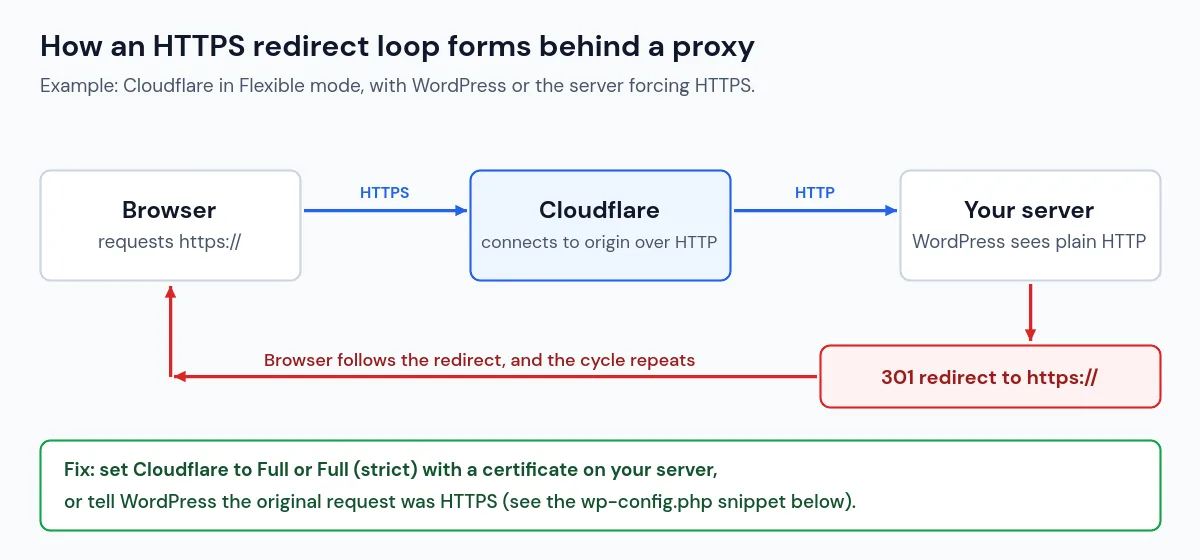
- Using Cloudflare? Check the SSL/TLS encryption mode. If your server has its own certificate, use Full or Full (strict). The Flexible mode connects to your server over HTTP, which causes a loop when WordPress or the server redirects HTTP to HTTPS, as Cloudflare’s own troubleshooting guide explains.
- Behind another proxy or load balancer? WordPress documents a
wp-config.phpfix that tells WordPress the original request was HTTPS when the proxy says so. Our version below adds a check so it does nothing when the header is absent:
if ( isset( $_SERVER['HTTP_X_FORWARDED_PROTO'] )
	&& strpos( $_SERVER['HTTP_X_FORWARDED_PROTO'], 'https' ) !== false ) {
	$_SERVER['HTTPS'] = 'on';
}- If
wp-config.phpcontainsdefine( 'FORCE_SSL_ADMIN', true );but the site does not yet have a working certificate, the admin area will loop. Install the certificate first, or temporarily remove that line. - Make sure
siteurlandhome(Step 2) usehttps://only once the certificate works.
Step 4: Reset .htaccess (Apache and LiteSpeed servers)
The migrated .htaccess file may contain redirect rules for the old domain, or old HTTPS rules that conflict with the new host. Download a copy as a backup, then replace the contents with the standard WordPress block:
# BEGIN WordPress
<IfModule mod_rewrite.c>
RewriteEngine On
RewriteRule .* - [E=HTTP_AUTHORIZATION:%{HTTP:Authorization}]
RewriteBase /
RewriteRule ^index\.php$ - [L]
RewriteCond %{REQUEST_FILENAME} !-f
RewriteCond %{REQUEST_FILENAME} !-d
RewriteRule . /index.php [L]
</IfModule>
# END WordPress
If this fixes the loop, add back any rules you genuinely need (for example from a caching or security plugin) one at a time. Once you can log in, visiting Settings → Permalinks and clicking Save regenerates the WordPress part of the file. If you can log in but posts return 404 errors, see fixing posts that return 404 after migration.
Step 5: Rule out plugins
Security plugins (custom login URLs, two-factor rules, IP allow lists), redirect plugins and caching plugins often hold settings tied to the old domain. To disable all plugins without the dashboard:
- In your file manager or SFTP, rename
wp-content/pluginstowp-content/plugins-off. - Try to log in. If it works, rename the folder back to
plugins. WordPress will show the plugins as deactivated. - Reactivate plugins one at a time, testing the login after each one, to find the culprit.
Also clear any server or CDN cache: a cached login page or cached redirect can keep the loop going after the cause is fixed.
How to confirm it is fixed
- Log in from a private window and from a second browser.
- Visit a few dashboard screens and log out and back in again.
- Check that the front end and dashboard both use the same address (same protocol and same
wwwchoice).
If none of this works
- Check your hosting error log for PHP fatal errors during login.
- Confirm that DNS for the domain points to the new server, not the old one.
- Reset your password via phpMyAdmin or WP-CLI (
wp user update USERNAME --user_pass=NEW_PASSWORD) only if you suspect the password itself is wrong. - Ask your new host whether a server-level redirect or proxy is in front of the site.
Prevent it next time
- Decide the final address, including HTTPS and
www, before you migrate, and set it once. - Install the SSL certificate on the new host before switching the site to HTTPS.
- Use a migration tool that handles serialized data, and test the migrated site on a temporary URL before changing DNS.
- Keep a backup from before the migration until the new site has run cleanly for a while.
Related guides
Browse more Errors & Fixes guides, or see Backups & Hosting for migrations and restores.
References
- Migrating WordPress, including Changing The Site URL (WordPress Advanced Administration Handbook)
- HTTPS (WordPress Advanced Administration Handbook)
- wp search-replace (WP-CLI documentation)
- ERR_TOO_MANY_REDIRECTS (Cloudflare SSL/TLS documentation)
Planning another move? Our guide to migrating WordPress to a new host covers the order that avoids these problems.
Conclusion
If you can’t log in to WordPress after migration, the cause is almost always a mismatch: between the stored site address and the real one, between HTTP and HTTPS, or between old rules and the new host. Fix the site address first, then HTTPS, then .htaccess and plugins, testing in a private window after each change.