Stuck on “Briefly Unavailable for Scheduled Maintenance”? How to Fix It
Your site shows “Briefly unavailable for scheduled maintenance. Check back in a minute.” and a minute has long passed. This message comes from WordPress’s update process, and when it sticks, the fix is usually one small file. This guide explains exactly how WordPress decides to show the message, how to clear it safely, and how to check that the interrupted update did not leave anything half-installed.
Quick answer: Open your WordPress root folder (where wp-config.php is) with your host’s file manager or SFTP, show hidden files, and delete the file named .maintenance. Then reload the site, go to Dashboard → Updates, and re-run any update that did not finish.
Why WordPress shows “briefly unavailable for scheduled maintenance”
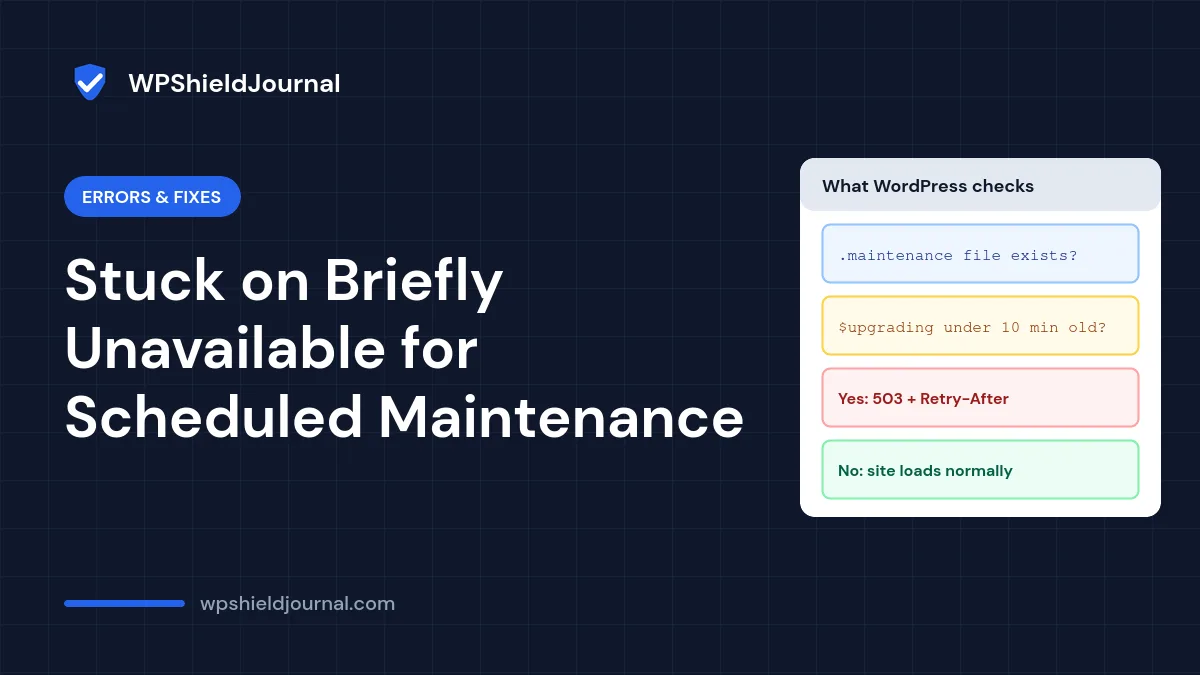
When WordPress updates core, plugins or themes, it creates a file called .maintenance in the root folder. We read the relevant code in WordPress core on this site (wp-includes/load.php and the upgrader class). The file contains a single line recording the time the update started:
<?php $upgrading = 1760450000; ?>The number is a Unix timestamp; yours will differ. On every request, WordPress checks for this file. If it exists and the timestamp is less than 10 minutes old, WordPress stops and shows the maintenance message with an HTTP 503 status and a Retry-After: 600 header. When the update finishes, WordPress deletes the file.
If the update is interrupted, for example by a timeout, a closed browser tab or a server error, the file can be left behind.
Step 1: Wait ten minutes, then check again
Because of the 10-minute rule in core, a leftover .maintenance file stops blocking the site once its timestamp is more than 10 minutes old. If the message disappears on its own, skip to Step 4 to check the interrupted update.
If it is still there after 10 minutes, something else is involved: the file may contain a timestamp that is not in the past, a page cache may be serving a stored copy, or the message may come from a different source altogether.
Step 2: Identify where the message comes from
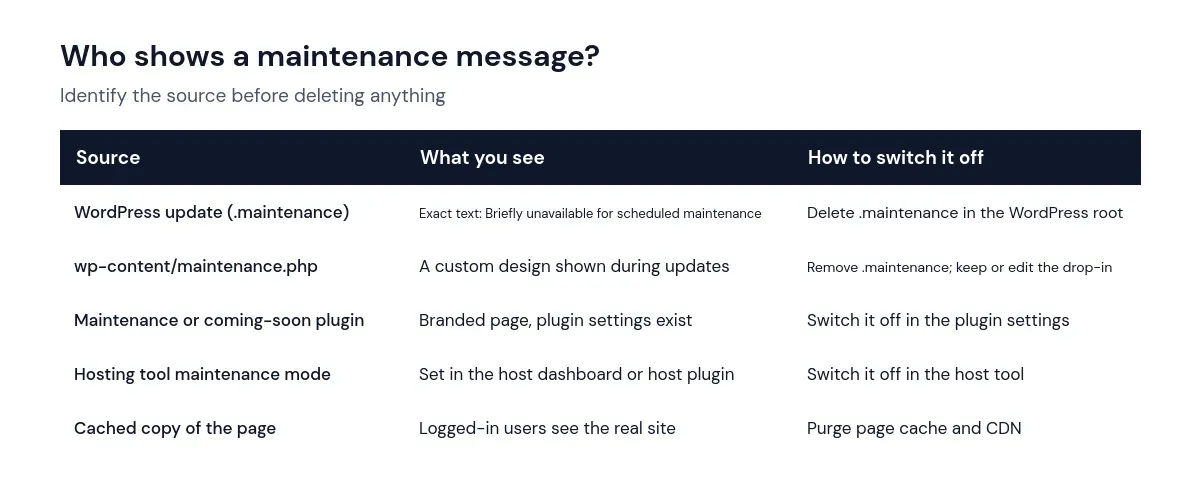
Compare the wording. The exact sentence “Briefly unavailable for scheduled maintenance. Check back in a minute.” comes from WordPress core. A branded page or a “coming soon” design usually comes from a plugin, a custom wp-content/maintenance.php file, or a hosting tool. Some hosts include their own maintenance mode; on this site, for example, the Hostinger Tools plugin has a maintenance mode setting (currently switched off).
Also check while logged in and in a private window. If you see the real site when logged in but visitors see the message, a cache is serving an old copy.
Step 3: Delete the .maintenance file
- Open your host’s file manager or connect with SFTP.
- Go to the folder that contains
wp-config.php,wp-adminandwp-includes. - Turn on Show hidden files. Files starting with a dot are hidden by default.
- Delete
.maintenance. Do not delete.htaccess, which is a different file. - Reload the site in a private window, then purge your page cache and CDN.
If you use WP-CLI, wp maintenance-mode status reports whether WordPress is in maintenance mode, and wp maintenance-mode deactivate removes it, as described in the WP-CLI maintenance-mode commands.
Only delete the .maintenance file when no update is actually running. If you started an update in the last few minutes, wait for it to finish first.
Step 4: Check the interrupted update
The message going away does not mean the update completed. An interrupted update can leave a plugin partly replaced, which may cause errors later. If the next core update then reports that another update is running, see another update is currently in progress.
- Go to Dashboard → Updates and run any update that is still listed.
- On the Plugins screen, look for plugins that are missing, deactivated or showing errors. Reinstall them from their source if needed.
- If you see a critical error after removing the file, follow our guide to fixing the WordPress critical error.
- If an update fails repeatedly, look for the cause: low disk space, file permission problems, or PHP time and memory limits. Our memory limit guide covers the last one.
How to avoid getting stuck again
- Update a few plugins at a time instead of all at once, especially on slower hosting.
- Keep the browser tab open until updates report that they are finished.
- Check free disk space before large updates; full disks make updates fail midway.
- Keep a recent backup so you can roll back an update that breaks something. Our auto-updates policy explains which updates to test first.
Frequently asked questions
Is it safe to delete the .maintenance file?
Yes, once no update is running. WordPress creates it at the start of each update and deletes it at the end. Removing a leftover copy only ends maintenance mode; it does not change your content.
I cannot see the .maintenance file. Where is it?
It is in the same folder as wp-config.php. Most file managers hide files whose names start with a dot until you enable an option such as “Show hidden files”.
Does maintenance mode hurt SEO?
WordPress sends a 503 status with a Retry-After header, which tells search engines the outage is temporary. A short maintenance window is normal; leaving the site in maintenance mode for days is not.
Summary
The “briefly unavailable for scheduled maintenance” message comes from a .maintenance file that WordPress creates during updates and normally deletes afterwards. Core ignores the file after 10 minutes, so a message that persists longer usually involves a cache, a plugin, a host tool or an unusual timestamp. Delete the file, purge caches, and finish the interrupted update.