How to Find a WordPress Plugin Conflict Without Breaking Your Live Site
A plugin conflict happens when two plugins, or a plugin and your theme, interfere with each other: a form stops submitting, a menu breaks, the editor will not load, or a page throws an error. The standard advice is “deactivate all plugins”, but doing that on a live site can break checkout, forms and security for real visitors. This guide shows how to find the conflicting plugin quickly and safely.
Quick answer: Reproduce the problem and note exactly how to trigger it. Check the browser Console and the PHP debug log first, because they often name the plugin straight away. If they do not, copy the site to staging and use the halving method: deactivate half the plugins, test, and keep halving the group that contains the problem. Twenty plugins take at most five rounds.
Step 1: Pin down the symptom first
Write down the exact steps that trigger the problem, which page it affects, whether you need to be logged in, and which browser you used. A conflict you cannot reproduce on demand cannot be tested. Also note what changed recently: a plugin update, a new plugin, a theme update or a PHP version change. The most recent change is the first suspect.
Step 2: Let the error messages name the plugin
Many a plugin conflict identifies itself if you know where to look:
- Front-end problems (sliders, menus, forms, buttons): open the page, press F12, and check the Console tab for red JavaScript errors. The file path in the error, for example
/wp-content/plugins/example-plugin/assets/script.js, tells you which plugin’s script failed. The first error is usually the important one, because later errors are often knock-on effects. - Errors, blank pages or failing actions: enable the debug log and look in
wp-content/debug.log. Our critical error guide shows the exactwp-config.phplines and how to read the file path in a fatal error. - The block editor will not load or save: the Console shows JavaScript errors, and the Network tab shows failed requests to
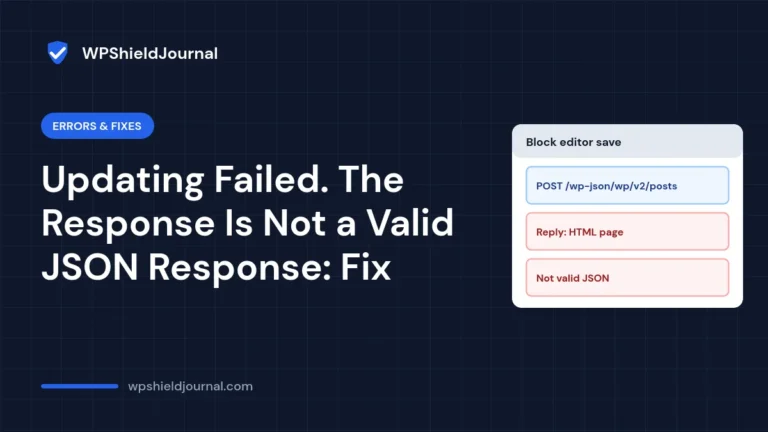
/wp-json/, which point to a REST API problem caused by a security or caching plugin.
If the log or Console clearly names a plugin, skip straight to Step 5 and test that plugin alone.
Step 3: Work on a staging copy, not the live site
Hunting a plugin conflict on a live site means visitors may hit a broken checkout or contact form while you work. Create a staging copy instead. Many hosts offer one-click staging in their control panel, and several backup plugins can clone a site. Check that the problem also happens on staging before you start testing. Our WordPress staging site guide shows how to set one up safely.
Some plugins send emails, process payments or sync data with other services. On a staging copy, disable outgoing email and make sure payment gateways are in test mode, so testing does not send real messages or charges.
If staging is not an option, test at a quiet time, keep security, backup and caching plugins active unless they are suspects, and put the site in maintenance mode only if the broken feature is customer-facing anyway.
What about the Health Check & Troubleshooting plugin?
The official Health Check & Troubleshooting plugin offers a troubleshooting mode in which “all plugins are disabled, and a default theme is used, but only for your user.” That is a useful idea, but when we checked its WordPress.org page in October 2026 it showed a last update about two years ago and a warning that it had not been tested with the latest three major WordPress releases. Treat it as a tool to try on staging first rather than relying on it to protect live visitors.
Step 4: Use the halving method instead of one at a time
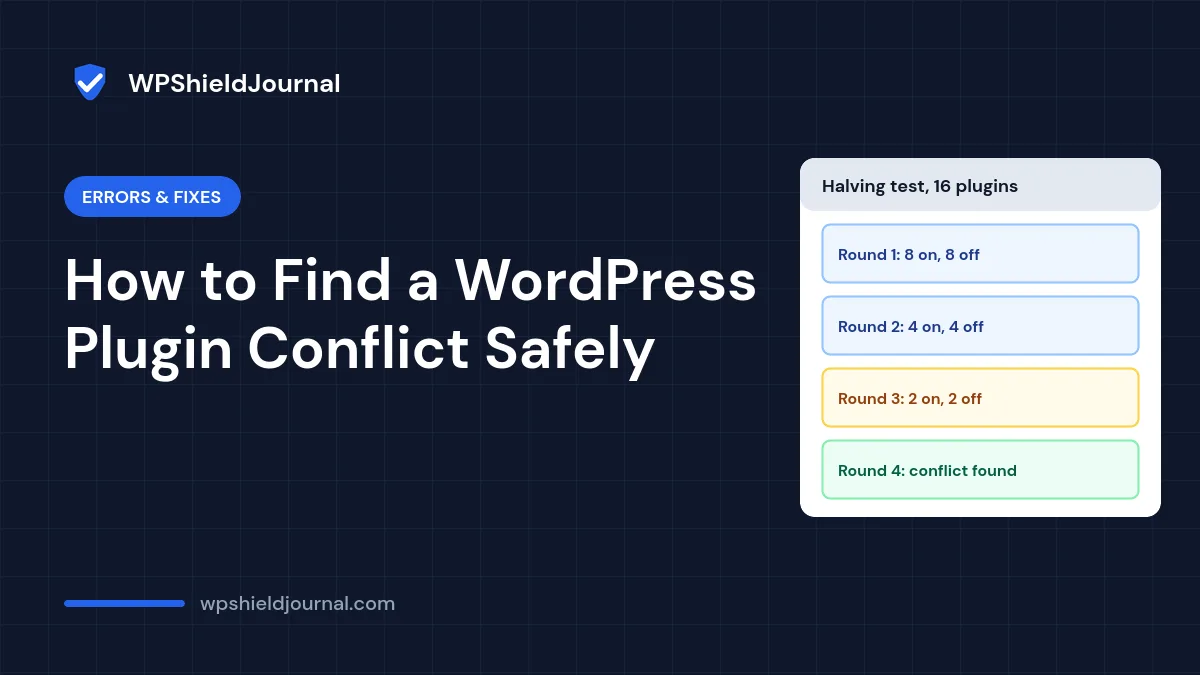
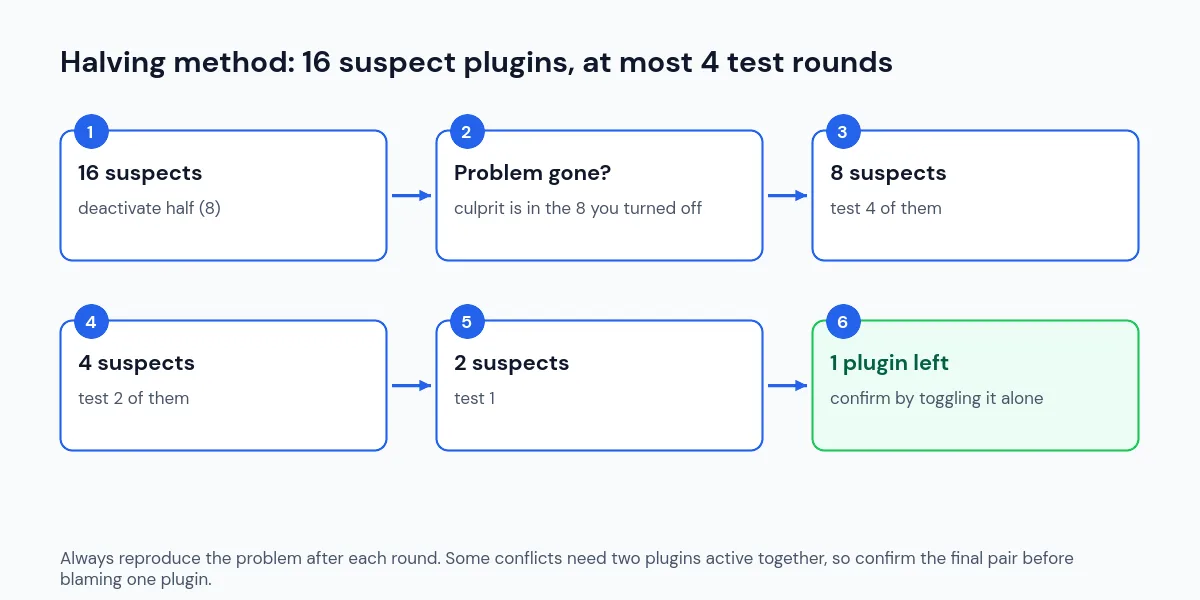
Turning plugins off one at a time works, but it is slow. Splitting the suspects in half each round isolates a plugin conflict much faster:
- List your active plugins. Leave any plugin out of the test only if you are certain it is unrelated.
- Deactivate half of them and repeat the steps that trigger the problem.
- If the problem disappears, the culprit is in the half you just deactivated. If it remains, it is in the half that is still active.
- Reactivate everything, then repeat with only the suspect half, splitting it again.
- Continue until a single plugin remains.
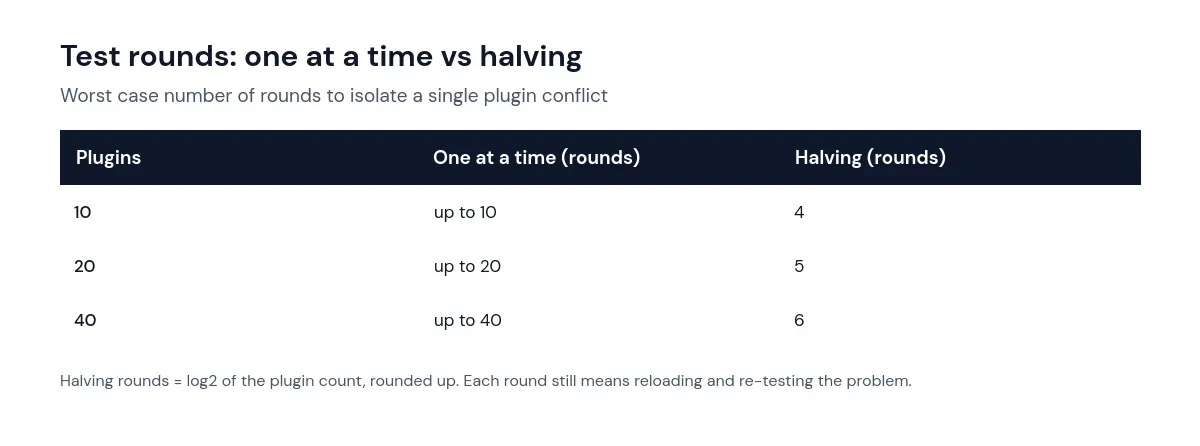
With WP-CLI on your staging site, you can switch groups quickly. List the active plugins, deactivate a group by name, then reactivate it:
wp plugin list --status=active --field=name
wp plugin deactivate plugin-one plugin-two plugin-three
wp plugin activate plugin-one plugin-two plugin-three
The WP-CLI plugin commands also include wp plugin deactivate --all, which is useful on staging but should not be run on a live site.
Step 5: Confirm the plugin conflict and rule out the theme
Once one plugin remains, confirm it: deactivate only that plugin and check the problem disappears, then reactivate it and check it returns. Many conflicts only happen when two specific plugins are active together, so try the remaining plugin alone with all others off. If the problem disappears again, you have a pair, not a single bad plugin.
If the problem survives with every plugin deactivated, switch to a default theme such as Twenty Twenty-Five on staging. If that fixes it, the conflict is between your theme and a plugin, or in theme code itself.
Step 6: Fix the conflict properly
- Update both sides. Check whether either plugin has an update or a changelog entry that mentions your symptom.
- Roll back temporarily. If the conflict started after an update, reinstall the previous version on staging to confirm, then report it.
- Report it with evidence. Send the plugin developer the exact steps, the Console or log error, the WordPress and PHP versions, and the name of the other plugin. Use the plugin’s support forum on WordPress.org or the developer’s support channel.
- Check overlapping features. Two plugins doing the same job, such as two caching, SEO or security plugins, often clash. Keep one.
- Replace it. If the plugin is abandoned or the developer does not respond, find a maintained alternative.
After fixing it on staging, apply the same change to the live site, purge caches, and test the original steps again. Our guide to changes not showing after clearing cache helps if the fix does not appear.
Frequently asked questions
Will deactivating plugins delete their settings?
Deactivating a plugin normally keeps its settings in the database. Deleting it from the Plugins screen may remove its data, depending on the plugin. Only deactivate during testing.
Why does the problem only happen for logged-out visitors?
Logged-in users usually bypass page caching, so a conflict involving cached pages or optimised JavaScript may only appear when you are logged out. Test in a private browser window as well.
Can a plugin conflict cause a critical error?
Yes. If two plugins declare the same function or class, PHP stops with a fatal error. The debug log names both files, which makes that type of conflict easy to identify.
Summary
Start every plugin conflict investigation with evidence: the Console and debug log often name the plugin. If they do not, test on staging and use the halving method to narrow down the suspects, then confirm the result by toggling the plugin alone and in pairs. Fix the conflict with updates, a rollback or a replacement, and report it so others benefit.