WordPress Posts Return 404 After Migration? Fix Permalinks and Rewrites
You moved your site, the home page loads, but every post and page returns 404 Not Found. When WordPress posts return 404 after migration, the content is almost never missing. The new server is simply not passing pretty permalinks such as /about/ to WordPress. This guide shows how to confirm that in a minute and fix it for Apache, LiteSpeed and Nginx servers.
Quick answer: Log in and go to Settings → Permalinks, then click Save Changes without changing anything. That rebuilds WordPress’s rewrite rules. If posts still return 404, check that .htaccess in the WordPress folder contains the WordPress rewrite block (Apache or LiteSpeed), or that the Nginx configuration contains try_files $uri $uri/ /index.php?$args;.
Step 1: Confirm why posts return 404 after migration
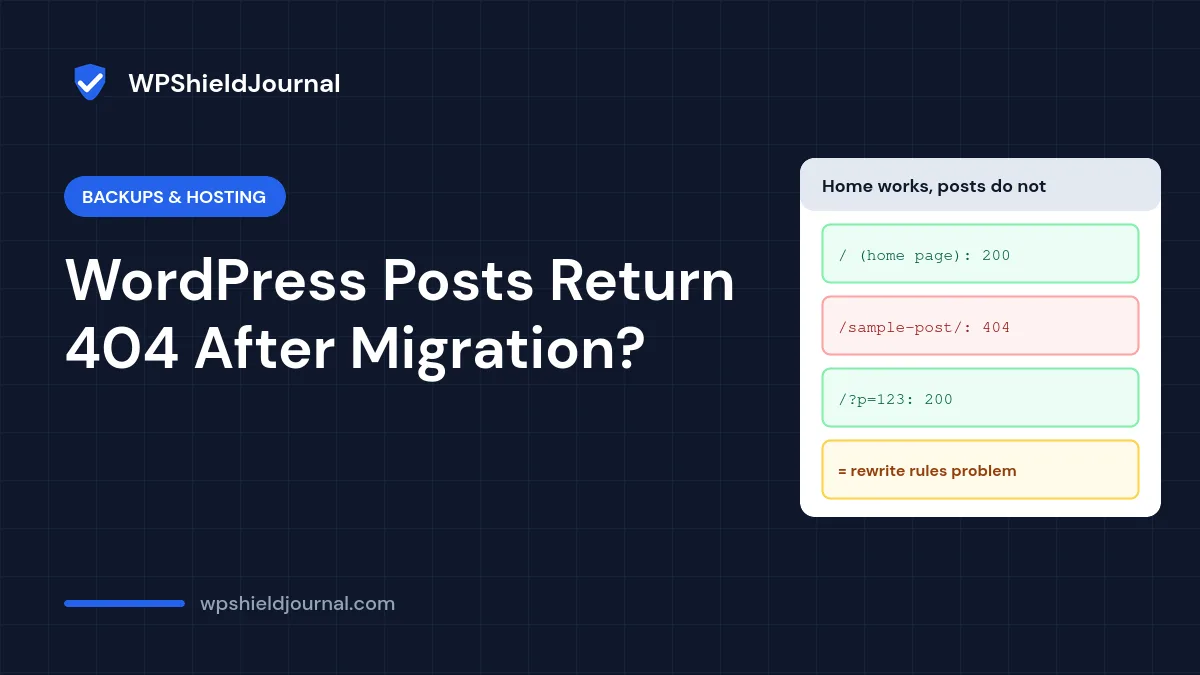
Three quick tests tell you whether WordPress posts return 404 because of rewrites or because something else is wrong:
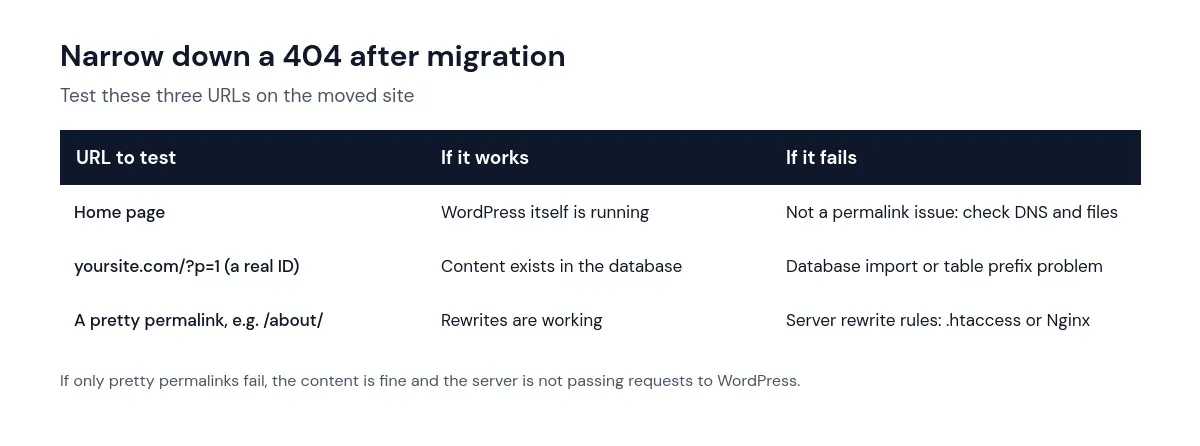
To find a real post ID, open Posts in the dashboard and hover over a post title: the edit link contains post=123. Visiting yoursite.com/?p=123 bypasses pretty permalinks entirely.
Step 2: Re-save the permalink settings
Go to Settings → Permalinks and click Save Changes. This rebuilds the rewrite rules that WordPress stores in the database, and on Apache or LiteSpeed it also writes the WordPress block into .htaccess if WordPress can write to the file.
This also fixes 404s that appear on a site that was not moved. On this site, for example, our SEO plugin’s XML sitemap started returning 404 after the stored rewrite rules were rebuilt at a moment when that plugin’s rules were not loaded. Rebuilding the rules again with the plugin active brought the sitemap back.
Step 3: Check the .htaccess file (Apache and LiteSpeed)
Open .htaccess in the folder that contains wp-config.php (enable hidden files in your file manager). It should contain the WordPress block, which for a site in the root folder looks like this, according to the official Apache documentation for WordPress:
# BEGIN WordPress
RewriteEngine On
RewriteRule .* - [E=HTTP_AUTHORIZATION:%{HTTP:Authorization}]
RewriteBase /
RewriteRule ^index\.php$ - [L]
RewriteCond %{REQUEST_FILENAME} !-f
RewriteCond %{REQUEST_FILENAME} !-d
RewriteRule . /index.php [L]
# END WordPress
Common migration problems:
- The file was not copied. Files starting with a dot are often skipped by file managers and some FTP clients.
- The site moved into or out of a subfolder. For a site in
/blog/,RewriteBaseand the final rule must use/blog/. Re-saving permalinks writes the correct version. - WordPress cannot write the file. If saving permalinks shows a message asking you to update
.htaccessmanually, copy the rules it shows into the file.
Step 4: Check the server configuration
- Apache: the
mod_rewritemodule must be enabled and the server must allow.htaccessoverrides for your folder. On shared hosting this is normally already set; ask your host if.htaccesschanges seem to be ignored. - Nginx: Nginx does not read
.htaccess. The site’s server block needs the rule from the official Nginx documentation for WordPress:try_files $uri $uri/ /index.php?$args;insidelocation /. On managed hosting, ask your host to confirm it is present.
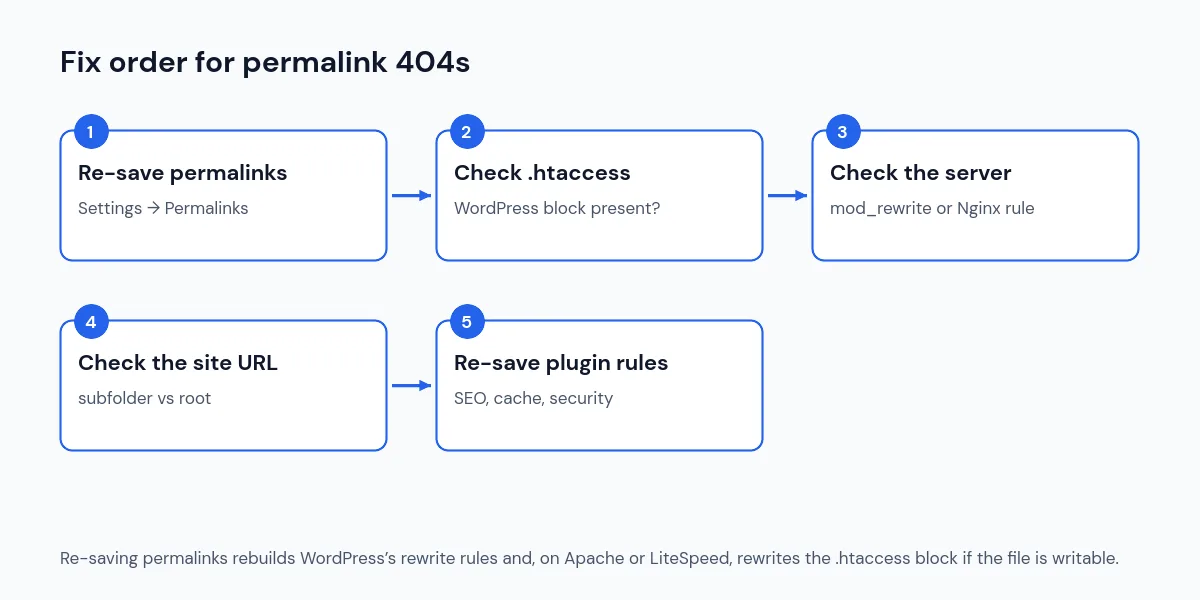
Step 5: Check the site address and plugin rules
In Settings → General, make sure the WordPress Address and Site Address match the new domain and folder exactly. A leftover old domain or subfolder produces broken links and redirects that look like 404 errors. If you also cannot log in after the move, see our guide to login problems after migration.
Then re-save the settings of plugins that add their own URLs or rewrite rules, such as SEO plugins (sitemaps), caching plugins and security plugins. Purge all caches afterwards so visitors do not keep receiving cached 404 pages.
Step 6: Find any remaining broken links
If the domain changed, internal links in your content may still point to the old domain. Run a database search and replace that skips the GUID column, as explained in our guide to mixed content after HTTPS, which uses the same safe method. Then check Google Search Console for pages reported as “Not found (404)”.
Frequently asked questions
Will re-saving permalinks change my URLs?
No, as long as you do not select a different structure. Clicking Save Changes with the same setting only rebuilds the rules.
Why does the home page work when posts do not?
The home page is served by index.php directly, so it does not need rewrite rules. Every other pretty permalink relies on the server sending the request to WordPress.
Should I switch to plain permalinks to fix it?
No. Plain permalinks (?p=123) would hide the problem but change every URL on your site, breaking links and search rankings. Fix the rewrite rules instead.
For the full move, step by step, see how to migrate WordPress to a new host.
Summary
When WordPress posts return 404 after migration, test the home page, a ?p= link and a pretty permalink to confirm it is a rewrite problem. Re-save permalinks, check the .htaccess block or the Nginx try_files rule, confirm the site address, and re-save plugins that register their own URLs. Use the migration checklist next time to catch this before switching DNS.