How to Back Up a WordPress Site and Prove the Backup Will Restore
Most people back up a WordPress site with a plugin or their host’s daily backups and assume it will work. The problem only shows up on the day they need it: the archive is missing the uploads folder, the database export stopped halfway, or the only copy was stored on the server that failed. This guide covers what a complete backup contains, where to keep it, and how to prove it will restore without putting your live site at risk.
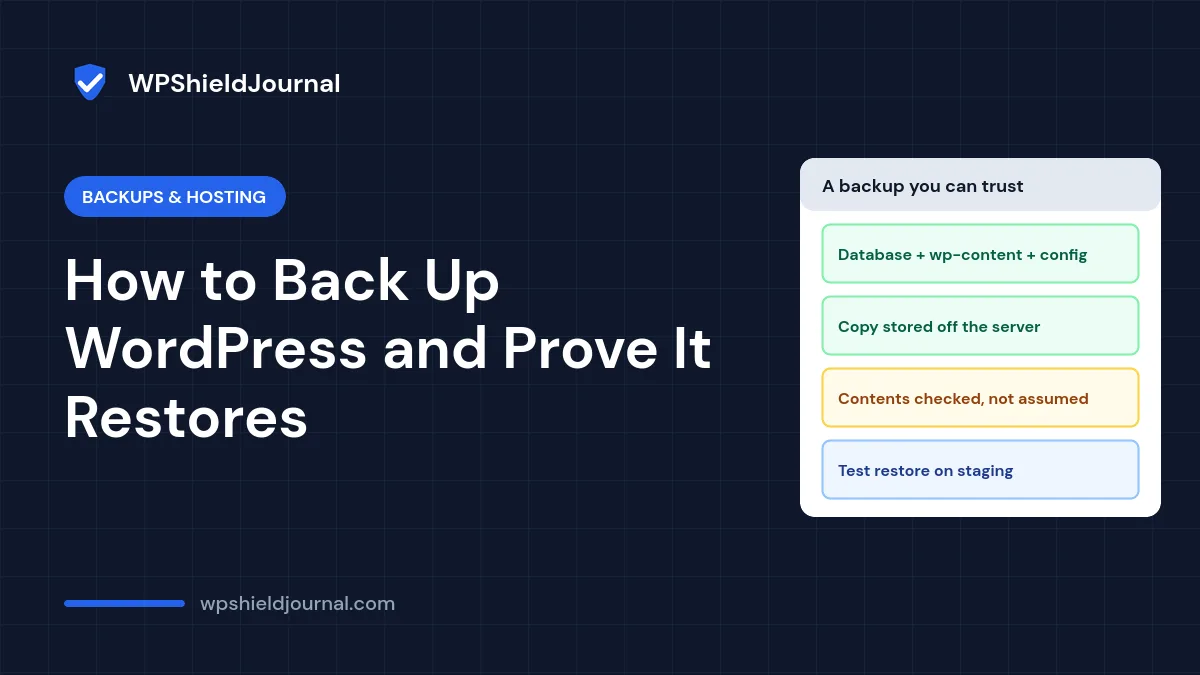
Quick answer: A complete backup contains the database and the files: wp-content (plugins, themes, uploads), wp-config.php and .htaccess. Keep several recent copies, at least one stored away from your web server. Then verify it: open the archive, check the file count and the database table count, and restore it on a staging copy at least occasionally. Your host’s daily backups are useful, but they should not be your only copy.
What you need to back up a WordPress site
The official WordPress backup documentation is clear that you need both parts: “You need both to be able to fully restore a typical WordPress site.”
- The database: posts, pages, settings, users, comments, and data stored by plugins such as forms and stores.
- The files: everything in
wp-content(plugins, themes and the uploads folder with your media), pluswp-config.phpand.htaccess. WordPress core files can be downloaded again, but including them makes restoring simpler.
It helps to know how big a complete backup should be. Here is what this site contained when we measured it:
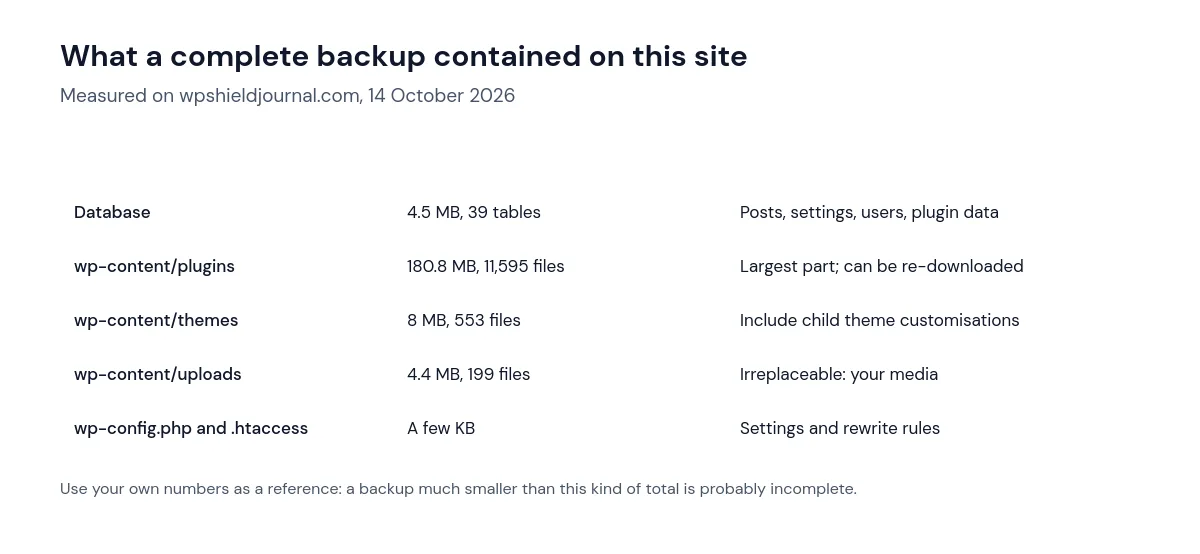
If your backup archive is far smaller than the equivalent total for your site, something is missing. Plugins that exclude large folders by default, or that time out on big uploads folders, are a common reason.
Where to keep backups
The WordPress documentation recommends keeping several recent backups and storing copies in different places, for example on the server, in cloud storage and on a computer or external drive. The reason is simple: a backup stored only on the same server disappears if the hosting account is suspended, hacked or deleted.
A practical setup for a small site:
- Host backups for quick restores of recent changes.
- A plugin or manual backup sent to separate cloud storage you control.
- An occasional download of a full backup to your own computer, especially before major changes.
How often to back up
Match frequency to how much you would lose. The official guidance suggests weekly backups for small sites with few changes, daily backups for active sites, and a backup before every upgrade or move. A shop or membership site that takes orders all day may need more frequent database backups than the files.
Making a backup manually with WP-CLI
Backup plugins are fine for most sites. If you have SSH access, you can also create a backup yourself, which is useful before risky changes. Run these from the WordPress root folder:
wp db export backup-$(date +%F).sql
tar -czf files-$(date +%F).tar.gz wp-content wp-config.php .htaccess
The first command exports the database with wp db export. The second packs wp-content, wp-config.php and .htaccess into one archive. Move both files off the server afterwards, and delete them from the web root, because a database export left in a public folder can be downloaded by anyone who guesses its name.
Never store backup archives in a publicly accessible folder for longer than necessary. A database export contains user emails and password hashes.
How to prove a backup will restore
Automatic backups can fail silently. These checks catch most problems without touching the live site:
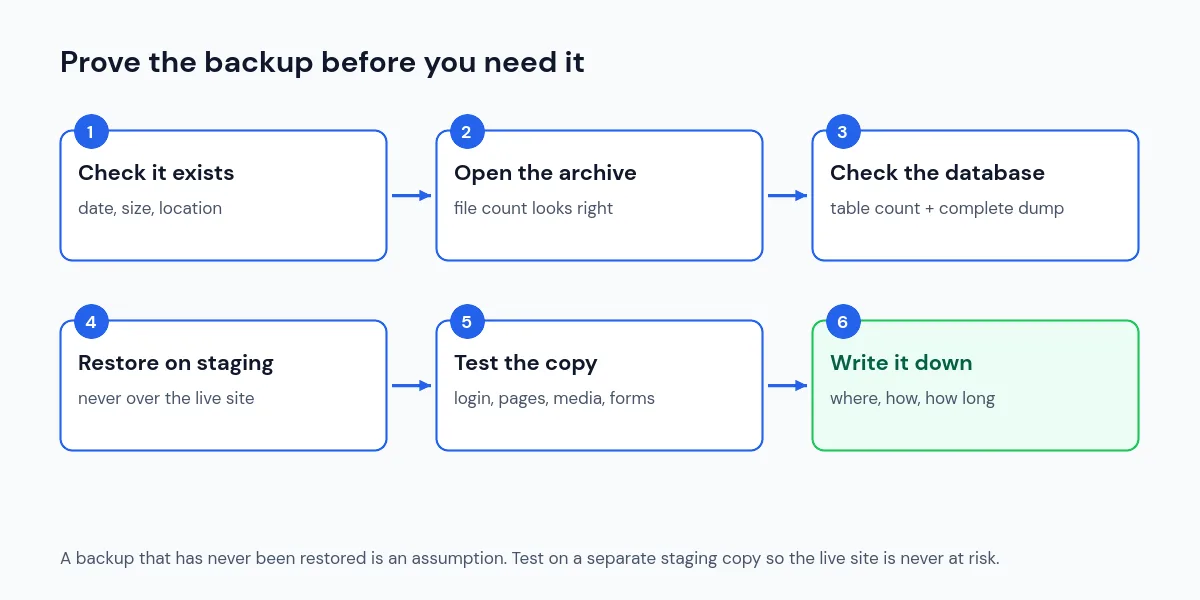
- Check it exists. Confirm the date, the size and that the copy is actually in your off-site storage.
- Open the archive. List its contents and check that
wp-content/uploadsis there with a sensible number of files. On a computer with a terminal,tar -tzf files.tar.gz | wc -lorunzip -l backup.zip | tail -n 1shows the file count. - Check the database export. Count the tables in the export with
grep -c "CREATE TABLE" backup.sqland compare with the number your live site reports withwp db tables | wc -l. Exports made with mysqldump normally end with a line beginning-- Dump completed; if the file ends abruptly, the export probably stopped early. - Restore it on staging. Restore the backup onto a staging site or a local copy, never over your live site. Many hosts offer staging, and local tools can run a WordPress copy on your computer.
- Test the restored copy. Log in, open several posts and pages, check that images load, and submit a test form.
- Write down the process. Note where backups are stored, how to restore them, and how long it took. You will be under pressure when you need it.
We have not run a restore test on this site’s host backups as part of writing this guide, and we do not test destructive restores on the live site. The point of the staging step is that you never have to.
Why backups fail and what to check
| Symptom | Possible cause | What to check |
|---|---|---|
| Backup stops partway | PHP time limit or memory limit | Plugin logs; try smaller parts or a server-side backup |
| Archive is unusually small | Folders excluded or skipped | Plugin exclusion settings; uploads folder present |
| Upload to cloud storage fails | Expired connection or full storage | Reconnect the storage account; check free space |
| No backup for several days | Scheduled tasks not running | Tools → Site Health for WP-Cron errors; plugin schedule |
| Disk full errors | Old backups kept on the server | Keep fewer local copies; store the rest off-site |
If backups fail after you change hosting plans or PHP versions, check the plugin’s logs first. They usually name the step that failed.
Frequently asked questions
Are my host’s automatic backups enough?
They are a good safety net, but they live with the same provider as your site, and retention periods are limited. Keep at least one independent copy that you control, and check how restoring works with your host before you need it.
Do I need to back up WordPress core files?
Not strictly, because WordPress can be downloaded again. Including them makes restoring faster and avoids version mismatches, so most full backups include them.
How long should I keep backups?
Keep several recent copies, plus an older one. Some problems, such as malware, are only discovered weeks later, and you need a backup from before the problem started. Our guide to a site redirecting to spam explains why that matters.
Summary
To back up a WordPress site properly, copy both the database and the files, keep copies in more than one place, and verify them instead of assuming they work. Check the archive contents and the database table count, and restore to staging from time to time. A backup you have restored once is worth far more than many you never tested.