How to Stop Brute-Force Login Attacks on WordPress
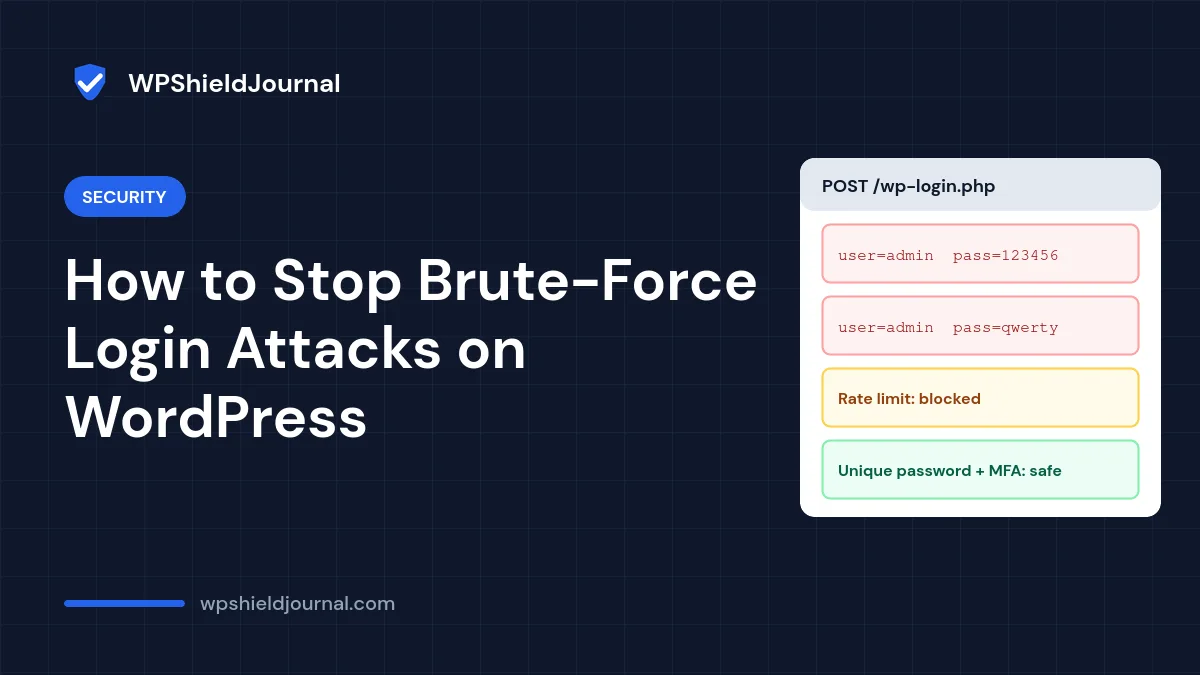
If your security plugin or server logs show hundreds of failed logins, your site is facing brute-force login attacks: automated bots trying common usernames and passwords until one works. Almost every public WordPress site sees them. The good news is that a few changes make them practically harmless. This guide explains what actually stops them, what only reduces the noise, and how to check what your own site reveals.
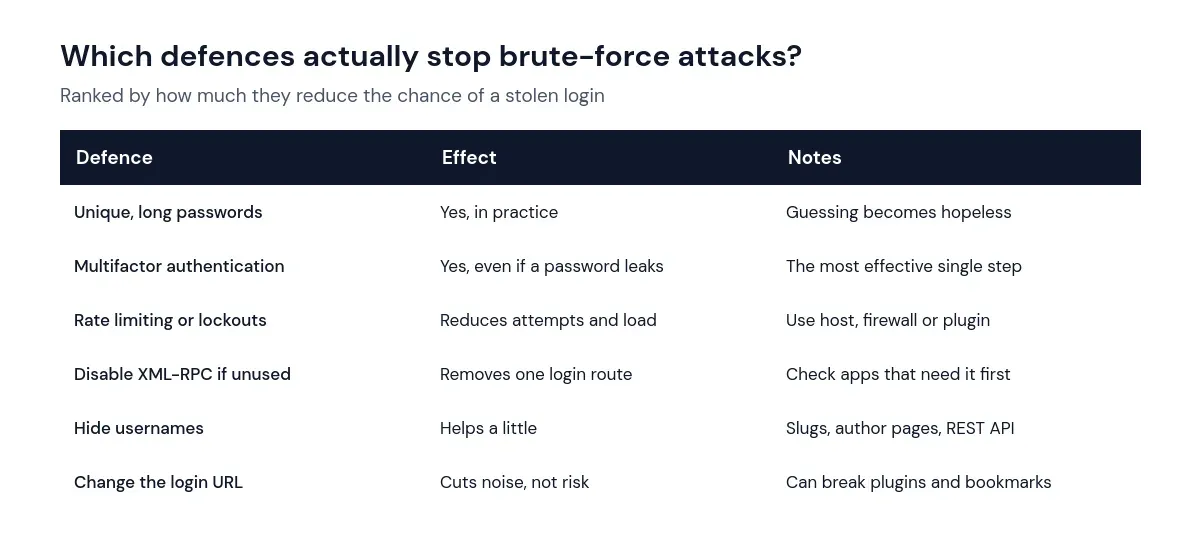
Quick answer: Use a long, unique password for every administrator and turn on multifactor authentication. Add rate limiting or lockouts through your host, a firewall or a security plugin. Disable XML-RPC if nothing uses it. Hiding usernames and moving the login page help a little, but they are not substitutes for strong authentication.
How brute-force login attacks work
Bots send login requests to wp-login.php, and sometimes to xmlrpc.php, using lists of common usernames (such as admin or names taken from your site) and leaked or common passwords. WordPress core does not limit the number of login attempts on its own, so without extra protection a bot can keep trying indefinitely. The risk is twofold: an account with a weak or reused password can be taken over, and a heavy attack can slow the server for real visitors.
What actually stops them
1. Long, unique passwords
Automated guessing relies on common or previously leaked passwords. A long, randomly generated password stored in a password manager is effectively immune. Check every administrator and editor, not just your own account; the weakest account is the one that gets taken over.
2. Multifactor authentication
With multifactor authentication (MFA), a correct password alone is not enough to log in. WordPress core does not include MFA, so it is added through a security or two-factor plugin, or through a login provider. Prefer an authenticator app or security key over SMS codes, and store the backup codes safely so you cannot lock yourself out.
Before turning on MFA for an administrator account, make sure you have a second administrator or the backup codes, and know how to disable the plugin by renaming its folder if you get locked out.
3. Rate limiting and lockouts
Limiting how many attempts an IP address can make reduces both the chance of a lucky guess and the load on the server. The most efficient place is before WordPress runs: many hosts and web application firewalls can rate-limit wp-login.php and xmlrpc.php. A security plugin with login lockouts is the next option. Be careful with very strict lockouts on shared office networks, where many people share one IP address. If a firewall rule ends up blocking you, our guide to the 403 Forbidden error shows how to find which layer is responsible.
4. Disable XML-RPC if you do not need it
XML-RPC lets apps log in remotely and has historically allowed many password guesses in a single request. If no app or service you use needs it, disabling it removes that route. Our guide to disabling XML-RPC shows how to check first and how we did it on this site.
What helps a little
Avoid exposing login names
Bots try usernames they can discover. WordPress publishes each author’s slug (the part used in author URLs and the REST API), and by default that slug is often the same as the login name. We checked what this site exposes:
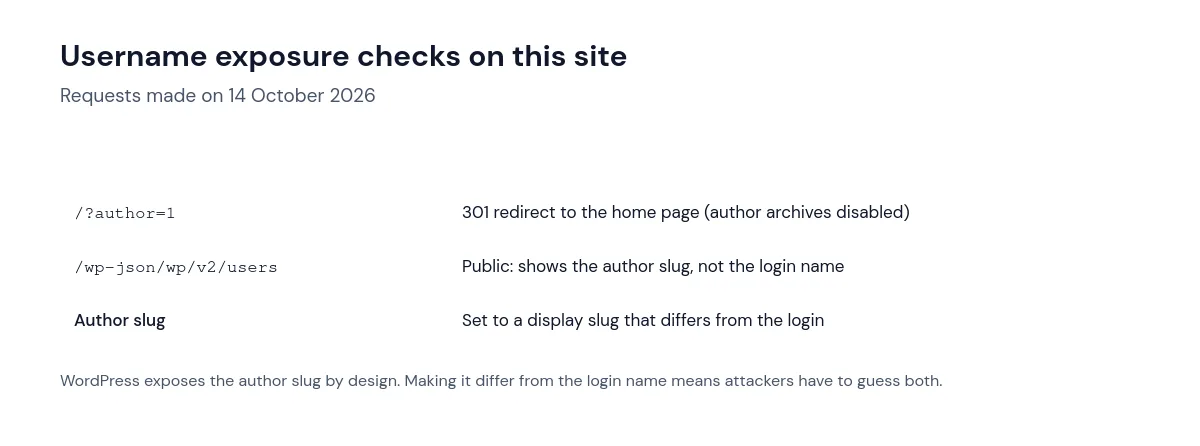
To do the same, give each author a display name that differs from their login. The author URL slug (called the “nicename”) is not editable on the profile screen, but SEO plugins can disable author archives, and creating new administrator accounts with non-obvious login names avoids the problem from the start.
Changing the login URL
Plugins that move wp-login.php to a secret address reduce automated noise in your logs. They do not make a weak password safe, can conflict with other plugins and caching, and can lock you out if you forget the address. Treat it as optional.
How to check whether you are being targeted
- Security plugin logs usually list failed login attempts with usernames and IP addresses.
- Server access logs in your hosting panel show
POSTrequests to/wp-login.phpand/xmlrpc.php. Hundreds per hour from many IPs is typical bot traffic. - Unexpected password reset emails can indicate someone trying your accounts.
- New administrator accounts you did not create are a sign that an attack, brute force or otherwise, succeeded. Follow our guide to an unknown admin user that keeps coming back.
Also review application passwords
Since WordPress 5.6, users can create application passwords for REST API and XML-RPC access. Review Users → Profile → Application Passwords for each administrator and revoke any you do not recognise or no longer use. They are separate from the main password, so changing the main password does not revoke them.
Frequently asked questions
Should I rename the admin username?
Avoid obvious login names for new administrator accounts. To replace an existing one, create a new administrator, confirm you can log in with it, and only then delete the old account and reassign its content. Never delete your only working administrator.
Is a CAPTCHA on the login page enough?
A CAPTCHA slows simple bots but does not replace unique passwords and MFA. Some bots solve CAPTCHAs, and XML-RPC logins bypass a login-page CAPTCHA entirely.
Do brute-force attempts mean my site is hacked?
No. Failed attempts mean bots are trying. Look for signs of a successful login, such as new administrators, changed settings or unfamiliar files, before assuming a compromise.
Choosing a plugin for login protection? Our comparison of free WordPress security plugins sets out what the free versions of Wordfence, Kadence Security and Sucuri include.
Summary
Brute-force login attacks are constant, but they only succeed against weak or reused passwords. Unique passwords and MFA stop them; rate limiting and disabling unused XML-RPC reduce load and risk; hiding login names and moving the login page are minor extras. Work through the security hardening checklist to cover the rest, and see the official WordPress hardening guide for background.