WordPress Image Upload Error: The Server Cannot Process the Image
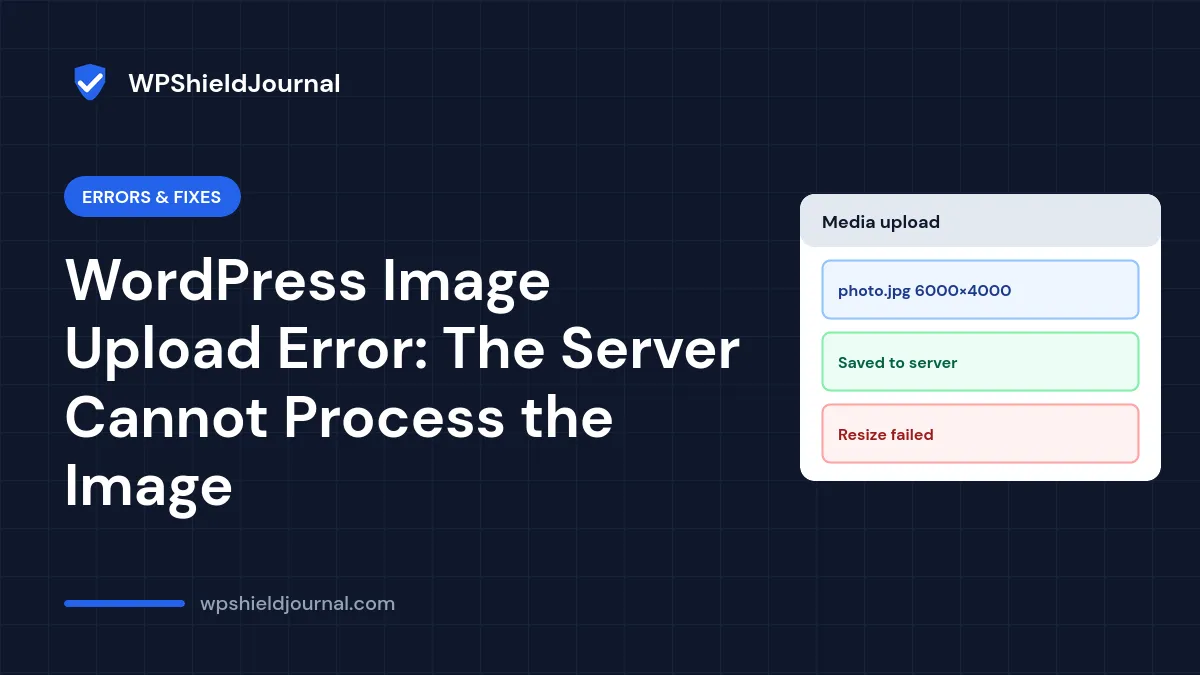
You upload a photo to the Media Library and instead of a thumbnail you get a red message: “The server cannot process the image. This can happen if the server is busy or does not have enough resources to complete the task.” Older WordPress versions showed a shorter “HTTP error” for the same problem. This guide explains what actually failed, how to tell whether the image was saved, and how to fix the WordPress image upload error for good.
Quick answer: check the Media Library first, because the file may already be there. Then resize the image so its longest side is about 2,560 pixels and upload it again. If small images fail too, look at the PHP error log, the server’s memory and time limits, and the image library shown in Site Health.
What the error means
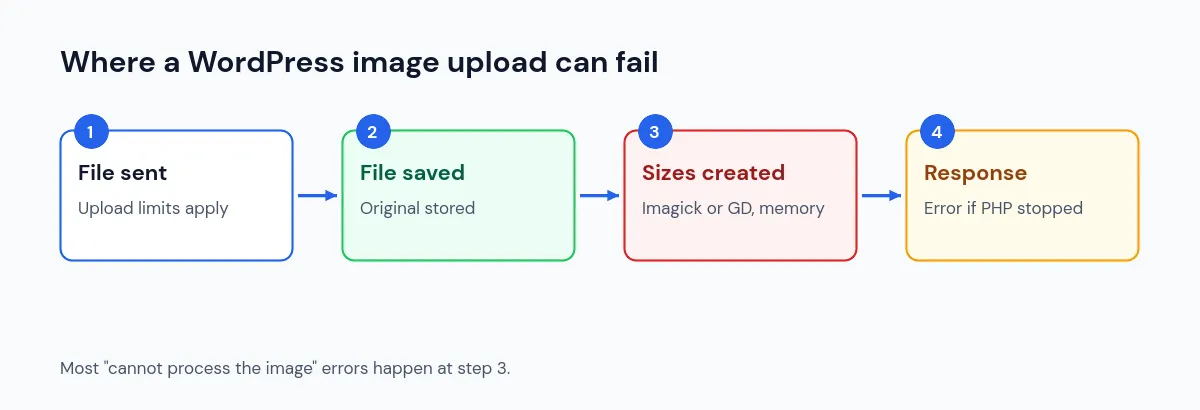
An image upload has two parts. First the file is sent to the server and saved. Then WordPress uses an image library, Imagick or GD, to create the smaller sizes your theme uses. The second part is the heavy one: a large photo has to be decoded into memory and resized several times.
The messages come from WordPress’s own uploader code:
| Message | What happened |
|---|---|
| “Unexpected response from the server. The file may have been uploaded successfully.” | The server replied with something the uploader could not read |
| “The server cannot process the image…” | The server returned an error, usually while creating image sizes |
When the server returns a 5xx error after the file was saved, WordPress’s uploader script tries again to create the missing sizes a few times before giving up. If those retries fail, you see the error. That is why the original image is often in the Media Library even though the upload looked like a failure.
Common causes
- Very large dimensions. A 6000 × 4000 photo from a phone or camera needs far more memory to resize than its file size suggests.
- PHP memory or time limits. Resizing hits
memory_limitormax_execution_timeand PHP stops. - A problem with the image library. Imagick or GD is missing, outdated or limited by the host.
- A plugin that processes uploads. Image optimisation, watermark or security plugins add work to every upload.
- A firewall or security rule. A rule that blocks the upload request returns an error instead of the normal response.
Step 1: Check whether the image was saved
- Reload Media → Library in list view.
- If the image is there, open it. If it shows correctly, WordPress may only have failed on some of the smaller sizes.
- If you use it and something looks wrong, delete it and upload a smaller version instead.
Step 2: Resize the image and try again
The message itself suggests a maximum of 2,560 pixels. That matches WordPress’s “big image” handling: since WordPress 5.3, images wider or taller than 2,560 pixels are scaled down when uploaded, using the big_image_size_threshold filter. Scaling still needs the full image in memory first.
- Resize the image on your computer so its longest side is 2,560 pixels or less.
- Export it as JPEG or WebP at sensible quality.
- Upload it again.
If the smaller image uploads without problems, the server was running out of resources. You can keep resizing before upload, or ask your host for more PHP memory.
Step 3: Read the error log
If small images fail too, find out what the server reported. Your hosting panel usually has an error log. Look for entries at the time of the upload, such as Allowed memory size exhausted or Maximum execution time exceeded.
If you cannot find a server log, temporarily enable WordPress’s debug log as described in our WordPress debug log guide, repeat the upload, then turn logging off again.
- Memory errors: see our guide to allowed memory size exhausted.
- Time limit errors: see our guide to maximum execution time exceeded.
Step 4: Check the image library in Site Health
Go to Tools → Site Health → Info and open Media Handling. It shows the active image editor and the versions of ImageMagick and GD on your server.
- If no image editor is listed, the server is missing the PHP extensions WordPress needs. Your host must install Imagick or GD.
- If Imagick is active and uploads fail while the server is under load, ask your host whether Imagick’s resource limits are set very low.
Advanced users can test with GD instead of Imagick. WordPress chooses the editor from the wp_image_editors filter, which defaults to Imagick first, then GD. This snippet, added as a small plugin or code snippet, puts GD first:
add_filter( 'wp_image_editors', function () {
    return array( 'WP_Image_Editor_GD', 'WP_Image_Editor_Imagick' );
} );
Remove it after testing if it does not help. GD and Imagick can produce slightly different results, so check a few images after the change.
Step 5: Rule out plugins and security rules
- Temporarily deactivate image optimisation, watermark and media plugins, then try the upload.
- If it works, reactivate them one at a time to find the one responsible, and check its settings or support forum. Our plugin conflict guide shows how to test safely on a staging copy.
- If uploads fail with a 403 response in the browser’s developer tools (Network tab, the
async-upload.phprequest), a firewall rule is likely blocking them. Ask your host or check your security plugin’s log.
When to contact your host
Contact your hosting provider when resized images still fail, when the error log shows memory or time limits you cannot change, or when Site Health shows no image editor. Send them the time of the failed upload and the exact message; they can check the server logs directly.
Frequently asked questions
Is my site broken if this happens once?
No. An occasional failure on a very large photo is normal on shared hosting. It only needs attention if every upload fails.
Should I raise upload_max_filesize?
Only if the file is rejected before it is uploaded. This error is about processing the image after it arrives. File size limits are covered in our guide to the link you followed has expired.
Will a different file format help?
Sometimes. A huge PNG photo needs more work than the same picture saved as JPEG or WebP. Saving photos as JPEG or WebP before upload is a good habit anyway.
Summary
The WordPress image upload error usually means the server ran out of memory or time while resizing the image. Check the Media Library, resize the image to about 2,560 pixels, read the error log, confirm an image editor is available in Site Health, and test without media plugins before contacting your host.