Maximum Execution Time Exceeded in WordPress: How to Fix It
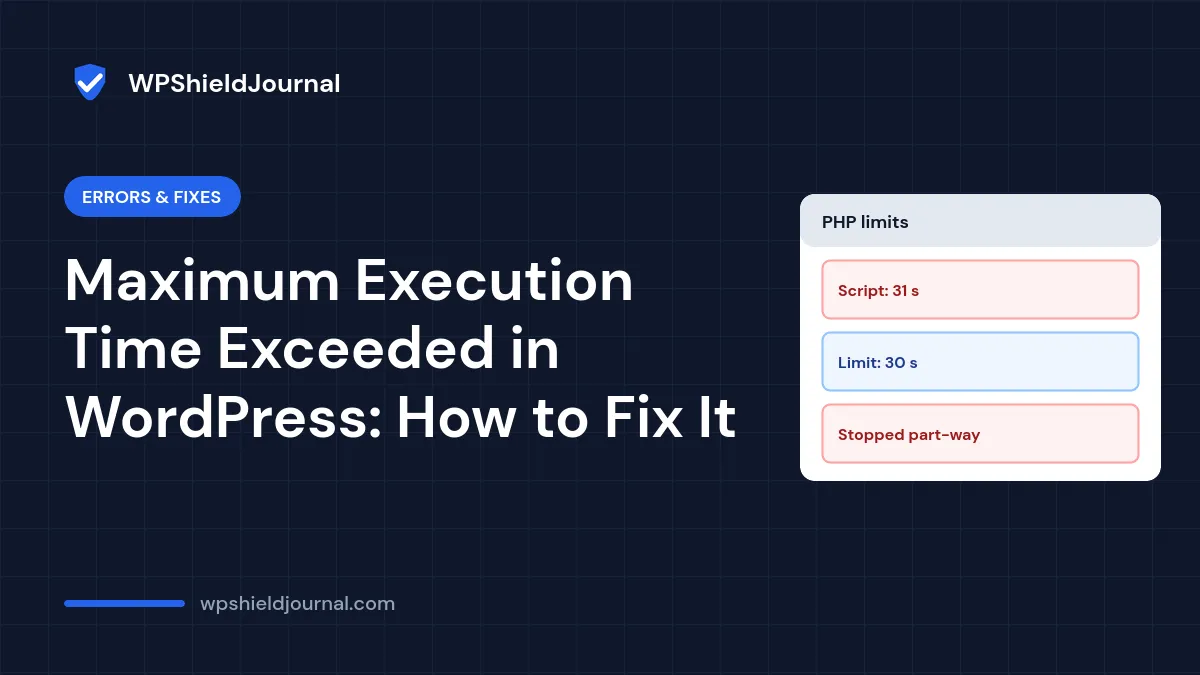
“Fatal error: Maximum execution time of 30 seconds exceeded” means a PHP script ran longer than the server allows and PHP stopped it part-way. It often appears during plugin updates, imports, backups or image processing. Raising the limit can help, but the error is also a signal that something is unusually slow. This guide shows how to find what ran too long, raise the limit in the right place, and handle long jobs without hitting it.
Quick answer: read the full error to see which file was running, then raise max_execution_time (for example to 120 or 300 seconds) in your host’s PHP settings. For long one-off jobs such as imports, backups or bulk updates, use WP-CLI, which normally has no time limit.
What the limit is
max_execution_time is a PHP setting. The PHP manual describes it as “the maximum time in seconds a script is allowed to run before it is terminated”. The default is 30 seconds, and when PHP runs from the command line the default is 0, which means no limit.
Two details explain why the error can seem random:
- On Linux servers, the limit counts the script’s own work only. The set_time_limit() documentation says time spent on “system calls…, stream operations, database queries, etc.” is not included. So a page can take a minute in the browser without hitting a 30-second PHP limit.
- The web server has its own timeouts. PHP’s manual notes that Apache’s
Timeoutdirective can interrupt PHP separately. Hosts and proxies often have limits too, which usually show as a 504 Gateway Timeout rather than this PHP error.
Step 1: Read the full error message
The error ends with a file path and line number:
PHP Fatal error: Maximum execution time of 30 seconds exceeded in /home/user/public_html/wp-content/plugins/example-plugin/includes/import.php on line 210- A path inside
wp-content/plugins/orwp-content/themes/points to that plugin or theme. - A path inside
wp-includesorwp-adminshows where PHP happened to be when time ran out. The real cause is usually whatever called it, such as a large import or a slow external request.
If the message only appears briefly or as a critical error, find it in your host’s PHP error log or turn on the WordPress debug log.
Step 2: Decide whether the task should be that slow
| Situation | Likely meaning |
|---|---|
| A one-off import, backup or bulk update | The task is genuinely long. Raise the limit or use WP-CLI |
| Ordinary page loads hit the limit | Something is wrong: a slow plugin, a stuck external request or an overloaded server |
| It started after a plugin update | Test that plugin first, see our plugin conflict guide |
If normal pages hit the limit, raising it only hides the problem and makes pages wait longer before they fail. Our slow WordPress site guide helps you find the bottleneck instead.
Step 3: Raise max_execution_time
Change the value where your host reads PHP settings:
- Hosting control panel (recommended). Look for PHP settings, PHP options or PHP configuration and set
max_execution_timeto 120 or 300. - php.ini or .user.ini. If your host supports a custom file in the site’s root folder, add
max_execution_time = 120..user.inichanges can take a few minutes to apply. - .htaccess.
php_value max_execution_time 120works only when PHP runs as an Apache module or through LiteSpeed’s LSAPI handler. On many hosts it causes a 500 error instead; remove it immediately if that happens.
Check the result under Tools → Site Health → Info → Server, which shows the current PHP time limit.
Avoid very large values or 0 (unlimited) for web requests. A stuck page would then hold a PHP worker until the server’s own timeout, which can slow down the whole site for other visitors.
Step 4: Use WP-CLI for long jobs
When the command line is available, run heavy jobs there instead of through the browser. PHP’s command-line default has no execution time limit, and no browser or proxy timeout applies. Examples:
wp plugin update --all
wp db export backup.sql
wp media regenerate --yes
Run them over SSH from the WordPress folder. Take a backup before bulk changes; our backup guide explains how to make one you can actually restore.
If raising the limit does not help
- The value did not change. Your host may enforce a maximum. Site Health shows the effective value.
- You now see a 504 or 502 error instead. A web server or proxy timeout is shorter than your PHP limit. Only the host can change it.
- The same step always runs out of time. The task may be stuck rather than slow, for example waiting on an external server. Contact the plugin’s developer with the error log.
When to contact your host
Ask your host for help when you cannot change PHP settings, when ordinary pages time out under normal traffic, or when the error appears together with memory errors. Send the full error line and the time it happened.
Frequently asked questions
Can I fix it with set_time_limit() in wp-config.php?
Sometimes, but it is unreliable. Hosts can disable the function or cap the value, and it affects every request. Changing max_execution_time in the PHP settings is clearer and easier to undo.
Is this the same as the “Allowed memory size exhausted” error?
No. That error means PHP ran out of memory, not time. They can appear together on overloaded servers; see our memory error guide.
Did the update finish if the error appeared?
Not necessarily. If an update stopped part-way, check the plugin or theme version and the site itself. A site stuck showing a maintenance message is covered in Briefly unavailable for scheduled maintenance.
Summary
“Maximum execution time exceeded” means a PHP script ran longer than max_execution_time. Read the file path in the error, decide whether the task is genuinely long or something is wrong, raise the limit in your host’s PHP settings to a sensible value, and use WP-CLI for imports, backups and bulk updates.