Allowed Memory Size Exhausted in WordPress: Find the Cause, Then Fix It
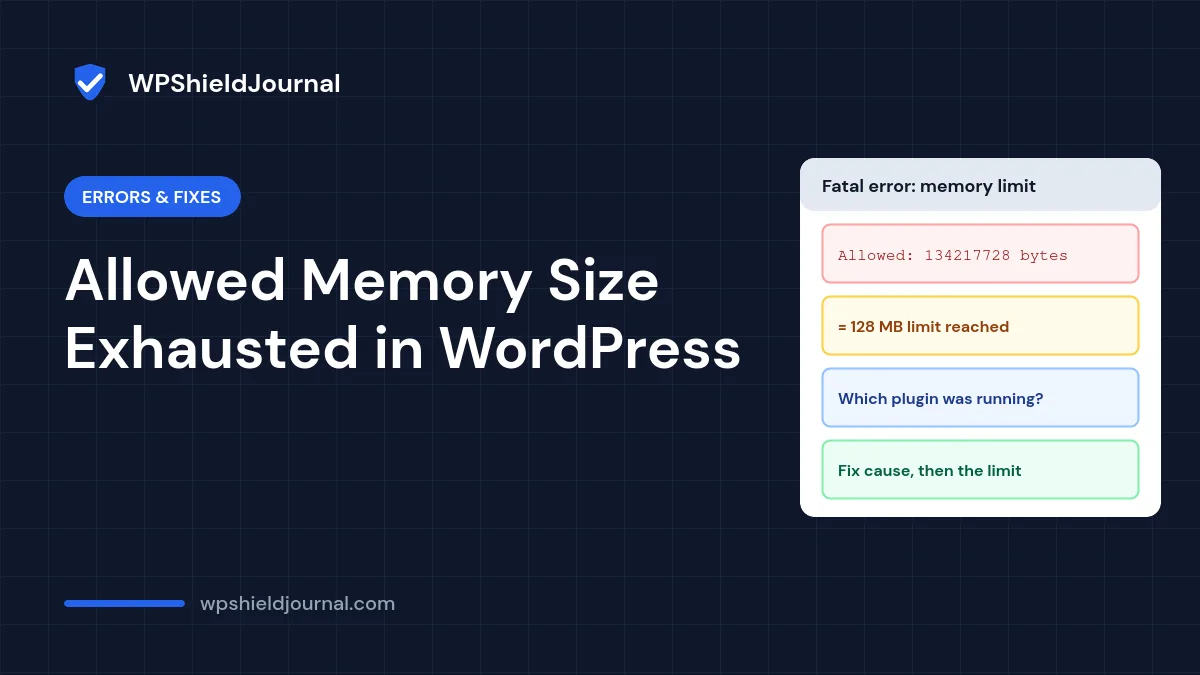
“Fatal error: Allowed memory size of 134217728 bytes exhausted (tried to allocate 20480 bytes)” means PHP reached its memory limit while WordPress was building a page. The common advice is to add a line to wp-config.php and raise the limit. Sometimes that works, but often it does nothing, and even when it works it can hide a plugin that is using far more memory than it should. This guide shows how to read the error, find what used the memory, and raise the limit in the place that actually counts.
Quick answer: Convert the bytes in the message to megabytes (divide by 1,048,576). Check the debug log or the error’s file path to see which plugin was running. If a normal page needs slightly more memory, raise the limit with define( 'WP_MEMORY_LIMIT', '256M' ); in wp-config.php, but only if your host allows it. If the error says it tried to allocate a huge amount, look for a runaway plugin, import or image instead.
Step 1: Read the allowed memory size message
The message contains two numbers. The first is the limit that was reached; the second is the extra amount PHP tried to get when it failed.
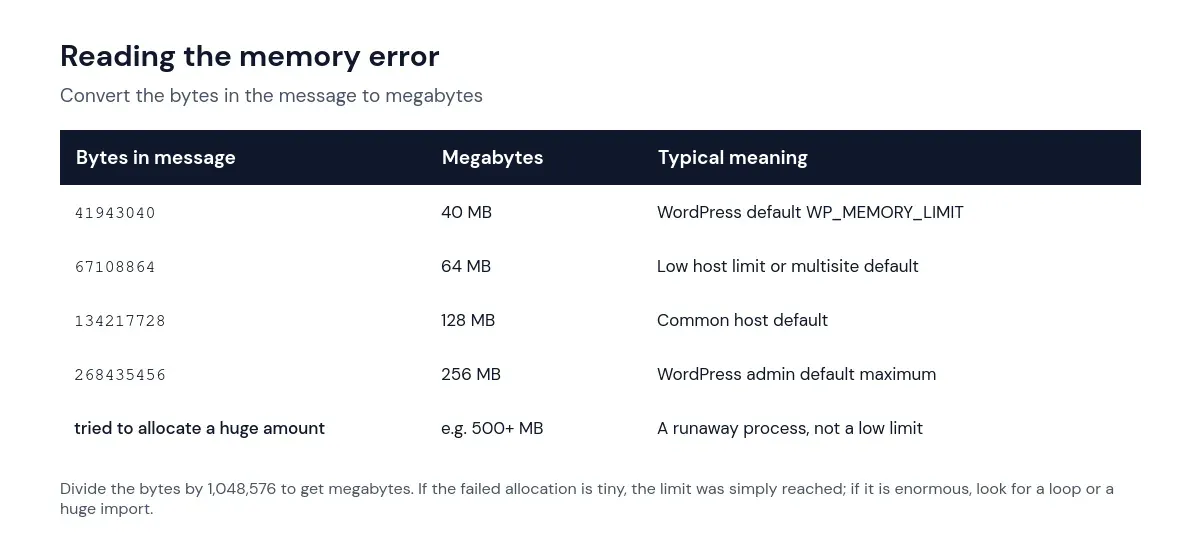
- A small “tried to allocate” value (a few kilobytes) means the page was close to the limit and the next small request tipped it over. Raising the limit modestly may be reasonable.
- An enormous “tried to allocate” value, or the error appearing even with a high limit, points to something wrong: an infinite loop, a plugin loading a huge dataset, or an image too large to process.
The error also ends with a file path, for example wp-content/plugins/example-plugin/includes/report.php on line 210. That file was running when memory ran out. It is not always the cause, but it is the best first suspect.
Step 2: Find out when and where it happens
Note whether the error appears on every page, only in the dashboard, or only during one action such as uploading an image, running an import, generating a report or saving a large page. Then check the debug log, which records the full error even when visitors see only the critical error page. Our critical error guide shows how to enable WP_DEBUG_LOG safely.
Useful patterns:
- Only when uploading or editing images: large photos (for example straight from a camera) need a lot of memory to resize. Resize images before uploading.
- Only during imports, exports or backups: these tools often process data in large batches. Look for a setting that reduces batch size.
- On every page since an update: a plugin update may have introduced a bug or a much heavier feature. Test by deactivating it, as in our plugin conflict guide.
- Only in the dashboard: some plugins load reports or statistics on admin screens.
Step 3: Understand what WP_MEMORY_LIMIT really does
WordPress defines two constants. WP_MEMORY_LIMIT applies to normal requests, and WP_MAX_MEMORY_LIMIT applies to admin screens and some heavy tasks. We read the code that sets them in WordPress core (wp-includes/default-constants.php) on this site, which runs WordPress 7.1.3:
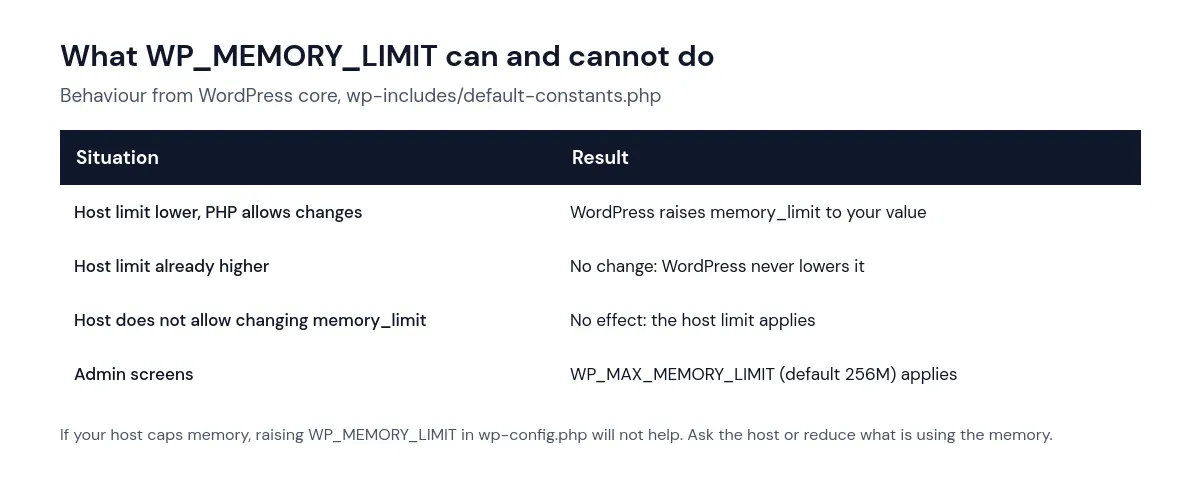
Two consequences that many guides miss:
- WordPress never lowers a higher limit set by your host. If the server already allows 256 MB and the error says 128 MB was exhausted, something else (often a
php.inior.user.inifile, or a host setting for a specific folder) is applying the lower limit. - If your host does not allow PHP to change
memory_limit, the constant has no effect at all.
Step 4: Raise the memory limit where it counts
If your investigation shows that normal pages genuinely need a little more memory, raise the limit:
- In wp-config.php. Add this line above the “stop editing” comment:
define( 'WP_MEMORY_LIMIT', '256M' );- In your hosting panel. Most hosts let you change PHP’s
memory_limit(described in the PHP manual) in their PHP settings. This changes the server limit itself, which the constant cannot exceed. - Ask your host. On some plans the maximum is fixed. Your host can tell you the ceiling and whether a higher plan is needed.
After changing it, open Tools → Site Health → Info. The WordPress Constants section shows WP_MEMORY_LIMIT and WP_MAX_MEMORY_LIMIT, and the Server section shows the PHP memory limit, so you can confirm the new value took effect.
Raising the limit to a very large value is not a fix for a plugin with a memory leak or an infinite loop. It only delays the error and lets one request use resources other sites or processes on your server may need.
Step 5: Fix the cause
- Update or replace the plugin named in the error if it fails on ordinary pages.
- Reduce batch sizes in import, export, backup and search-indexing tools.
- Resize large images before uploading them, and avoid uploading original camera files.
- Remove unused plugins that load code on every request.
- Check autoloaded options. A database full of large autoloaded data is loaded into memory on every request. See our guide to autoloaded options.
Frequently asked questions
Is 256M a safe value?
It is a common value for WordPress sites, and the official wp-config.php documentation describes both memory constants. It also matches WordPress’s default for admin screens. What matters is whether your host allows it and whether your site actually needs it. Normal pages on most sites use far less.
Why does the error say 40 MB when my host allows more?
Older wp-config.php files sometimes contain define( 'WP_MEMORY_LIMIT', '40M' );. WordPress will not lower a higher server limit, but a php.ini or .user.ini file in your site folder can. Search for those files and check their memory_limit setting.
Can a memory error damage my site?
The error stops the current request, so a task that was halfway through, such as an import or update, may be incomplete. Content that was already saved is not affected. Re-run interrupted tasks after fixing the cause.
Summary
The allowed memory size exhausted error tells you the limit, the failed allocation and the file that was running. Use those clues to find the cause first. Raise WP_MEMORY_LIMIT only when ordinary pages genuinely need it, remember that it cannot exceed your host’s limit, and confirm the result in Site Health.