500 Internal Server Error in WordPress: A Safe Troubleshooting Order
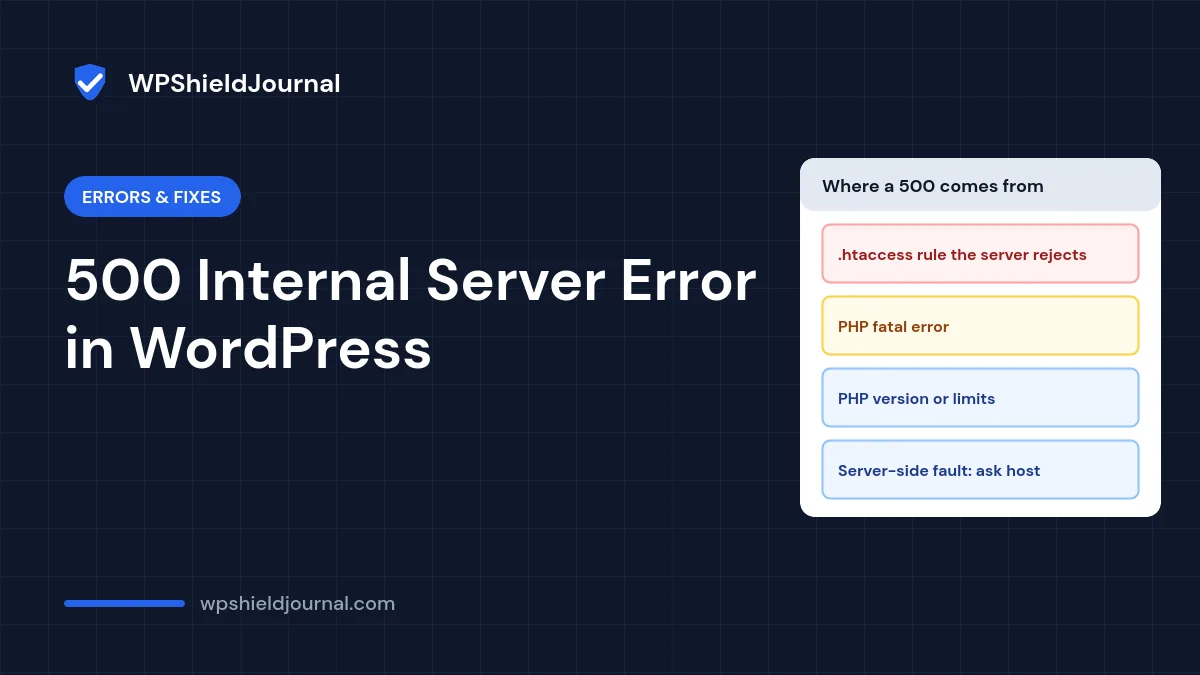
A 500 internal server error means the web server failed to complete a request but did not say why. On a WordPress site that could be a broken .htaccess rule, a PHP fatal error in a plugin, a PHP setting, or a problem on the server itself. Guessing wastes time, so this guide gives you a safe order of checks that starts with the evidence and changes one thing at a time.
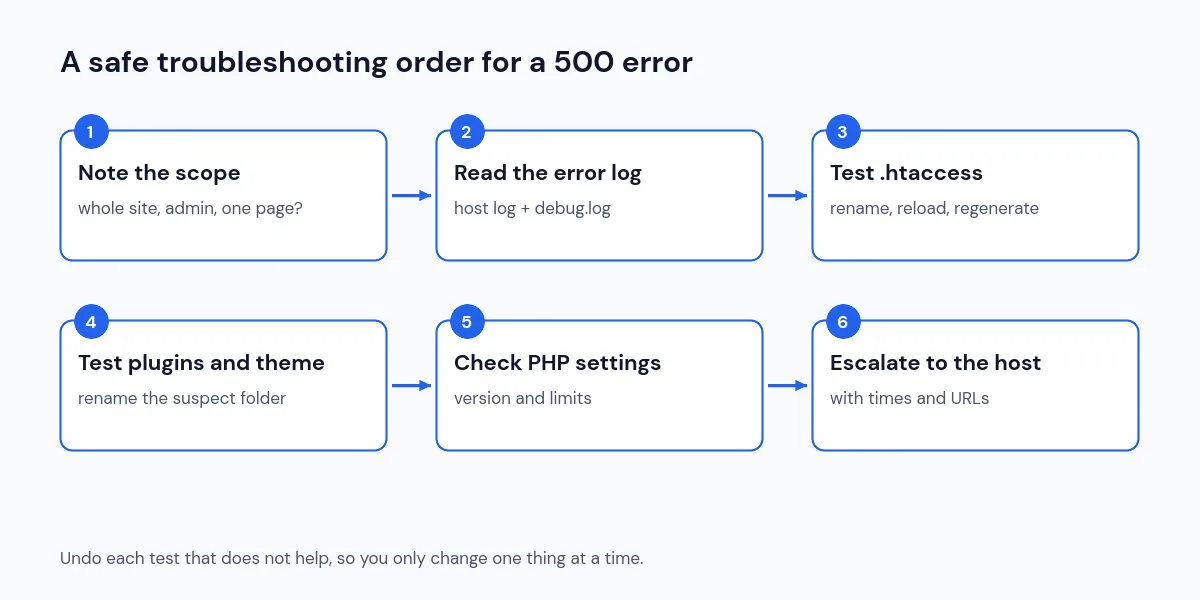
Quick answer: Check your hosting panel’s error log first; it usually names the cause. If the whole site shows a plain server error page, rename .htaccess and reload. If WordPress shows its critical error message, a plugin or theme is failing, so read wp-content/debug.log and deactivate the plugin it names. If the error started after a PHP change, switch back and test on staging. If none of that helps, give your host the exact times and URLs.
Step 1: Work out what kind of 500 error you have
The page you see and where it appears narrow things down quickly:
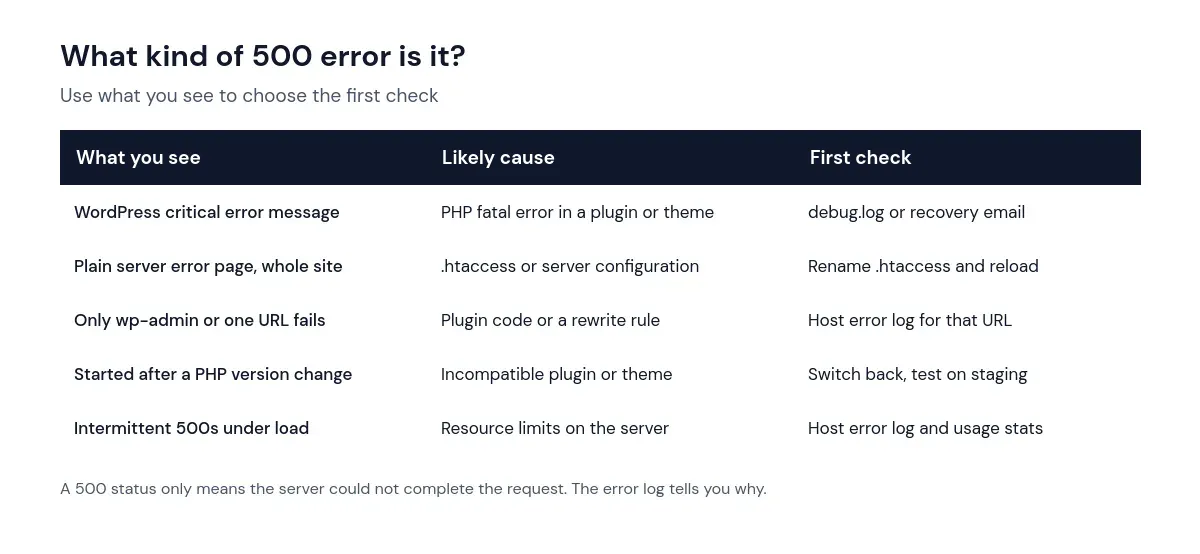
Note the exact time you saw the error and the URL. Error logs are organised by time, and your host will ask for both.
Step 2: Read the server error log
Most hosting control panels have an error log viewer, usually listed with logs or PHP settings. Look for entries at the time of the error. Typical lines and what they point to:
- PHP Fatal error … in /wp-content/plugins/…: a plugin crashed. Go to Step 4.
- Invalid command, RewriteRule or .htaccess: the server rejected a rule in
.htaccess. Go to Step 3. - Allowed memory size exhausted: PHP ran out of memory. See our guide to the allowed memory size error.
- Maximum execution time exceeded: a request ran too long, often an import, backup or slow external call.
If the host log is empty, enable the WordPress debug log as shown in our critical error guide, reload the page once, and check wp-content/debug.log.
Step 3: Test the .htaccess file
On Apache and LiteSpeed servers, .htaccess in your WordPress folder holds rewrite rules. A typo or a rule the server does not support can make every request fail with a 500 error.
- Download a copy of
.htaccessso you can restore it. - Rename it on the server, for example to
.htaccess-old. - Reload the site. If the home page now loads (other pages may show 404 errors), the file was the problem.
- Log in and go to Settings → Permalinks and click Save Changes. WordPress writes a fresh rewrite block if it can write to the file.
For a single site in the root folder, the standard block from the official Apache configuration documentation is:
# BEGIN WordPress
RewriteEngine On
RewriteRule .* - [E=HTTP_AUTHORIZATION:%{HTTP:Authorization}]
RewriteBase /
RewriteRule ^index\.php$ - [L]
RewriteCond %{REQUEST_FILENAME} !-f
RewriteCond %{REQUEST_FILENAME} !-d
RewriteRule . /index.php [L]
# END WordPress
Caching and security plugins add their own blocks. On this site, for example, the file contains blocks marked # BEGIN LSCACHE and # BEGIN NON_LSCACHE from LiteSpeed Cache as well as the WordPress block. If the old file contained such blocks, re-save that plugin’s settings to regenerate them rather than pasting old rules back in blindly, since a bad rule may have caused the error.
If you find rules you did not add, especially ones redirecting visitors to other domains or checking the referrer or user agent, your site may be compromised. Read our guide to a site redirecting to spam before restoring the old file.
Step 4: Test plugins and the theme
If the log names a plugin or theme, deactivate that one first. If you cannot log in, rename its folder in wp-content/plugins/; WordPress deactivates a plugin whose folder it cannot find. If the log does not name anything, use the halving method from our plugin conflict guide on a staging copy.
Step 5: Check PHP version and limits
If the error started right after your host changed the PHP version, switch back temporarily in the hosting panel and test the new version on staging, following our PHP upgrade guide. Also look for php.ini or .user.ini files in your WordPress folder containing settings the server rejects.
Step 6: Escalate to your host with evidence
Contact your host if the error log shows server-level problems, the error is intermittent under traffic, or none of the steps above change anything. Give them:
- the exact times and URLs of the errors,
- what you have already tested and undone,
- any error log lines you found.
That turns a vague “my site is down” ticket into something support can resolve quickly.
How to confirm the fix
Load the home page, a post, a page and the dashboard in a private window, then submit a form. Purge your page cache so visitors are not served a cached error, and check the error log again after a few hours for new entries. Remove any debug settings you added.
Frequently asked questions
Is a 500 internal server error my host’s fault?
Sometimes, but usually not. Most 500 errors on WordPress sites come from plugin code, .htaccess rules or PHP settings on the account. The error log tells you which.
Why does only wp-admin show a 500 error?
Some plugins only run certain code in the dashboard, and admin pages use more memory. Check the error log for the admin URL’s timestamp.
Can I just reinstall WordPress?
Reinstalling core files rarely helps, because the cause is usually in plugins, themes, .htaccess or server settings, which a core reinstall does not touch. Find the cause first.
Summary
Treat a 500 internal server error as a request for evidence. Read the error log, test .htaccess, then plugins and the theme, then PHP settings, undoing each test that does not help. When the evidence points to the server, give your host precise times, URLs and log lines.