Updating Failed. The Response Is Not a Valid JSON Response: Fix
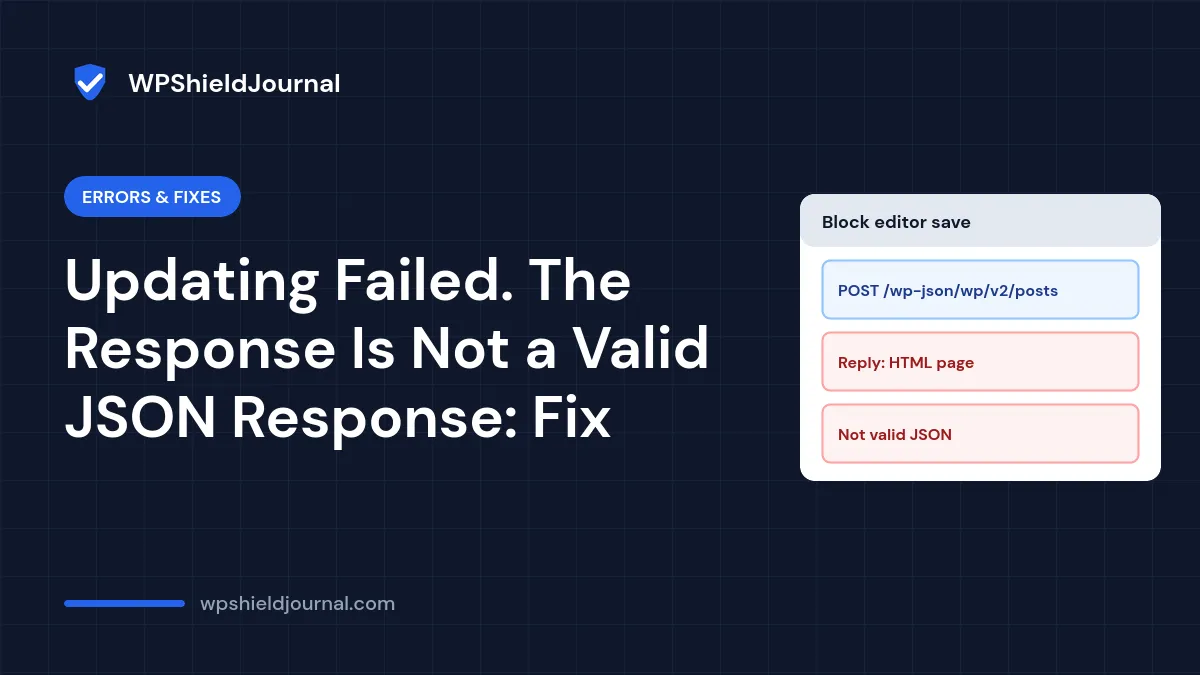
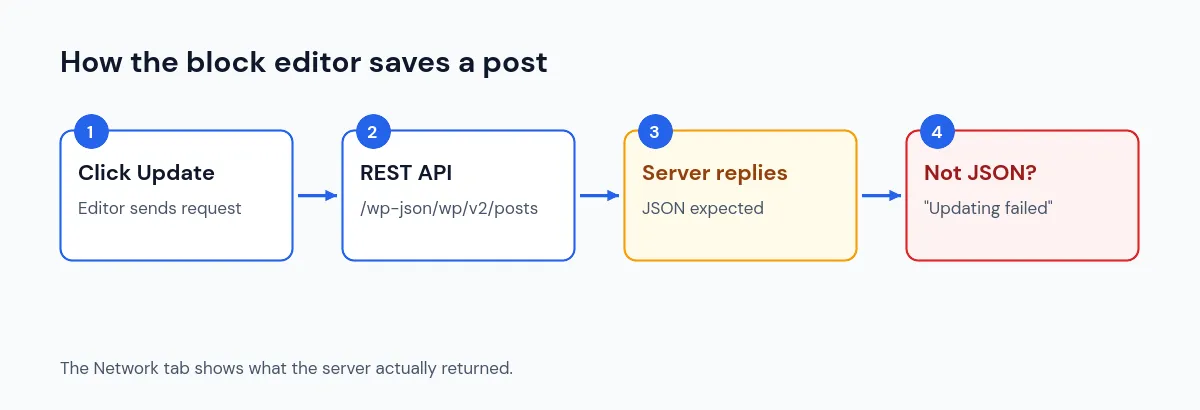
You click Update or Publish in the block editor and a notice appears: “Updating failed. The response is not a valid JSON response.” (or “Publishing failed”). The editor saves posts by sending a request to the WordPress REST API and expects JSON back. This error means it received something else, usually an HTML error page. Find out what that page says and you have found the cause.
Quick answer: open your browser’s developer tools, save the post again, and look at the failed request to /wp-json/ in the Network tab. Its response shows the real problem, often a PHP error, a firewall block, a 404 from broken permalinks, or a redirect between HTTP and HTTPS.
Why the editor shows this error
The block editor saves through the REST API with a JavaScript library that parses each reply as JSON. When parsing fails, the library reports “The response is not a valid JSON response.” We confirmed this in WordPress core’s api-fetch script, which throws exactly that message when response.json() fails.
So the message is not the error itself. It only tells you the server answered with something that was not JSON, for example:
- an HTML error page from the server, a firewall or a security plugin;
- a PHP warning printed before the JSON, which makes the whole reply invalid;
- a 404 page because the
/wp-json/address does not work; - a redirect to another address, such as from
httpstohttp.
Step 1: See the real response
- In the editor, open developer tools: press F12 or right-click and choose Inspect, then open the Network tab.
- Click Update again so the request is recorded.
- Look for a request shown in red whose address contains
/wp-json/wp/v2/(for posts, usually/wp-json/wp/v2/posts/followed by the post ID). - Click it and check the Status and the Response or Preview tab.
What you see points to the cause:
| What the response shows | Likely cause | Go to |
|---|---|---|
| Status 403 and a firewall or “access denied” page | Security plugin or server firewall | Step 3 |
| Status 404 or a theme’s “page not found” | /wp-json/ routes not working | Step 2 |
| PHP “Warning” or “Deprecated” text, then JSON | A plugin or theme printing errors | Step 4 |
| Status 500 or a critical error message | A PHP fatal error | Step 4 |
| Status 301 or 302 | Site address or HTTPS mismatch | Step 5 |
Step 2: Check that the REST API is reachable
Open https://your-domain/wp-json/ in a new tab. A working site shows a long page of JSON text. Also open Tools → Site Health, which tests the REST API and reports problems with it; our loopback and REST API guide explains each result.
If /wp-json/ returns a 404, the rewrite rules are not working:
- Go to Settings → Permalinks and click Save Changes without changing anything. This regenerates WordPress’s rewrite rules.
- On Apache or LiteSpeed servers, check that
.htaccesscontains the standard WordPress block. Our 404 after migration guide shows the default rules and how to restore them. - Test
https://your-domain/?rest_route=/as well. If that works but/wp-json/does not, the problem is definitely URL rewriting, not the REST API itself.
Step 3: Look for a firewall or security block
Security plugins and server firewalls sometimes block REST API requests, especially when a post contains code, scripts or long blocks of HTML that look like an attack.
- Check your security plugin’s activity or firewall log for a blocked request at the time you clicked Update.
- Try saving a short test post. If short posts save but one particular post fails, the content of that post is triggering a rule.
- If you use a host or CDN firewall, ask your host which rule blocked the request. Do not turn the firewall off permanently; ask for the specific rule to be adjusted.
Do not disable the REST API to “fix” this. The block editor depends on it, and the official REST API FAQ recommends restricting endpoints rather than turning the API off.
Step 4: Find a plugin or theme printing errors
If the response shows PHP warnings or a fatal error:
- Read the file path in the message. It usually names the plugin or theme.
- Turn on the WordPress debug log with
WP_DEBUG_DISPLAYset tofalse, so errors are logged instead of printed into responses. - Update or temporarily deactivate the plugin named in the log, then try saving again. Our plugin conflict guide shows how to test safely if no plugin is named.
Step 5: Check the site address and HTTPS
Go to Settings → General and compare WordPress Address (URL) and Site Address (URL) with the address in your browser. They should use the same domain and both start with https:// on an HTTPS site.
A mismatch, or a redirect between http and https, can turn the save request into a redirect the editor cannot follow. Our mixed content guide covers how to move every stored address to HTTPS.
Temporary workarounds
While you investigate, you can still publish:
- Copy the post content somewhere safe before trying anything else, so no work is lost.
- Save smaller changes to find which block triggers the problem.
Installing the Classic Editor plugin avoids this particular save request, but it hides the problem rather than fixing it, and other features still depend on the REST API.
When to contact your host
Contact your host if the response shows a server or firewall page you do not control, if /wp-json/ fails even after re-saving permalinks, or if the problem started after a server change. Send them the failed request’s address, status code and time.
Frequently asked questions
Was my post saved?
Usually not, because the save request itself failed. Copy your content before reloading the editor. WordPress may also offer to restore an autosave when you reopen the post.
Why does it only happen on some posts?
That points to the content of those posts triggering a firewall rule, or to a block whose plugin prints an error. Test with a copy of the post and remove blocks one at a time.
Does this error affect visitors?
Not directly. It is an editor problem. But a broken REST API can also affect forms, search and other features that use it, so it is worth fixing quickly.
Summary
“Updating failed. The response is not a valid JSON response” means the editor’s REST API request got something other than JSON back. Inspect the failed /wp-json/ request in the Network tab, then fix what it shows: rewrite rules, a firewall rule, a plugin printing errors, or an address and HTTPS mismatch.