ERR_TOO_MANY_REDIRECTS in WordPress: Find and Fix the Loop
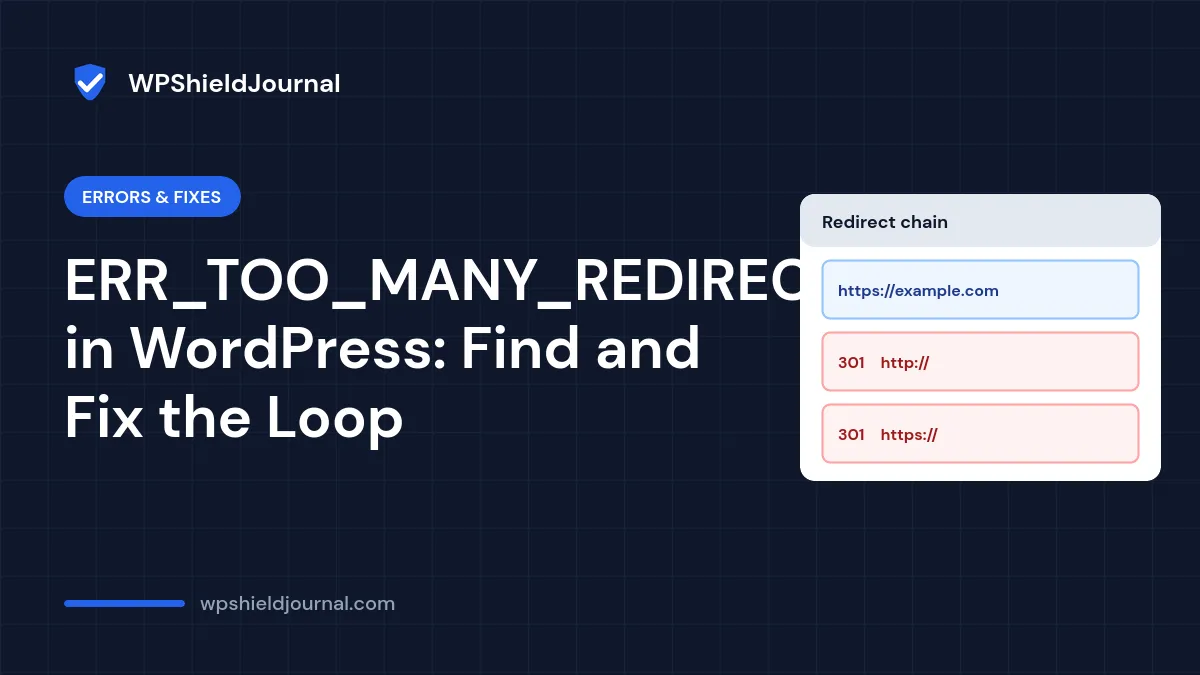
Your browser refuses to load the site and shows “This page isn’t working – redirected you too many times” or ERR_TOO_MANY_REDIRECTS (Firefox says “The page isn’t redirecting properly”). The site is sending visitors from one address to another and back again until the browser gives up. This “too many redirects” error is fixable once you find which settings disagree. In WordPress the loop is almost always between HTTP and HTTPS, or between www and the bare domain, with two systems disagreeing about which address is correct.
Quick answer: first rule out your own browser by testing in a private window. Then see the redirect chain with a redirect checker or curl -I, and find the two layers that disagree: WordPress’s site address, your host or .htaccess rules, or a CDN such as Cloudflare. Make them all point to the same final address, usually https:// with or without www, not both.
How a redirect loop happens
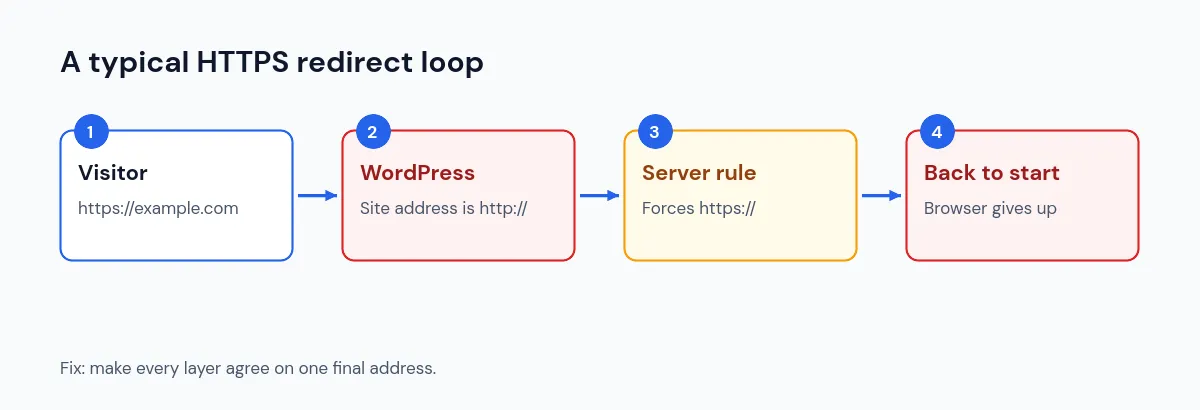
A loop needs at least two redirects that undo each other. Common pairs on WordPress sites:
| Layer A says | Layer B says | Result |
|---|---|---|
Host or .htaccess: “use HTTPS” | WordPress Site Address: http://... | Endless HTTP ↔ HTTPS |
WordPress: “use www“ | Host or CDN: “remove www“ | Endless www ↔ non-www |
| Cloudflare Flexible SSL sends HTTP to your server | Server redirects HTTP to HTTPS | Endless loop through Cloudflare |
| SSL or redirect plugin | Server rule doing the same job differently | Loop or double redirect |
This guide covers the whole site looping. If only the login page loops after you enter your password, follow our guide to login redirect loops after migration instead.
Step 1: Rule out your browser
- Open the site in a private or incognito window.
- Try another browser or your phone on mobile data.
If the site works there, clear cookies and cached data for your domain in your usual browser. Stale cookies or a cached redirect can keep a fixed loop alive on one device.
Step 2: See the redirect chain
Use any online redirect checker, or run this from a terminal:
curl -sIL https://example.com/ | grep -iE "^(HTTP|location|server)"Each Location line is one redirect. A loop shows the same two addresses alternating, for example https://example.com/ → http://example.com/ → https://example.com/. Note which address each step goes to and, if available, the server header; it often shows whether the redirect came from a CDN or from your own server.
Step 3: Check WordPress’s site address
If you can reach the dashboard, open Settings → General and check WordPress Address (URL) and Site Address (URL). On an HTTPS site both should start with https:// and use the same www choice as your host’s redirect. If you recently moved to HTTPS, our mixed content guide shows how to update addresses stored elsewhere in the database.
If you cannot reach the dashboard, set the addresses in wp-config.php above the line /* That's all, stop editing! */:
define( 'WP_HOME', 'https://example.com' );
define( 'WP_SITEURL', 'https://example.com' );
These constants override the values stored in the database. Use your real address, without a trailing slash. Once the site works, you can update Settings → General and remove the lines, or leave them in place; the fields stay greyed out while they are defined.
Step 4: Check redirects on the server
Look for redirect rules outside WordPress:
- **
.htaccess** on Apache or LiteSpeed servers. Rules above the# BEGIN WordPressblock that force HTTPS orwwware a common cause. Keep a copy before editing. - Your host’s control panel. Many hosts have a “Force HTTPS” or preferred domain setting.
- Plugins that redirect to HTTPS, such as SSL helper or redirect plugins.
You only need one HTTPS redirect. If your host already forces HTTPS, remove duplicate rules from plugins or .htaccess, then test again.
Step 5: Check your CDN or proxy settings
If your site is behind Cloudflare or another proxy, check its SSL mode. Cloudflare’s redirect loop documentation explains that with Flexible mode, Cloudflare connects to your server over HTTP, and “redirect loops will occur if your origin server automatically redirects all HTTP requests to HTTPS.” The fix it gives is to switch to Full or Full (strict), which needs a certificate on your server, or to remove the redirect at the origin.
When a proxy handles HTTPS and talks to WordPress over plain HTTP, WordPress may think every request is insecure. WordPress’s HTTPS documentation gives this check for wp-config.php, placed above the “stop editing” line, so WordPress trusts the proxy’s protocol header:
if ( isset( $_SERVER['HTTP_X_FORWARDED_PROTO'] ) && strpos( $_SERVER['HTTP_X_FORWARDED_PROTO'], 'https' ) !== false ) {
    $_SERVER['HTTPS'] = 'on';
}
Only add this when your site really is behind a proxy or load balancer that sets the header. Ask your host if you are unsure.
Step 6: Clear caches and test again
Purge your caching plugin, your host’s cache and your CDN cache, because a cached redirect can survive the fix. Our guide to changes not showing after clearing cache lists each cache layer. Then test in a private window and with the redirect checker again. The chain should end in a single 200 response at your preferred address.
When to contact your host
Contact your host if the redirect comes from the server itself and you cannot find the rule, or if the loop started after they changed SSL or server settings. Give them the redirect chain from Step 2; it shows exactly which addresses are involved.
Frequently asked questions
Will this hurt my SEO?
A short outage is unlikely to cause lasting harm, but search engines cannot crawl a looping site. Fix it quickly and check Pages and Crawl stats in Google Search Console afterwards.
Can a caching plugin cause a redirect loop?
It can keep one alive by serving a cached redirect, and some plugins add their own HTTPS redirect. Purge the cache after every change while you test.
Should I use HTTP Strict Transport Security (HSTS) to fix it?
No. HSTS tells browsers to always use HTTPS and is hard to undo. Add it only after redirects work correctly.
Summary
A too many redirects error in WordPress means two layers disagree about the correct address. Test in a private window, read the redirect chain, then make WordPress’s site address, server redirects and CDN SSL mode agree on one final HTTPS address, and purge caches before testing again.