How to Safely Upgrade Your WordPress PHP Version (and Fix What Breaks)
Your host keeps nagging you to update PHP, or Site Health says your WordPress PHP version is outdated, but you are worried the site will break. That worry is reasonable: old plugins and themes are the usual casualties of a PHP upgrade. This guide shows how to check compatibility, test the new version on a copy of your site, read the errors that matter, and switch the live site with a rollback ready.
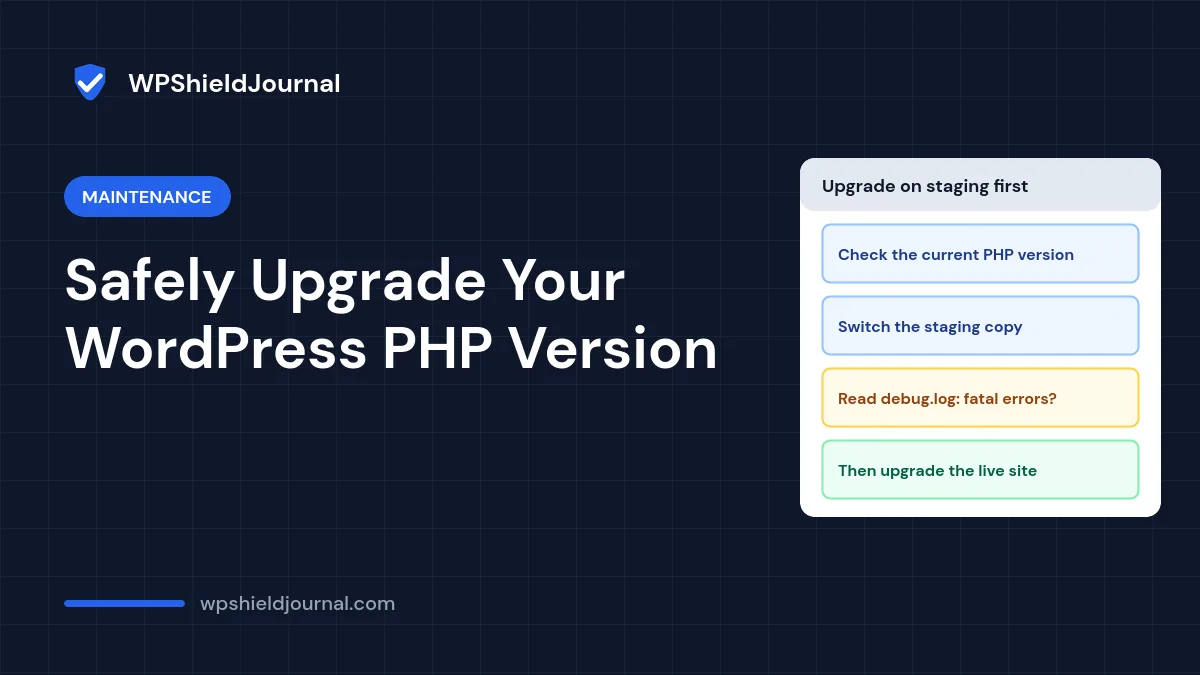
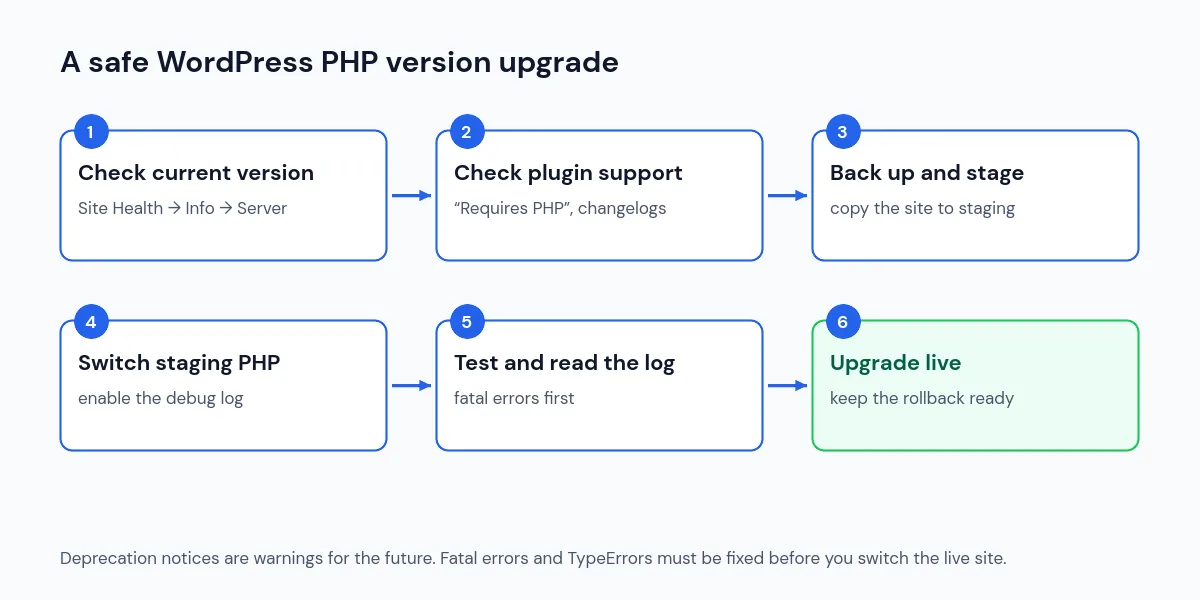
Quick answer: Find your current version under Tools → Site Health → Info → Server. Back up, create a staging copy, switch only the staging site to the newer PHP version, enable the debug log, and click through your important pages. Fix or replace anything that causes a fatal error. Deprecation notices can wait. Then switch the live site and keep the old version selectable in case you need to roll back.
Why upgrading the WordPress PHP version matters
PHP is the language WordPress runs on, and each version receives security fixes for a limited time. Running a version that no longer gets fixes means newly discovered PHP vulnerabilities stay unpatched on your server. Newer versions are also generally faster.
WordPress.org currently recommends PHP 8.3 or greater on its requirements page. WordPress itself still runs on older versions, but the same page warns that end-of-life versions “may expose your site to security vulnerabilities”. Here is the official support schedule:
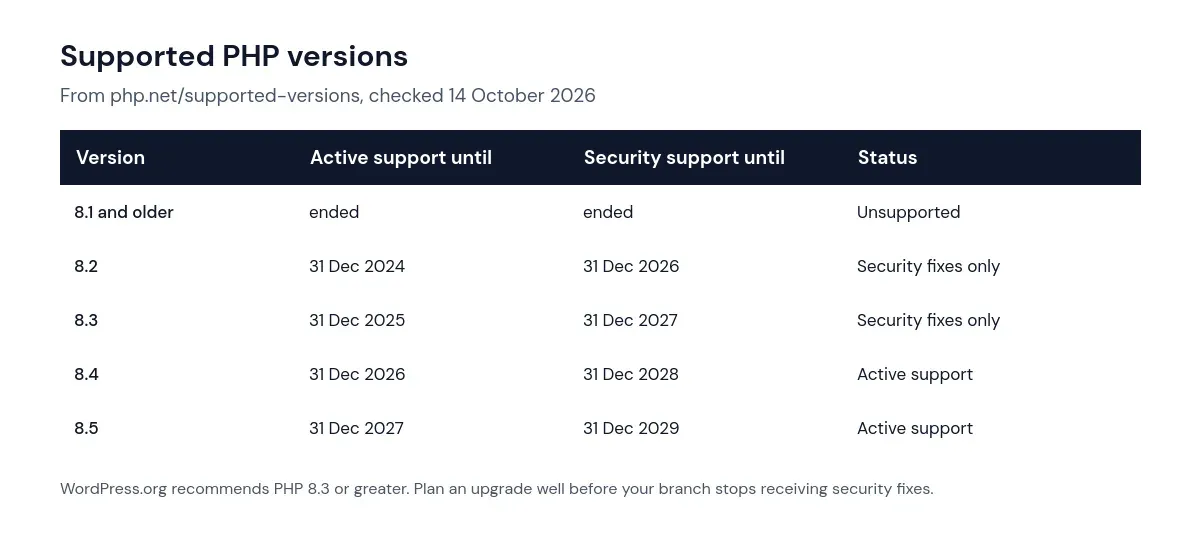
This site, for reference, was running PHP 8.3 when we checked, which receives security fixes until the end of 2027 according to php.net.
Step 1: Check your current PHP version
In the dashboard, go to Tools → Site Health → Info and open the Server section. The PHP version is listed there. Site Health may also show a recommendation on its Status tab if your version is out of date. Your hosting control panel shows the same information and is where you change it.
Step 2: Check plugin and theme compatibility
Before testing anything, look for obvious problems:
- On each plugin’s WordPress.org page, check Requires PHP and Last updated. A plugin that has not been updated for years is the most likely to break.
- Read recent changelogs for your theme and premium plugins. Developers usually mention PHP 8.x compatibility.
- List anything custom: code snippets, a child theme’s
functions.php, or plugins built for you. Custom code is rarely tested by anyone else.
Step 3: Back up and create a staging copy
Take a full backup first, as described in our guide to backing up a WordPress site. Then create a staging copy using your host’s staging tool or a migration plugin. Testing on staging means visitors never see the errors. Our WordPress staging site guide explains how to keep that copy private.
If you have no staging option, upgrade at a quiet time, make a fresh backup immediately before, and confirm that your host lets you switch back to the previous PHP version straight away.
Step 4: Switch staging to the new version and turn on logging
Change the PHP version for the staging site only in your hosting panel. Then enable the debug log on staging by adding these lines to its wp-config.php above the “stop editing” line:
define( 'WP_DEBUG', true );
define( 'WP_DEBUG_LOG', true );
define( 'WP_DEBUG_DISPLAY', false );
This writes errors to wp-content/debug.log without showing them on screen, as explained in the official debugging documentation.
Step 5: Test the pages that matter and read the log
Click through the home page, posts, pages, search, forms, checkout and the dashboard screens you use. Save a post and change a setting in your main plugins. Then open debug.log and sort what you find:
| Log entry | What it means | What to do |
|---|---|---|
| PHP Fatal error / Uncaught TypeError | Code stopped running | Fix, update or replace before upgrading live |
| PHP Warning | Something unexpected, page still loads | Investigate; often a sign of a coming problem |
| PHP Deprecated | Works now, may break in a future PHP version | Report to the developer; not a blocker |
Some examples of changes that commonly cause problems in older code: functions such as create_function() and each() were removed in PHP 8.0, PHP 8.1 deprecated passing null to many built-in functions, and PHP 8.2 deprecated creating dynamic properties. The PHP migration guides list every change by version.
If a fatal error appears, the file path tells you which plugin or theme is responsible, just like the steps in our critical error guide. Update it, look for a replacement, or ask the developer for a compatible version.
Step 6: Upgrade the live site and keep a rollback ready
Once staging runs without fatal errors:
- Make a fresh backup of the live site.
- Change the PHP version for the live site in your hosting panel.
- Purge your page cache and test the same pages again, logged out and logged in.
- Check your host’s PHP error log for the next day or two.
- Remove the debug lines from the staging site’s
wp-config.phpwhen you are done.
If something breaks that staging missed, switch back to the previous version in the hosting panel, then investigate on staging.
Frequently asked questions
Will upgrading PHP delete any content?
No. Changing the PHP version does not change your files or database. Problems appear as errors when code runs, which is why switching back usually restores the site immediately.
Should I jump straight to the newest PHP version?
Not necessarily. Choose a version that is supported and that your plugins and theme state they support. Moving from an unsupported version to a well-supported one is the main goal.
What if a plugin I rely on is not compatible?
Contact the developer and ask about their plans. If the plugin is abandoned, replace it. Staying on an unsupported PHP version to keep one plugin working only postpones the problem.
Summary
Upgrading your WordPress PHP version is routine maintenance, not a gamble, if you test first. Check the current version, review plugin support, back up, switch staging, fix any fatal errors the debug log reveals, and then upgrade the live site with a rollback ready. Add PHP checks to your maintenance checklist so you upgrade before support ends, not after.