Should You Turn On WordPress Auto-Updates? A Practical Policy
WordPress auto-updates fix security holes faster than most people update manually, but an automatic update can also break a checkout, a form or a page builder layout while you are asleep. The right answer is rarely “all on” or “all off”. This guide gives you a simple per-plugin policy, explains how the controls work, and shows why your host may have already changed them without you noticing.
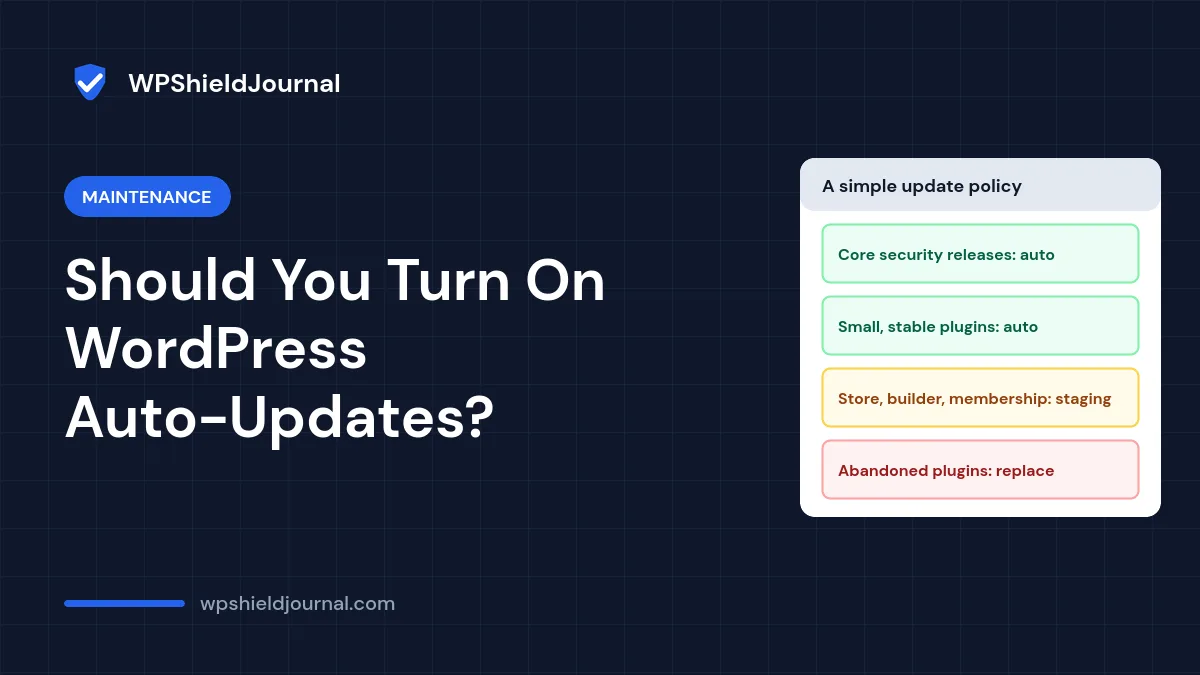
Quick answer: Let WordPress install core security releases and updates for small, well-maintained plugins automatically. Update complex plugins such as WooCommerce, page builders and membership plugins manually after testing on staging. Replace plugins that no longer receive updates. Whatever you choose, keep a verified backup, because a restorable backup is what makes any update safe.
How WordPress auto-updates work
WordPress has two separate systems:
- Core updates. By default, WordPress installs minor releases automatically. These are mostly security and maintenance fixes (for example 7.1.2 to 7.1.3). Major releases change features and are traditionally installed manually, although site owners can opt in.
- Plugin and theme updates. Since WordPress 5.5, administrators can enable auto-updates plugin by plugin and theme by theme, according to the official auto-updates documentation. The Plugins screen has an auto-updates column, and themes are switched on individually under Appearance → Themes.
The same documentation says WordPress runs auto-updates twice a day by default and emails the site owner when updates succeed or fail. Those emails only help if WordPress email actually reaches you, so check that your site can send mail before relying on them.
A practical auto-update policy
Decide per item, based on what would break if the update went wrong and how quickly you would notice:
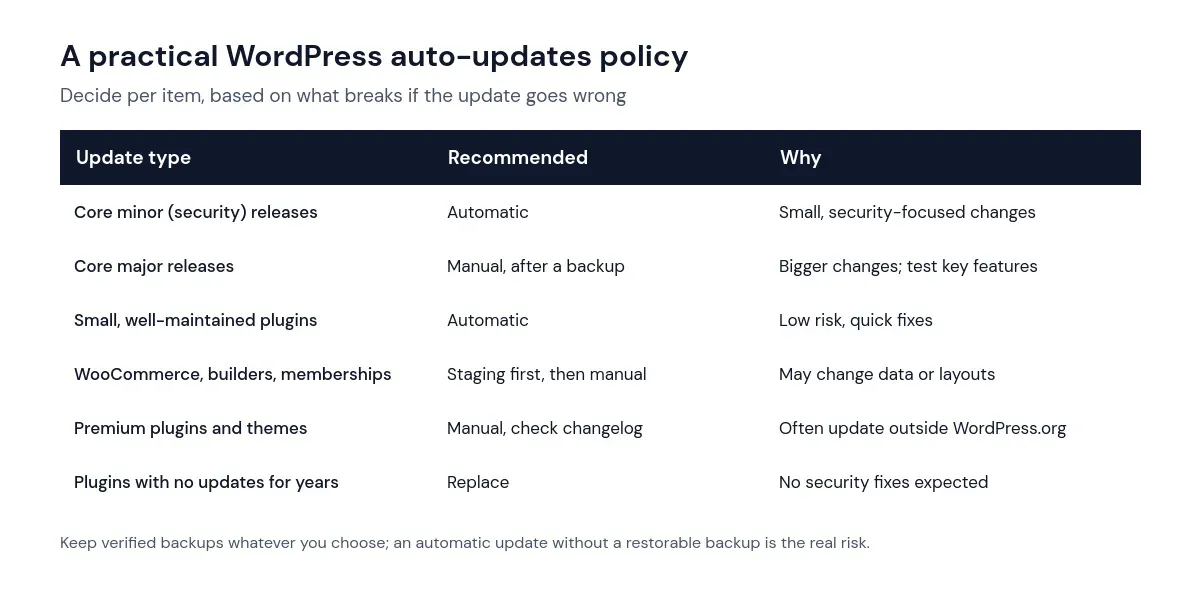
Two questions decide most cases:
- Would a broken update stop people paying, booking or contacting you? If yes, test it on staging first and update manually.
- Does the plugin store or transform important data? Updates to stores, membership systems and form builders can run database changes. Test those before they reach the live site.
For everything else, such as small utility plugins from reputable developers with frequent releases, automatic updates usually reduce risk because security fixes arrive sooner.
Check whether your host already controls updates
Before changing any toggles, check whether your host manages updates for you. When we inspected this site, which runs on Hostinger, we found a must-use plugin called hostinger-auto-updates.php in wp-content/mu-plugins/. Must-use plugins load automatically and cannot be deactivated from the Plugins screen.
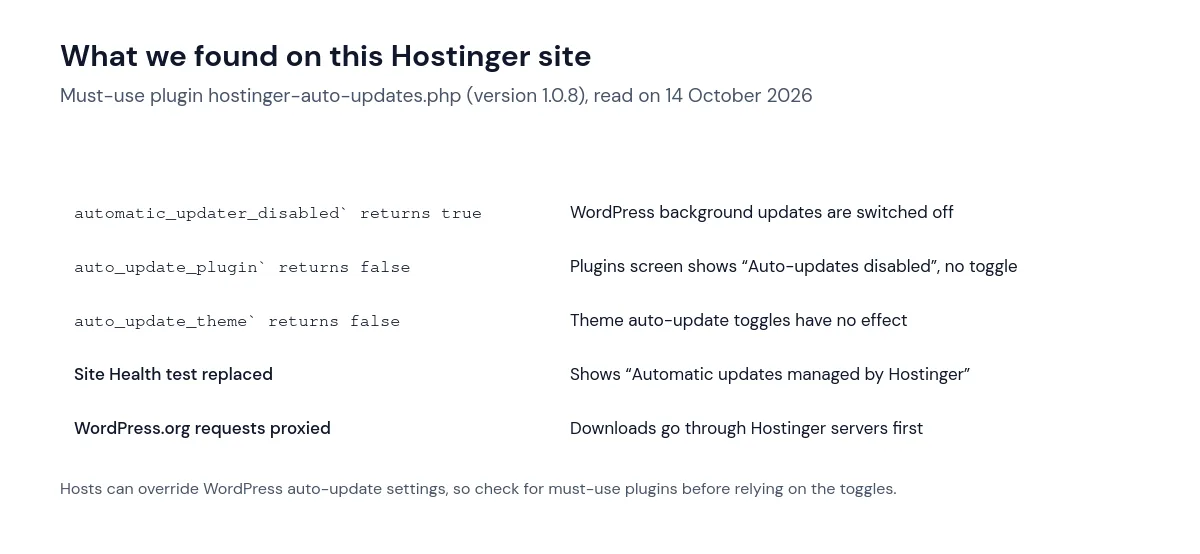
In other words, on this site the WordPress auto-update toggles do nothing: WordPress’s own background updates are switched off, and the plugin’s description says updates are “managed entirely by Hostinger”. The Site Health screen therefore shows a passing “Automatic updates managed by Hostinger” check instead of the normal WordPress tests. The official documentation also notes that auto-updates can be “partially or completely deactivated by your hosting company or by a plugin”.
That is not necessarily a problem, but you need to know who is responsible. If your host manages updates, check its control panel for the update settings and find out what it updates and when. If you want WordPress to handle updates instead, ask your host how to change that rather than deleting a host-installed must-use plugin, which may simply be reinstalled.
Look in wp-content/mu-plugins/ on your own site. If you find an update-related must-use plugin from your host, the auto-update column on the Plugins screen may not reflect what actually happens.
How to turn plugin auto-updates on or off
If WordPress manages updates on your site:
- Go to Plugins → Installed Plugins.
- In the Automatic Updates column, click Enable auto-updates or Disable auto-updates for each plugin.
- To change several plugins at once, tick them, choose the bulk action and click Apply.
- For themes, go to Appearance → Themes, click a theme and use Enable auto-updates.
If the column shows “Auto-updates disabled” or “Auto-updates enabled” without a link, the setting is being forced by code, usually a must-use plugin, a host tool or a constant in wp-config.php.
Make updates safer, automatic or not
- Verified backups. Keep at least one recent backup stored away from the server, and test restoring it occasionally on a staging copy.
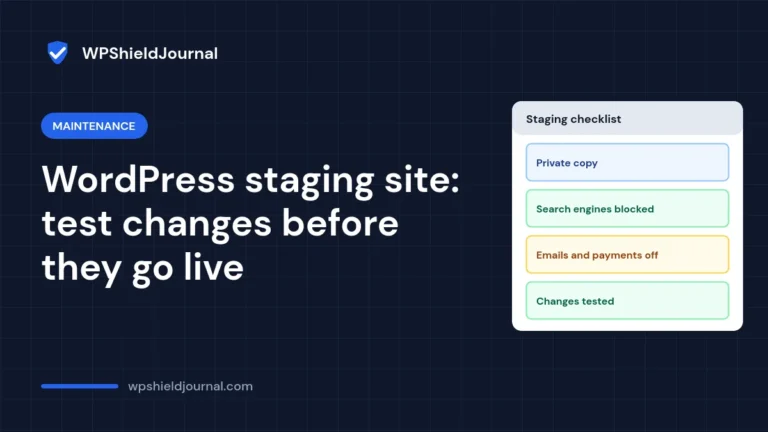
- Staging for risky updates. Update complex plugins on a staging copy, test the important paths (checkout, forms, logins), then update the live site.
- Read changelogs. A major version number change (for example 3.x to 4.0) deserves extra caution.
- Monitor after updates. Check the site after update windows, or use an uptime monitor that alerts you if the home page returns an error.
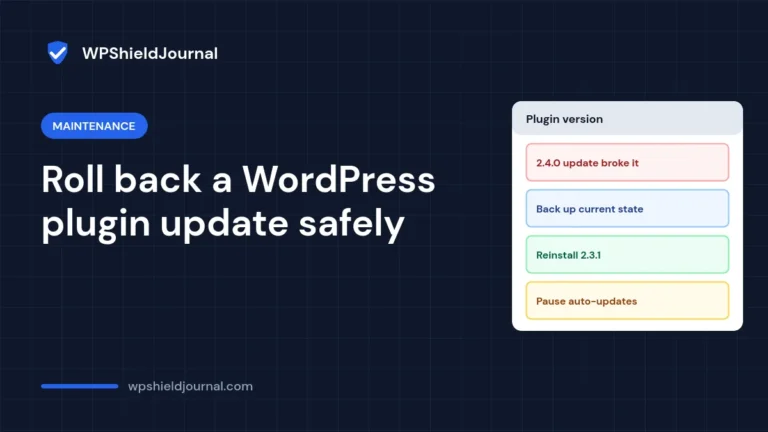
- Know your rollback. If an update causes a critical error, our guide to fixing the WordPress critical error shows how to find and deactivate the plugin. If two plugins clash after an update, see how to find a plugin conflict. To return to an earlier plugin version, see how to roll back a WordPress plugin update.
Frequently asked questions
Are WordPress auto-updates safe?
They are as safe as your ability to recover. Most updates install without problems, and delayed security updates are a common way sites get compromised. The risk comes from updates to complex plugins and from having no tested backup when something does go wrong.
Should I auto-update PHP too?
PHP versions are changed on the server, not by WordPress. Treat a PHP upgrade like a major update: check plugin compatibility and test on staging first.
Why did a plugin update itself when auto-updates were off?
Your host may update plugins through its own tool, or WordPress.org may push a forced security update in rare, serious cases. Check your host’s update settings and the plugin’s changelog.
If an update is interrupted and the site keeps showing a maintenance notice, our guide to briefly unavailable for scheduled maintenance explains how to clear it safely.
Summary
Use automatic updates for core security releases and low-risk plugins, test complex plugins on staging, and replace abandoned ones. Check wp-content/mu-plugins/ and your hosting panel to find out who really controls updates on your site, and keep verified backups so any update can be undone.