Cookies Are Blocked Due to Unexpected Output: WordPress Login Fix
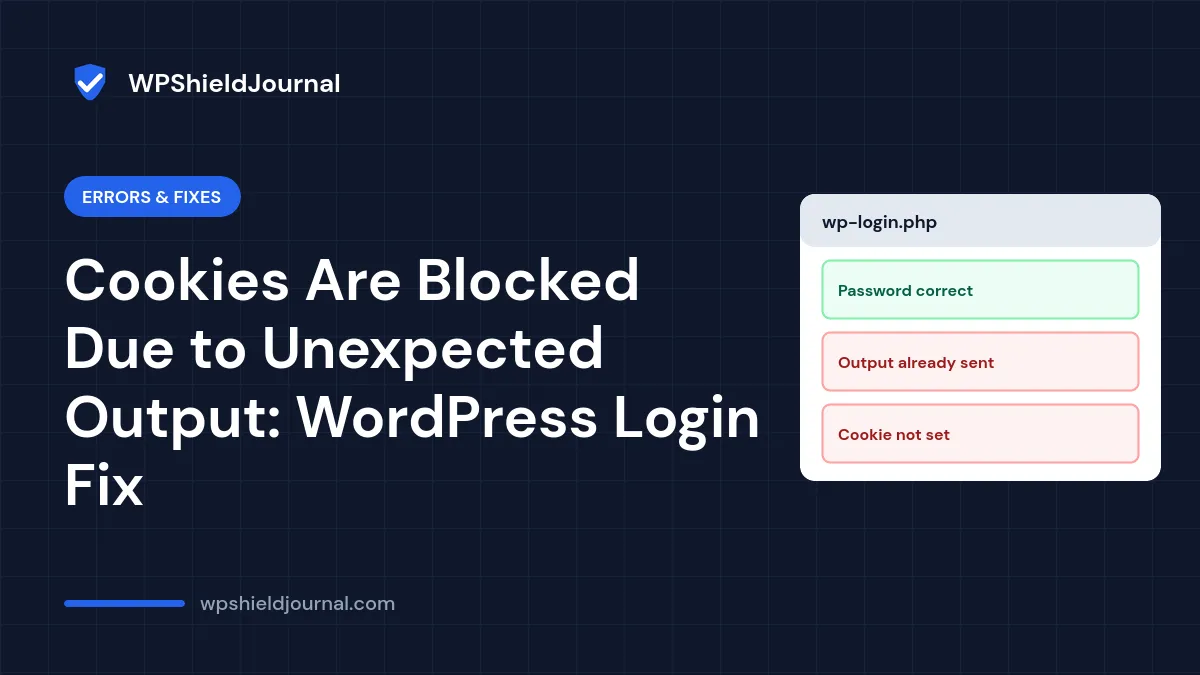
You enter the right username and password and the login page answers: “Error: Cookies are blocked due to unexpected output.” Your browser is fine. The message means something on the server printed text before WordPress could send its login cookie, so the cookie never reached you. The cause is usually a few stray characters in a PHP file, or a warning printed on the page. This guide shows how to find the exact file and line.
Quick answer: look in your PHP error log for a warning that says “headers already sent by (output started at …)”. It names the file and line that printed the output. Most often it is blank space before <?php or after ?> in wp-config.php or a theme’s functions.php, a file saved with a byte order mark, or a PHP warning shown because WP_DEBUG_DISPLAY is on.
Why this blocks the login
WordPress logs you in by sending cookies in the HTTP headers of the response. Headers must be sent before any page content. If any output, even one space or an invisible character, is sent first, PHP can no longer add headers.
WordPress checks for exactly this. In wp-login.php, if the login cookie is missing after a sign-in attempt and PHP’s headers_sent() reports that output has already started, WordPress shows “Cookies are blocked due to unexpected output.” The message links to the official Cookies documentation.
A similar message, “Cookies are blocked or not supported by your browser”, is different. It appears when WordPress’s test cookie, wordpress_test_cookie, could not be set, which usually points to the browser or a caching layer. That case is covered at the end of this guide.
Step 1: Find the file that sends the output
The fastest clue is PHP’s warning. Open your host’s PHP error log, or enable the WordPress debug log with WP_DEBUG_DISPLAY set to false, then try to log in again. Look for a line like:
PHP Warning: Cannot modify header information - headers already sent by (output started at /home/user/public_html/wp-content/themes/example/functions.php:58) in /home/user/public_html/wp-includes/pluggable.php on line 1100The important part is output started at. It names the file and line that printed something too early. The second path, in wp-includes, is only where WordPress noticed the problem.
Step 2: Fix stray whitespace and closing tags
If the file is wp-config.php, a theme’s functions.php or a plugin file:
- Download a copy of the file first.
- Open it in a code editor, not a word processor.
- Make sure the very first characters are
<?php, with nothing before it, not even a blank line. - Look at the end of the file. If it ends with
?>followed by blank lines or spaces, delete the blank lines, or remove the?>entirely. A closing tag at the end of a PHP-only file is optional, and leaving it out prevents this problem. - Upload the file and try logging in again.
Edit wp-config.php carefully. A missing semicolon or quote can take the whole site down. Keep the downloaded copy so you can restore it.
Step 3: Remove a byte order mark
If the line number is 1 and you see nothing before <?php, the file may have been saved with a byte order mark (BOM), an invisible character some editors add at the start of UTF-8 files.
In editors such as VS Code or Notepad++, check the encoding shown in the status bar and save the file as UTF-8 (without BOM). Then upload it again.
Step 4: Stop warnings from printing
If the “output started at” line points to a PHP warning or notice inside a plugin, the output is the warning text itself, printed because errors are being displayed.
- In
wp-config.php, make sureWP_DEBUG_DISPLAYisfalse, orWP_DEBUGisfalseon a live site. - Update the plugin or theme that produces the warning. If the warning remains, report it to its developer.
Our wp-config.php security guide explains why errors should never be displayed on a live site.
If you cannot find the file
- Deactivate plugins without the dashboard. Rename
wp-content/pluginstoplugins-offthrough SFTP or your host’s file manager, then try logging in. If it works, rename the folder back and find the plugin with our plugin conflict guide. - Switch the theme temporarily. Rename the active theme’s folder so WordPress falls back to a default theme.
- Check recently edited files. If someone added code snippets or edited files shortly before the problem began, start there.
The other message: “Cookies are blocked or not supported by your browser”
If you see this message instead, the server sent no unexpected output, but the test cookie did not come back. Try:
- A private window, or another browser, to rule out browser settings and extensions.
- Clearing cookies for your domain.
- Checking
wp-config.phpforCOOKIE_DOMAINor similar constants left over from a migration; if they do not match your current domain, cookies are set for the wrong site. - Making sure the login page is not cached by a caching plugin, host cache or CDN.
If the login page simply reloads after you sign in, see our guide to login problems after migration.
Frequently asked questions
Can this happen to visitors, not just administrators?
Yes. Any feature that sets cookies or redirects, such as forms or shop carts, can break when output is sent too early. The fix is the same.
Why did it start after I added a code snippet?
Snippets pasted into functions.php often bring a closing ?> or extra blank lines with them. Remove them, or use a snippets plugin instead of editing theme files.
Is my site hacked?
Unlikely. This is almost always a formatting or warning problem. If the “output started at” file is one you do not recognise, check it against the original plugin or theme and see our guide to signs of a hacked WordPress site.
Summary
“Cookies are blocked due to unexpected output” means something printed text before WordPress could send its login cookie. Find the “output started at” file and line in the PHP error log, remove whitespace around PHP tags or a byte order mark, and stop warnings from being displayed. If the message says cookies are blocked by your browser instead, check the browser, cookie settings and caching.