High admin-ajax.php Usage: Control the WordPress Heartbeat API
Your host warns about high CPU usage, and the access log is full of POST /wp-admin/admin-ajax.php requests. The usual suspect is the WordPress Heartbeat API, which keeps open admin tabs in touch with the server. Heartbeat is useful and rarely the whole story, so before turning it down, check which requests are really hitting admin-ajax.php. This guide explains how Heartbeat works, how to find what is causing the load, and how to slow Heartbeat down safely without breaking autosave.
Quick answer: look in your access log at which pages and actions send the admin-ajax.php requests. If they come from logged-in admin screens with action=heartbeat, close idle dashboard tabs and, if needed, set a minimum Heartbeat interval with the heartbeat_settings filter. If they come from the front end, a plugin or theme is the source, not Heartbeat.
What the Heartbeat API does
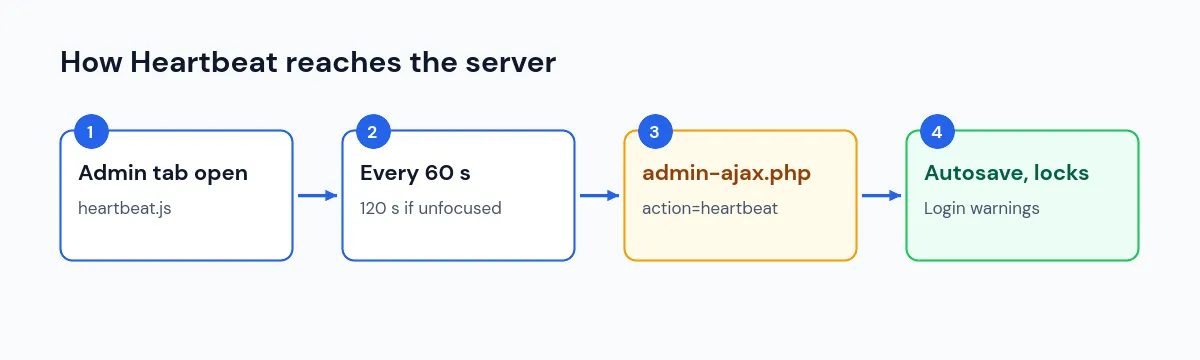
The Heartbeat API is “a simple server polling API built in to WordPress”. While you are logged in, a script in the dashboard sends a request to admin-ajax.php at regular intervals. WordPress uses those requests for autosave, post locking (so two people do not edit the same post), login expiry warnings and similar tasks.
We checked the timing rules in WordPress core’s heartbeat.js:
| Situation | Interval |
|---|---|
| Default | 60 seconds |
| Temporarily sped up by a feature | 5 seconds, for up to 30 ticks |
| Browser tab not focused | 120 seconds |
| No mouse or keyboard activity for 5 minutes | Treated like an unfocused tab |
| No activity for 60 minutes | Paused until you return |
So a single idle tab sends a request about every two minutes. Many open tabs, many logged-in editors, or a plugin that requests a fast interval multiply that.
Step 1: Find out what is calling admin-ajax.php
Not every admin-ajax.php request is Heartbeat. Plugins and themes use the same endpoint for live search, forms, carts, view counters and more, often on public pages.
- Open your host’s access log and filter for
admin-ajax.php. - Look at the referrer of each request: requests from
/wp-admin/...pages come from the dashboard; requests from public URLs come from the front end. - In your browser’s developer tools (Network tab), click an
admin-ajax.phprequest and check its form data. Heartbeat requests includeaction: heartbeat; other plugins use their own action names.
| What you see | Source |
|---|---|
action=heartbeat from admin pages | Heartbeat, from logged-in users |
| Another action name from public pages | A plugin or theme feature |
| Huge numbers from many IP addresses | Possibly bots or an attack; ask your host |
If the load comes from a plugin action, update that plugin, check its settings, or ask its developer. Our slow WordPress site guide helps if pages are slow for other reasons too.
Step 2: Reduce Heartbeat traffic without code
- Close dashboard tabs you are not using, especially the post editor.
- Log out on shared or office computers that stay open all day.
- Check plugins that show live dashboards or notifications. Some speed Heartbeat up; their settings may let you slow them down.
Step 3: Set a minimum Heartbeat interval
If Heartbeat really is the main source, you can stop it from running more often than a chosen interval. WordPress passes its Heartbeat settings through the heartbeat_settings filter, and heartbeat.js accepts a minimalInterval of up to 600 seconds, which overrides shorter intervals.
Add this as a small plugin or with a code snippets plugin:
add_filter( 'heartbeat_settings', function ( $settings ) {
    $settings['minimalInterval'] = 120;
    return $settings;
} );
With this in place, Heartbeat never runs more often than every 120 seconds. Autosave and post locking still work, just less frequently.
Avoid disabling Heartbeat completely. Without it you lose autosave in the editor, warnings when someone else is editing the same post, and the notice that your login has expired. Core’s own comment notes that setting the minimum interval to more than 120 seconds will limit how well post locking works.
Step 4: Check the result
- Keep a dashboard tab open and watch the Network tab:
heartbeatrequests should now be at least two minutes apart. - Compare your host’s CPU graph or resource usage over the next day.
- Edit a post and confirm that autosave still appears.
If CPU usage stays high, Heartbeat was not the main cause. Look again at the other actions in the access log and at bot traffic.
When to contact your host
Ask your host for help if you cannot see access logs, if requests come from many unknown IP addresses, or if your plan’s limits are so low that normal admin use triggers warnings. They can identify the busiest scripts and IP addresses from the server side.
Frequently asked questions
Does Heartbeat run for visitors?
Core loads it in the dashboard for logged-in users. Some themes and plugins load it on the front end too. If you see action=heartbeat requests from public pages, find the plugin that enqueues it.
Will caching fix admin-ajax.php load?
No. admin-ajax.php requests are dynamic and are not served from page caches. The fix is fewer or cheaper requests.
Is a Heartbeat control plugin better than code?
A reputable plugin does the same thing with a settings screen. Either way, prefer a longer interval over turning Heartbeat off.
Summary
High admin-ajax.php usage is often blamed on WordPress Heartbeat, but check the access log first. If requests come from admin pages with action=heartbeat, close idle tabs and set a minimalInterval with the heartbeat_settings filter instead of disabling Heartbeat. If they come from public pages, a plugin or theme is responsible.