Slow LCP Image on WordPress? Check Which Image Gets Priority
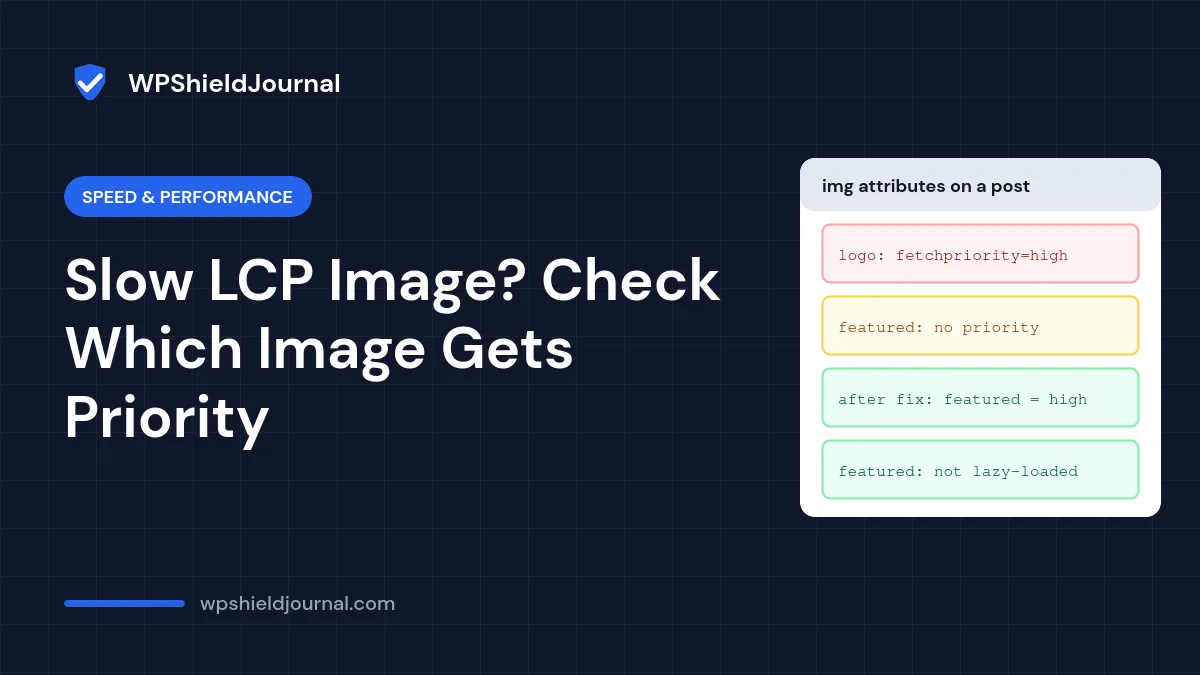
When PageSpeed Insights flags a slow LCP image (Largest Contentful Paint), the usual advice is to compress it. Compression helps, but there is a quieter problem: the browser may be loading the wrong image first. WordPress adds a priority hint to the image it thinks matters most, and on our own site it chose the header logo instead of the featured image. This guide shows how to check which image gets priority on your site and how to fix it.
Quick answer: Find your LCP element in PageSpeed Insights, then view the page source and check that image’s attributes. The LCP image should have fetchpriority="high" and must not have loading="lazy". If another image, often the logo, has the high priority instead, move the hint with a small filter or your theme’s settings. Then make sure the LCP image is correctly sized and compressed.
What LCP measures and which image it usually is
Largest Contentful Paint is the time until the largest image or text block in the visible area is drawn. Google’s PageSpeed Insights documentation treats an LCP of up to 2.5 seconds as good. On blog posts the LCP element is often the featured image at the top. On a home page it may be a hero image or a large heading. PageSpeed Insights names the element in its diagnostics, so check rather than guess.
How WordPress decides which image gets priority
Since version 6.3, WordPress adds fetchpriority="high" to one image per page that it predicts is the LCP image, and avoids lazy-loading images near the top. We read the logic in WordPress core (wp-includes/media.php): it goes through images in page order and treats an image as a candidate if its width multiplied by its height is at least 50,000 pixels.
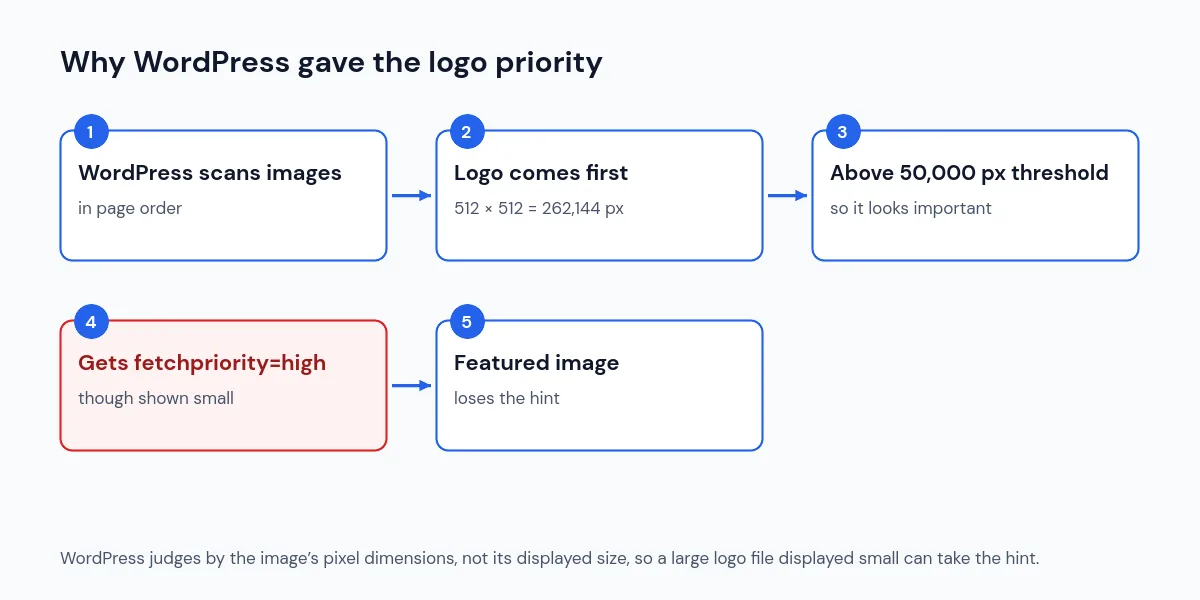
That works well for content images, but a theme that outputs a large logo file before the featured image can steal the hint. This is exactly what happened here.
What we found on this site
On our article pages, the header logo (a 512 × 512 pixel image displayed much smaller) was getting fetchpriority="high", while the 1200 × 675 featured image, the likely LCP element, had no priority hint. We added a small filter that moves the hint on single posts and verified the HTML afterwards:
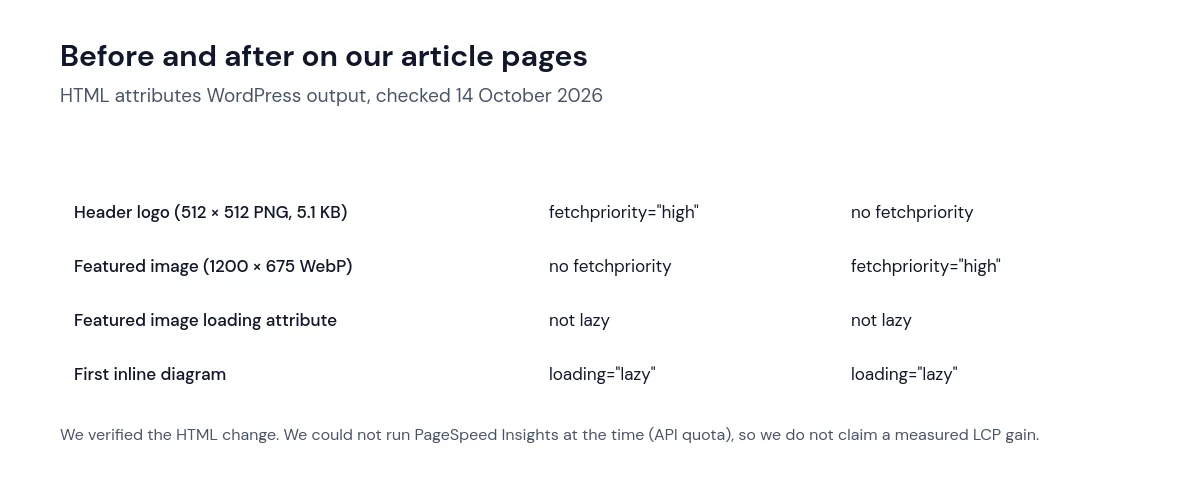
We want to be clear about the limits: the PageSpeed Insights API was over its quota when we tried to test, so we have not measured the effect on LCP for this site. The change follows the standard guidance for LCP images, and you should measure it on your own site.
Step 1: Find your LCP element
Run the page through PageSpeed Insights and look for the Largest Contentful Paint element diagnostic. It shows a snippet of the element. If it is text, image priority is not your problem; look at fonts and render-blocking CSS instead, as covered in our slow site guide.
Step 2: Check the image’s attributes
Open the page in a private window, view the source (Ctrl+U) and search for the image file name. Check three things:
fetchpriority="high"should be on this image, and only this image.loading="lazy"must not be on it. Lazy-loading the LCP image delays it until layout is calculated.widthandheightshould be present, so the browser can reserve space and avoid layout shift.
Step 3: Move the priority to the right image
First look for a theme or performance plugin setting that controls the featured image’s loading behaviour. If there is none, a filter can set the attributes. This is the logic we use, which you can add in a code snippets plugin or a child theme’s functions.php. The class names post-top-featured and custom-logo are the ones our theme (Kadence) uses; check your own page source and adjust them.
add_filter( 'wp_get_attachment_image_attributes', function ( $attr ) {
    if ( is_admin() || ! is_singular( 'post' ) || ! has_post_thumbnail() ) {
        return $attr;
    }
    $class = $attr['class'] ?? '';
    if ( str_contains( $class, 'post-top-featured' ) ) {
        $attr['fetchpriority'] = 'high';
        unset( $attr['loading'] );
    } elseif ( str_contains( $class, 'custom-logo' ) ) {
        unset( $attr['fetchpriority'] );
    }
    return $attr;
}, 20 );
After adding it, purge your page cache and repeat Step 2 to confirm the attributes changed.
Test code changes on staging first. A syntax error in functions.php can take the site offline; if that happens, follow our critical error guide.
Step 4: Make the LCP image itself lighter
- Serve the right size. WordPress creates several sizes and uses
srcsetso phones download a smaller file. Do not force the full-size original where a smaller size is displayed. - Use a modern format. WebP or AVIF files are usually much smaller than JPEG or PNG at similar quality. Our featured images are 1200 × 675 WebP files of roughly 20 to 30 KB.
- Avoid sliders and carousels at the top. They often load several large images and JavaScript before the first slide appears.
- Check the server first. If Time to First Byte is slow, every image starts late. Our slow site guide shows how to tell the difference.
Frequently asked questions
Should every image get fetchpriority=”high”?
No. The hint only helps when it marks one or two critical images. Marking many images makes them compete and removes the benefit.
Is lazy-loading bad for performance?
Lazy-loading is good for images further down the page. It is only harmful for images visible immediately, especially the LCP image.
Do I need to preload the image as well?
Usually not, if the image is in the HTML with fetchpriority="high". Preloading helps mainly when the image is loaded by CSS or JavaScript and the browser cannot discover it early.
Summary
A slow LCP image is not always a file-size problem. Check which image WordPress marks with fetchpriority="high", make sure your real LCP image has it and is not lazy-loaded, then serve it at the right size in a modern format. Measure before and after so you know the change helped.