LiteSpeed Cache Purge Not Working? How to Find the Real Cause
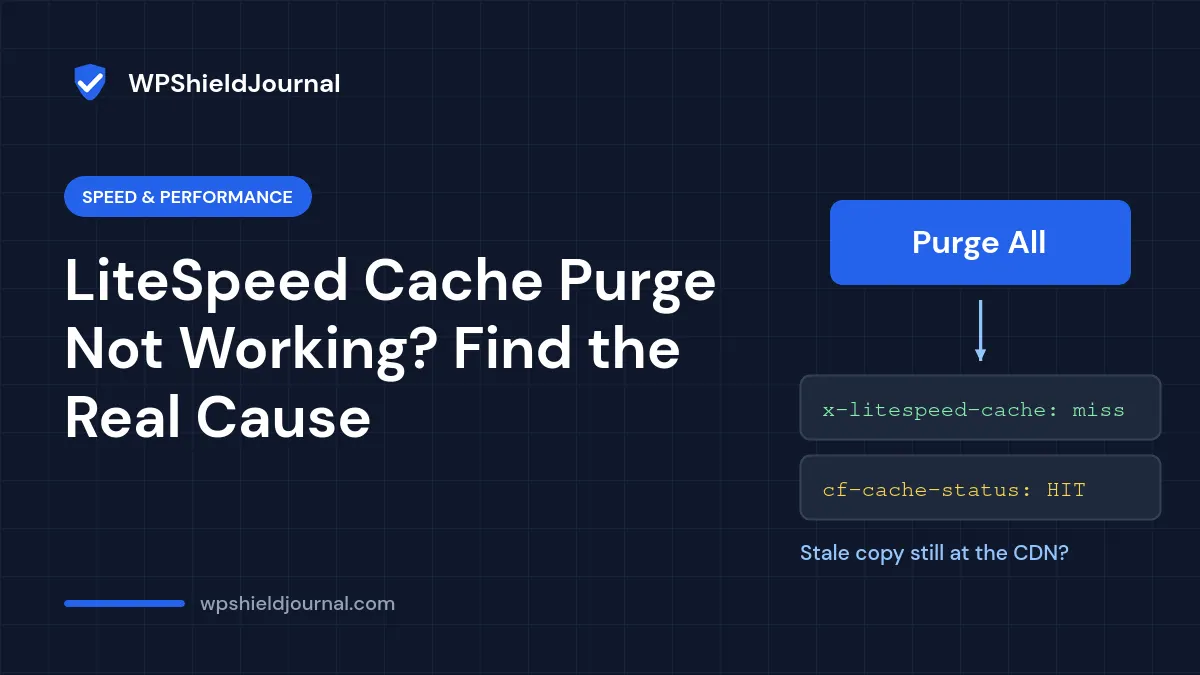
LiteSpeed Cache purge not working? You click Purge All, reload the page, and nothing changes. Before you disable the plugin, it helps to know that “purge not working” is usually one of a handful of specific situations, and each one has a clear test.
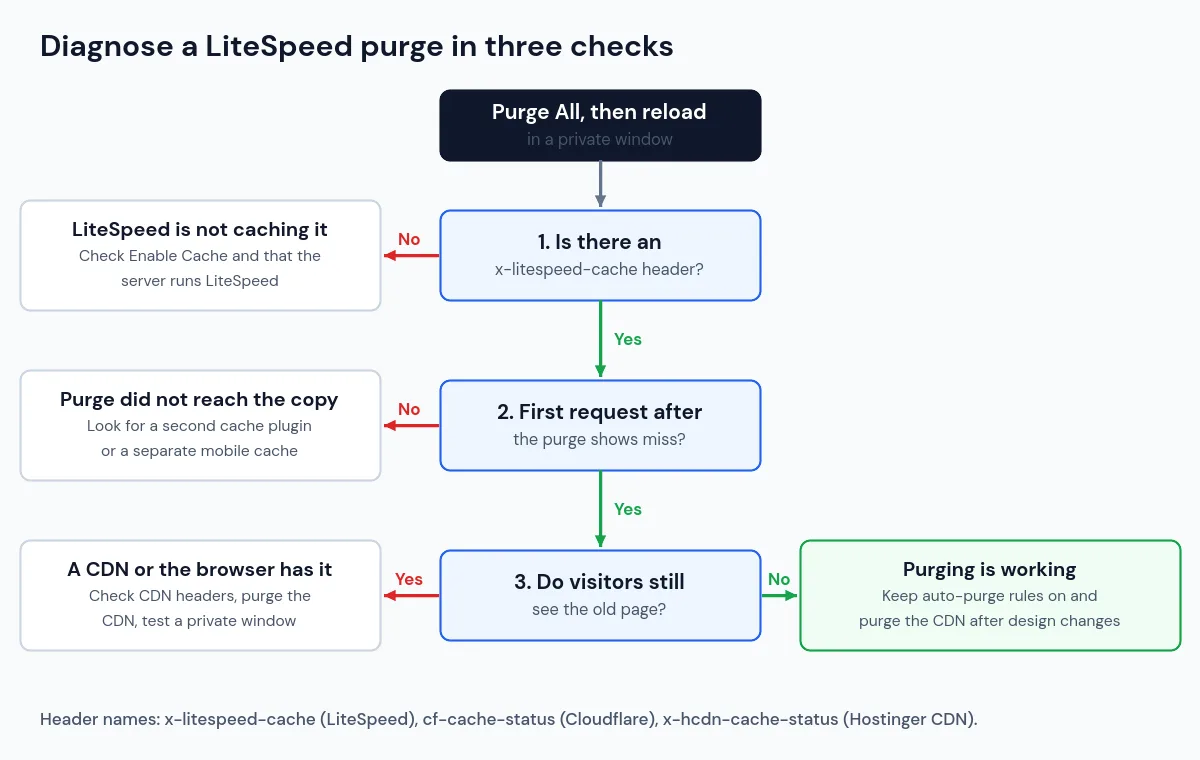
Quick answer: check the x-litespeed-cache response header. If it is missing, LiteSpeed is not caching pages at all, so purging cannot help; the stale copy is coming from somewhere else (usually a CDN or your browser). If the header shows hit straight after a purge, check for a CDN in front of the server, a second caching plugin, or a separate mobile or logged-in cache.
First, how a LiteSpeed Cache purge works
LiteSpeed Cache stores full HTML pages on the server. It removes (purges) stored pages in three ways:
- Automatically when you publish or update a post. Under LiteSpeed Cache → Cache → Purge, the auto-purge rules decide which related pages are also purged: All pages, Front page, Home page, Pages, All pages with Recent Posts Widget, Author archive, Post type archive, Yearly, Monthly and Daily archives, and Term archive (categories, tags and taxonomies).
- Automatically on certain site-wide events, listed in the Purge All Hooks setting. On our own installation (LiteSpeed Cache 7.9.1) the list included switching themes, creating, updating or deleting menus, and creating, editing or deleting terms.
- Manually, from the LiteSpeed icon in the admin bar or LiteSpeed Cache → Toolbox → Purge.
On our Hostinger installation, Purge All On Upgrade was switched off by default. That means a plugin or theme update does not automatically clear cached pages, which can explain stale layouts after an update.
Step 1: Check whether LiteSpeed is caching at all
Load the page in a private window and look at the response headers (browser developer tools → Network → the page request), or run:
curl -sI https://example.com/ | grep -i -E "x-litespeed-cache|cache-status|cf-cache|age"| What you see | What it means |
|---|---|
x-litespeed-cache: hit | The page came from LiteSpeed’s page cache. |
x-litespeed-cache: miss | LiteSpeed generated the page fresh and will usually store it for the next visitor. |
No x-litespeed-cache header | LiteSpeed’s page cache is not serving this page. Purging it cannot fix stale content. |
If the header is missing on every page, check that Enable Cache is on under LiteSpeed Cache → Cache. Also confirm that your server actually runs LiteSpeed: the plugin’s page cache needs a LiteSpeed web server (or LiteSpeed’s QUIC.cloud service). On Apache or Nginx hosting, the plugin’s optimization features can still work, but page caching does not, as the plugin’s support team has explained on the WordPress.org forum.
Step 2: Purge, then confirm with a miss
Run Purge All, then request the page twice:
- The first request should show
missand your new content. - The second request should show
hitwith the same new content.
If the first request after a purge is still a hit with old content, the purge did not reach the stored copy. The most common reasons are below.
Common causes and fixes
1. A CDN is serving its own copy
If a CDN sits in front of your server, it keeps its own cached pages. Purging LiteSpeed does not automatically purge every CDN. Look for CDN headers such as cf-cache-status (Cloudflare) or x-hcdn-cache-status (Hostinger CDN). A HIT there means the CDN answered without asking your server.
- Hostinger CDN: when we inspected the Hostinger Tools plugin (version 3.0.79), its code cleared the Hostinger CDN after LiteSpeed’s Purge All, but not after LiteSpeed’s automatic per-page purges. That only applies while the plugin is active. If one page stays stale for visitors, use Purge All with the plugin active, or Flush cache under Performance → CDN in hPanel.
- Cloudflare: a WordPress.org user has reported that LiteSpeed’s Cloudflare integration purges Cloudflare only on Purge All, not when individual posts are updated. If Cloudflare caches your HTML, purge the URL in Cloudflare as well, and recheck this behaviour against the current plugin version.
2. Two caching plugins are active
LiteSpeed Cache plus another page-cache plugin (WP Rocket, W3 Total Cache, WP Super Cache, WP Fastest Cache and similar) creates two separate stored copies. Purging one leaves the other. Keep a single page-cache plugin. If you deactivate one, also clear the files it left in wp-content/cache/, following that plugin’s instructions.
3. Only mobile visitors see the old version
If Cache Mobile is enabled, LiteSpeed keeps a separate cached copy for mobile devices, so the desktop and mobile versions can differ. After purging, test the mobile version separately, for example with your browser’s device emulation, and check the response headers it receives. On our own site this setting was off.
4. Menus, widgets or sidebars are stale on other pages
Updating a post purges that post and the related pages selected in the auto-purge rules, not every page that shows the post in a widget or menu. If a sidebar list or footer is out of date across the site, run Purge All. If it happens often, review the auto-purge rules or the Purge All Hooks list.
5. CSS or JavaScript changes are missing
If you use LiteSpeed’s CSS/JS minification or combination, the browser receives generated files rather than your originals. Use the CSS/JS purge option on the Toolbox → Purge page, then hard-refresh. Browser caching of static files can also hold old stylesheets: test in a private window before assuming the purge failed.
6. You are checking while logged in
By default, logged-in users are not served cached pages. If you see the new version while logged in but visitors do not, the page cache, a CDN, or the visitor’s browser is still holding the old copy. Always test in a private window.
If nothing works
- Temporarily disable caching (LiteSpeed Cache → Cache → Enable Cache off), load the page in a private window, then turn caching back on. If the page is still stale with caching off, the problem is a CDN, DNS or the content itself.
- Check that you are editing the live site and not a staging copy.
- Ask your host whether there is server-level caching or a CDN in front of your site that you cannot see in WordPress.
Prevention
- Keep the default auto-purge rules enabled for publish and update.
- Consider enabling Purge All On Upgrade if layout problems appear after plugin or theme updates.
- After a design change, run Purge All and also purge your CDN.
- Use a single page-cache plugin and document which CDN sits in front of your site.
Related guides
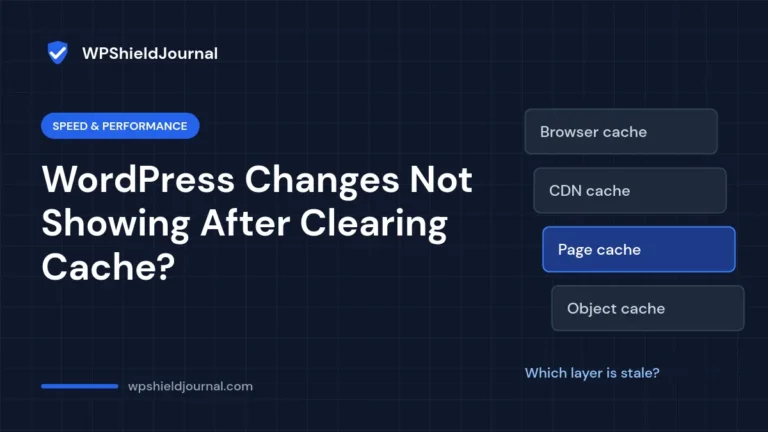
If you are not sure which cache layer is involved, start with WordPress changes not showing after clearing cache, which walks through every layer from the browser to the CDN. See all our Speed & Performance guides for more.
References
- LiteSpeed Cache plugin page (WordPress.org)
- WordPress.org support thread: page caching requires a LiteSpeed server
- WordPress.org support thread: Cloudflare purge behaviour report
- Hostinger CDN: How to clear the cache (Hostinger Help Center)
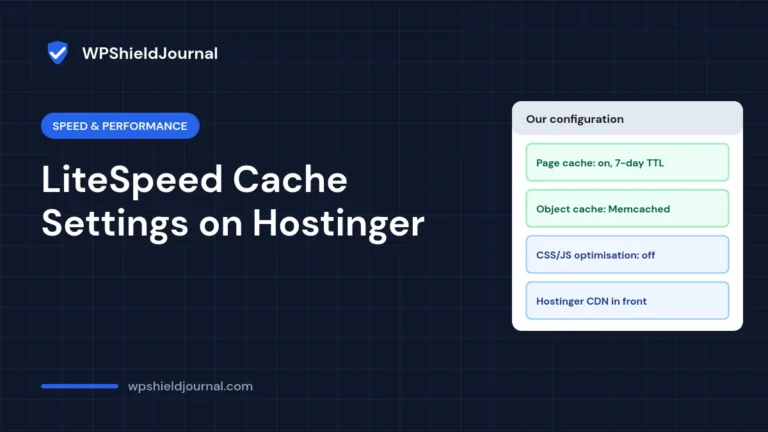
If you are setting up LiteSpeed Cache from scratch, see the LiteSpeed Cache settings we use on Hostinger and why.
Conclusion
A LiteSpeed Cache purge almost always works on the server; the old page usually survives in a CDN, a second cache plugin, a mobile cache or the browser. Check the x-litespeed-cache header, confirm you get a miss after purging, and then clear whichever layer still answers with the old copy.