“Autoloaded Options Could Affect Performance”: What It Means and How to Fix It
WordPress Site Health shows a red critical label saying “Autoloaded options could affect performance”, and you are not sure whether your site is in trouble. This guide explains what the warning measures, how to find what is causing it, and how to fix it without breaking anything.
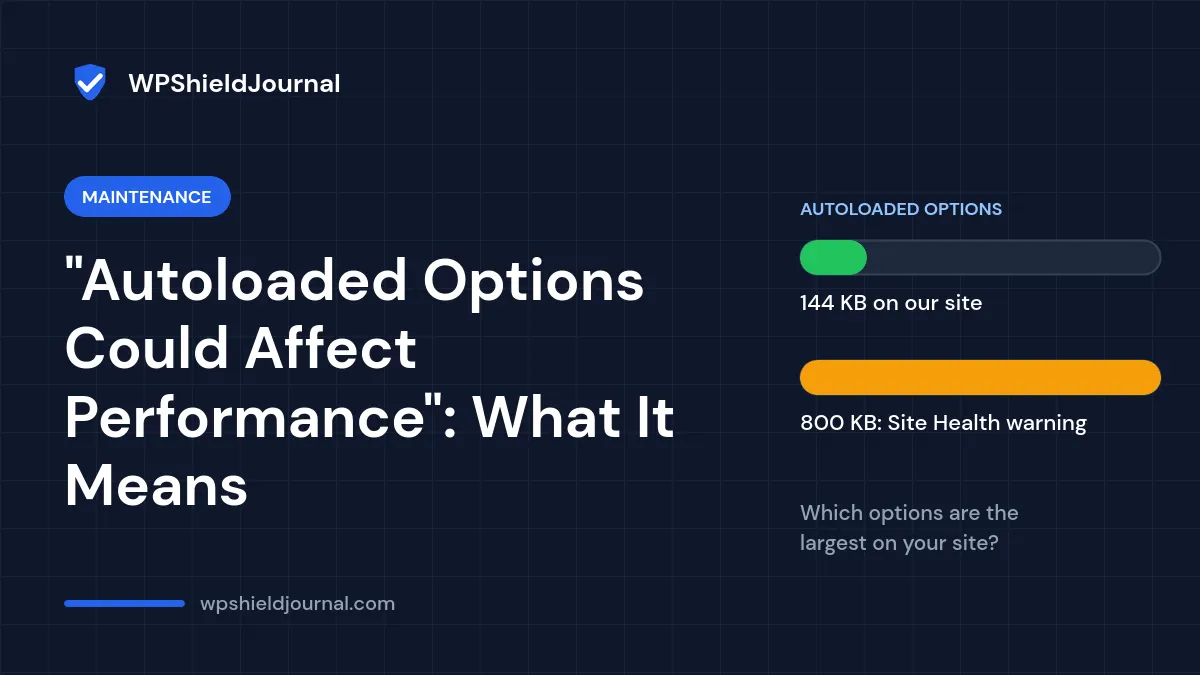
Quick answer: the warning appears when the total size of options that WordPress loads on every page reaches 800 KB. List your largest autoloaded options with a read-only database query, identify which plugin owns each one, and switch autoloading off only for options that belong to plugins you have removed or that the owning plugin does not need on every page. Take a database backup first.
What the warning actually measures
WordPress stores settings in the wp_options database table. Options marked to autoload are fetched in one query at the start of every request and kept in memory, which is fast when the set is small. When plugins store large values there, every page load pays the cost.
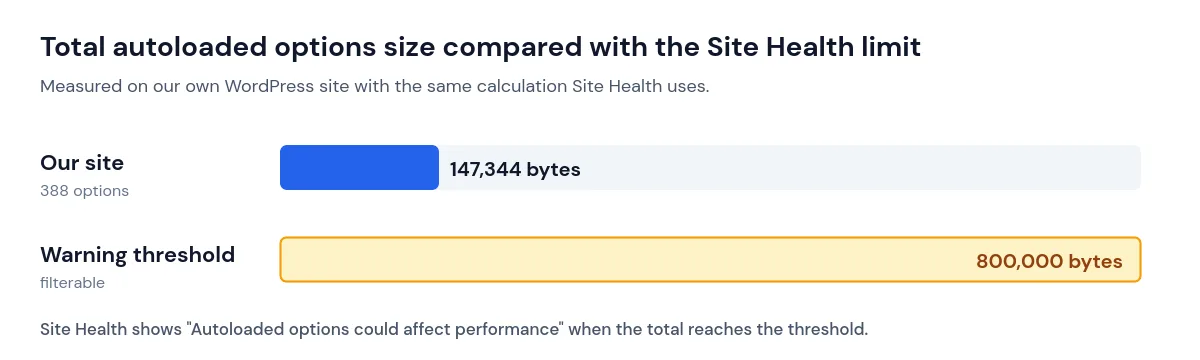
The Site Health check was added in WordPress 6.6. It adds up the length of all autoloaded option values and compares the total with a limit of 800,000 bytes. Developers can change that limit with the site_status_autoloaded_options_size_limit filter, although raising it only hides the warning.
WordPress 6.6 also changed how autoloading is recorded. The autoload column can now contain on, off, auto, auto-on or auto-off, alongside the older yes and no. The values that are loaded on every request are yes, on, auto-on and auto. WordPress 6.6 also stopped autoloading new options larger than 150,000 bytes by default, unless the code explicitly asks for it.
For comparison: on our own recently built WordPress site, Site Health’s calculation gives 388 autoloaded options with a total of 147,344 bytes, well below the 800,000-byte limit. The two largest were update-status records stored by the licensing library of premium Kadence plugins, at about 45 KB each. A brand-new site rarely triggers the warning. It usually builds up as plugins are installed, tested and removed over time.
Before you start
- A full database backup you know how to restore. Your host’s backup tool or a backup plugin is fine.
- Access to phpMyAdmin (or Adminer) in your hosting panel, or WP-CLI.
- Your table prefix. It is
wp_on many sites but can be different. Check$table_prefixinwp-config.php.
Step 1: List the largest autoloaded options
This query only reads data and changes nothing. In phpMyAdmin, select your WordPress database, open the SQL tab and run it, replacing wp_ with your prefix if needed:
SELECT option_name, autoload, LENGTH(option_value) AS bytes
FROM wp_options
WHERE autoload IN ('yes', 'on', 'auto-on', 'auto')
ORDER BY bytes DESC
LIMIT 25;
With WP-CLI you can get a similar list. The command below sorts by size and shows the 25 largest options at the bottom. The SQL query above is more complete, because it also includes options stored with the newer auto value.
wp option list --autoload=on --fields=option_name,size_bytes | sort -n -k 2 | tail -n 25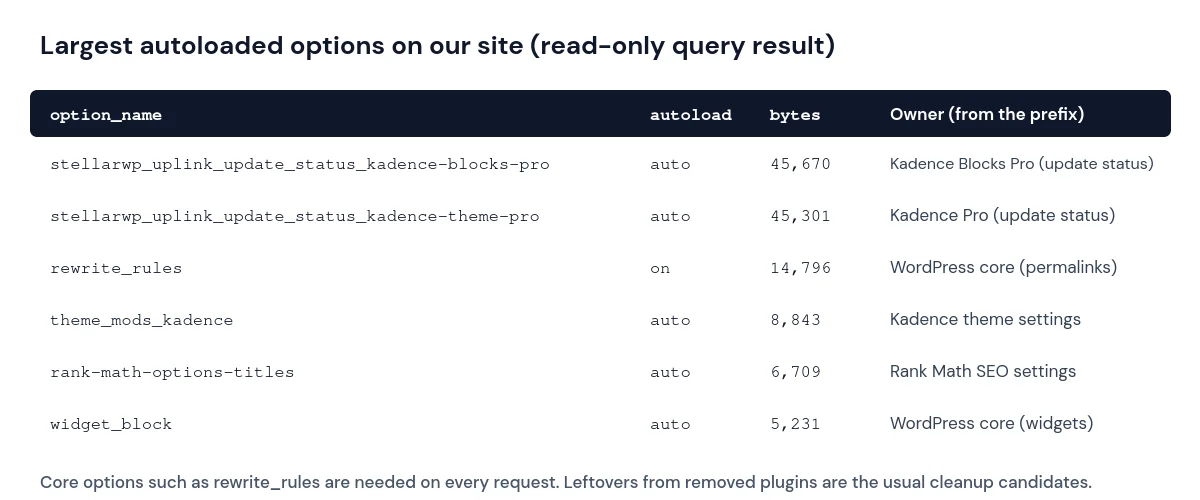
Usually a handful of options account for most of the total. Concentrate on those and ignore the hundreds of small ones.
Step 2: Identify who owns each large option
Option names normally start with the plugin’s or theme’s prefix, for example wpseo_, rank_math, litespeed., elementor_ or woocommerce_. Sort each large option into one of these groups:
| Type of option | Example names | What to do |
|---|---|---|
| WordPress core | siteurl, home, active_plugins, cron, rewrite_rules, wp_user_roles | Leave alone. WordPress needs these on every request. |
| Active plugin or theme settings | Prefix matches a plugin you use | Usually leave alone. Check the plugin’s own settings for a cleanup or cache option first. |
| Leftovers from removed plugins | Prefix matches a plugin you have deleted | Safe candidates to stop autoloading, or to delete after a backup. |
| Transients | Start with _transient_ or _site_transient_ | Temporary cached data. They expire and are recreated when needed. |
If you cannot identify a prefix, search for it in your wp-content/plugins and wp-content/themes folders, or on WordPress.org. Do not change anything you cannot identify.
Step 3: Stop autoloading options that do not need it
Warning: changing the wrong option can break a plugin or the whole site. Make sure your backup is complete before continuing, and change one option at a time.
The safest method is to switch autoloading off instead of deleting data. The value stays in the database, so the owning code can still read it when it needs it; it just is not loaded on every page.
With WP-CLI:
wp option set-autoload old_plugin_option_name offOr in SQL, after confirming the exact option name:
UPDATE wp_options
SET autoload = 'off'
WHERE option_name = 'old_plugin_option_name';
Developers can do the same from code with wp_set_option_autoload( 'option_name', false ), available since WordPress 6.4.
For options left behind by plugins you have permanently removed, you can delete them instead. Only do this when you are certain the plugin is gone for good:
wp option delete old_plugin_option_nameStep 4: Verify the result
- Go to Tools → Site Health and reload the page so the checks run again.
- Confirm the warning has gone, or that the total size reported in the message has dropped.
- Visit your homepage, a post, the dashboard and any key plugin screens (forms, shop, SEO) to make sure everything still works.
If it does not work
- The warning comes back. An active plugin may be re-creating the option as autoloaded. Check that plugin’s settings, update it, or report it to the developer.
- Something broke. Set the last option you changed back to
on(or restore your backup), and check whether it belongs to an active plugin after all. - The total is dominated by one active plugin. Look for a log, statistics or cache feature in that plugin that can be disabled or trimmed.
Alternatives
- The Performance Lab plugin from the WordPress Performance Team adds a table to this Site Health check for reviewing and disabling autoloaded options, which is easier than SQL for many users.
- Database cleanup plugins can list orphaned options, but read what each one proposes to delete before confirming.
- Raising the limit with the
site_status_autoloaded_options_size_limitfilter only hides the warning; it does not make the site faster. Never edit WordPress core files to change the limit, because core updates overwrite them.
Prevention
- Delete plugins you no longer use instead of leaving them deactivated, and use the plugin’s own data cleanup option if it has one.
- Test new plugins on a staging copy so their leftover data never reaches your live database.
- Check Tools → Site Health as part of your monthly maintenance routine. If it also reports failed loopback or REST API tests, see our guide to loopback and REST API errors in Site Health.
Related guides
Find more database and upkeep guides in Maintenance, and caching guides in Speed & Performance.
References
- Options API: Disabling autoload for large options (Make WordPress Core, WordPress 6.6 developer note)
- wp_set_option_autoload() (WordPress Developer Resources)
- wp option commands (WP-CLI documentation)
For a broader look at what else in the database can be removed, see our guide to WordPress database cleanup.
Conclusion
The autoloaded options warning is a sign that too much data is loaded on every page, not an emergency. Find the few large options responsible, keep core and active-plugin settings, and switch autoloading off for leftovers, always with a backup in place.