The Link You Followed Has Expired: Fix It in WordPress
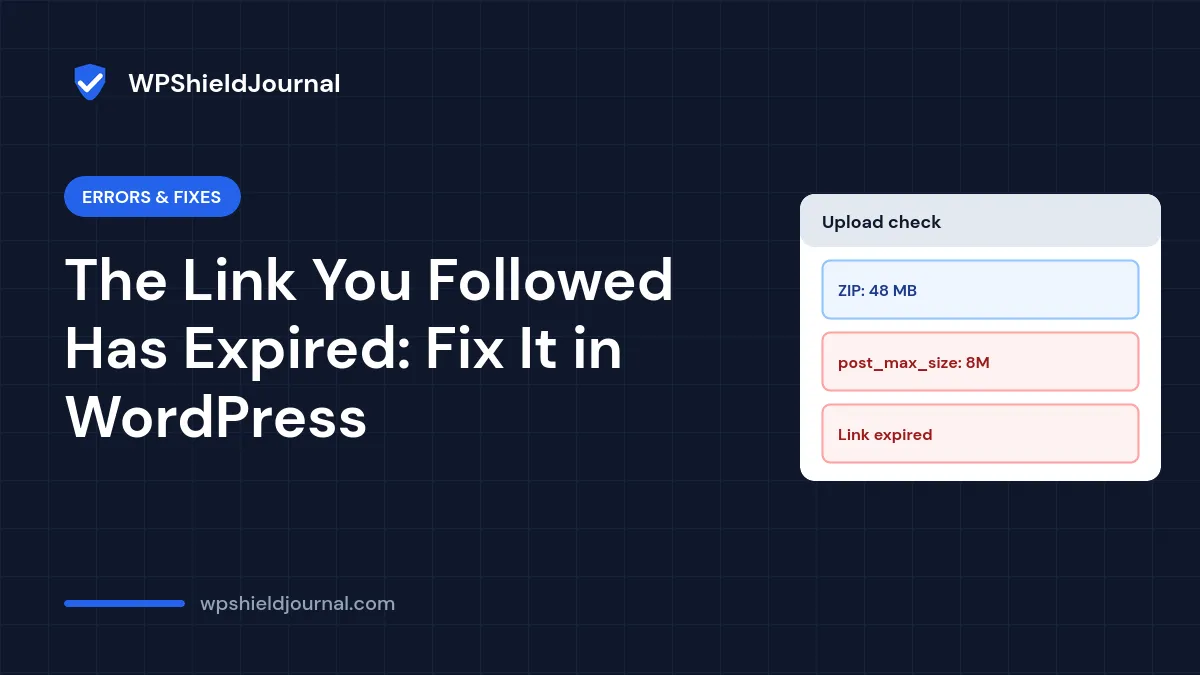
You click Install Now on a theme or plugin ZIP and WordPress replies with a one-line page: “The link you followed has expired.” Nothing expired. In most cases the file was larger than your server allows, PHP threw the upload away, and WordPress could no longer confirm the request was genuine. This guide shows how to confirm that, raise the right limits, and what to do if you cannot change them.
Quick answer: compare the size of your ZIP with the Maximum upload file size shown under Media → Add New. If the file is bigger, raise PHP’s upload_max_filesize and post_max_size (with post_max_size the larger of the two) in your hosting panel, or install the plugin or theme another way, such as SFTP or WP-CLI.
Why WordPress says the link has expired
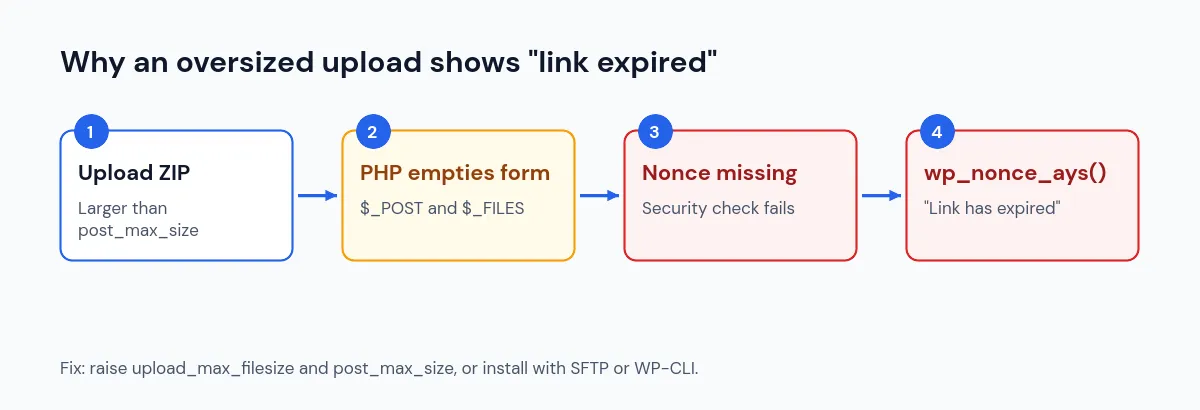
WordPress protects admin actions with a security token called a nonce. When a form is submitted, WordPress checks the token. If the check fails, the core function wp_nonce_ays() stops the request and shows “The link you followed has expired.”
The confusing part is why the check fails. PHP’s documentation for post_max_size states: “If the size of post data is greater than post_max_size, the $_POST and $_FILES superglobals are empty.” So when you upload a ZIP that is too large, PHP discards the whole form, including the security token. WordPress sees a request with no token and reports it as expired.
There are two other, less common causes:
- The page really was open too long. A WordPress nonce is valid for 12 to 24 hours. If you leave an admin page open overnight and then submit it, reload the page and try again.
- Something removed form data on the way. A firewall or security rule that strips or blocks large POST requests can produce the same symptom.
Step 1: Check the file size against your current limit
- Go to Media → Add New. Below the upload area WordPress shows Maximum upload file size.
- Check the size of the ZIP file on your computer.
- If the ZIP is larger than the limit, the upload limit is the cause. Continue with Step 2.
The value WordPress shows is the smaller of PHP’s upload_max_filesize and post_max_size; core calculates it in wp_max_upload_size(). Tools → Site Health → Info → Server also lists both PHP values separately.
Step 2: Raise the PHP upload limits
You need to change two PHP settings:
| Setting | What it limits | Rule |
|---|---|---|
upload_max_filesize | The size of one uploaded file | Larger than your biggest ZIP |
post_max_size | The whole form submission | Larger than upload_max_filesize |
PHP’s manual notes that post_max_size must be larger than upload_max_filesize. For a 40 MB theme, values such as upload_max_filesize = 64M and post_max_size = 72M are reasonable: comfortably above the file size, with post_max_size a little larger as PHP requires.
Where you change them depends on your hosting:
- Hosting control panel (recommended). Most hosts have a PHP settings or PHP configuration screen where you can type new values. This is the safest option because the host knows which file its server reads.
- php.ini or .user.ini. On hosts that allow a custom
php.inior.user.iniin the site’s root folder, add the two lines. Changes to.user.inican take a few minutes to apply because PHP caches it. - .htaccess. Lines such as
php_value upload_max_filesize 64Monly work when PHP runs as an Apache module or through LiteSpeed’s LSAPI handler. On many modern hosts they cause a 500 Internal Server Error instead. If that happens, remove the lines straight away; our 500 error guide explains how to recover.
upload_max_filesize = 64M
post_max_size = 72M
Adding ini_set() calls for these values to wp-config.php or a theme file does not work. PHP applies upload limits before WordPress runs, so they must be set in PHP’s configuration, not from inside WordPress.
After saving, reload Media → Add New and confirm the new Maximum upload file size. If it has not changed, your host is reading a different configuration file, or a server-wide maximum applies; ask your host.
Step 3: Try the upload again
Return to Plugins → Add New → Upload Plugin or Appearance → Themes → Add New → Upload Theme and upload the ZIP again. If the upload now works, you are done.
If you get a different error, such as a timeout on a slow connection, the file is now being accepted and something else is limiting the request. Very large uploads can also hit max_execution_time or max_input_time; your host can raise these if needed.
If you cannot change the limits
Shared hosting plans sometimes cap these values. You can still install the theme or plugin without uploading it through the browser:
- SFTP or the host’s file manager. Unzip the file on your computer and upload the folder to
wp-content/plugins/orwp-content/themes/, then activate it from the dashboard. - WP-CLI. If your host provides SSH access, upload the ZIP to the server and run
wp plugin install /path/to/plugin.ziporwp theme install /path/to/theme.zip(see the wp plugin install documentation). - Install from the directory. If the plugin or theme is on WordPress.org, install it with the Add New search instead of uploading a ZIP.
Only install themes and plugins from sources you trust. Commercial products should come from the developer’s own site or account, never from a “free download” copy, which is a common way sites get infected.
When to contact your host
Contact your hosting provider if:
- the limits do not change after you edit them;
- you see the error on forms that do not upload files, which points to a firewall or security rule;
- your plan does not let you change PHP settings at all.
Tell them the exact message, the size of the file and the values shown in Site Health. That is usually enough for support to fix it quickly.
Frequently asked questions
Will raising the upload limit slow down my site?
No. These limits only matter when a file is being uploaded. They do not affect normal page loads.
Why does the media library show a different error for large images?
The media uploader checks the size before sending the file and shows its own message. The “link expired” message mainly appears with theme and plugin ZIP uploads, which submit the form in one request. For image processing errors, see our guide to image upload errors.
Do I need to raise memory_limit too?
Not for the upload itself. PHP’s manual recommends that memory_limit be larger than post_max_size in general. If you later see an “Allowed memory size exhausted” error while a large plugin is being unpacked, see our memory error guide.
Summary
“The link you followed has expired” after an upload almost always means the file was larger than post_max_size, so PHP emptied the form and the security check failed. Compare the file with the maximum shown under Media → Add New, raise upload_max_filesize and post_max_size in your hosting panel, and use SFTP or WP-CLI if your plan will not allow larger uploads.