Installation Failed: Could Not Create Directory in WordPress
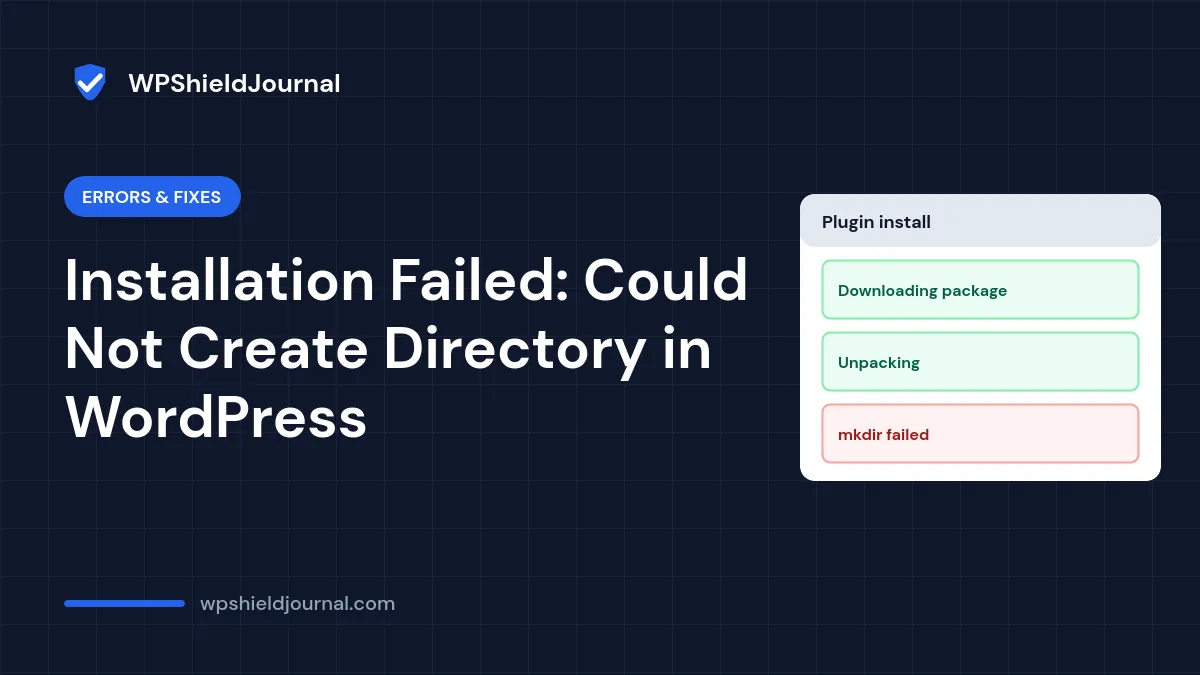
You try to install or update a plugin or theme and WordPress stops with “Installation failed: Could not create directory.” Related messages include “Destination folder already exists”, “Could not copy files. You may have run out of disk space” and a request for FTP details you never needed before. They all mean WordPress could not write to the folders where plugins and themes live. This guide explains each message, how to check permissions, ownership and disk space, and how to fix it without making the site less secure.
Quick answer: check your hosting disk usage first, then confirm that wp-content, wp-content/plugins, wp-content/themes and wp-content/upgrade are writable by the account PHP runs as. Folders should normally be 755 and files 644. Never set anything to 777.
What each message means
These messages come from WordPress’s upgrader, the code that downloads, unzips and moves plugin and theme files.
| Message | What failed |
|---|---|
| Could not create directory. | WordPress could not make a new folder, usually in wp-content/upgrade or wp-content/plugins |
| Destination folder already exists. | A folder with the plugin’s name is already in wp-content/plugins |
| Could not copy files. You may have run out of disk space. | Unzipping or copying stopped, often because the account is full |
| The update cannot be installed because some files could not be copied. This is usually due to inconsistent file permissions. | During a WordPress core update, some existing core files cannot be overwritten |
| “To perform the requested action, WordPress needs to access your web server” (asks for FTP details) | WordPress decided it cannot write files directly |
The last message is a clue. WordPress tests whether it can write directly by creating a temporary file in wp-content and comparing its owner with the owner of WordPress’s own files. The get_filesystem_method() reference describes this: if the owners match, WordPress writes files directly; if they do not, it falls back to FTP or SSH and asks for credentials.
Step 1: Check disk space
Open your hosting control panel and look at disk usage and inode (file count) usage. If either is at or near the limit, WordPress cannot create new files.
- Delete old backups stored inside the hosting account, especially full-site backup archives.
- Remove unused plugins and themes from the dashboard.
- Check
wp-content/upgradeandwp-content/upgrade-temp-backupfor leftovers from failed updates; files there that are days old can be removed.
Step 2: Check folder permissions
The WordPress file permissions documentation recommends, for shared hosting where PHP runs as your own account, that “All directories should be 755 or 750. All files should be 644 or 640”, with wp-config.php at 440 or 400. It also says no directory “should ever be given 777, even upload directories”.
In your host’s file manager or an SFTP client, check:
wp-contentand itsplugins,themes,uploadsandupgradefolders:755- Files inside them:
644
If a folder shows something stricter, such as 555, set it back to 755 and try again.
Setting folders to 777 can make an install work, but it lets any process on the server write to your site. Change it back and fix ownership instead.
Step 3: Check file ownership
Permissions only help when the files belong to the account PHP runs as. After a migration, a restore or files uploaded by another user, they may belong to someone else.
- On shared or managed hosting you usually cannot change ownership yourself. Many hosts have a “fix permissions” or “reset ownership” tool in the control panel; otherwise ask support to reset ownership of the WordPress folder to your account.
- On your own server, the owner should be the user PHP-FPM runs as. Changing it needs root access and
chown. If you manage your own server, check which user your PHP pool runs as before changing anything.
Once ownership matches, WordPress stops asking for FTP details and installs work normally.
Some guides suggest adding define( 'FS_METHOD', 'direct' ); to wp-config.php. This skips WordPress’s ownership test. It can be correct on some servers, but if ownership is wrong it only hides the problem and may leave files owned by the web server. Fix ownership first.
Step 4: Fix “Destination folder already exists”
This happens when a previous install failed half-way or a plugin was deleted incompletely.
- Check whether the plugin is listed under Plugins. If it is and works, you do not need to install it again.
- If you are uploading a ZIP of a plugin that is already installed, WordPress shows “This plugin is already installed” with a Replace current with uploaded button. Use that to update it.
- If the plugin is not listed, open
wp-content/pluginsin your file manager, rename the leftover folder (for example toplugin-name-old) and run the install again. Delete the renamed folder once the new copy works.
The same applies to themes in wp-content/themes.
Step 5: Try the install again
Run the install or update again from the dashboard. If it still fails, try installing with WP-CLI over SSH, which shows clearer errors:
wp plugin install plugin-slug --activateIf the update stopped part-way and the site shows a maintenance message, see Briefly unavailable for scheduled maintenance.
When to contact your host
Contact your host if disk space is fine and permissions look right but WordPress still cannot write files, if files are owned by a different user, or if the problem started after a server move. Ask them to check ownership of the WordPress folder and that PHP runs as your account.
Frequently asked questions
Why did this start after a migration?
Copying files with a different user, or restoring an archive as root, often leaves files owned by the wrong account. Permissions then look correct but WordPress still cannot write. Our migration guide covers the full move.
Is it safe to give WordPress my FTP password?
It works, but it is a sign of an ownership problem. Fixing ownership is better than storing FTP details.
Does this affect automatic updates?
Yes. Background updates use the same upgrader, so they are affected too. If WordPress cannot write files directly, plugin and theme auto-updates are skipped without an email; other failures usually send an update-failure email to the administration address. Our auto-updates guide explains how to check them.
Summary
“Installation failed: Could not create directory” means WordPress could not write to its plugin, theme or upgrade folders. Check disk space, set folders to 755 and files to 644, make sure files belong to the account PHP runs as, clear leftover folders for “Destination folder already exists”, and avoid 777 permissions.