Repair WordPress Database Tables: “One or More Tables Are Unavailable”
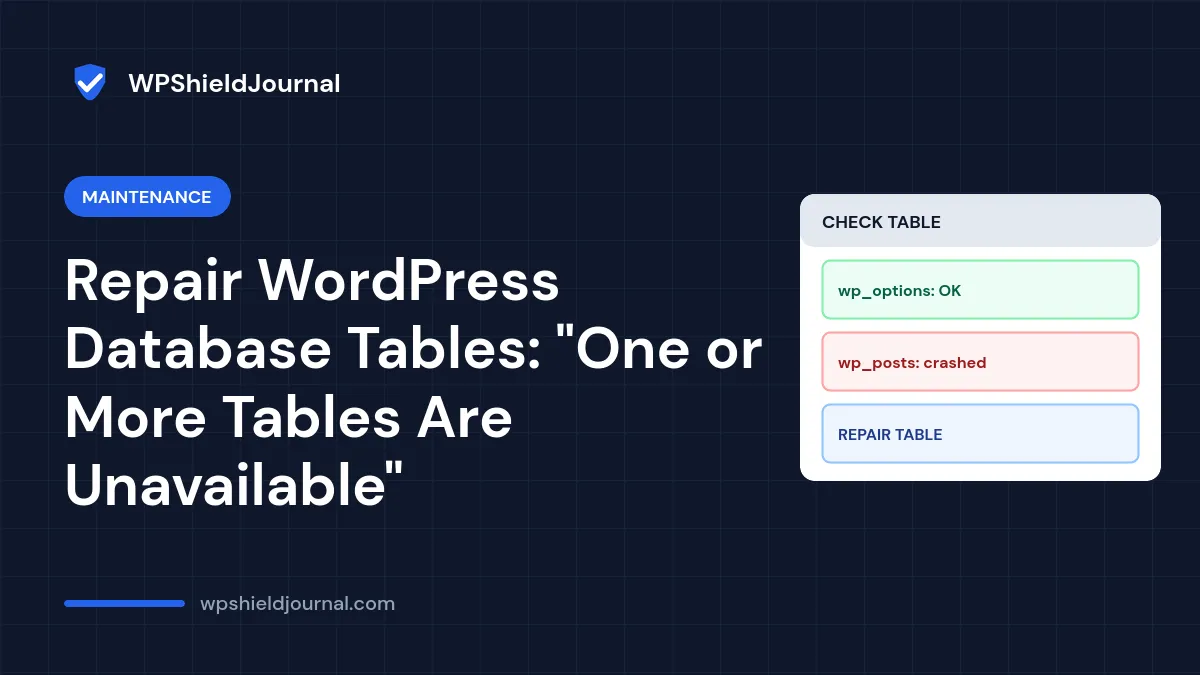
Your site shows “One or more database tables are unavailable. The database may need to be repaired.” with a link to a repair page, or the dashboard reports damaged tables. WordPress could reach the database but could not read one or more of its tables. This guide shows how to check and repair WordPress database tables safely with WordPress’s built-in repair page, phpMyAdmin or WP-CLI, and when repair cannot help.
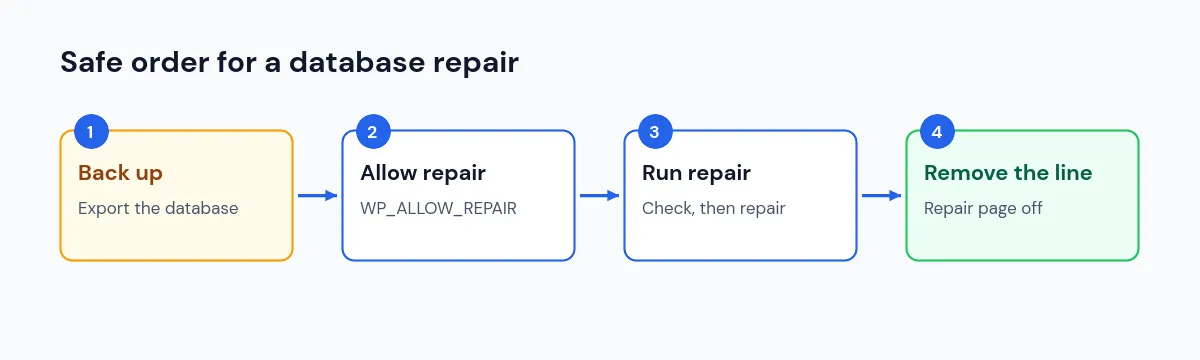
Quick answer: take a database backup first. Then either add define( 'WP_ALLOW_REPAIR', true ); to wp-config.php and open /wp-admin/maint/repair.php, or use Check table and Repair table in phpMyAdmin. Remove the WP_ALLOW_REPAIR line as soon as you finish, because the repair page works without logging in.
What the message means
WordPress checks whether it is installed by querying its core tables. In wp-includes/functions.php, if some tables exist but cannot be read, WordPress stops with “One or more database tables are unavailable. The database may need to be repaired.” and links to maint/repair.php.
Common causes include:
- a server or MySQL crash while tables were being written;
- the disk filling up during a write;
- an interrupted import or migration;
- tables using the older MyISAM storage engine, which are more easily damaged by crashes.
This is a different problem from “Error establishing a database connection”, where WordPress cannot connect at all. That one is covered in our database connection guide.
Step 1: Back up the database
Repairing a table rewrites it. If a repair goes wrong, a backup is your only way back.
- Use your host’s backup tool or phpMyAdmin’s Export tab to download a copy of the database.
- If the export fails on a damaged table, note which one; that tells you where the problem is.
Our backup guide explains how to make a backup you can restore.
Step 2: Use WordPress’s built-in repair page
WordPress includes a repair script at /wp-admin/maint/repair.php. It is disabled unless you allow it.
- Add this line to
wp-config.php, above/* That's all, stop editing! */:
define( 'WP_ALLOW_REPAIR', true );- Open
https://your-domain/wp-admin/maint/repair.php. - Choose Repair Database. Repair and Optimize Database also optimises tables and takes longer.
- Read the results. The script runs
CHECK TABLEon each WordPress table andREPAIR TABLEon any that fail. - **Remove the
WP_ALLOW_REPAIRline fromwp-config.phpimmediately.**
The repair page does not require a login. While WP_ALLOW_REPAIR is set, anyone who knows the address can run it. Remove the line as soon as you have finished.
Step 3: Or repair with phpMyAdmin
- Open phpMyAdmin and select your WordPress database (
DB_NAMEinwp-config.php). - Tick the tables that start with your table prefix, such as
wp_. - From With selected, choose Check table. Damaged tables are marked as such.
- Select the damaged tables and choose Repair table.
Step 4: Or repair with WP-CLI
If your host offers SSH, run these from the WordPress folder:
wp db check
wp db repair
The wp db repair command runs MySQL’s mysqlcheck tool with the database details from wp-config.php. wp db check only checks, without changing anything.
If repair says “The storage engine for the table doesn’t support repair”
Most modern WordPress tables use the InnoDB engine. REPAIR TABLE only works with engines such as MyISAM, so InnoDB tables return this message. As cPanel’s explanation notes, InnoDB repairs itself when MySQL restarts, and deeper recovery needs a server administrator.
So if your tables are InnoDB and still unavailable:
- contact your host; they can check MySQL’s logs and run InnoDB recovery if needed;
- or restore the database from a backup made before the problem started.
After the repair
- Load the site and log in to the dashboard.
- Check recent posts, pages and orders for anything missing.
- Check disk space in your hosting panel; a full disk can cause the same damage again.
- If tables keep breaking, ask your host about the server’s stability and storage.
You may also want to clean out old data afterwards; our database cleanup guide explains what is safe to remove.
When to contact your host
Contact your host when repairs fail, when tables are InnoDB and still unavailable, or when the problem keeps returning. Give them the table names and the exact error. They can see MySQL logs that you cannot.
Frequently asked questions
Will repairing tables delete content?
Repairing usually keeps the data, but a badly damaged MyISAM table can lose the rows that were damaged. That is why the backup comes first.
Is “Repair and Optimize” better?
Optimising rebuilds tables to reclaim space. It is not needed to fix the error and takes longer on large databases. Use plain repair first.
Should I leave WP_ALLOW_REPAIR on in case it happens again?
No. It exposes a page anyone can run. Add the line only when you need it.
Summary
“One or more database tables are unavailable” means WordPress can connect to the database but cannot read some tables. Back up, run WordPress’s repair page with WP_ALLOW_REPAIR (and remove it afterwards), or use phpMyAdmin or wp db repair. For InnoDB tables that cannot be repaired this way, ask your host or restore a backup.