WordPress Scheduled Posts Missed Schedule? How WP-Cron Really Works
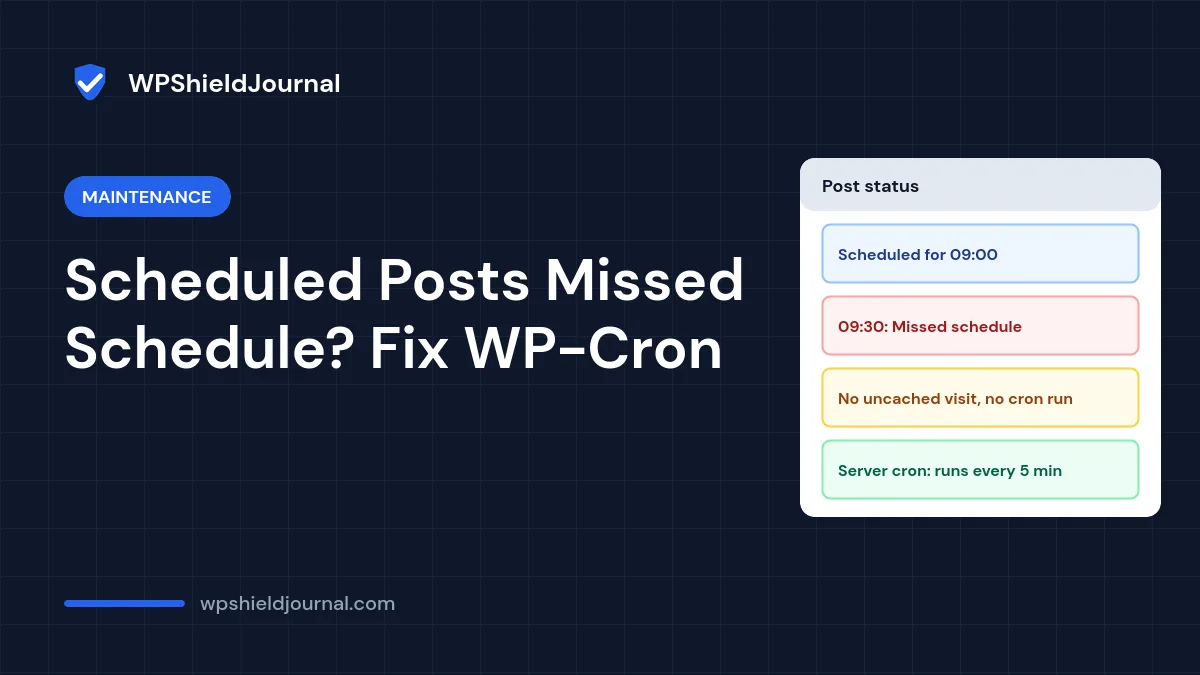
You scheduled a post for 9:00, and at 9:30 it still says Missed schedule. The same problem can delay backups, update checks and email digests. The cause is how WP-Cron works: WordPress has no clock running in the background, so scheduled tasks only run when something triggers them. This guide explains the mechanism, how to check your site, and how to make scheduled tasks reliable.
Quick answer: WP-Cron only runs when a request reaches WordPress’s PHP code. On quiet sites, or sites where most visits are served from a page cache, that can happen too rarely. Check Tools → Site Health for scheduled event and loopback errors. For reliable timing, disable page-load cron with define( 'DISABLE_WP_CRON', true ); and have your host’s cron scheduler call wp-cron.php every few minutes.
Why scheduled posts show “missed schedule”
WordPress stores scheduled tasks, called events, in the database with the time each one is due. On a normal request, WordPress checks whether any events are due and, if so, starts a separate background request to wp-cron.php to run them. That separate request is a loopback: your server calling itself.
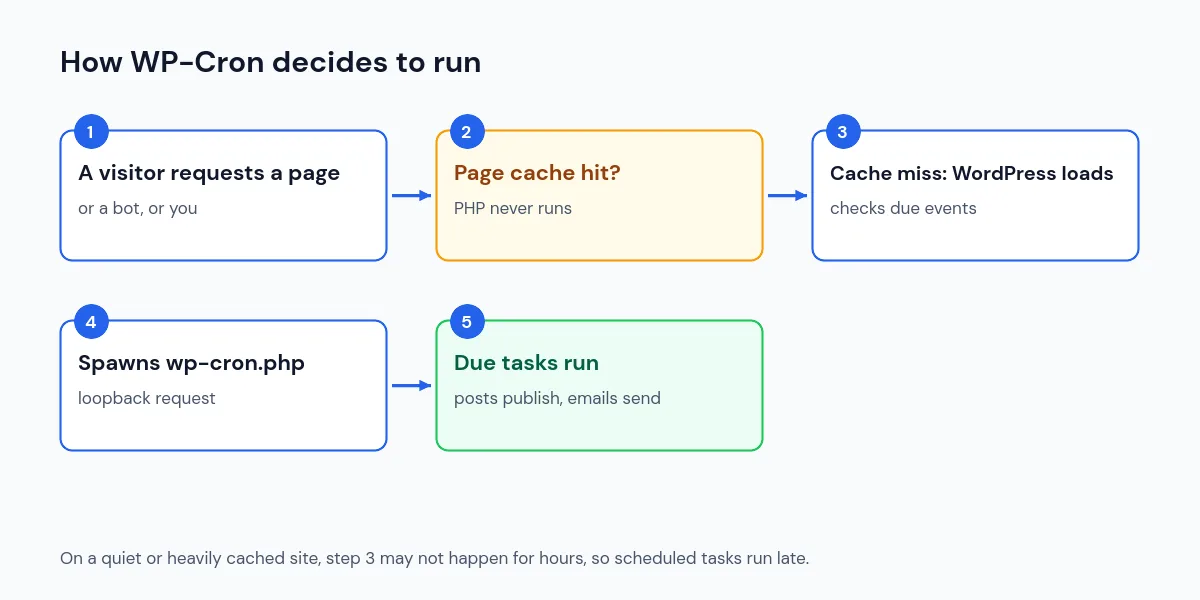
So a post scheduled for 9:00 is published at the first uncached request after 9:00. Problems occur when:
- The site is quiet. No visits, no cron runs.
- Pages are served from a full-page cache. Server-level caches such as LiteSpeed Cache or a CDN return stored pages without running PHP, so those visits never check for due events.
- Loopback requests fail. A firewall, security plugin, basic authentication on the site, or a DNS problem stops the server reaching itself, so
wp-cron.phpnever runs. - A task crashes or runs too long. A fatal error in one event can stop others in the same run.
Step 1: Check Site Health
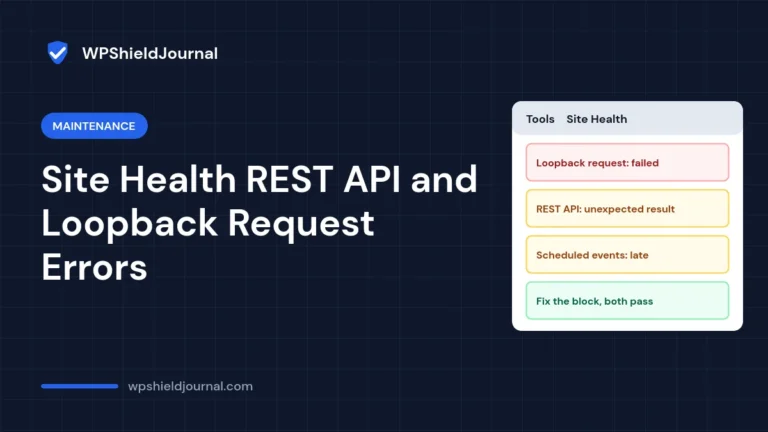
Go to Tools → Site Health. Two tests matter here: one reports whether scheduled events are running or late, and one reports whether your site can perform loopback requests. Here is what we saw on this site:
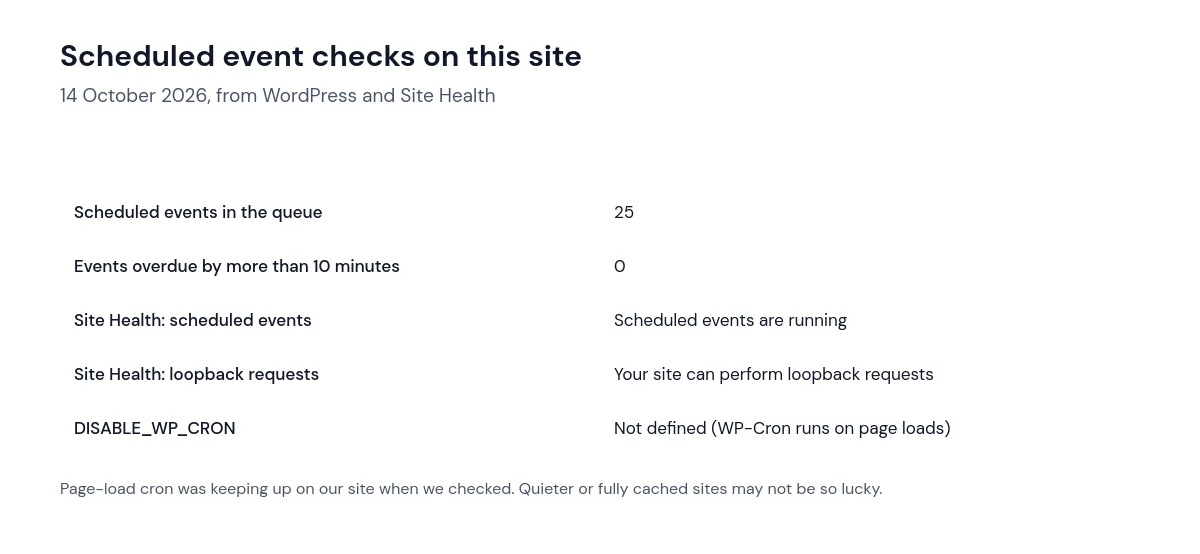
If Site Health reports late events or a failed loopback, start with the loopback: ask your host whether outgoing requests from the server to its own domain are blocked, and check security plugins and password protection on the site.
Step 2: See which events are late
If you have WP-CLI, list scheduled events with their next run time:
wp cron event list
wp cron test
wp cron test checks whether the cron spawning system works, according to the WP-CLI cron commands. Without WP-CLI, a cron viewer plugin can show the same list in the dashboard; remove it when you are done.
Step 3: Use a real server cron for reliable timing
The dependable fix is to stop relying on visits. The official guide to hooking WP-Cron into the system task scheduler has two parts.
First, add this line to wp-config.php above the “stop editing” comment, so page loads no longer trigger cron:
define( 'DISABLE_WP_CRON', true );Second, create a cron job in your hosting control panel that requests wp-cron.php regularly. Every 5 minutes is a common choice:
*/5 * * * * wget -q -O /dev/null https://example.com/wp-cron.phpReplace example.com with your domain. If your host provides WP-CLI, a job running wp cron event run --due-now in your WordPress folder works too.
Set up the server cron job before or at the same time as adding DISABLE_WP_CRON. If you add the constant and forget the cron job, nothing scheduled will ever run: no scheduled posts, no plugin tasks, no automatic update checks.
Step 4: Publish missed posts and check results
Posts that already missed their schedule are not published retroactively by every setup. Open each one and click Publish, or reschedule it. Then schedule a test post five minutes ahead and confirm it goes live on time.
Other causes worth checking
- Time zone. Settings → General → Timezone should be your local city, not a UTC offset you forgot to update for daylight saving.
- A fatal error in a cron task. Check
wp-content/debug.logas explained in our critical error guide. - Host limits. Some hosts restrict long-running requests, which can cut off heavy tasks such as backups. Our backup guide covers backup-specific failures.
Frequently asked questions
Does caching break WP-Cron?
Caching does not break it, but cached visits do not run PHP, so they do not trigger cron. Uncached requests, logged-in visits and dashboard use still trigger it. A server cron removes the dependency entirely.
How often should the server cron run?
Every 5 to 15 minutes suits most sites. More frequent runs rarely help and add load. If you publish on precise schedules, choose the shorter interval.
Is it safe to disable WP-Cron?
Only together with a working server cron job. DISABLE_WP_CRON stops page loads from triggering events; something else must take over.
If Site Health reports a failed loopback request, our guide to Site Health REST API and loopback errors explains each cause.
Summary
WordPress scheduled posts miss their schedule because WP-Cron only runs when a request reaches PHP, and quiet or heavily cached sites may not get one in time. Check Site Health for late events and loopback errors, and for reliable timing switch to a server cron that calls wp-cron.php every few minutes. Add a quick cron check to your maintenance checklist.