
The Link You Followed Has Expired: Fix It in WordPress
Why WordPress says the link you followed has expired after an upload, and how to raise the PHP limits or install the file another way.
Step-by-step fixes for the WordPress errors that take sites offline. Start with the critical error guide, or use the troubleshooting finder to match your symptom to the right fix. Each guide explains the likely causes, the safe order of steps and how to confirm the problem is solved.
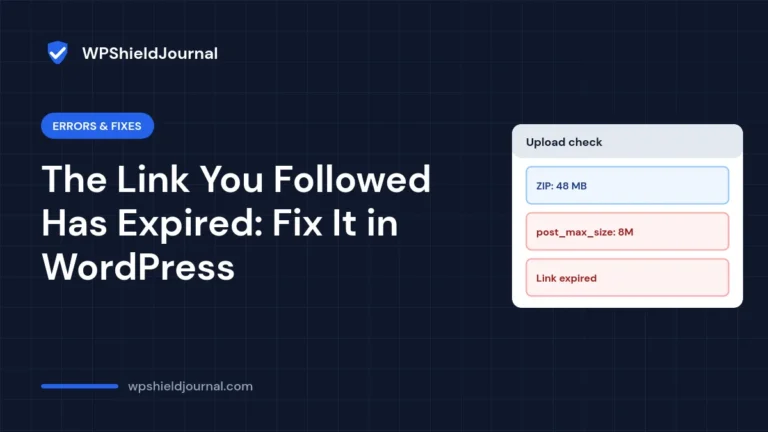
Why WordPress says the link you followed has expired after an upload, and how to raise the PHP limits or install the file another way.
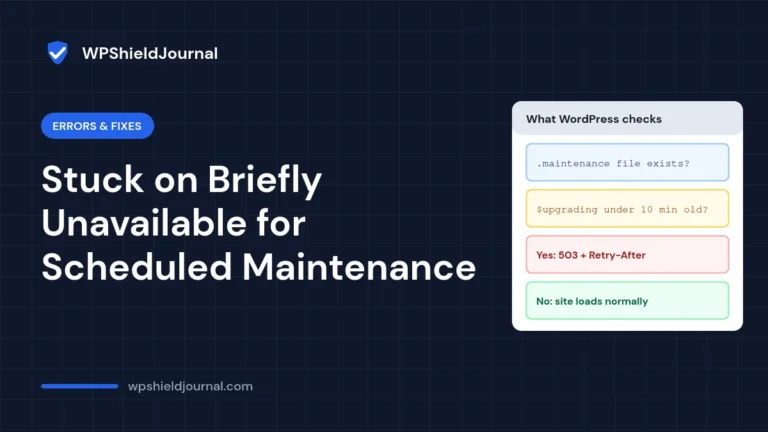
Fix a WordPress site stuck on the briefly unavailable for scheduled maintenance message: how the .maintenance file works, how to remove it and how to finish the update.
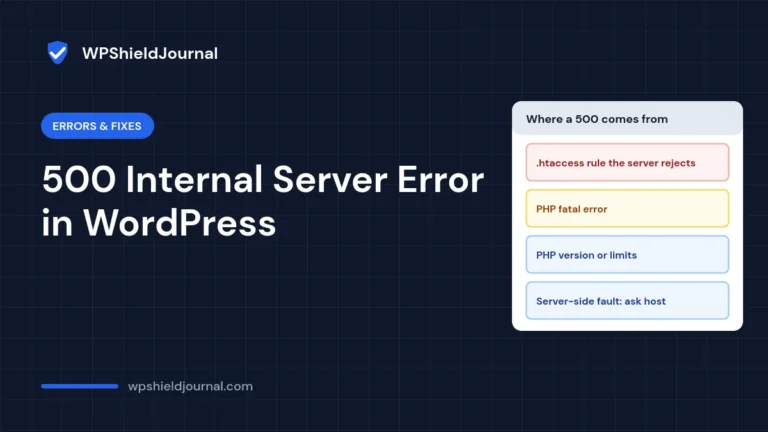
Fix a WordPress 500 internal server error by reading the error log first, then testing .htaccess, plugins, the theme and PHP settings one at a time.
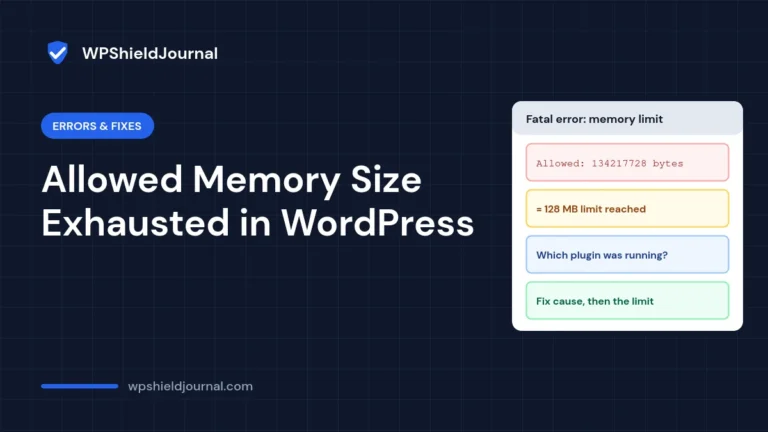
Read the WordPress allowed memory size exhausted error, find which plugin or task used the memory, and raise the limit only where it actually takes effect.
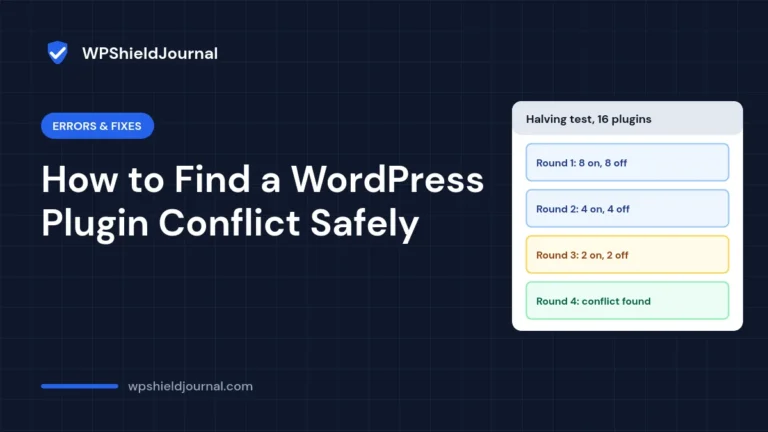
Find the plugin behind a WordPress conflict quickly and safely: read the Console and debug log first, then use staging and the halving method instead of disabling everything live.
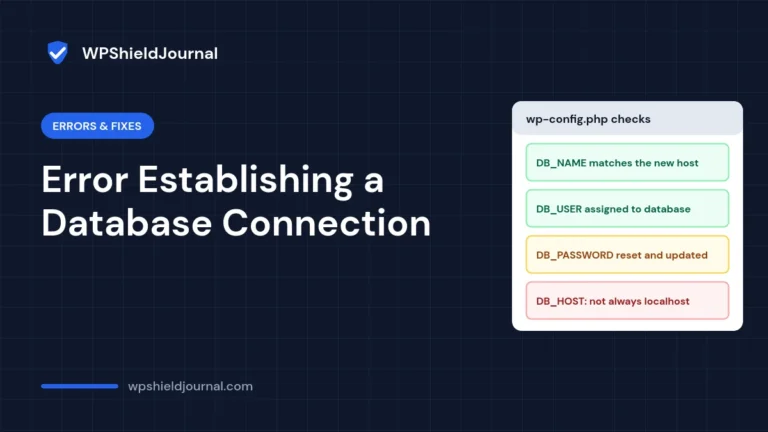
Fix the WordPress database connection error after a migration by reading the detailed message, then checking DB_NAME, DB_USER, DB_PASSWORD and DB_HOST against your new host.
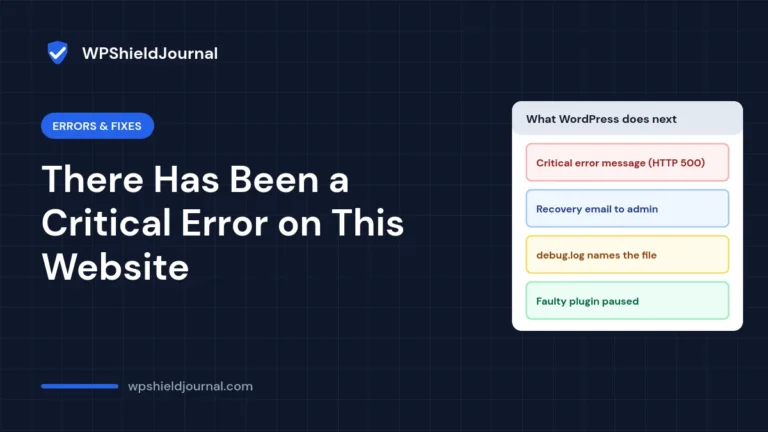
Find the plugin or theme behind the WordPress critical error message using the recovery email or debug log, get back into the dashboard, and fix the cause safely.
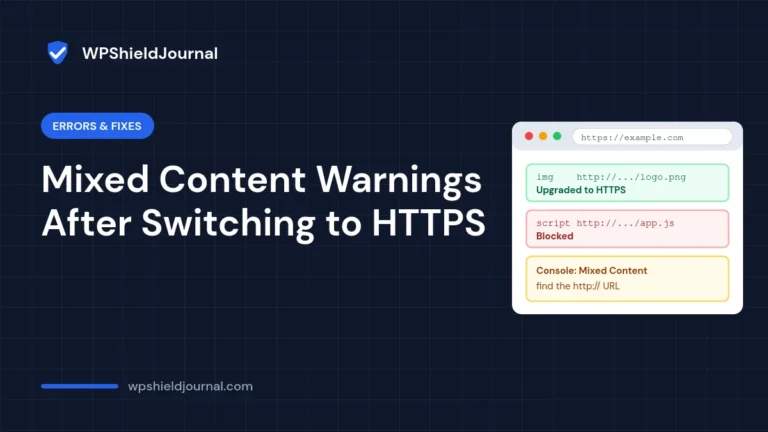
Find the exact source of mixed content warnings after moving WordPress to HTTPS using the browser Console, then fix stored URLs safely without breaking serialized data.
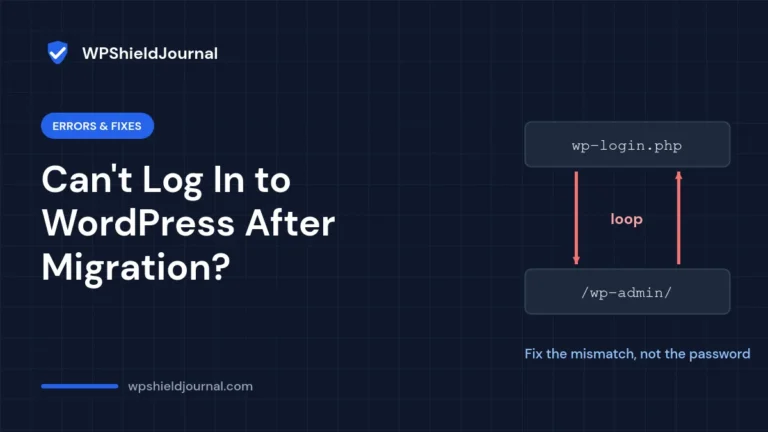
Moved your WordPress site and now the login page keeps sending you back? Diagnose the redirect loop by symptom and fix site URL mismatches, HTTPS and proxy loops, .htaccess rules and plugin conflicts.