Unknown Admin User in WordPress That Keeps Coming Back: How to Find the Source
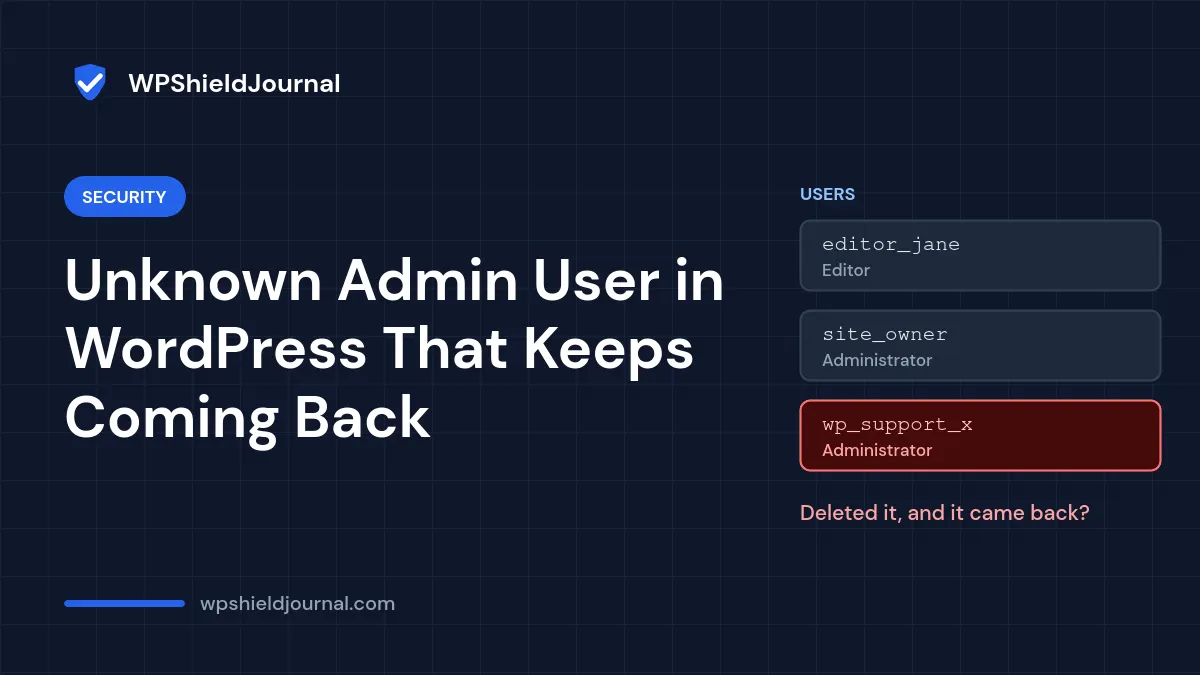
You find an unknown admin user on your WordPress site that nobody on your team created. You delete it, and a few hours later it is back. Or the Users screen says there are two administrators, but only one is listed.
A reappearing or hidden administrator is a strong sign that the site has been compromised and that malicious code is still running. Deleting the account treats the symptom. This guide shows you how to see every administrator reliably, find the code that re-creates the account, and remove it properly.
Quick answer: list administrators directly from the database (malware can hide users from the dashboard), reset every password and WordPress’s secret keys, then search your files for the code that creates the user, especially in mu-plugins, theme functions.php files and PHP files inside uploads. Remove that code, reinstall WordPress core, plugins and themes from official sources, and only then delete the account.
Before you change anything: take a full backup of the site in its current state. The official WordPress guidance for hacked sites recommends keeping a copy of the infected site for reference before cleaning. Store it separately and never restore it as your live site.
Step 1: List every administrator from the database
Malicious code can hook into WordPress’s user queries and hide its own account from Users → All Users, and even from tools that use the same WordPress functions. Querying the database directly bypasses those hooks.
In phpMyAdmin, run this read-only query, replacing wp_ with your table prefix (shown as $table_prefix in wp-config.php) in all three places:
SELECT u.ID, u.user_login, u.user_email, u.user_registered
FROM wp_users u
JOIN wp_usermeta m ON m.user_id = u.ID
WHERE m.meta_key = 'wp_capabilities'
  AND m.meta_value LIKE '%administrator%'
ORDER BY u.user_registered DESC;
On our own site this returns a single row: the one administrator account we created when WordPress was installed. Compare your results with the people who should have administrator access.
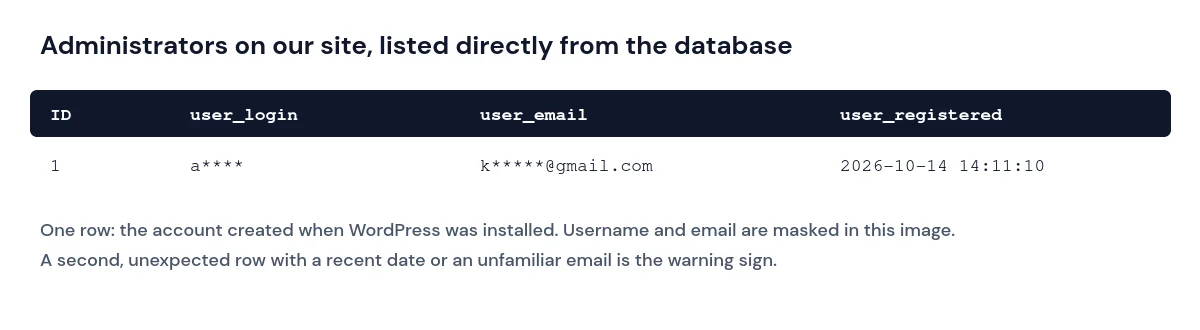
Warning signs include:
- An account created recently, while your real administrators were created long ago.
- An email address on a domain you do not recognise, or one that imitates WordPress or your host (for example a “support” or “wp-admin” address).
- A count mismatch: the Users screen says Administrator (2) but lists only one account. That suggests a hidden user.
- An account that has no posts or other activity.
Step 2: Lock out the attacker’s existing access
Do this before deleting anything, so the attacker cannot simply log back in:
- Change the passwords of every legitimate administrator, using long, unique passwords. Afterwards, add the protections in our guide to stopping brute-force login attacks.
- Change your hosting control panel, SFTP/FTP and database passwords. If you change the database password, update
DB_PASSWORDinwp-config.phpto match. - Replace the secret keys and salts in
wp-config.phpwith new ones from the official WordPress generator athttps://api.wordpress.org/secret-key/1.1/salt/. This logs everyone out, including the attacker. - Scan your own computer for malware too: attackers often steal credentials from an infected local machine.
Step 3: Find the code that re-creates the account
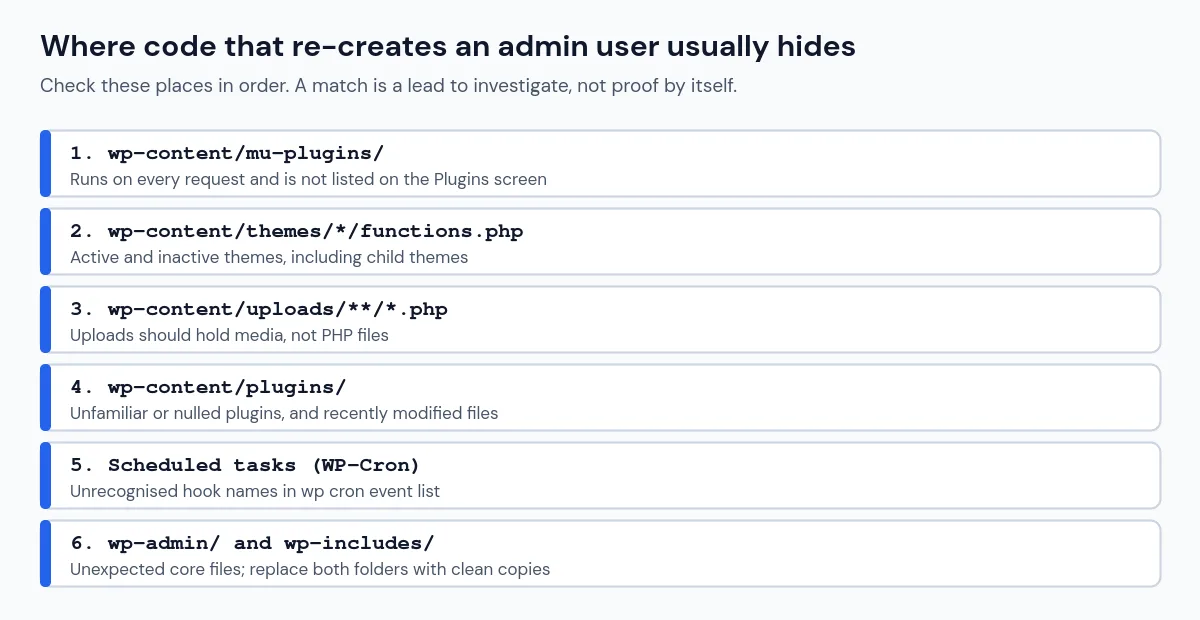
If the account returns after you delete it, code on the server is creating it again, typically on every page load or on a schedule. Look in these places, in this order.
Must-use plugins
Files in wp-content/mu-plugins/ run on every request and do not appear in the normal Plugins list, which makes them a favourite hiding place. Open every file there and make sure you know where it came from. Hosts often add legitimate files here (our Hostinger site has two, both from the host), so compare names with your host’s documentation rather than deleting everything.
Search for user-creation functions
With SSH access, search your wp-content folder for code that creates users or changes their role:
grep -rn --include='*.php' -e 'wp_create_user' -e 'wp_insert_user' -e 'set_role' wp-content/Many legitimate plugins use these functions, so a match is not proof of malware. Focus on files that also contain the suspicious username or email address, files in unexpected places, and code that hooks into init or wp_loaded and checks whether a user exists before creating it. Searching for the rogue username itself is often the fastest route:
grep -rn "rogue_username_here" wp-content/ wp-config.phpOther common locations
- Theme files, especially
functions.phpin both the active theme and any inactive themes. - PHP files in
wp-content/uploads/. Uploads should normally contain only media. Find them withfind wp-content/uploads -name "*.php". - Recently modified PHP files, for example
find . -name "*.php" -mtime -14for the last 14 days, compared with when the account first appeared. - Scheduled tasks. With WP-CLI,
wp cron event listshows scheduled events. Look for hook names you do not recognise. - Core files. Unexpected files in
wp-adminorwp-includesare a red flag; reinstalling core in Step 4 replaces them.
Without SSH, use your host’s file manager search, or a reputable security plugin’s file scanner, and work through the same locations.
Step 4: Remove the cause, then the account
- Remove or replace the malicious code you found. If it is inside a plugin or theme, delete that plugin or theme entirely and reinstall a fresh copy from WordPress.org or the developer.
- Reinstall WordPress core. The official guidance is to replace the
wp-adminandwp-includesfolders with clean copies of the same WordPress version over SFTP, rather than relying on the dashboard reinstall, which may leave injected files in place. - Delete the rogue administrator. When WordPress asks what to do with its content, attribute it to a legitimate user, then review that content for injected links.
- Update WordPress, every plugin and every theme to their latest versions.
Step 5: Verify that it stays clean
- Run the database query from Step 1 again after a few hours and again the next day. The rogue account should not return.
- Scan the site with a security plugin and an external scanner.
- Check Google Search Console’s Security issues report for warnings.
- Watch your hosting access logs for repeated requests to unusual PHP files.
If the unknown admin user keeps coming back
A persistent infection can have several backdoors, and missing one means the cycle repeats. If you cannot find the source, restoring a backup from before the account first appeared, then updating everything and changing all passwords, is often faster than manual cleaning. Your host or a professional malware-removal service can also help, especially on shared hosting where another site in the same account may be the source.
How to prevent it
- Turn on two-factor authentication for every administrator, and consider disabling XML-RPC if nothing on your site uses it.
- Keep administrator accounts to the minimum and give other people lower roles such as Editor. If a legitimate administrator then sees an access error, see Sorry, you are not allowed to access this page.
- Delete plugins and themes you do not use. Inactive code can still be exploited.
- Keep WordPress, plugins and themes updated, and remove plugins that are no longer maintained.
- Review your administrator list regularly, using the query above.
Related guides
See more Security guides, and learn how to keep restorable copies of your site in Backups & Hosting.
References
- FAQ: My site was hacked (WordPress.org documentation)
- WordPress Admin Creator: A Simple, But Effective Attack (Sucuri)
- How hackers create hidden admin users on your WordPress blog (NinTechNet)
Conclusion
An unknown admin user that keeps coming back means the attacker still has code on your server. List administrators from the database, lock down every password and key, find and remove the code that re-creates the user, reinstall from clean sources, and only then delete the account. Check again over the following days to make sure it is really gone.