wp-config.php Security Settings: What Is Worth Changing
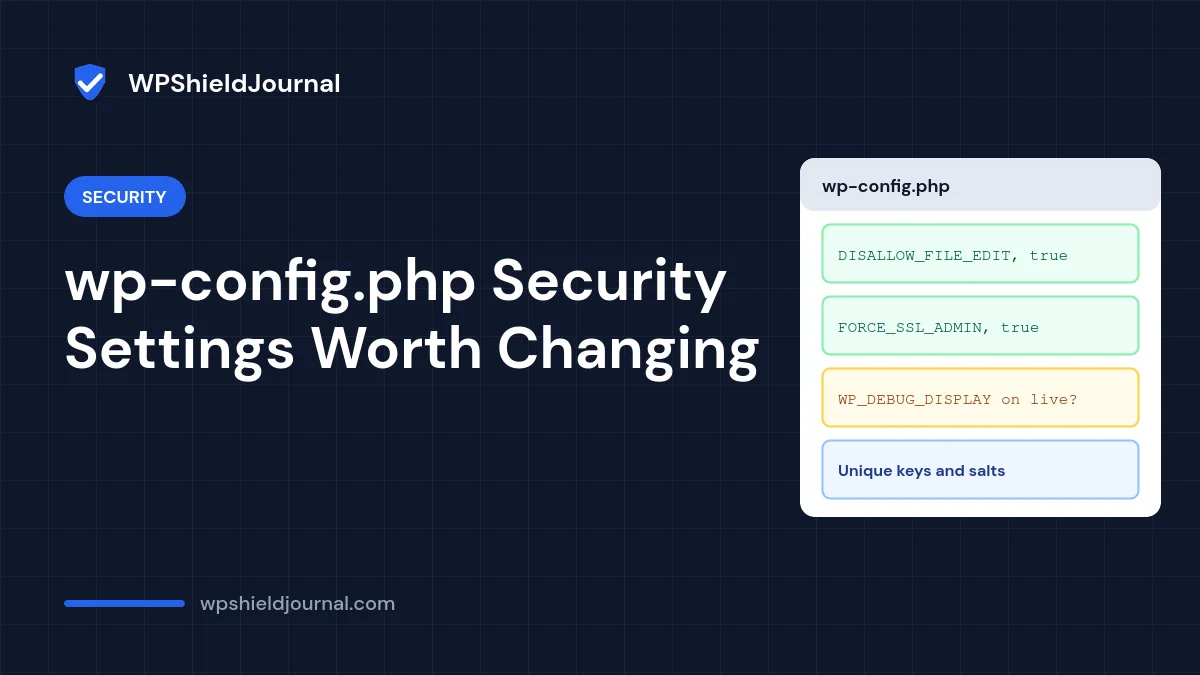
wp-config.php holds your database password, your security keys and the settings that control how WordPress behaves, so it is a natural place to harden a site. Lists of wp-config.php security tweaks often mix changes that genuinely help with ones that barely matter or cause trouble. This guide separates the two, shows the exact lines, and tells you what we changed on this site and how we confirmed it worked.
Quick answer: Make sure the security keys and salts are unique, debug display is off on the live site, and add define( 'DISALLOW_FILE_EDIT', true ); to remove the dashboard file editors. Force HTTPS for the admin area once HTTPS works. Treat moving wp-config.php, changing the table prefix on an existing site and DISALLOW_FILE_MODS as optional and situational.
Before editing wp-config.php: download a copy first. A single typo in this file takes the whole site offline. Add new lines above the comment that says /* That's all, stop editing! Happy publishing. */, never after it.
Which wp-config.php security changes are worth it?
1. Disable the dashboard file editors
By default, administrators can edit theme and plugin PHP files from the dashboard. The official WordPress hardening guide notes this “is often the first tool an attacker will use if able to login, since it allows code execution.” Turn it off with:
define( 'DISALLOW_FILE_EDIT', true );We added this line to this site’s wp-config.php and then checked the result: administrators no longer have the edit_plugins and edit_themes capabilities, so the Theme File Editor and Plugin File Editor disappear, while installing and updating plugins still works. The same guide points out that it “will not prevent an attacker from uploading malicious files”, so it is one layer, not a complete defence.
2. Use unique security keys and salts
The eight AUTH_KEY, SECURE_AUTH_KEY, LOGGED_IN_KEY, NONCE_KEY and matching _SALT lines protect login cookies. They must be long, random and unique. If your file still contains the placeholder put your unique phrase here, generate new values with the official generator at https://api.wordpress.org/secret-key/1.1/salt/ and replace the whole block.
Changing the keys logs every user out. That is exactly what you want after a security incident, as described in our guide to a site redirecting to spam. There is no need to rotate them on a schedule otherwise.
3. Keep debug output off the live site
Error messages shown to visitors can reveal file paths and plugin details. On a live site, WP_DEBUG should be false, or, if you need logging temporarily, log to a file without displaying errors:
define( 'WP_DEBUG', true );
define( 'WP_DEBUG_LOG', true );
define( 'WP_DEBUG_DISPLAY', false );
Switch it back off when you are done and delete wp-content/debug.log. Our critical error guide explains when logging is useful.
4. Force HTTPS for logins and the dashboard
Once your SSL certificate works, this makes sure logins and admin sessions always use HTTPS:
define( 'FORCE_SSL_ADMIN', true );Enable it only after HTTPS works for the whole site, or you may be unable to log in. Our guide to login problems after migration covers that situation.
What we found in this site’s wp-config.php
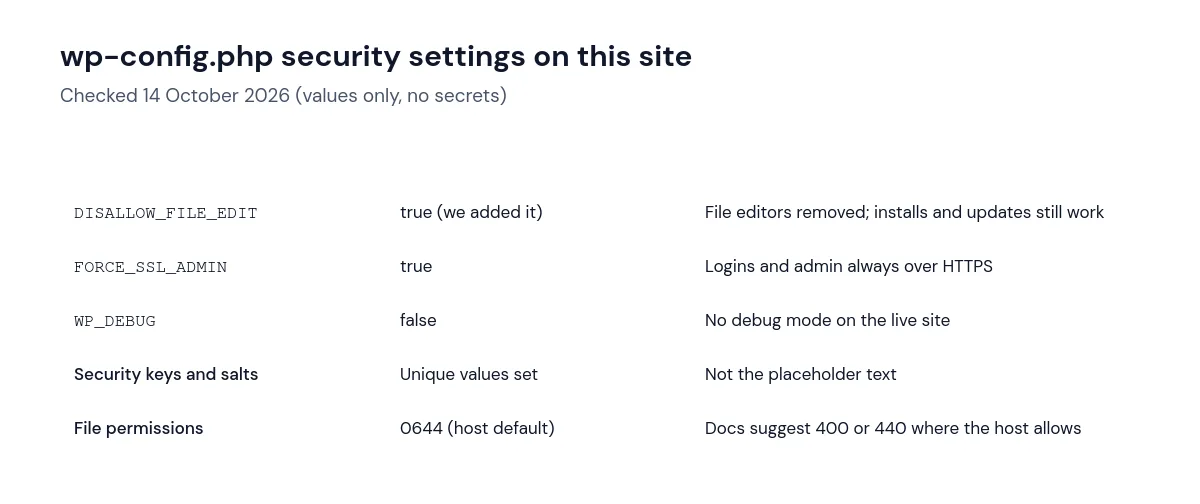
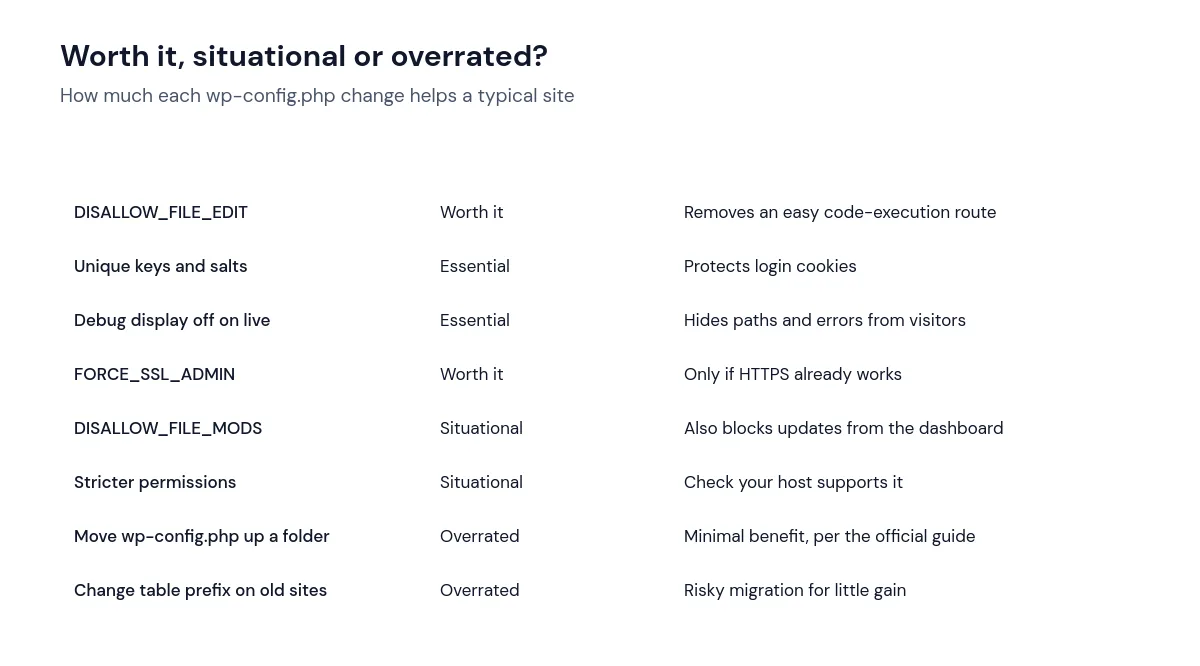
We left the file permissions at the host’s default. The hardening guide suggests 400 or 440 so only you and the web server can read the file, but on some hosting setups that prevents the host’s own tools from reading the file. Check with your host before tightening permissions.
Situational and overrated changes
DISALLOW_FILE_MODS
define( 'DISALLOW_FILE_MODS', true ); blocks installing, updating and deleting plugins and themes from the dashboard, as described in the wp-config.php documentation. That suits sites deployed from version control, where updates happen elsewhere. On a typical site it also blocks the updates you need, so it can make security worse.
Moving wp-config.php above the web root
WordPress will look for wp-config.php one folder above the installation. The official hardening guide notes that some argue this “has minimal security benefits”. If your server is configured correctly, PHP files are executed, not displayed, so the file’s contents are not readable through the browser anyway.
Changing the database table prefix
The hardening guide says a non-default prefix “can block at least some SQL injection attacks.” Setting a custom prefix during a fresh install costs nothing. Changing it on an existing site means renaming tables and updating references inside the database, which is easy to get wrong for a small benefit.
How to confirm your changes worked
- After saving
wp-config.php, load the home page and the dashboard. A blank page or critical error means a typo: restore your copy. - With
DISALLOW_FILE_EDITenabled, Appearance → Theme File Editor and Plugins → Plugin File Editor should no longer appear. - In Tools → Site Health → Info → WordPress Constants, check the values WordPress actually sees.
Frequently asked questions
Can someone download my wp-config.php?
Not normally. The web server runs PHP files rather than sending their contents. The risk comes from backup copies such as wp-config.php.bak or wp-config.old, which the server may send as plain text. Delete any such copies from the web folder.
Will DISALLOW_FILE_EDIT stop me from editing my theme?
It removes the editors inside the dashboard. You can still edit files through SFTP, your host’s file manager or a code editor, which is safer anyway because mistakes in the dashboard editor can lock you out.
Summary
The wp-config.php security changes that matter most are simple: unique keys and salts, no debug output on the live site, DISALLOW_FILE_EDIT, and forced HTTPS for the admin area. Approach file mods, permissions, moving the file and the table prefix case by case. For the bigger picture, use our security hardening checklist.