Is My WordPress Site Hacked? Signs to Check and How to Confirm
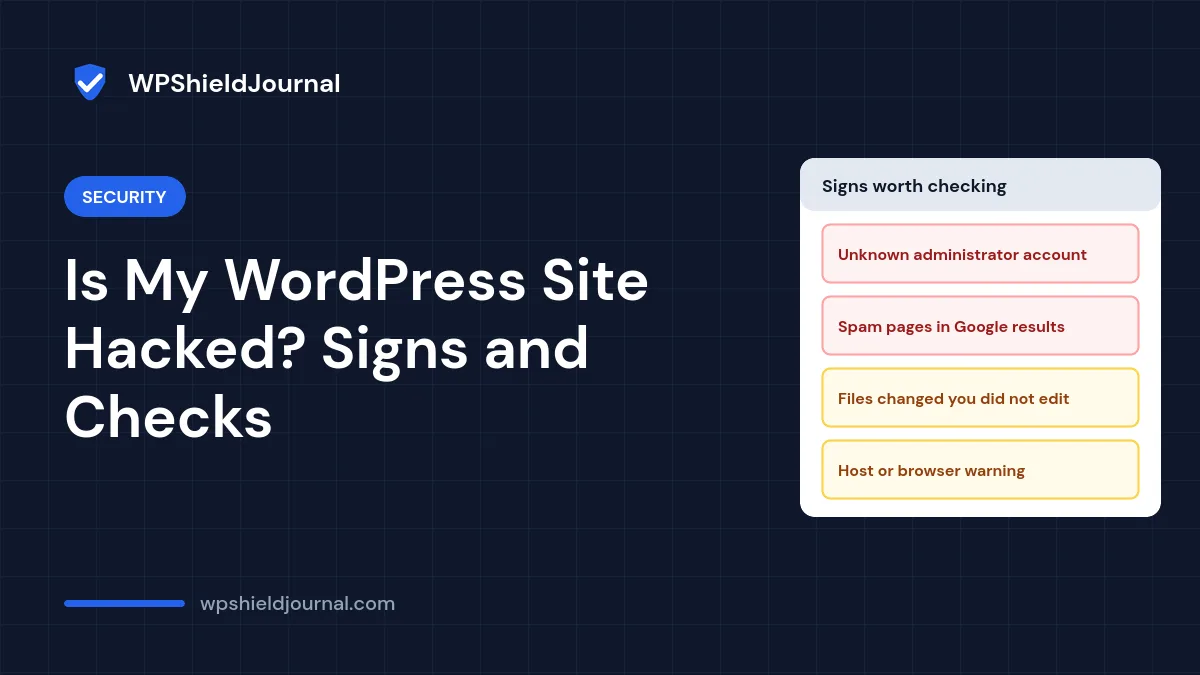
Something feels wrong: a strange admin account, a warning from your host, visitors mentioning odd redirects, or pages in Google you never wrote. Before you start deleting things, it is worth confirming whether your WordPress site is hacked and how far it goes. This guide lists the signs that matter, how to check each one yourself, and what to do first if the answer is yes.
Quick answer: Strong signs of a hacked WordPress site are unknown administrator accounts, spam pages indexed under your domain, redirects that only some visitors see, modified core files, and security warnings from Google or your host. Check users, search results, Search Console and file checksums. If any strong sign is confirmed, back up the current state, change all passwords, then clean or restore.
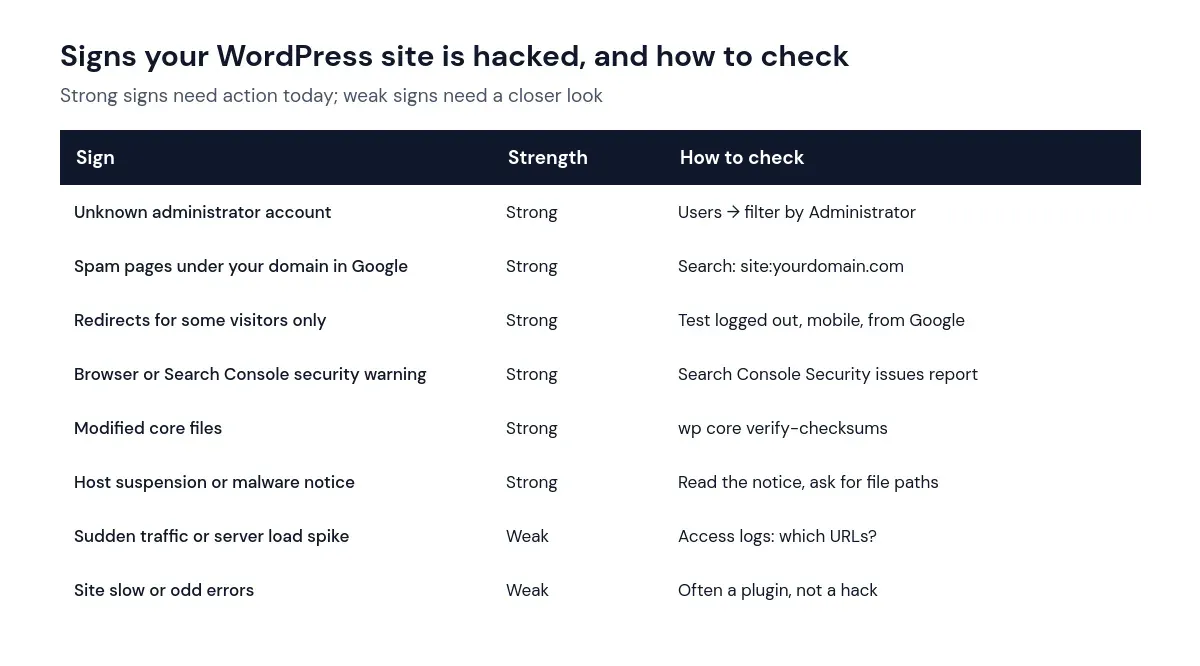
Strong and weak signs of a hacked WordPress site
Not every problem is a hack. Slow pages and errors are usually plugin or hosting issues. These signs carry very different weight:
Check 1: Administrator accounts
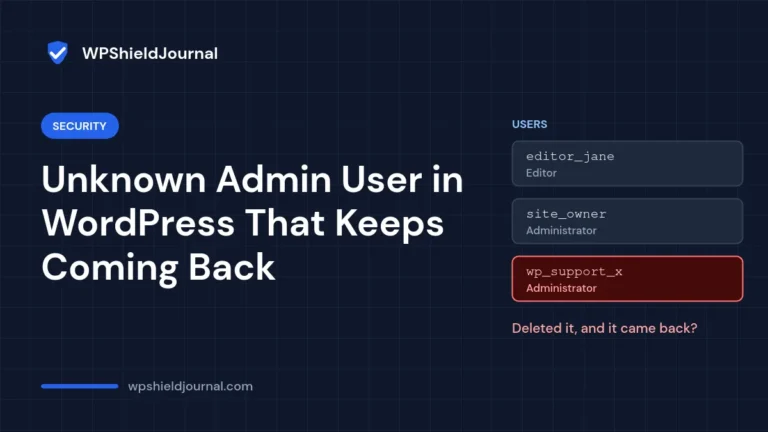
Go to Users → All Users and filter by Administrator. Note any account you do not recognise, along with its email address and registration date. Do not delete it yet; our guide to an unknown admin user that keeps coming back explains why deleting first often fails and how to find the code that recreates it.
Check 2: What Google has indexed
Search Google for site:yourdomain.com and scroll through the results. Hacked sites often have hundreds of injected pages about pharmaceuticals, gambling, replica goods or adult content, sometimes in other languages. Also open Google Search Console and check the Security issues report and the list of indexed pages for URLs you did not create. If Google has flagged your site, the Safe Browsing site status page will show it too.
Check 3: Redirects and injected content
Injected redirects often target only logged-out mobile visitors arriving from search engines, so test that way: use a phone on mobile data, search for your site, and click the result. View the page source and look for unfamiliar <script> tags or links to unknown domains. Our guide to a site redirecting to spam shows how to test safely with curl.
Check 4: Modified files
If you have WP-CLI, compare core files and WordPress.org plugins with their official checksums:
wp core verify-checksums
wp plugin verify-checksums --all
Also look for PHP files that should not exist: files inside wp-content/uploads/, unfamiliar files in wp-content/mu-plugins/, and recently modified files you did not change. Your hosting file manager can usually sort by modification date.
Check 5: Your host’s notices and logs
Hosts scan for malware and may suspend accounts or send notices listing infected files. Ask for the exact file paths and dates. Access logs can show repeated requests to unusual PHP files, which often reveals a backdoor.
What to do if the signs are confirmed
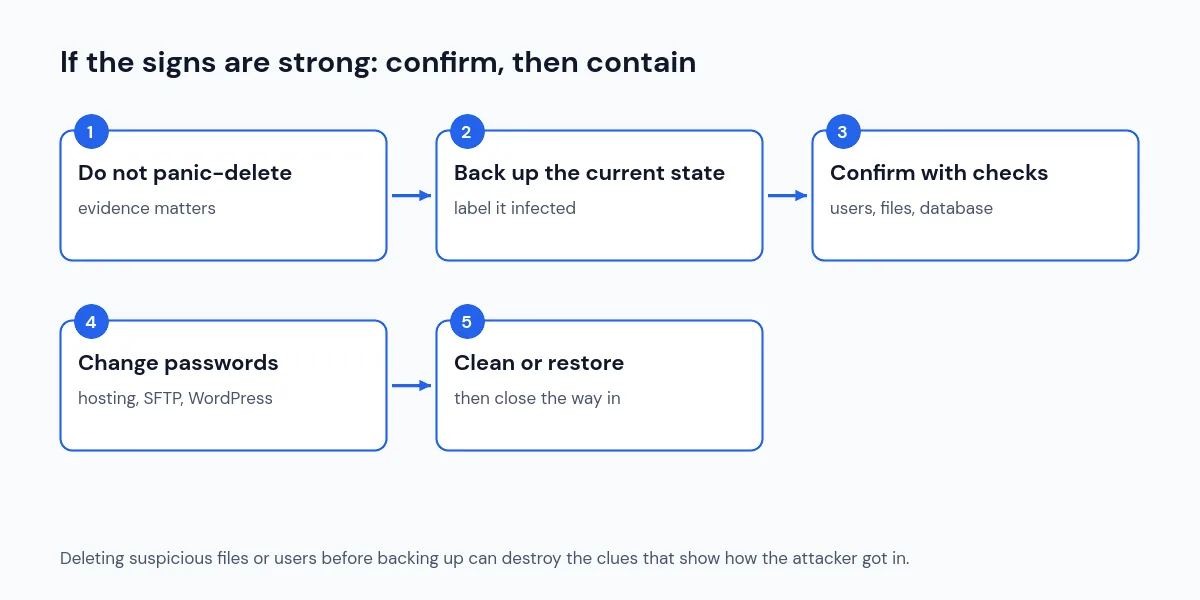
- Do not delete things in a panic. Suspicious files and users are evidence of how the attacker got in.
- Back up the current state and label it as infected, so you can investigate and fall back if a clean-up goes wrong.
- Change passwords for hosting, SFTP, the database, email and every WordPress administrator, and replace the security keys and salts in
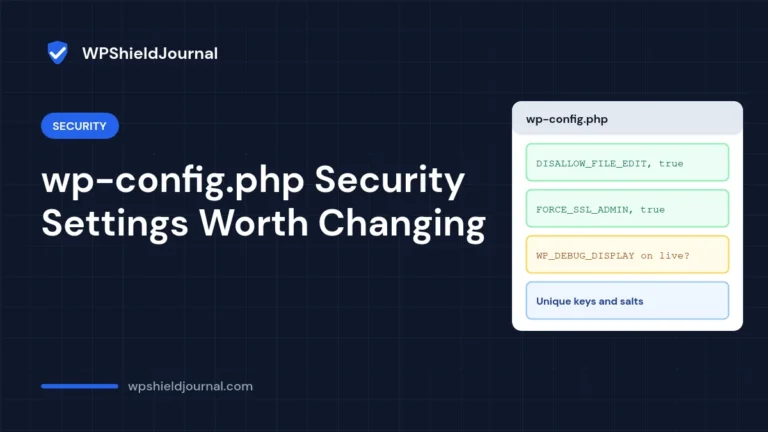
wp-config.phpto log everyone out. - Clean or restore. Restore a backup from before the compromise, or replace core, plugins and themes with fresh copies and remove injected code, following the order in our spam redirect guide.
- Close the way in. Update everything, remove unused plugins and themes, and enable multifactor authentication.
- Ask Google for a review in Search Console if your site was flagged, once it is clean.
If your site handles payments or personal data, or the infection returns after cleaning, involve your host or a security professional. There may also be legal obligations to notify affected people, depending on where you and your users are.
Signs that usually are not a hack
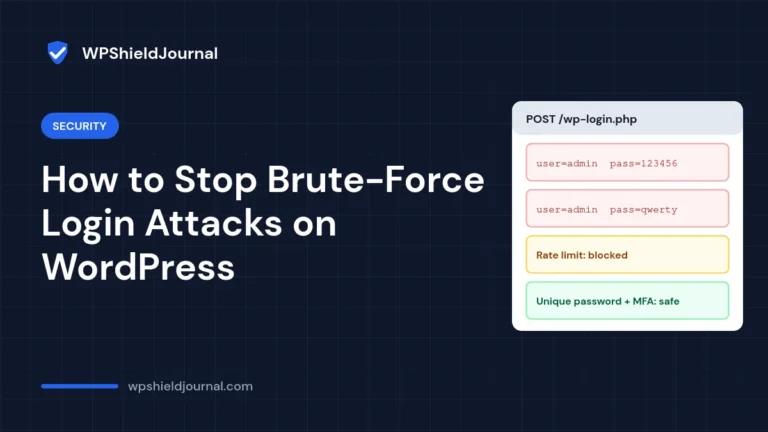
- A single failed login email or lockout notice. Bots try to log in to almost every site; see our guide to brute-force login attacks.
- A critical error after an update. That is usually a plugin bug. Our critical error guide shows how to find it.
- Mixed content warnings after moving to HTTPS. Old
http://links, not malware, as explained in our mixed content guide.
Frequently asked questions
Will a security scanner tell me for certain?
Scanners, such as those in the free security plugins we compared, are useful for finding known malware, but none catches everything. A clean scan does not rule out a hack if you see strong signs such as unknown administrators or spam pages in Google.
How did they get in?
The most common routes are outdated plugins or themes with known vulnerabilities, reused or weak passwords, and compromised hosting or email accounts. Logs, file dates and the timing of new users usually point to the answer.
Should I just reinstall WordPress?
Reinstalling core files does not remove injected code in themes, plugins, uploads or the database, and it does not close the way the attacker got in. Investigate first.
Summary
To judge whether you have a hacked WordPress site, focus on strong signs: unknown administrators, spam pages in Google, selective redirects, modified files and security warnings. Check each one, and if any is confirmed, back up the current state, change every password, then clean or restore and close the way in.