Reset a WordPress Admin Password Without Email Access
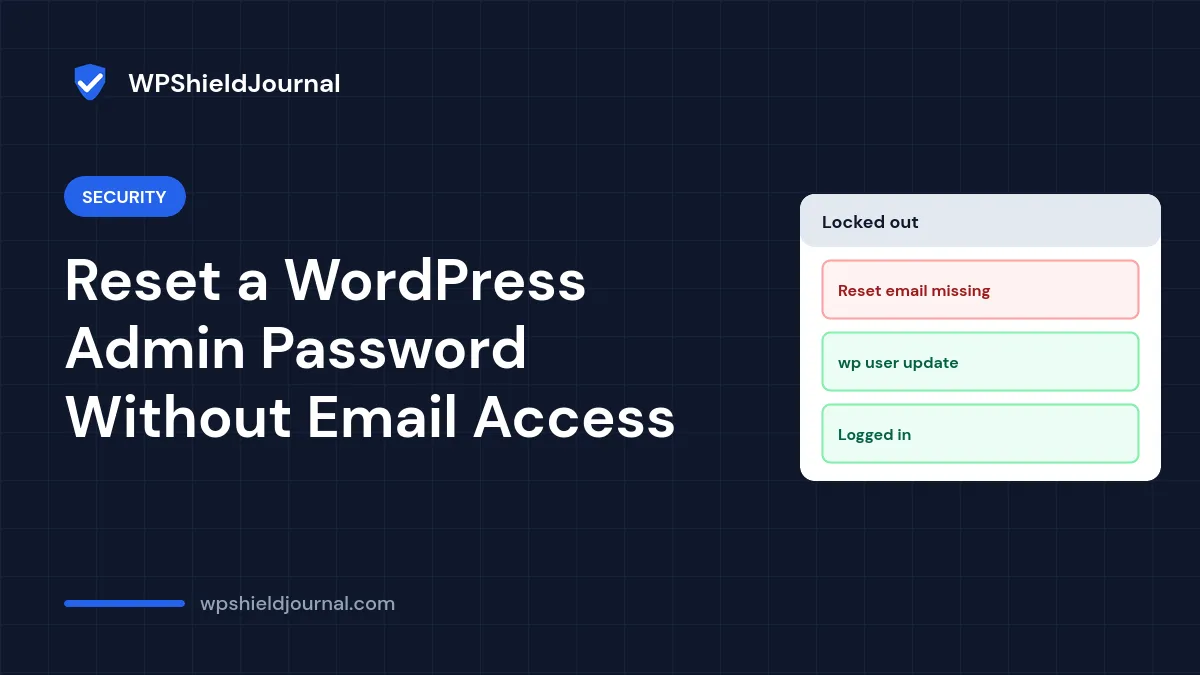
You are locked out of WordPress, the Lost your password? email never arrives, or the admin email address belongs to someone who has left. You can still reset a WordPress admin password if you have access to the hosting account, because the password lives in the database. This guide covers the safe methods in order, from easiest to most technical, and what to check afterwards.
Quick answer: try Lost your password? first. If the email does not arrive, use WP-CLI (wp user update) if your host offers SSH, or edit the user_pass field in phpMyAdmin and choose the MD5 function. WordPress accepts the MD5 value once and replaces it with a modern hash when you log in.
Before you start
- You need access to your hosting account: its control panel, phpMyAdmin, SSH or SFTP. Without it, only the email reset or another administrator can help.
- Make a database backup before editing anything directly. Our backup guide explains how.
- If you did not lose the password yourself but suddenly cannot log in, someone may have changed it. Read the security section at the end before you continue.
The official Reset your password documentation lists all of the methods below.
Method 1: The “Lost your password?” link
- Go to
/wp-login.phpand click Lost your password? - Enter your username or the email address on the account.
- Open the email and follow the link to set a new password.
If no email arrives, check spam, then check that the site can send email at all. Our guide to WordPress not sending email explains why reset emails often go missing.
Method 2: WP-CLI (if your host provides SSH)
Connect over SSH, go to the folder that contains wp-config.php, and list the administrators:
wp user list --role=administrator --fields=ID,user_login,user_emailThen set a new password for the right user ID (here 1):
wp user update 1 --user_pass='YourNewLongPassword'Use single quotes so the shell does not change characters such as $ or !. Afterwards, consider clearing the command from your shell history, because it contains the password in plain text.
Method 3: phpMyAdmin
- Open phpMyAdmin from your hosting control panel and select the WordPress database. If you have several, the database name is in
wp-config.phpasDB_NAME. - Open the users table. It ends in
_users, for examplewp_users; the prefix is$table_prefixinwp-config.php. - Click Edit on your user’s row.
- In the
user_passrow, choose MD5 in the Function column and type the new password in the Value column. - Click Go, then log in with the new password.
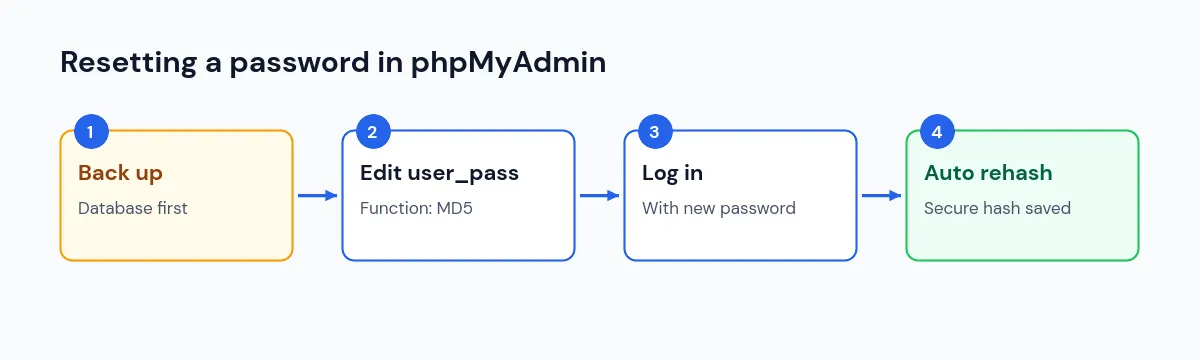
Why MD5 works: WordPress normally stores passwords with bcrypt since version 6.8, but wp_check_password() still accepts an old 32-character MD5 value. When you log in, WordPress sees that the hash needs updating and saves a new, secure hash in its place. We confirmed this in WordPress core’s login code.
Do not edit any other field or table unless you know exactly what it does. phpMyAdmin saves changes immediately, with no undo.
Method 4: Temporary code (last resort)
If you only have SFTP or file manager access, you can add one line to the active theme’s functions.php, right after the opening <?php line:
wp_set_password( 'YourNewLongPassword', 1 );Load the site once, log in, then remove the line straight away. As the official documentation warns, it resets the password on every page load until it is removed. A typo in functions.php can also break the site, so keep a copy of the original file.
The official documentation also describes an emergency reset script that runs without logging in. Because anyone who finds it can use it, we recommend the methods above instead. If you do use it, delete it as soon as you finish.
After you get back in
- Go to Users → Profile and set a strong password with the Generate Password button, if you used a temporary one.
- Check Settings → General → Administration Email Address and your profile email, so the next reset email reaches you.
- Review Users for any administrator you do not recognise.
If you think someone else changed the password
If your password stopped working without you changing it, or the account email was changed, treat it as a possible compromise:
- Reset all administrator passwords and your hosting, SFTP and database passwords.
- Replace the security keys in
wp-config.phpto log out every session; our wp-config.php security guide explains how. - Check for unknown administrators with our unknown admin user guide, and for other signs with is my WordPress site hacked.
Frequently asked questions
Is MD5 safe to use for this?
Only as a temporary value. WordPress replaces it with a secure hash when you log in, so the MD5 value does not stay in the database.
I reset the password but still cannot log in. Why?
If the login page reloads or loops, the password is probably fine and the problem is cookies, the site address or HTTPS. See our login loop guide. If a security plugin blocks your IP after failed attempts, wait for the lockout to expire or ask your host to whitelist you.
Can I reset the password from my hosting panel?
Some hosts offer a WordPress management screen that can change the admin password. If yours does, it is a safe alternative to phpMyAdmin.
Summary
To reset a WordPress admin password, try the email link first, then WP-CLI or phpMyAdmin with the MD5 function. Use temporary code only as a last resort and remove it immediately. Once logged in, set a strong password, fix the admin email address, and check for signs of compromise if you did not change the password yourself.