Mixed Content Warnings After Switching to HTTPS: Find the Source Without a Plugin
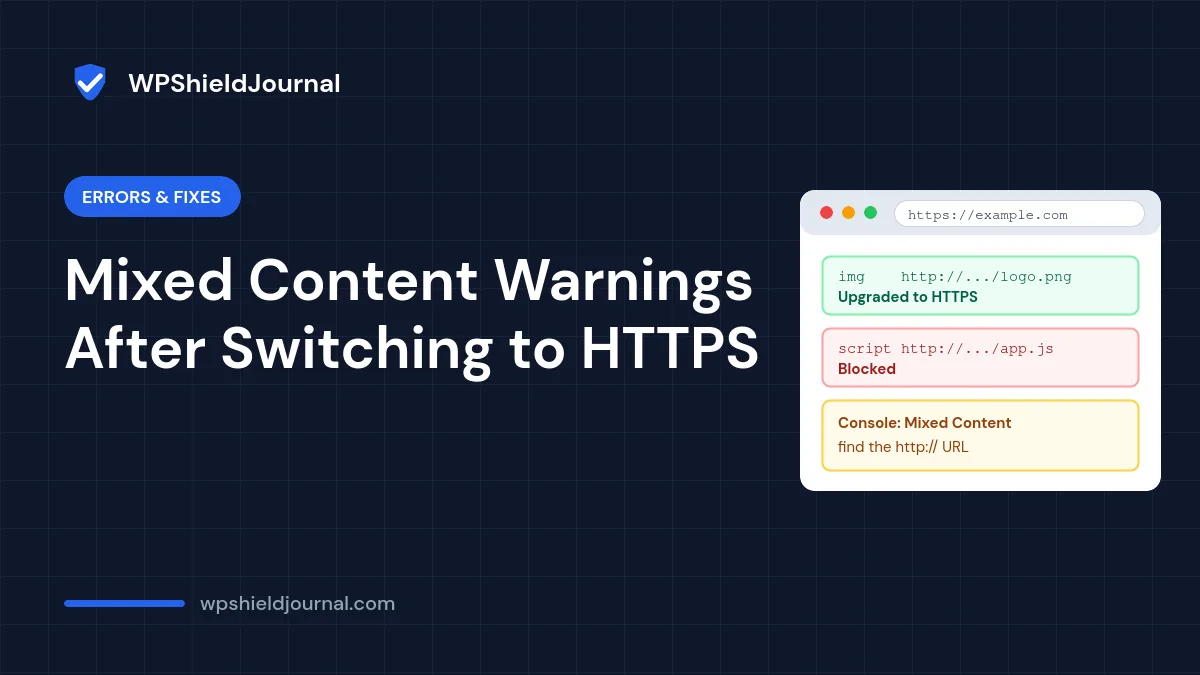
You switched your WordPress site to HTTPS, but the browser still shows a warning, an image is missing, or part of the layout looks broken. The usual cause is mixed content: a page loaded over HTTPS that still asks for files over plain http://. This guide shows how to find the exact source with nothing more than your browser and, if you have it, WP-CLI, and then how to fix it without damaging your database.
Quick answer: Open the page, press F12, and read the Console messages that start with “Mixed Content”. Each one names the insecure URL. Then fix it where it is stored: Settings → General, the post content, theme or plugin settings, or a hard-coded theme file. For URLs stored in the database, run a dry run of wp search-replace with --skip-columns=guid before changing anything.
What mixed content is and why browsers react to it
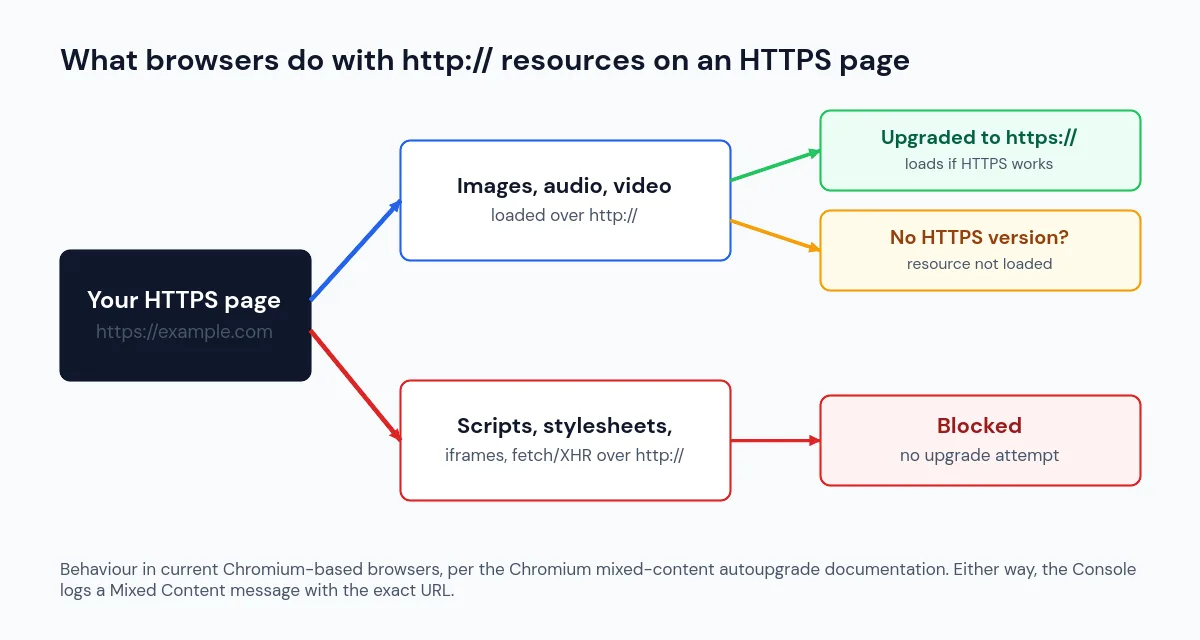
When a page is delivered over HTTPS, everything it loads should be encrypted too. If the HTML references an image, script, stylesheet or iframe with an http:// address, that request could be read or altered in transit, so browsers step in. Modern Chromium-based browsers handle the two kinds of mixed content differently:
- Images, audio and video are automatically upgraded to
https://. If the file is not available over HTTPS, it is simply not loaded, which is why images can vanish after a move to HTTPS. - Scripts, stylesheets, iframes and fetch requests are blocked outright, without any attempt to upgrade them. This is what breaks menus, sliders, forms and layouts.
That behaviour is described in the Chromium mixed content autoupgrade documentation. Other browsers follow similar rules, but the exact symptoms can vary.
Step 1: Find the mixed content source in your browser
You do not need a plugin to find the problem. The browser already knows exactly which URL it upgraded or blocked.
- Open the affected page in a private window, so you are not looking at an old cached copy.
- Press F12 (or right-click and choose Inspect) and open the Console tab.
- Reload the page. Look for messages beginning with “Mixed Content”. Each one names the page and the insecure
http://address, and says whether the request was upgraded or blocked. - For a fuller list, open the Network tab, reload, and type
scheme:httpin the filter box to show only requests made over plain HTTP. - As a cross-check, open View Page Source (Ctrl+U) and search for
http://. Ignore ordinary links to other websites in<a href>tags; those are navigation, not loaded resources.
Write down every insecure URL and note the domain. If it is your own domain, the fix is inside WordPress. If it belongs to a third party (an old embed, a font or a widget script), you need that provider’s HTTPS address or a replacement.
Step 2: Work out where WordPress stores the URL
The URL in the Console tells you what is insecure. The next question is where it is saved. Check these places, roughly from most to least common:
- Settings → General: the WordPress Address (URL) and Site Address (URL) must both start with
https://. If they still sayhttp://, WordPress keeps generating insecure links for themes, scripts and images. - Post and page content: images and links inserted before the switch keep their old absolute
http://address. - Theme and Customizer settings: logos, background images and custom CSS with
url(http://...). - Widgets, page builder data and plugin settings: often stored as serialized data in options or post meta.
- Theme or child theme files: a script or stylesheet hard-coded with
http://inheader.php,functions.phpor a CSS file.
What we found on this site
When we set up wpshieldjournal.com, the server was already delivering pages over HTTPS, but the WordPress Address and Site Address settings were still stored as http://. We confirmed the HTTPS version of the site loaded correctly first, then changed both settings to https://. That order matters: if you switch the settings before HTTPS works, you can lock yourself out (see our guide on login problems after a migration).
We then ran read-only database queries for the old https://wpshieldjournal.com address and scanned the live HTML of several pages for insecure src, href, srcset and CSS url() values. The only remaining match was one post GUID, which should be left alone (explained below).
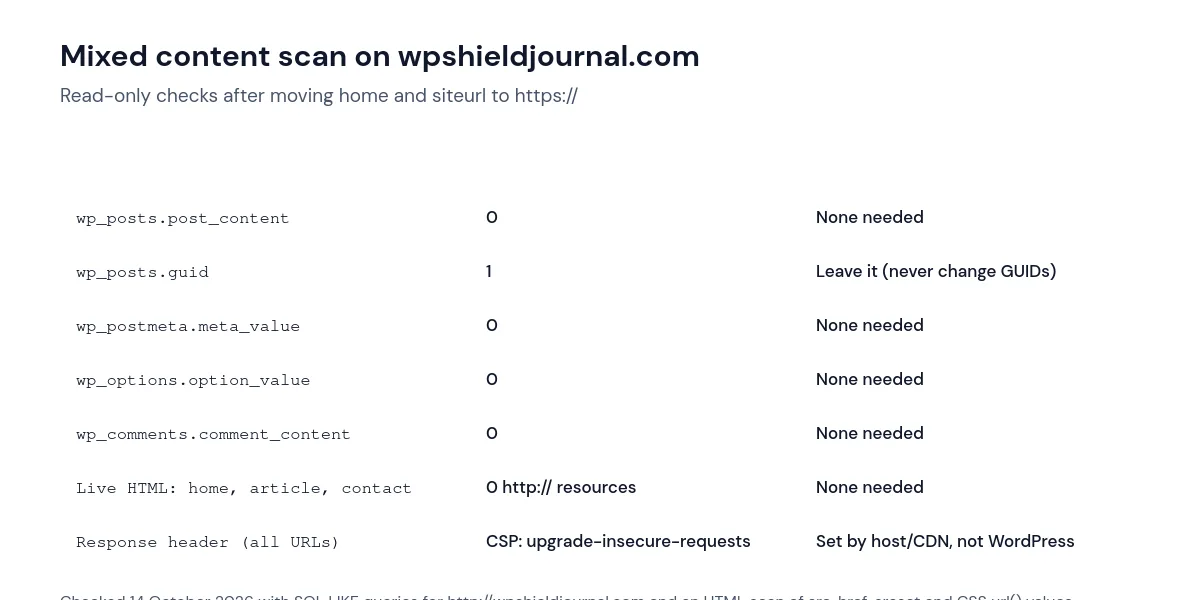
We also noticed that every response from our host, including static files like robots.txt, carries the header Content-Security-Policy: upgrade-insecure-requests. It is not added by WordPress or any of our plugins, so it comes from the hosting or CDN layer. It is a useful safety net, but it is not a substitute for fixing stored URLs, as the next section explains.
Step 3: Fix mixed content stored in the database
Take a backup first. A search and replace touches many rows at once. Make a full database backup (with your host’s backup tool or wp db export) before changing anything.
If you have WP-CLI, run a dry run first. It reports how many replacements would be made in each table without saving anything:
wp search-replace 'http://example.com' 'https://example.com' --skip-columns=guid --dry-runReplace example.com with your domain, and run it once more for http://www.example.com if your old links used the www version. If the numbers look sensible, run the same command without --dry-run. According to the WP-CLI search-replace documentation, the command handles PHP serialized data safely and, by default, only searches tables registered with WordPress. Plugins that use their own unregistered tables may need the --all-tables option.
Two rules keep this safe:
- Do not change the GUID column. The official WordPress migration guide says GUIDs should never be changed, because feed readers use them to recognise posts they have already shown. That is why the command skips
guid. A GUID that starts withhttp://does not cause mixed content. - Do not use a plain SQL
REPLACE()across the database. Serialized values store the length of each string. Changinghttptohttpsadds a character, which breaks those values and can reset widgets or theme settings.
Without WP-CLI, the WordPress migration guide lists the Better Search Replace plugin as one of the safer options because it also handles serialized data. You can remove it again once the job is done.
Step 4: Fix URLs outside the database
- Theme files: change hard-coded
http://addresses tohttps://. In your own code, load theme files with WordPress functions such asget_stylesheet_directory_uri(), which follow the site’s HTTPS setting. Make edits in a child theme, not the parent theme. - Third-party resources: check whether the provider offers the same file over
https://. If it does not, remove or replace it, because no setting on your side can make an HTTP-only server secure.
Is upgrade-insecure-requests enough on its own?
The upgrade-insecure-requests Content Security Policy directive tells browsers to treat a site’s http:// resource URLs as if they were https://. According to MDN, if a resource is not actually available over HTTPS, the request fails with no fallback to HTTP. So the header hides warnings for files that do exist on HTTPS, but it cannot rescue a resource that only exists on HTTP. Fixing the stored URLs is still the proper solution, and it keeps your site correct even if the header is removed later.
Step 5: Clear caches and check again
Cached pages still contain the old HTML until they are rebuilt. Purge your page cache and CDN cache after the fix. If the warning persists, our guides on changes not showing after clearing cache and LiteSpeed Cache purge problems cover the usual culprits.
Then repeat Step 1 in a private window: the Console should show no “Mixed Content” messages, and the Network filter scheme:http should return nothing for your pages. Check a few different templates (the homepage, a post, a page and a category archive), because a theme setting may only affect one of them.
Conclusion
Mixed content after a move to HTTPS is almost always a stored http:// address, and the browser Console tells you exactly which one. Make sure the two URL settings use HTTPS, back up, use a serialization-safe search and replace that skips GUIDs, fix any hard-coded theme URLs, and then purge caches and recheck. Treat a server-side upgrade-insecure-requests header as a safety net, not the fix itself.