There Has Been a Critical Error on This Website: How to Fix It
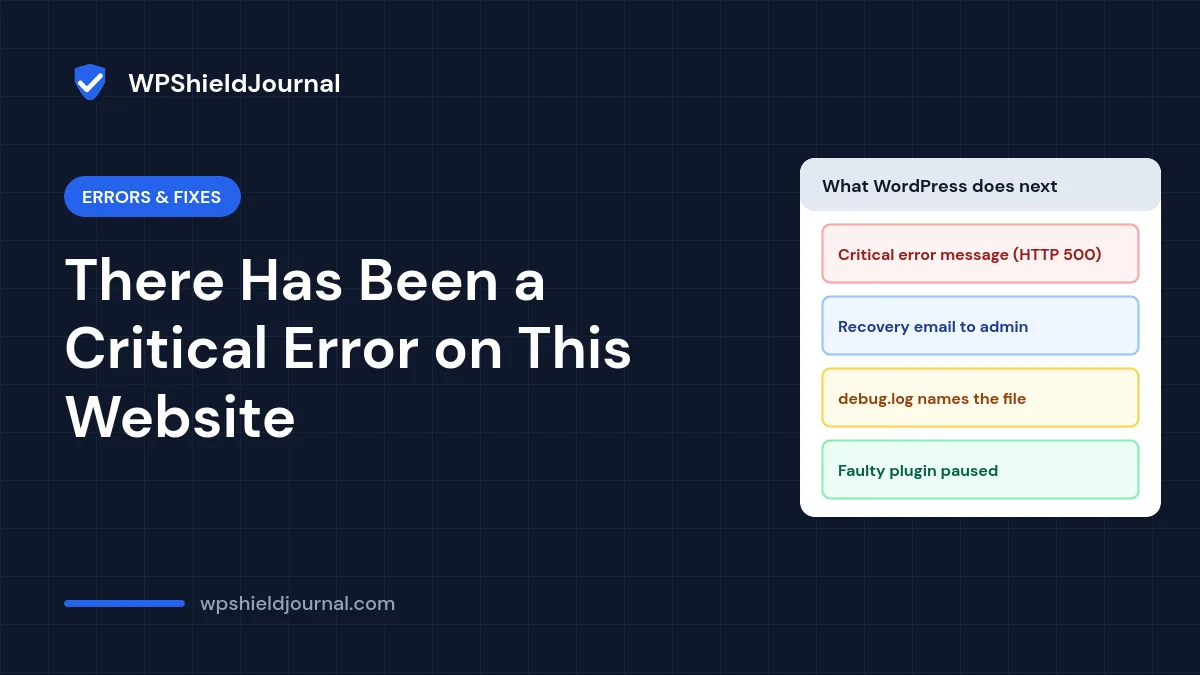
If your site suddenly shows “There has been a critical error on this website”, WordPress has caught a PHP fatal error and stopped loading the page. The message itself never tells you which plugin or theme failed, so this guide shows how to find the exact cause, get back into the dashboard, and fix the critical error without guessing or reinstalling everything.
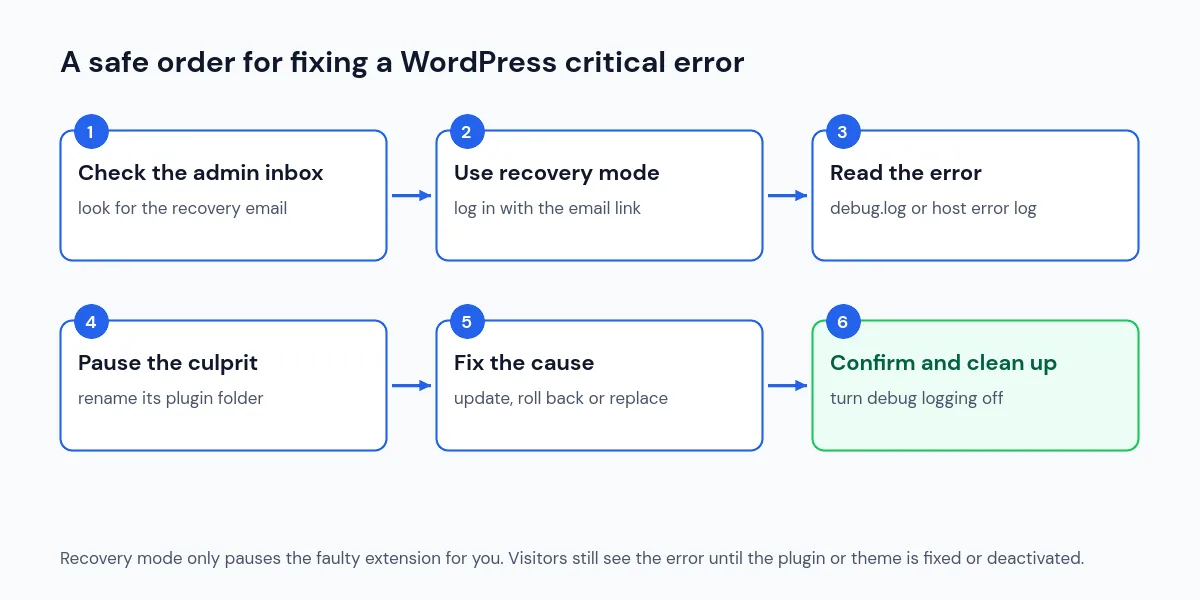
Quick answer: Check the site administrator’s inbox for an email titled “Your Site is Experiencing a Technical Issue” and use its recovery mode link. If no email arrives, turn on WP_DEBUG_LOG, reload the page, and read wp-content/debug.log. The file path in the fatal error names the plugin or theme. Rename that plugin’s folder to deactivate it, then update, roll back or replace it.
What the critical error message means
Since WordPress 5.2, a built-in fatal error handler catches errors that would previously have produced a blank white page. Instead of a white screen, visitors see a short message and the server returns an HTTP 500 status. WordPress also tries to identify which plugin or theme caused the error and, if it can, emails the site administrator a special login link.
The wording changes slightly depending on where the error happens. We checked the messages in the WordPress core file class-wp-fatal-error-handler.php on this site (WordPress 7.1.3):
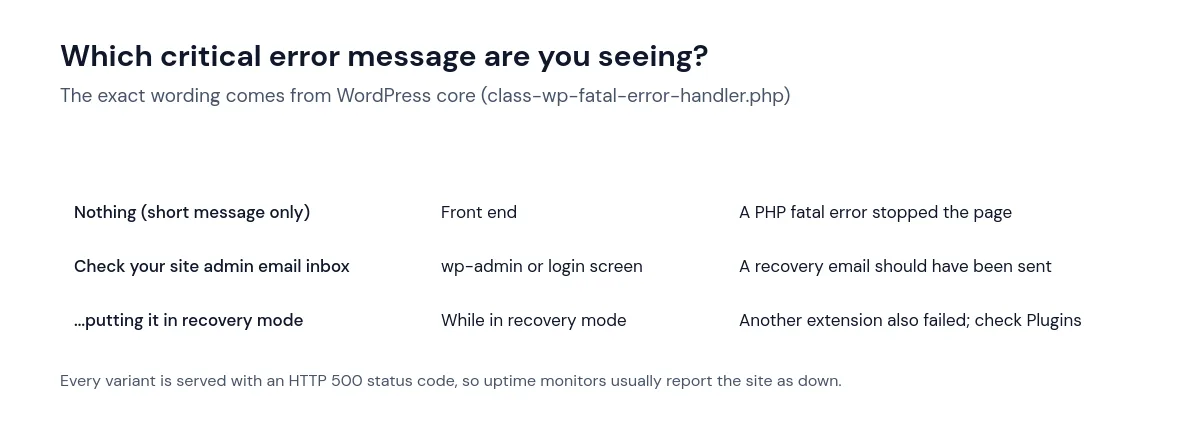
If you see a completely blank page instead, the error may be happening before WordPress loads, or the fatal error handler may have been turned off with the WP_DISABLE_FATAL_ERROR_HANDLER constant. The diagnostic steps below still apply.
Common causes of a WordPress critical error
These are the usual suspects. Treat them as possibilities until the error log confirms one:
- A plugin or theme update that is incompatible with your PHP version or with another plugin.
- A recent PHP version upgrade on the server, which exposes old code.
- Custom code added to
functions.phpor a code snippet with a syntax error. - PHP running out of memory (“Allowed memory size exhausted”).
- A corrupted or partially uploaded plugin or theme file.
Before you change anything: make sure a recent backup exists, and if you can, download a copy of wp-config.php and the plugin or theme folder you are about to touch. Every step below is reversible, but a backup makes it painless.
Step 1: Look for the recovery mode email
When WordPress can tell which plugin or theme failed, it emails the site administrator. The subject is “[Your site name] Your Site is Experiencing a Technical Issue”. It goes to the address in Settings → General, or to the RECOVERY_MODE_EMAIL constant if you have defined one in wp-config.php.
The email names the extension that caused the problem, includes the error details, and contains a link that logs you in to recovery mode. In recovery mode, the faulty plugin or theme is paused for your session only, so you can reach the dashboard and deactivate it. By default WordPress sends this email at most once a day.
Visitors keep seeing the error while you are in recovery mode. Pausing is not a fix: you still need to deactivate, update or replace the extension.
Check spam folders too. WordPress sends this email with the server’s mail function, and on domains without SPF or a proper mail setup it often lands in spam or never arrives. We found exactly that on this site: our domain had no SPF record, so we do not rely on WordPress emails until mail is properly configured.
Step 2: Turn on the debug log to see the real error
If the email never arrives, the WordPress debug log gives you the same information. Edit wp-config.php with your host’s file manager or SFTP and add these lines above the line that says /* That's all, stop editing! Happy publishing. */ (older installs say “Happy blogging”):
define( 'WP_DEBUG', true );
define( 'WP_DEBUG_LOG', true );
define( 'WP_DEBUG_DISPLAY', false );
@ini_set( 'display_errors', 0 );
This combination writes errors to wp-content/debug.log without showing them to visitors, which is the setup recommended in the official Debugging in WordPress documentation. If WP_DEBUG is already defined in the file, change the existing line instead of adding a second one.
Reload the broken page once, then open wp-content/debug.log. Look for a line that starts with PHP Fatal error. It ends with a file path such as wp-content/plugins/example-plugin/includes/class-example.php on line 42. The folder after plugins/ or themes/ is the extension responsible.
If debug.log stays empty, check your hosting control panel’s PHP error log instead. Errors that happen very early, or in a php.ini or .htaccess problem, may only appear there.
Step 3: Deactivate the plugin that caused the error
If you can reach the dashboard (directly or through recovery mode), go to Plugins and deactivate the plugin named in the email or log. If WordPress later refuses to reactivate it, see plugin could not be activated because it triggered a fatal error.
If you cannot log in at all:
- Open
wp-content/plugins/in your file manager or SFTP client. - Rename the plugin’s folder, for example from
example-plugintoexample-plugin-disabled. - Reload the site. WordPress cannot find the plugin file, so it deactivates the plugin automatically.
- Log in and confirm the plugin now shows as inactive with a notice that its file does not exist.
- Rename the folder back before you reinstall or update it, so its settings are kept.
If you have WP-CLI, this does the same job without loading the broken plugin:
wp plugin deactivate example-plugin --skip-plugins --skip-themesThe --skip-plugins and --skip-themes options stop WP-CLI from loading the code that is crashing, as described in the WP-CLI global parameters reference.
If the path points to a theme, rename the active theme’s folder in wp-content/themes/. WordPress then falls back to a default theme such as Twenty Twenty-Five, provided one is installed. If no default theme is installed, upload one first.
Step 4: Fix the cause instead of leaving the plugin off
What you do next depends on what the log said:
- The error appeared right after an update: install the previous version of the plugin, then report the error to the developer with the exact log line.
- The log mentions an undefined function or a deprecated feature: the plugin may not support your PHP version yet. Check the plugin page for “Requires PHP” and “Tested up to”, and ask your host whether you recently moved to a newer PHP version.
- The log says “Allowed memory size exhausted”: PHP ran out of memory. Find out which plugin was running when it happened before simply raising the memory limit.
- **The error points to
functions.phpor a snippet:** undo the last code change. A missing semicolon or bracket is enough to take a site down. - The plugin is abandoned or keeps failing: replace it with a maintained alternative rather than leaving outdated code on the site.
Step 5: Confirm the fix and switch logging off
Open the home page, a single post, the dashboard and any important forms in a private browser window. Then purge your page cache so visitors do not see a cached error page. If changes do not appear, our guide to changes not showing after clearing cache covers each cache layer.
Finally, set WP_DEBUG back to false (or remove the lines you added) and delete wp-content/debug.log. The official documentation does not recommend leaving debug tools running on a live site, and an old log file can expose file paths to anyone who requests it.
When to ask for help
Contact your host or a developer if the error log is empty in both places, the error points to WordPress core files in wp-admin or wp-includes, or the fatal error came back after you restored a clean backup. Core files reporting errors can indicate a failed update or tampered files, which needs a careful investigation rather than more trial and error. If you also notice unknown administrator accounts, read our guide to an unknown admin user that keeps coming back.
Frequently asked questions
Is a critical error the same as the white screen of death?
They usually have the same cause, a PHP fatal error. Before WordPress 5.2, that error often produced a blank white page. Today WordPress normally shows the critical error message instead, but you can still get a blank page if the error happens before WordPress loads.
Will I lose content if I deactivate a plugin this way?
Renaming a plugin’s folder does not delete its settings or your posts. Most plugins keep their data in the database until you delete them from the Plugins screen. Data created only by that plugin, such as a shortcode’s output, will not display while it is inactive.
Why does the error only appear in the dashboard?
Some plugins only load certain code in wp-admin. The debug log still records which file failed, so the same steps apply.
If you see a plain server error page instead of the WordPress message, follow our 500 internal server error guide. If the site is stuck showing a maintenance notice after an update, see briefly unavailable for scheduled maintenance.
Summary
A WordPress critical error is a symptom, not a diagnosis. The recovery email or debug.log tells you exactly which plugin or theme failed. Pause or deactivate that extension, fix the underlying cause, confirm every important page works, and turn debug logging off again. To recognise these errors sooner, see the official WordPress troubleshooting FAQ.