Missing a Temporary Folder in WordPress: What It Means and Fixes
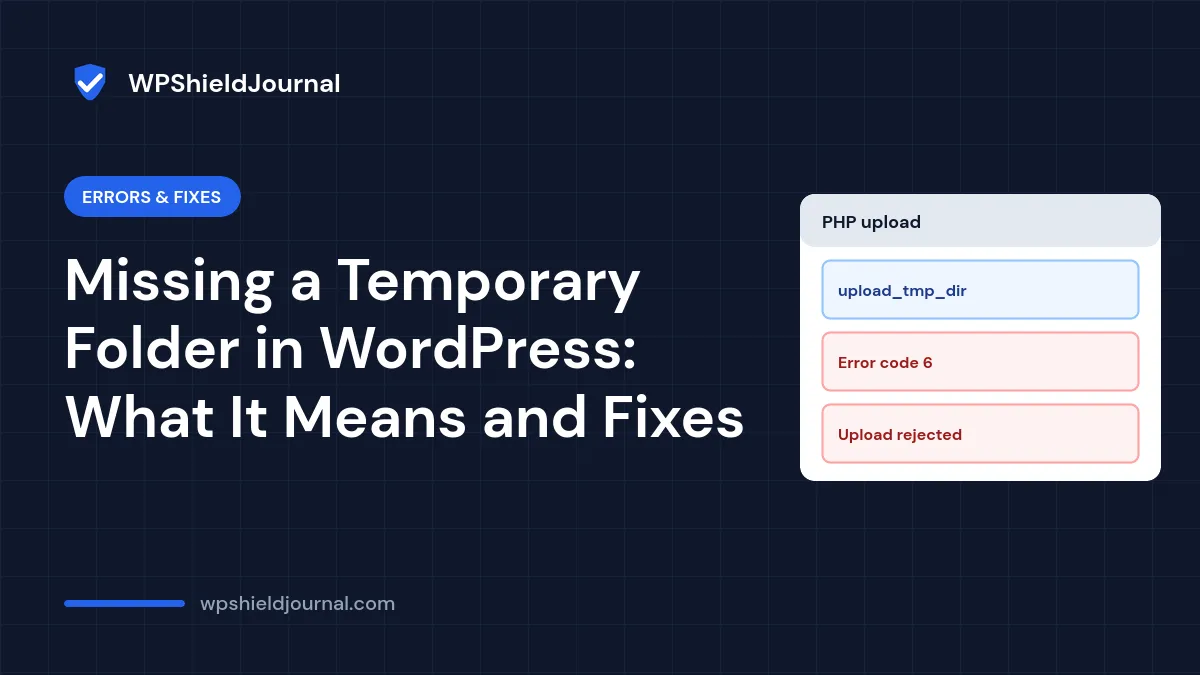
Every upload to the Media Library fails with “Missing a temporary folder”, or with its close relative “Failed to write file to disk”. Both messages come from PHP, not from WordPress or a plugin: PHP could not store the uploaded file before WordPress even saw it. This guide explains what each means, why the popular WP_TEMP_DIR advice does not fix it, and what you or your host need to change.
Quick answer: check your hosting disk space first. If space is fine, the server’s PHP temporary upload folder (upload_tmp_dir) is missing, full or not writable. That is a server setting, so on shared hosting your host has to fix it. Adding WP_TEMP_DIR to wp-config.php does not change where PHP stores uploads.
Where these messages come from
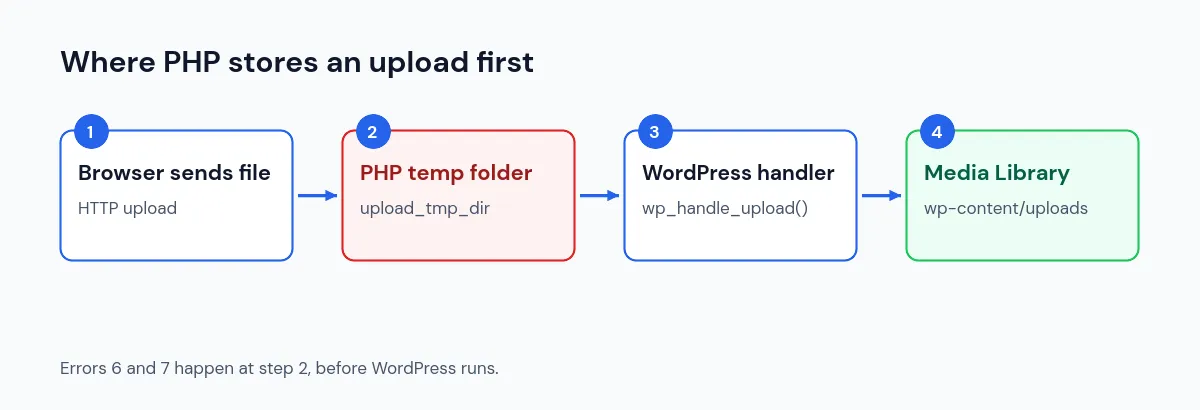
When a browser uploads a file, PHP writes it to a temporary folder first and then hands it to WordPress. If something goes wrong at that stage, PHP records an error code. WordPress translates the code into words in its upload handler (wp-admin/includes/file.php), using the same descriptions as the PHP manual’s file upload error codes:
| PHP code | Constant | WordPress shows |
|---|---|---|
| 6 | UPLOAD_ERR_NO_TMP_DIR | Missing a temporary folder. |
| 7 | UPLOAD_ERR_CANT_WRITE | Failed to write file to disk. |
So by the time WordPress reports the problem, the upload has already failed inside PHP.
Why WP_TEMP_DIR does not fix it
Many guides tell you to add define( 'WP_TEMP_DIR', ... ) to wp-config.php. That constant changes the folder returned by WordPress’s get_temp_dir() function, which WordPress uses for its own temporary files, for example when downloading plugin updates. It cannot affect browser uploads, because PHP has already tried to store the uploaded file in its own temporary folder before WordPress starts running.
WP_TEMP_DIR can still help when plugin or core updates fail to download, but not with these two upload errors.
Step 1: Check disk space and quota
Open your hosting control panel and check disk usage and inode (number of files) usage. A full account is the most common cause of “Failed to write file to disk”.
- Remove old backup archives stored in the account.
- Delete unused plugins, themes and large files you no longer need.
- Ask your host whether the server’s shared temporary space is full; you cannot see that from your account.
Step 2: Check PHP’s temporary upload folder
The PHP manual describes upload_tmp_dir as “the temporary directory used for storing files when doing file upload”, which “must be writable by whatever user PHP is running as”. If it is not set, PHP uses the system default, usually /tmp. The manual also notes that if open_basedir is on, the system default folder must be allowed for an upload to succeed.
To see the current value, go to Tools → Site Health → Info. The Server section shows PHP settings, and your host’s PHP information page shows upload_tmp_dir.
- Shared or managed hosting: send your host the exact message and ask them to check
upload_tmp_dir, its permissions andopen_basedir. This is a server problem you cannot fix from WordPress. - Your own server: make sure the folder exists and is writable by the PHP user, or set
upload_tmp_dirinphp.inito a writable folder outside the web root and restart PHP-FPM.
Do not set the temporary folder inside your public website folder or give it 777 permissions. Uploaded files sit there briefly before WordPress checks them.
Step 3: Test again
- Upload a small image to Media → Add New.
- If it works, try a larger file.
- If small files work but large ones fail, the temporary space may be too small for large uploads; ask your host.
If you now see a different error, such as the server not being able to process the image, see our image upload error guide. If large files are rejected with “The link you followed has expired”, see that guide for upload size limits.
Other causes
- A recent server or PHP change. If uploads stopped after the host changed PHP versions, the new PHP configuration may point to a missing folder.
- A security module. Some server security tools remove temporary files they consider suspicious. Your host’s logs will show this.
- Migration to a new server. The new server’s PHP may not be configured the same way. Our migration guide includes checks to run after a move.
When to contact your host
In most cases you will need your host for this one. Give them the exact message, the time of a failed upload and whether disk space was available. Ask specifically about upload_tmp_dir, its permissions and free space on the server’s temporary partition.
Frequently asked questions
Is the uploads folder the problem?
Usually not. Problems with wp-content/uploads produce messages such as “Unable to create directory” instead. These two messages happen before the file reaches that folder. Folder problems are covered in our guide to could not create directory.
Can a plugin cause “Missing a temporary folder”?
Not directly. The error is set by PHP before plugins run. A plugin can only report it.
Will reinstalling WordPress fix it?
No. WordPress files are not involved, so reinstalling them does not change PHP’s temporary folder.
Summary
“Missing a temporary folder” and “Failed to write file to disk” are PHP upload errors 6 and 7. Check disk space, then have PHP’s upload_tmp_dir checked for existence, permissions and free space. WP_TEMP_DIR only affects WordPress’s own temporary files, so it will not fix browser uploads.