Deceptive Site Ahead Warning on WordPress: How to Remove It
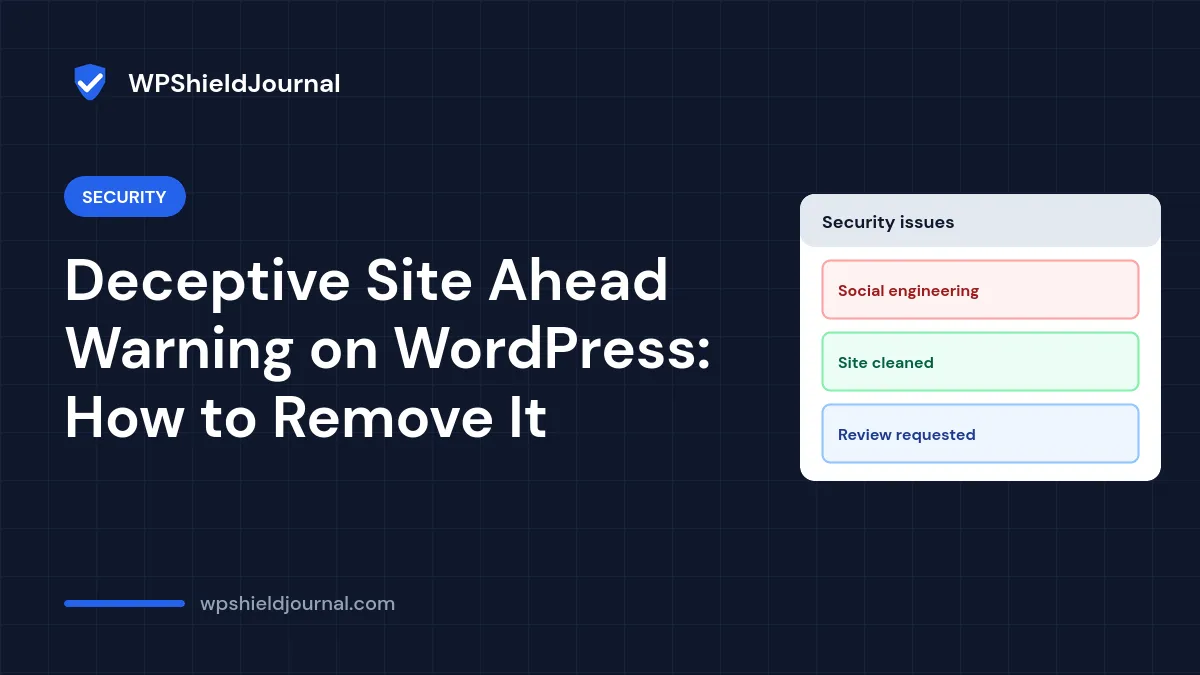
Visitors see a red browser page saying “Deceptive site ahead” or “Dangerous site”, or Google search results show “This site may be hacked” under your listing. These warnings come from Google’s systems after they detect malware, phishing or hacked content on your site. They do not go away by themselves while the problem remains, and cleaning the site is only half the job: you also have to ask Google to review it. This guide shows how to remove a Google security warning from a WordPress site in the right order.
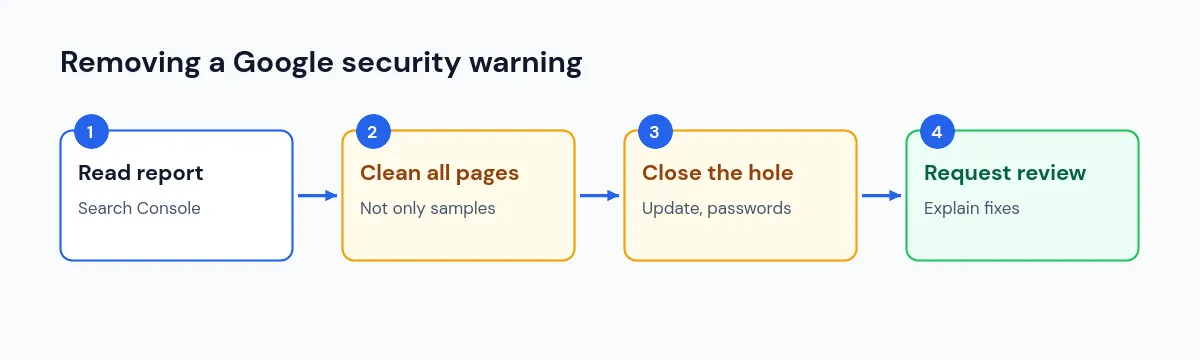
Quick answer: open the Security issues report in Google Search Console to see exactly what Google found and on which URLs. Clean every affected page, close the hole the attacker used, then click Request review and describe what you fixed. Phishing reviews take about a day, malware a few days, and hacked spam can take several weeks.
What the warnings mean
Google’s Security issues report lists three kinds of problems:
| Issue type | What it means | Typical visible warning |
|---|---|---|
| Hacked content | Content placed on your site without permission, such as spam pages or injected links | “This site may be hacked” in search results |
| Malware and unwanted software | Code that can harm visitors’ devices | A red “Dangerous” browser warning |
| Social engineering | Pages that trick visitors, such as fake login or payment pages | “Deceptive site ahead” |
The report says affected sites “can appear with a warning label in search results or an interstitial warning page in the browser”. The exact wording visitors see depends on the browser.
Step 1: Confirm what Google found
- In Google Search Console, open your property and go to Security & Manual Actions → Security issues.
- Expand each issue. Note the issue type and the sample URLs.
- If you have not verified the site in Search Console yet, verify it first. You cannot request a review without it.
You can also check the public status of your domain in Google’s Safe Browsing site status tool.
Do not assume a sample URL is the only one affected. Google’s report states that fixing the issue on just some pages “will not earn you a partial return to search results”.
Step 2: Clean the whole site
How you clean depends on the issue:
- Hacked spam pages or links: find and remove injected content and the code that creates it. Our guides to signs of a hacked WordPress site and spam redirects walk through where it usually hides.
- Malware: look for injected JavaScript in theme files, plugins, the database and
wp-content/uploads. Replace WordPress core with a clean copy and verify core files against official checksums. - Phishing pages: attackers often upload complete fake login pages into a folder. Remove the folder and check for other files added at the same time.
If you have a clean backup from before the infection, restoring it and then updating everything can be faster than cleaning by hand.
Step 3: Close the hole
If you clean the site without fixing how the attacker got in, the warning usually returns. Before requesting a review:
- Update WordPress, all plugins and themes. Remove ones you do not use.
- Change all administrator, hosting, SFTP and database passwords, and replace the security keys in
wp-config.php. - Check for administrator accounts you do not recognise; see our unknown admin user guide.
- Ask your host whether other sites in the same hosting account are infected, since one infected site can reinfect the others.
Step 4: Request a review
Back in the Security issues report, click Request review. Google’s documentation says the request should explain the exact issue, the steps you took and the outcome. Be specific, for example: “Removed injected script from theme footer.php and 38 spam pages in /wp-content/uploads/cache/; updated the outdated slider plugin used to upload them; changed all passwords.”
According to Google’s request a review guide:
- phishing reviews “take about a day to process”;
- malware reviews “require a few days”;
- reviews of sites hacked with spam “can require up to several weeks”.
You receive messages in Search Console when the review starts and finishes.
Do not send another review request while one is pending, and do not request a review before the problem is fully fixed. Google warns that a request made too early can lengthen the next review or get the site marked as a repeat offender.
If the review is rejected
Google’s reply usually includes more sample URLs. Check them, clean again, look for a second backdoor, and request another review only when you are confident everything is fixed. Repeated failed reviews are a sign to get professional help.
When to get professional help
Consider your host’s security team or a reputable malware-removal service if you cannot find the source, if the infection returns after cleaning, or if the site handles payments or personal data. Google’s warning protects your visitors; clearing it properly matters more than clearing it fast.
Frequently asked questions
Can I remove the warning without fixing the site?
No. The warning is lifted only after a review finds the site clean.
Why do some visitors see the warning and others do not?
Browsers check Google Safe Browsing differently, and some malware only shows to certain visitors, for example mobile users or people arriving from search results. Rely on the Search Console report rather than what you see on your own computer.
Will my rankings recover?
Pages usually return to normal search results once the issues are resolved and reviewed. Check the Pages report in Search Console afterwards for pages that were removed or blocked during the incident.
Summary
To remove a Google security warning from a WordPress site, read the Security issues report, clean every affected page, close the vulnerability and change all credentials, then request a review that explains exactly what you fixed. Expect about a day for phishing, a few days for malware and up to several weeks for hacked spam.