Verify WordPress Core Files With WP-CLI Checksums
If you suspect malware, or just want proof that WordPress itself has not been tampered with, you can verify WordPress core files against the official checksums published by WordPress.org. WP-CLI does it in one command and lists every file that was changed or added. This guide shows how to run the check, read the results, repair core files safely and check plugins the same way, and explains what the check cannot see.
Quick answer: over SSH, in the WordPress folder, run wp core verify-checksums. A clean site prints “Success: WordPress installation verifies against checksums.” Any warnings name files that differ from the official release. Replace core files with wp core download --force --skip-content after taking a backup, and run wp plugin verify-checksums --all for plugins from WordPress.org.
What the check does
The wp core verify-checksums command downloads the MD5 checksums for your WordPress version from WordPress.org and compares them with the files in wp-admin, wp-includes and the core files in the root folder. According to its documentation it runs before WordPress loads, so a plugin or theme cannot interfere with the result.
This matters because attackers often hide code in core files, which most site owners never open. A modified wp-includes file or an extra PHP file among the core folders is a strong sign of compromise.
Before you start
- You need SSH access and WP-CLI. Many hosts include both; check your hosting panel.
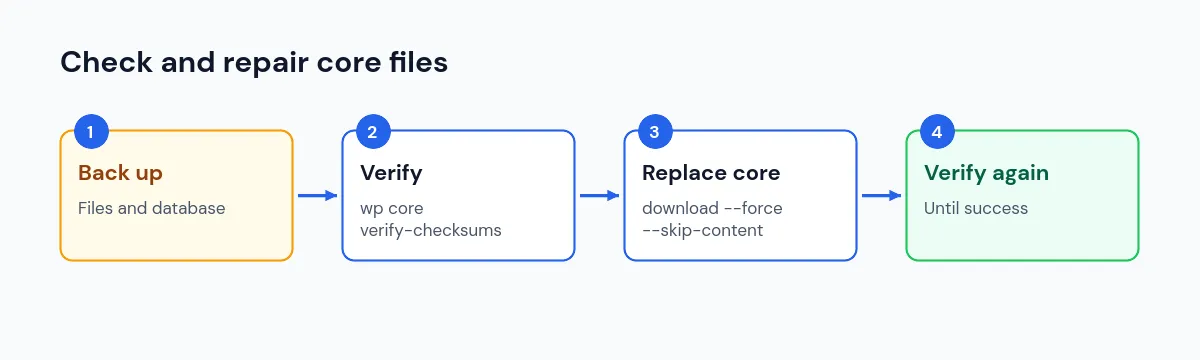
- Take a full backup first, including files and database. Our backup guide explains how.
- If you think the site is hacked, keep a copy of the infected files for reference before changing anything.
Step 1: Run the core check
Connect over SSH, go to the folder that contains wp-config.php, and run:
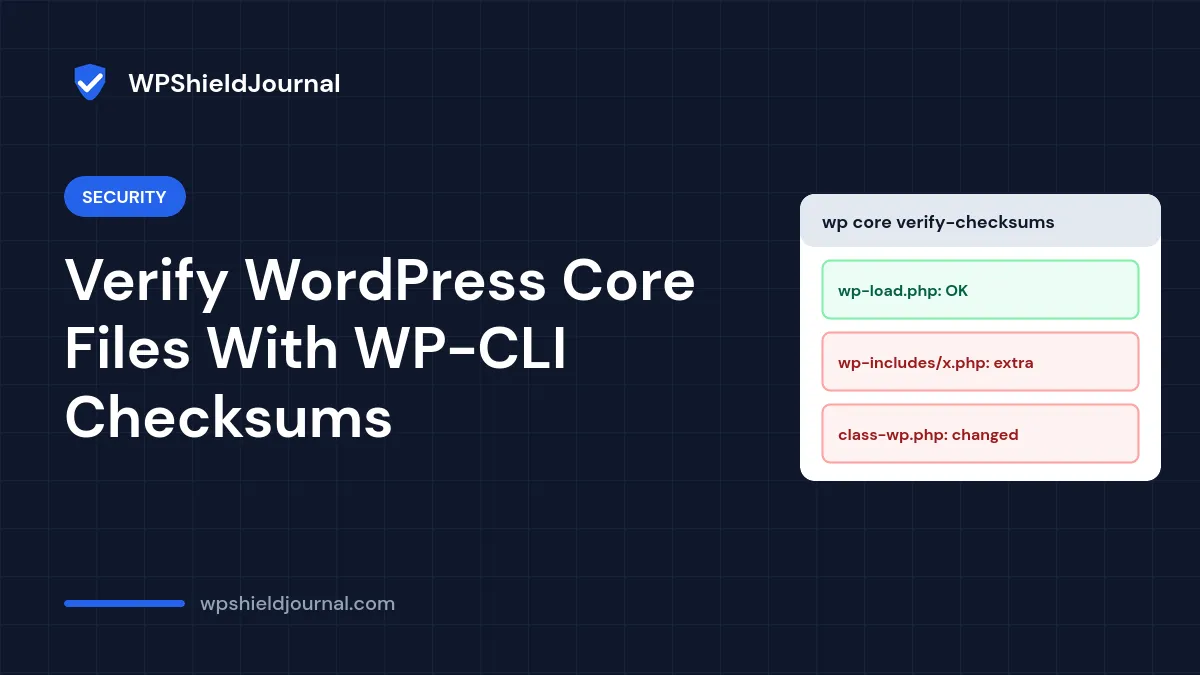
wp core verify-checksumsIf every core file matches, you will see:
Success: WordPress installation verifies against checksums.If something differs, WP-CLI prints a warning for each file and ends with “Error: WordPress installation doesn’t verify against checksums.”
Useful options from the documentation:
| Option | Use |
|---|---|
--include-root | Also checks the root folder and warns about files that are not part of WordPress |
--version=6.8 | Compares against a specific version |
--locale=de_DE | Compares against a translated release |
--exclude=readme.html | Skips files you changed on purpose |
If the check fails on almost every file, the version or locale probably does not match. Check Dashboard → Updates for the installed version and language and pass them with --version and --locale.
Step 2: Read the results
The warnings fall into two groups:
- A file does not match its checksum. A core file was edited. Unless you changed it yourself, treat it as suspicious.
- A file should not exist. There is a file among the core folders that is not part of the release. Extra PHP files in
wp-adminorwp-includes, especially with random-looking names, are a common place for backdoors.
Leftover files from an old version can also appear, but do not assume that. Open the file and look before deleting it.
Step 3: Replace modified core files
To replace every core file with a clean copy of the same version, without touching your content:
wp core download --version=6.8 --force --skip-contentReplace 6.8 with your installed version. --force overwrites existing files and --skip-content leaves out the default themes and plugins, so wp-content is not affected. Then remove files that “should not exist”, after checking them, and run wp core verify-checksums again until it reports success.
Do not delete wp-config.php or anything in wp-content based on this check. The core check does not cover wp-content, and wp-config.php is unique to your site.
Step 4: Check plugins from WordPress.org
The wp plugin verify-checksums command does the same for plugins:
wp plugin verify-checksums --allIt compares installed plugins with the checksums WordPress.org publishes, so it can only verify plugins that come from the WordPress.org directory. Premium and custom plugins cannot be checked this way; reinstall them from the developer’s official source instead. Add --strict if you also want changes to files like readme.txt reported.
To replace a modified plugin with a clean copy of the same version:
wp plugin install plugin-slug --version=1.2.3 --forceWhat this check cannot find
A clean result does not prove a site is clean:
- Themes, uploads and
wp-contentare not covered by the core check. Malware often hides inwp-content/uploads,mu-pluginsor a theme’sfunctions.php. - The database is not checked. Spam links, injected scripts and rogue administrator accounts live there.
- Premium plugins and themes cannot be verified against WordPress.org.
If you see other signs, such as spam pages in Google or unknown administrators, follow our guides on signs of a hacked WordPress site, spam redirects and an unknown admin user that keeps coming back.
When to get professional help
If core files keep changing after you replace them, something on the site or server is re-infecting them. Restore a clean backup from before the first change or bring in your host’s security team or a malware-removal specialist.
Frequently asked questions
Can I run this without SSH?
WP-CLI needs a command line. Without it, you can download the same WordPress version from WordPress.org and compare files with a file comparison tool, or use a security plugin that compares core files with the official release.
Does a successful update fix modified core files?
A core update replaces most core files, but it does not remove extra files that were added. Run the check after updating too.
How often should I run it?
Run it whenever you suspect a problem, and after cleaning a hacked site. On sites you manage over SSH, adding it to a monthly maintenance routine is cheap insurance.
Summary
To verify WordPress core files, run wp core verify-checksums and read which files do not match or should not exist. Back up, replace core files with wp core download --force --skip-content for your version, check WordPress.org plugins with wp plugin verify-checksums --all, and remember that themes, uploads and the database need separate checks.