Plugin Could Not Be Activated Because It Triggered a Fatal Error
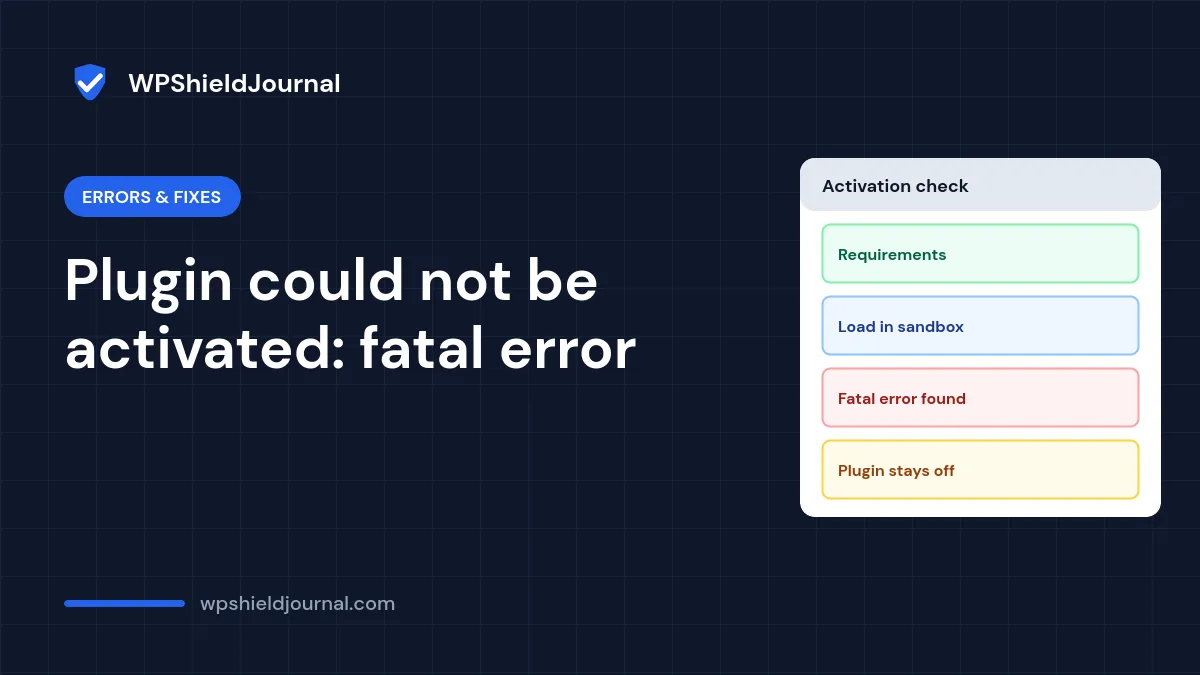
You click Activate and WordPress replies: “Plugin could not be activated because it triggered a fatal error.” The good news is that the rest of your site is fine: WordPress tested the plugin before switching it on, saw it crash, and left it switched off. This guide explains how to read the error WordPress shows underneath, which causes are most common, and how to fix each one safely.
Quick answer: read the small error box under the message. It shows the real PHP error, including a file name and line number. Most cases are a PHP version mismatch, a missing required plugin or PHP extension, two copies of the same plugin, or an incomplete upload. If the box is empty, turn on the debug log and activate the plugin again.
Why a plugin could not be activated
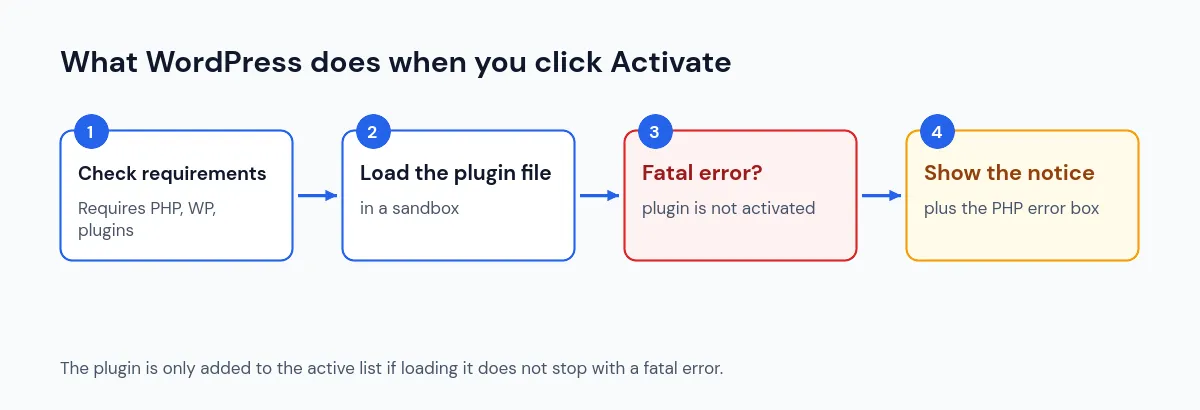
When you activate a plugin, WordPress does not switch it on straight away. In wp-admin/includes/plugin.php, the activate_plugin() function first checks the plugin’s requirements, then loads the plugin’s main file in a “sandbox” to see whether it runs. Only if that load finishes is the plugin added to the list of active plugins. We read this logic in the WordPress core files; the activate_plugin() reference shows the same code.
If loading the plugin stops with a PHP fatal error, the plugin is never added to the active list. That is why the error appears but your site keeps working. It also means the problem is inside the plugin or in how it fits your server, not in WordPress itself.
Two related messages look similar but have different causes:
- “Current PHP version (…) does not meet minimum requirements for …” appears when the plugin’s
Requires PHPheader asks for a newer PHP version. WordPress blocks the activation before loading anything. See our guide to upgrading your WordPress PHP version. - “The plugin generated … characters of unexpected output during activation” means the plugin activated but printed text it should not have. That can cause “headers already sent” problems; our guide to cookies blocked due to unexpected output covers that family of errors.
Step 1: Read the error box under the message
Under the notice, WordPress shows a small framed box. To fill it, WordPress loads the plugin again on a special page (plugins.php?action=error_scrape) with PHP error display switched on, so the actual error text appears there.
Look for a line starting with Fatal error or Parse error. It names the problem and the file and line where PHP stopped, for example:
PHP Fatal error:  Uncaught Error: Call to undefined function example_function()
in /wp-content/plugins/example-plugin/example-plugin.php:42
Note the plugin folder in the path. Occasionally it is a different plugin than the one you clicked, which points to a conflict.
Step 2: If the box is empty, use the debug log
Some server configurations still hide the error. In that case, turn on WordPress’s debug log, which writes errors to a file instead of the screen:
define( 'WP_DEBUG', true );
define( 'WP_DEBUG_LOG', true );
define( 'WP_DEBUG_DISPLAY', false );
Add these lines to wp-config.php above the line that says “That’s all, stop editing!”, try the activation once more, and open wp-content/debug.log. Our WordPress debug log guide explains where to find the file and how to switch logging off afterwards. Your host’s PHP error log shows the same information. WordPress’s own debugging documentation lists every debug constant.
Step 3: Match the error to its cause
| What the error says | Likely cause | What to do |
|---|---|---|
syntax error, unexpected … or a typed-property error | The plugin needs a newer PHP version, or an old plugin uses syntax removed in newer PHP | Check the plugin’s “Requires PHP”; update PHP or the plugin |
Call to undefined function / Class "…" not found | A required plugin, library or PHP extension is missing | Install the required plugin or ask your host to enable the extension |
Cannot redeclare … / Cannot declare class …, because the name is already in use | Two copies of the same code are loaded | Remove the duplicate plugin (often a free and a premium version) |
Failed to open stream: No such file or directory | The upload or update was incomplete | Delete the plugin folder and reinstall a fresh copy |
Allowed memory size … exhausted | PHP ran out of memory while loading the plugin | See allowed memory size exhausted |
Step 4: Fix the most common causes
PHP version mismatch
Open Tools → Site Health → Info → Server to see your PHP version, then compare it with the “Requires PHP” value on the plugin’s page. Plugins declare it in their plugin header. If your PHP is too old, upgrade it in your hosting panel after testing on a copy of the site. If your PHP is new and the plugin is old and unmaintained, look for an updated version or an alternative plugin.
A missing required plugin or PHP extension
Add-ons for WooCommerce, page builders and similar plugins usually need their parent plugin active first. Since WordPress 6.5, a plugin can declare this with a Requires Plugins header, and WordPress then shows the dependency on the Plugins screen (see plugin dependencies in WordPress 6.5). Older add-ons may not use the header, so read the plugin’s documentation. If the error names a PHP function such as mb_strlen() or imagecreatefromwebp(), the server is missing a PHP extension; ask your host to enable it.
Two copies of the same plugin
A “Cannot redeclare” error usually means the same code is already loaded. Typical examples are activating a premium version while the free version is still active, or an old folder left behind after a manual upload. Deactivate and delete the duplicate, keeping the version you want, and then activate it.
An incomplete upload
If the error mentions a missing file, the plugin folder is incomplete. Delete the plugin from Plugins → Installed Plugins (or remove its folder in wp-content/plugins by SFTP), then install a fresh copy from WordPress.org or the developer’s account area.
Do not edit the plugin’s PHP files to silence the error. Your change is lost at the next update, and a mistake can break the site for real. Fix the cause or contact the developer instead.
Step 5: Activate again and check the site
- Activate the plugin again. It should now show as active without a notice.
- Visit the front of the site and the plugin’s settings page.
- If you turned on the debug log, check
debug.logfor new warnings, then switch logging off again.
If the plugin activates but the site later shows “There has been a critical error on this website”, follow our guide to the WordPress critical error. If two active plugins only fail together, use our method to find a plugin conflict safely.
When to contact the developer or your host
- Plugin developer: the error points to a file inside the plugin and your PHP version meets its requirements. Send them the exact error text, your WordPress and PHP versions and the plugin version.
- Hosting provider: the error names a missing PHP extension, a memory limit you cannot change, or the error box stays empty and you cannot reach the logs.
Frequently asked questions
Did the failed activation damage my site?
Normally no. WordPress only adds the plugin to the active list after it loads successfully, so a plugin that crashes during activation stays inactive. If your site is down after clicking Activate, that is a different problem; start with the critical error guide.
What does “Plugin could not be resumed because it triggered a fatal error” mean?
It is the same check, used when you resume a plugin that WordPress paused in recovery mode after it caused a fatal error. The fix is the same: read the error and fix its cause before resuming.
Why does the plugin work on another site but not mine?
The other site probably has a different PHP version, different PHP extensions or a different set of plugins. Compare the details in Tools → Site Health → Info on both sites.
Summary
“Plugin could not be activated because it triggered a fatal error” means WordPress tested the plugin, saw PHP stop, and kept it switched off. Read the error box or the debug log, match the message to its cause, and fix that cause: a PHP version mismatch, a missing dependency, a duplicate copy or an incomplete upload. Then activate again and check the site.