How to Roll Back a WordPress Plugin Update Safely
A plugin update has broken something: a layout looks wrong, a form stopped sending, or a feature behaves differently. You want the previous version back while the developer fixes it. This guide shows how to roll back a WordPress plugin to an earlier version safely, what WordPress already rolls back by itself, and how to avoid losing data when an update has changed the database.
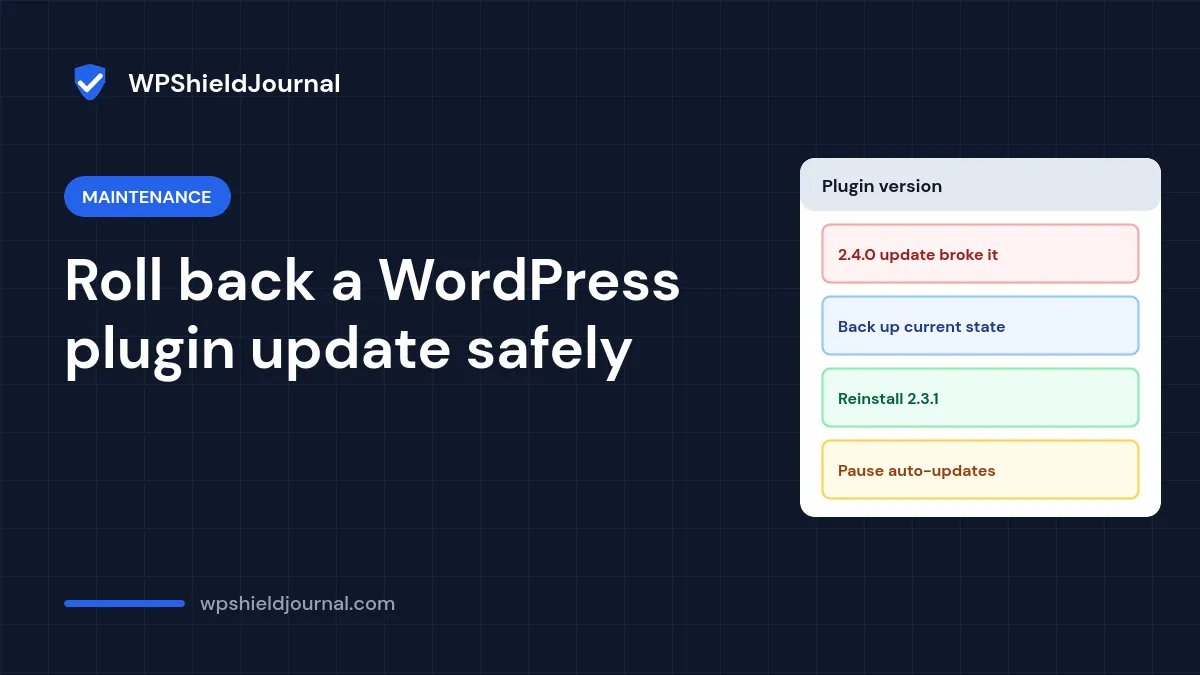
Quick answer: back up the site as it is now, then reinstall the previous version. With WP-CLI run wp plugin install plugin-slug --version=1.2.3 --force. Without WP-CLI, download the older ZIP and upload it under Plugins → Add New Plugin → Upload Plugin, then choose Replace current with uploaded. Pause auto-updates for that plugin and report the problem to the developer.
What WordPress already rolls back automatically
WordPress has two built-in safety nets, but neither covers every case:
- Failed manual updates (WordPress 6.3 and later). Before a plugin or theme update, WordPress moves the old version into
wp-content/upgrade-temp-backup/. If the new version fails to install, the old one is restored. The WordPress 6.3 announcement is explicit that this copy is not kept for rolling back an update that installed successfully. - Plugin auto-updates that cause a fatal error (WordPress 6.6 and later). After an automatic plugin update, WordPress makes a loopback request to your own site. If that request finds a PHP fatal error, or fails, the previous version is restored and the site’s admin email receives a notice. This is described in the Rollback Auto-Update proposal, and we confirmed the
has_fatal_error()check in WordPress core’s automatic updater.
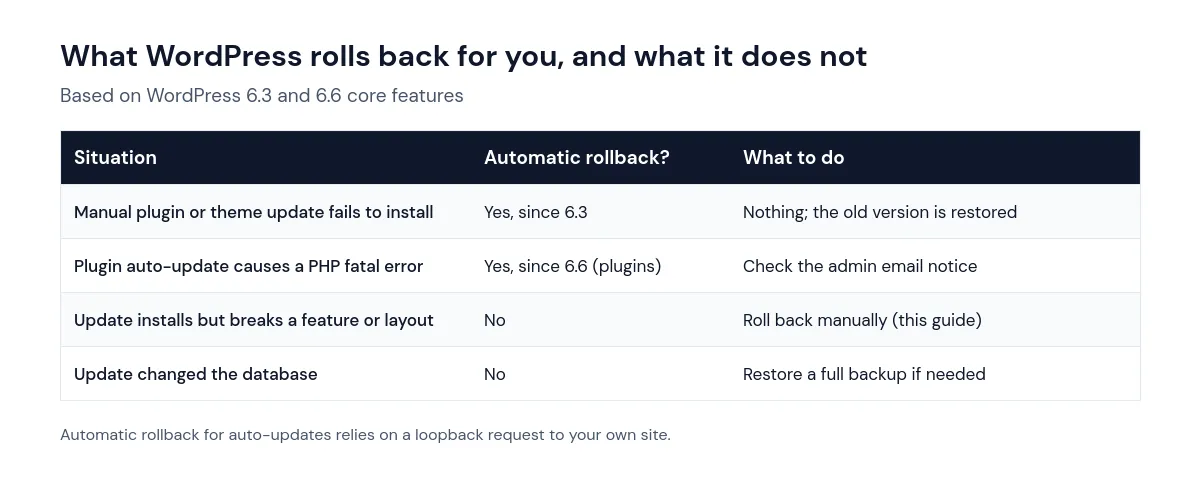
So if an update installed without errors and the site still loads, but something no longer works, you need a manual rollback. If your site shows a critical error instead, start with our guide to the WordPress critical error, which shows how to get back into the dashboard first.
Because the auto-update check depends on a loopback request, a site with loopback request errors can see plugin updates rolled back even when nothing was wrong.
Step 1: Confirm the update caused the problem
- Note the plugin’s current version in Plugins → Installed Plugins, and the version you were on before. The plugin’s changelog on WordPress.org usually lists both.
- Check whether the problem started right after the update. Your host’s activity log or the plugin’s own log may show the update time.
- Turn on the WordPress debug log and reproduce the problem to see whether the plugin’s files appear in any errors.
- If several plugins updated at once, rule out the others with our guide to finding a plugin conflict.
Step 2: Back up the site as it is now
Take a full backup of files and database before you change anything, even though the site is already broken. If the rollback goes wrong, you can return to this point. Our guide on how to back up a WordPress site explains what to include.
Some updates change the plugin’s database tables or settings. An older version may not understand the new data, and installing it does not undo those changes. If the plugin stores important data (orders, form entries, memberships), test the rollback on a staging copy first, or restore a full backup taken before the update instead.
Step 3: Get the previous version
- WordPress.org plugins: WP-CLI can fetch any version the developer has published, so you do not need to download anything by hand (see Step 4). For a manual upload, many plugin pages on WordPress.org have an Advanced View with a list of previous versions to download, when the developer has kept them.
- Premium plugins: log in to the developer’s account area. Many vendors offer older versions there; if not, ask their support for the last working version.
- Your own backups: the plugin’s folder in a backup taken before the update is also a valid source.
Step 4: Install the previous version
With WP-CLI
Connect over SSH, go to the WordPress folder and run:
wp plugin list --name=plugin-slug
wp plugin install plugin-slug --version=1.2.3 --force
Replace plugin-slug with the plugin’s folder name and 1.2.3 with the version you want. The WP-CLI documentation describes --version as fetching “that particular version from wordpress.org” and --force as overwriting the installed version without asking. The plugin keeps its active or inactive state. Themes work the same way with wp theme install theme-slug --version=1.2.3 --force.
From the dashboard
- Go to Plugins → Add New Plugin → Upload Plugin and choose the older ZIP file.
- WordPress detects that the plugin is already installed and compares the Current and Uploaded versions. It warns that you are uploading an older version and reminds you to back up first.
- Click Replace current with uploaded.
Step 5: Check the site and stop the update returning
- Confirm the plugin shows the older version number and that the broken feature works again.
- Check the front end in a private window and clear any page cache.
- In Plugins → Installed Plugins, click Disable auto-updates for that plugin so it is not updated again overnight. Read our WordPress auto-updates guide if your host manages updates instead of WordPress.
- Report the problem to the plugin developer with your WordPress and PHP versions, the version that broke and the steps to reproduce it.
The plugin will still show an update notice. Install the next release once the developer confirms a fix, ideally on a staging copy first.
When to restore a full backup instead
- The plugin’s data looks wrong or incomplete after the rollback.
- Several plugins, or WordPress itself, updated at the same time and you cannot tell which change caused the problem.
- The site will not load and you cannot reach the dashboard or SSH.
Restoring a backup from before the update returns files and database together. You lose anything added since that backup, such as new orders or comments, so note those first.
Frequently asked questions
Does WordPress keep the old version after an update?
Only while the update runs. The copy in upgrade-temp-backup is deleted after a successful update, so it cannot be used for a later rollback.
Is it safe to stay on an older plugin version?
For a short time, usually yes. Read the changelog first: if the update fixed a security problem, staying on the old version leaves that hole open, so move to a fixed release as soon as possible.
Can I roll back a plugin I installed from a ZIP file?
Yes, upload the older ZIP the same way. WP-CLI’s --version option only works for plugins hosted on WordPress.org.
Summary
WordPress rolls back failed manual updates and plugin auto-updates that cause a fatal error, but not updates that install fine and break a feature. To roll back a WordPress plugin, back up first, install the previous version with WP-CLI or by uploading the older ZIP, check the site, pause auto-updates for that plugin and tell the developer. If the update changed important data, restore a full backup instead.