WordPress Site Redirecting to Spam? How to Find the Source
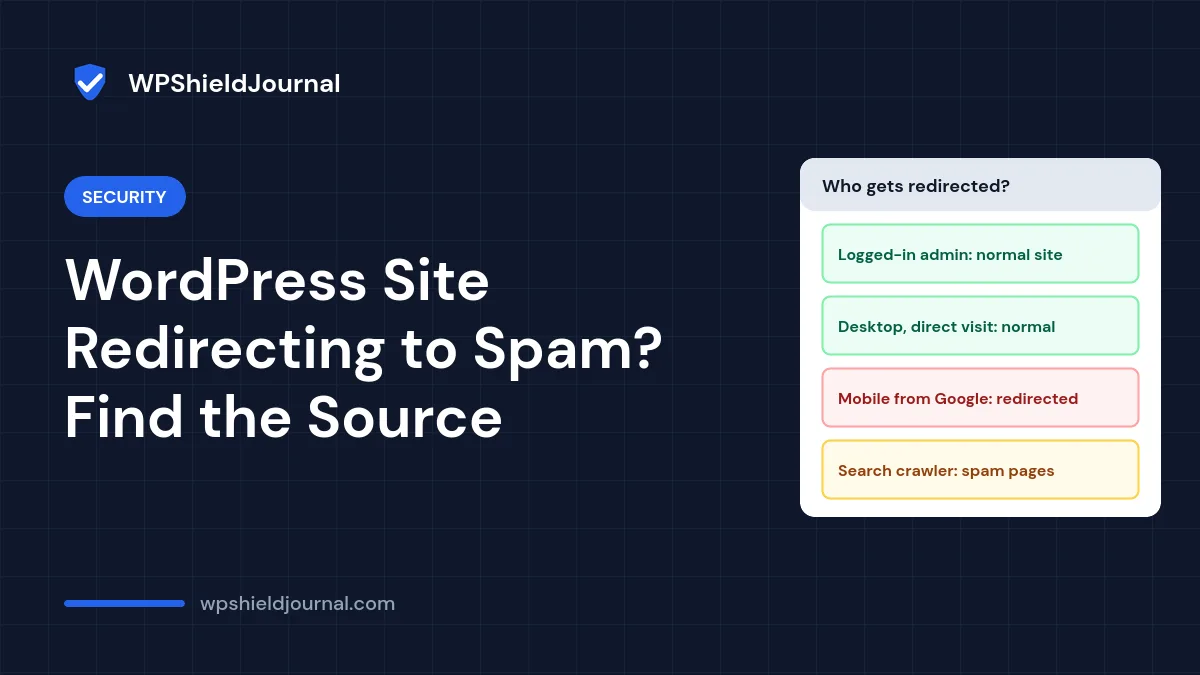
If visitors report that your WordPress site is redirecting to spam, such as fake prize pages, pharmacy shops or adult sites, but everything looks normal when you check, your site has almost certainly been compromised. Redirect malware is usually conditional: it hides from logged-in administrators and only targets certain visitors. This guide explains how to reproduce the redirect, find where the code is hiding, and clean the site without relying on one particular security vendor.
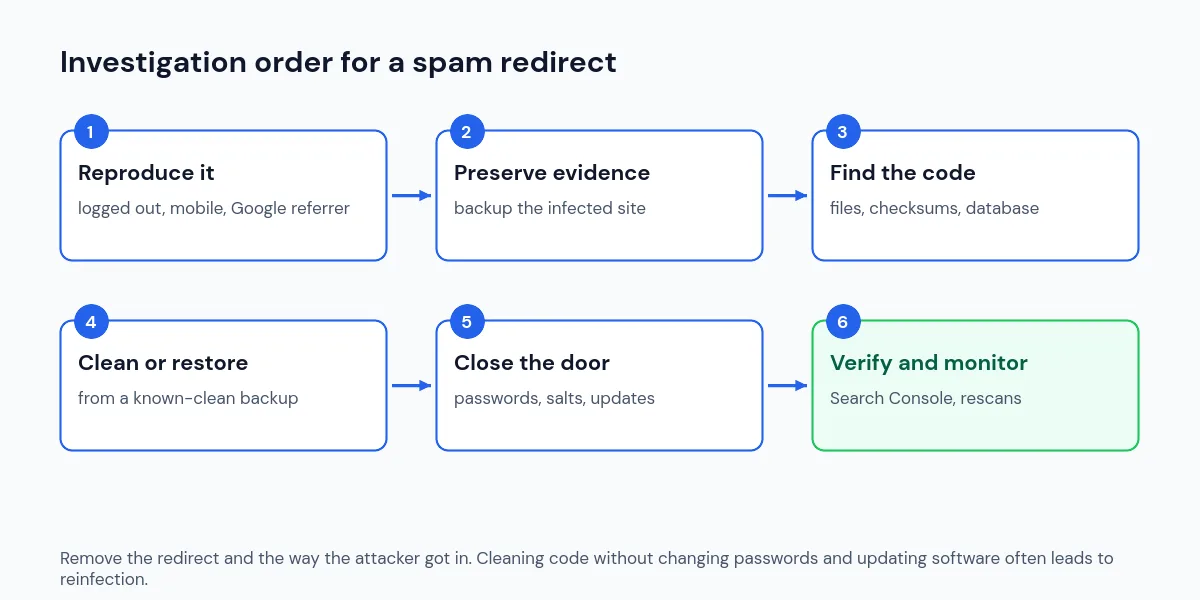
Quick answer: Test while logged out, from a mobile device or with a Google referrer, because spam redirects often target only those visitors. Back up the infected site before changing anything. Then check .htaccess, wp-config.php, theme files, mu-plugins, plugins and the database for injected code, verify core and plugin checksums, and restore from a clean backup if you cannot be sure you found everything. Finally change every password and the security salts, and update all software.
Why you cannot see your site redirecting to spam
Attackers want the redirect to run as long as possible without the site owner noticing. Injected code commonly checks conditions such as:
- whether the visitor is logged in to WordPress, so administrators never see it;
- the referrer, so only visitors arriving from search engines are redirected;
- the device or user agent, so only mobile visitors are affected;
- whether the visitor has been redirected before, using a cookie, so it happens only once.
That is why “it works fine for me” is not evidence that the site is clean.
Step 1: Reproduce the spam redirect safely
Use a private window while logged out, and ideally a phone on mobile data. Search for your site on Google and click the result instead of typing the address. If you have a terminal, curl can show a redirect without opening a dangerous page in your browser:
curl -sI -A "Mozilla/5.0 (iPhone; CPU iPhone OS 17_0 like Mac OS X)" -e "https://www.google.com/" https://example.com/The -I option shows only the response headers, -A sets a mobile user agent and -e sets a Google referrer. A 301 or 302 status with a location: header pointing to an unknown domain confirms a server-side redirect. If the headers look normal, the redirect may be done in JavaScript, which runs only in a browser. In that case, view the page source and search for unknown domains or unusual <script> tags near the top or bottom of the page.
Do not enter passwords or download anything from a page the site redirects to. Use a separate, updated device if possible, and avoid clicking through spam pages.
Step 2: Preserve evidence before cleaning
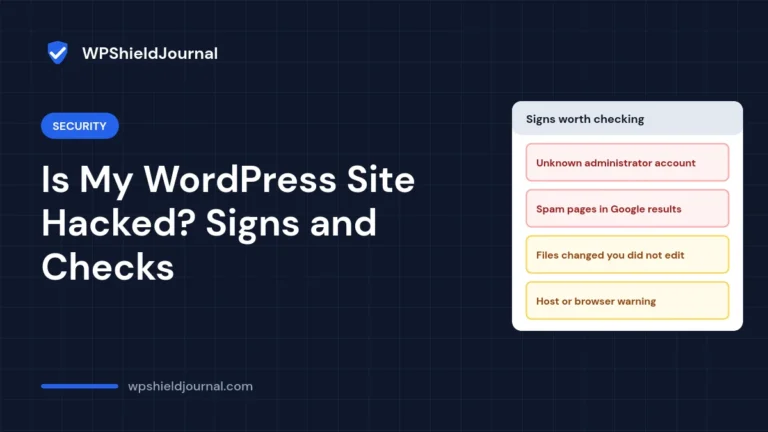
Take a full backup of the infected files and database and label it clearly as infected. It is useful for working out how the attacker got in and for checking later that nothing was missed. Note the date the problem started, recent plugin installs or updates, and any unknown users.
If Google has flagged the site, open the Security issues report in Google Search Console. It often lists example URLs and the type of problem detected. You can also check a domain’s status in the Google Safe Browsing site status tool.
Step 3: Check the usual hiding places
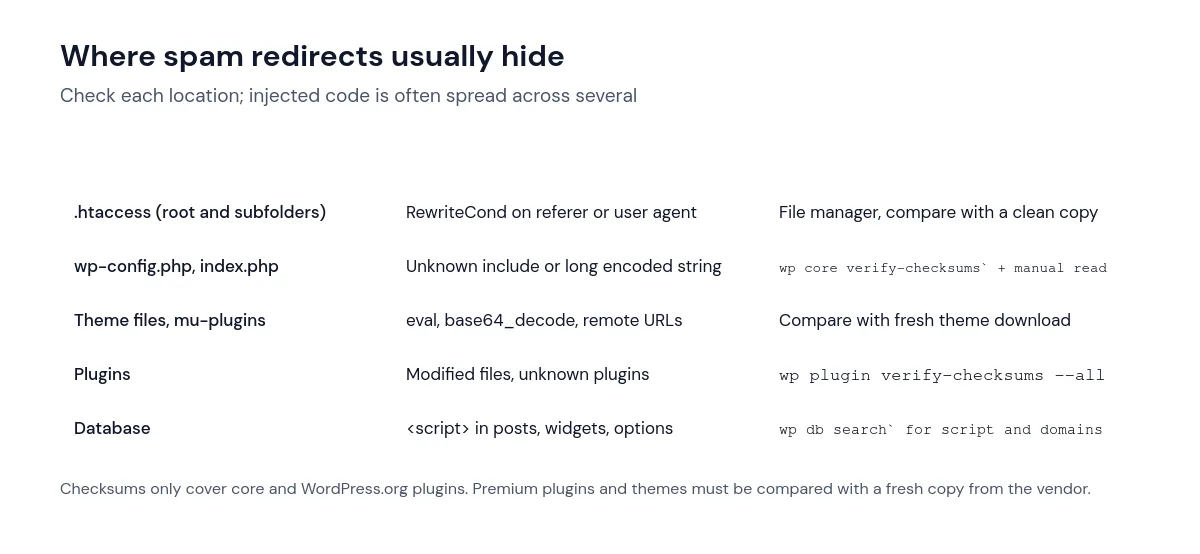
Work through these locations. Infections are often spread across several of them, so do not stop at the first one you find.
.htaccess files
Open .htaccess in your WordPress root and look for rewrite rules that test the referrer (HTTP_REFERER) or user agent (HTTP_USER_AGENT) and redirect to an external domain. Also check for extra .htaccess files in wp-content, wp-includes and uploads. A normal WordPress .htaccess contains a short, standard block between # BEGIN WordPress and # END WordPress, plus rules added by your caching or security plugin.
Core files
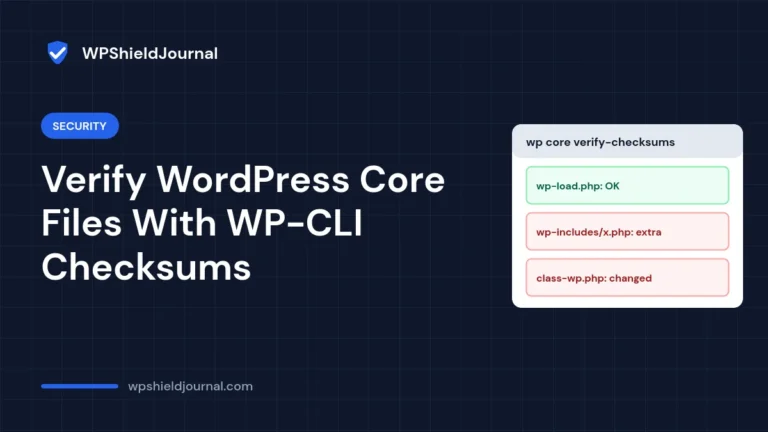
If you have WP-CLI, compare WordPress core files with the official checksums:
wp core verify-checksums
wp plugin verify-checksums --all
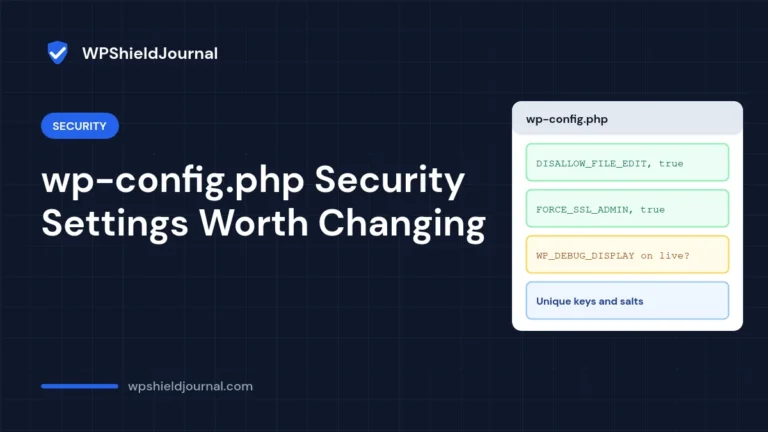
The first command checks core files. The second checks plugins against WordPress.org checksums, which means premium plugins and themes that do not come from WordPress.org cannot be verified this way. Any file reported as modified or unexpected deserves a closer look. Also read wp-config.php and the root index.php for unfamiliar include lines or long encoded strings.
Themes and mu-plugins
Look in wp-content/mu-plugins/. Must-use plugins load automatically and do not appear in the normal Plugins list, which makes them a popular hiding place. Then compare your theme with a fresh download from its developer. Patterns worth investigating include eval(, base64_decode(, gzinflate(, str_rot13( and requests to unknown URLs. These functions also have legitimate uses, so compare with a clean copy rather than deleting everything that matches.
Plugins
Look for plugins you do not recognise, plugins with generic names, and plugins that are installed but not listed in the dashboard. Remove plugins that are abandoned or no longer needed.
The database
Redirect scripts are often injected into posts, widgets or options. With WP-CLI you can search the whole database:
wp db search '<script' --stats
wp db search 'unknown-domain.example' --stats
The wp db search command lists the tables and rows that match. Also confirm that the WordPress Address and Site Address in Settings → General are correct, and look for unknown administrator accounts, as described in our guide to an unknown admin user that keeps coming back.
Step 4: Clean the site or restore a clean backup
If you have a backup from before the infection started, restoring it is usually more reliable than cleaning file by file. The difficulty is knowing when the infection started, so check the restored site with the same tests from Steps 1 and 3 before relying on it.
If you clean manually, replace WordPress core with a fresh copy (Dashboard → Updates → Re-install, or wp core download --force --skip-content), reinstall plugins and themes from fresh downloads, then remove the injected code from .htaccess, wp-config.php and the database.
Step 5: Close the way back in
Cleaning without fixing the cause often leads to reinfection within days. After cleaning:
- Change the passwords for every WordPress administrator, hosting account, SFTP or FTP account and database user.
- Replace the security keys and salts in
wp-config.php, which logs out every user. WP-CLI can do this withwp config shuffle-salts. - Update WordPress, every plugin and every theme, and delete anything you do not use.
- Turn on multifactor authentication for administrators where your setup supports it.
- Review the WordPress hardening guide and apply what fits your site.
Step 6: Verify the clean-up and monitor
Repeat the tests from Step 1 over several days, because some redirects run only occasionally. If Google flagged the site, request a review in the Search Console Security issues report once you are confident it is clean. Keep an eye out for new administrator accounts, new files in wp-content, and unexpected changes to .htaccess. See removing a Google deceptive site warning for the full review process.
When to bring in a professional
Get help from your host or a security specialist if the redirect returns after cleaning, the site handles payments or personal data, you find code you do not understand in several places, or your host has suspended the account. If customer data may have been exposed, you may also have legal notification duties, which a professional can help you assess.
Frequently asked questions
Will a security plugin remove the redirect automatically?
Security scanners can help find known malware, but no scanner catches everything, especially new or heavily obfuscated code and database injections. Treat scan results as a starting point and still check the locations above.
Why does my site keep redirecting to spam after I delete the code?
Usually because a second piece of code (a backdoor) recreates it, or because the attacker still has a valid password. Look for backdoors in mu-plugins, theme files and uploads, and change every password and the salts.
Summary
A WordPress site redirecting to spam is a compromise, not a configuration error. Reproduce the redirect as a logged-out mobile visitor, keep an infected backup as evidence, check .htaccess, core, themes, mu-plugins, plugins and the database, then clean or restore from a known-clean backup. Change every password and the salts and update everything so the attacker cannot simply return.