WordPress Debug Log: How to Enable, Find and Read It Safely
When WordPress shows a critical error, a blank page or a vague “something went wrong”, the real reason is usually written down only if logging is switched on. The WordPress debug log records PHP errors, warnings and notices to a file, so you can see which plugin, theme or line of code failed. This guide shows how to turn it on safely, where to find the file, how to read it, and how to switch it off again.
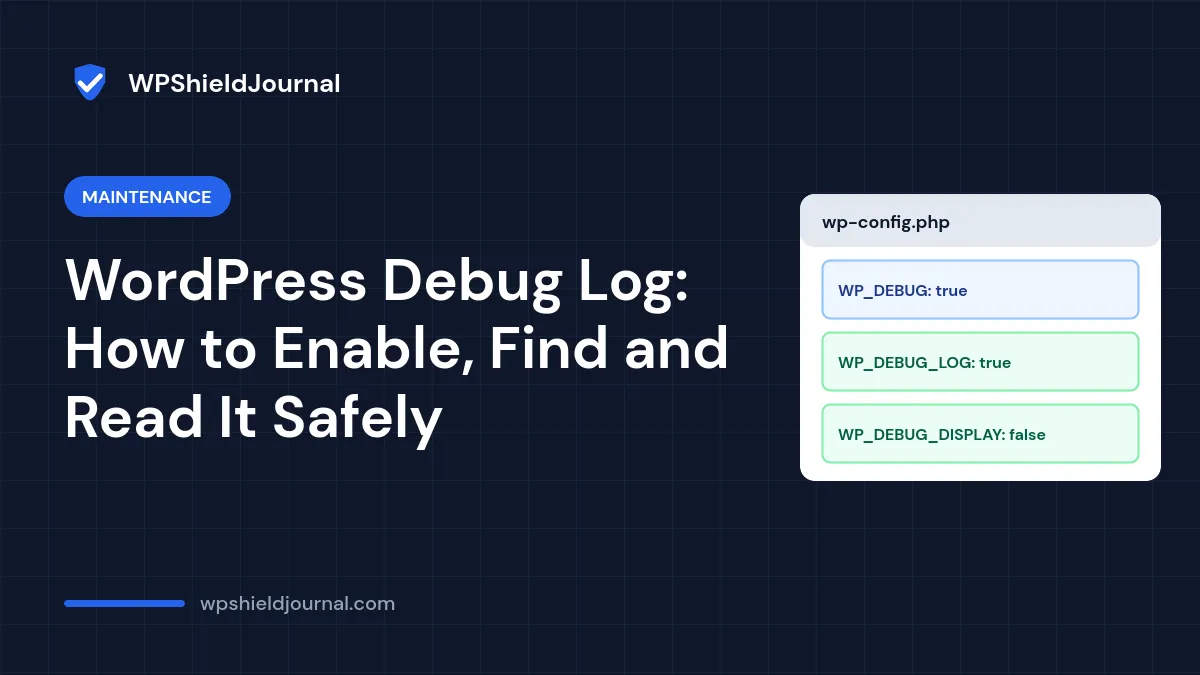
Quick answer: add WP_DEBUG, WP_DEBUG_LOG and WP_DEBUG_DISPLAY to wp-config.php as shown below, reproduce the problem, then read wp-content/debug.log. Keep WP_DEBUG_DISPLAY set to false on a live site, and turn logging off when you have finished.
Before you start
- You need access to
wp-config.phpthrough SFTP, SSH or your host’s file manager. - Download a copy of
wp-config.phpbefore editing it, so you can restore it if a typo breaks the site. - The official Debugging in WordPress documentation recommends using these tools in a local or staging environment. On a live site, keep the steps below short and switch logging off afterwards.
Step 1: Turn on the debug log in wp-config.php
Open wp-config.php in the site’s root folder. Find any existing WP_DEBUG line and replace it, or add these lines above the comment /* That's all, stop editing! */:
define( 'WP_DEBUG', true );
define( 'WP_DEBUG_LOG', true );
define( 'WP_DEBUG_DISPLAY', false );
@ini_set( 'display_errors', 0 );
What each line does:
| Constant | Effect |
|---|---|
WP_DEBUG | Turns on debug mode. The other two settings do nothing without it |
WP_DEBUG_LOG | Writes errors to a log file |
WP_DEBUG_DISPLAY | Controls whether errors are printed on the page. Its default is true, so set it to false on a live site |
Never turn on WP_DEBUG on a live site without also setting WP_DEBUG_DISPLAY to false (see our wp-config.php security guide). Otherwise visitors can see warnings that reveal file paths and plugin details.
Step 2: Reproduce the problem
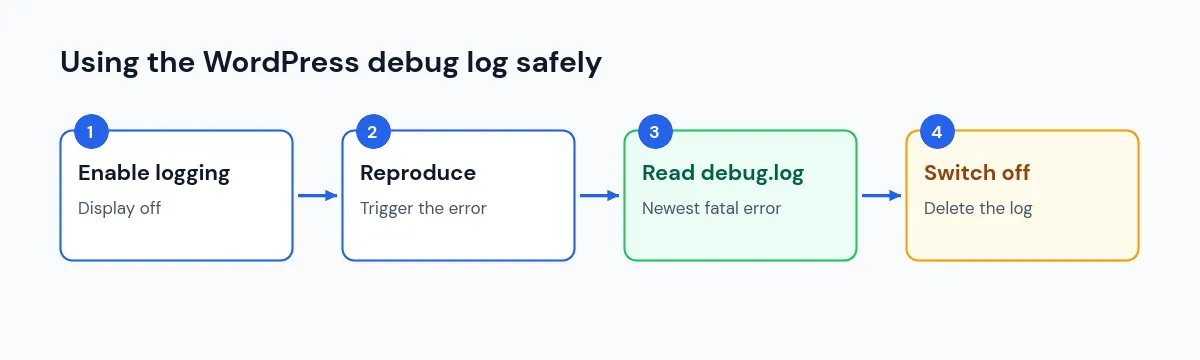
Save the file, then do whatever triggers the error: load the broken page, save the post, or run the action that fails. Errors are only written when they happen, so the log stays empty until you repeat the problem.
Step 3: Find and read debug.log
With WP_DEBUG_LOG set to true, WordPress writes to debug.log in the content directory, usually wp-content/debug.log. Download it or open it in your host’s file manager.
Each entry has a date, a type and a file path:
[17-Oct-2026 10:21:05 UTC] PHP Fatal error: Uncaught Error: Call to undefined function example_function() in /home/user/public_html/wp-content/plugins/example-plugin/example.php:42Read it like this:
- The type.
Fatal errorstops the page and is almost always the one you need.Warning,NoticeandDeprecatedare often harmless noise from older code. - The path.
wp-content/plugins/example-plugin/tells you which plugin caused it;wp-content/themes/...points to a theme. - The time. Match it to when you reproduced the problem, and ignore older entries.
If the log names a plugin, our critical error guide explains how to deactivate it safely, even when you cannot reach the dashboard.
Step 4: Keep the log out of public reach
By default the log sits inside wp-content, which is part of your public website. On many servers anyone who knows the address can download /wp-content/debug.log, and it can contain file paths and other details useful to an attacker.
You have two safer options:
- Log to a file outside the web root.
WP_DEBUG_LOGalso accepts a file path instead oftrue, for example:
define( 'WP_DEBUG_LOG', '/home/youruser/logs/wp-debug.log' );Use a folder that exists, is writable by PHP and is not inside public_html. Your host’s file manager shows the full path of your home folder.
- Check whether the default file is reachable. Open
https://your-domain/wp-content/debug.login a private window while logging is on. A 403 Forbidden or 404 Not Found response means it is not publicly readable; if the file downloads, use option 1 or ask your host to block access.
Step 5: Turn logging off
When you have the information you need:
- Change
WP_DEBUGback tofalse, or remove the lines you added. - Delete or download and remove
debug.log. A log left running keeps growing and can fill your disk space. - Load the site once more to confirm it works with debugging off.
If nothing is written to the log
- The error happens before WordPress loads. Errors in
wp-config.phpitself or server configuration are not caught. Check your host’s PHP error log in the control panel instead, as described in our 500 Internal Server Error guide. - The folder is not writable. PHP must be able to create the file. If you set a custom path, check the folder permissions.
- The problem is not a PHP error. A 403 from a firewall, a wrong redirect or a JavaScript error in the editor never reaches the PHP log. Check the browser’s developer tools or your host’s access log.
Frequently asked questions
Does debug mode slow down my site?
Writing occasional errors to a file has little effect. A busy site with many warnings can write a lot, which is another reason to switch logging off when you are done.
What about SCRIPT_DEBUG and SAVEQUERIES?
SCRIPT_DEBUG loads unminified core JavaScript and CSS, which helps when debugging editor scripts. SAVEQUERIES stores every database query in memory and slows the site, so only use it briefly for performance work.
Can I see the log without editing wp-config.php?
Many hosts keep a PHP error log you can view in the control panel. It often contains the same fatal errors without any change to WordPress.
Summary
The WordPress debug log turns hidden PHP errors into a readable file. Enable it with WP_DEBUG, WP_DEBUG_LOG and WP_DEBUG_DISPLAY set to false, reproduce the problem, read the newest fatal error and its file path, keep the log out of public reach, and switch it off when you are finished.