Another Update Is Currently in Progress: Clear the WordPress Lock
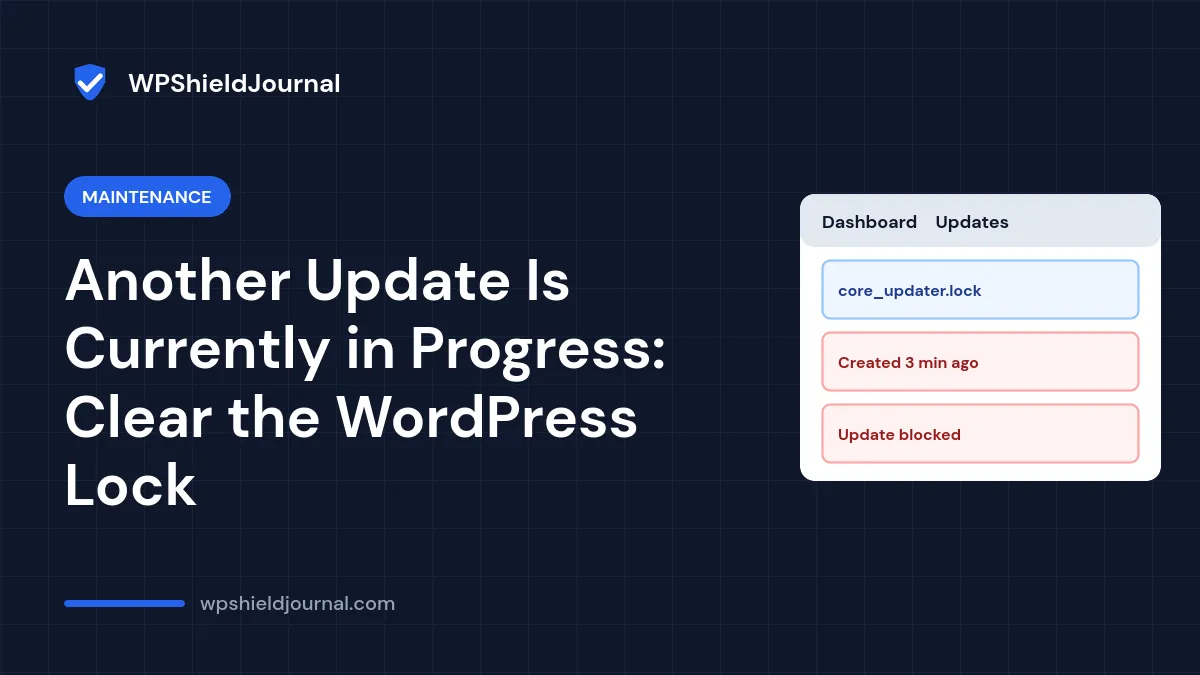
You click Update to version … under Dashboard → Updates and WordPress replies “Another update is currently in progress.” No update seems to be running. WordPress uses a short-lived lock to stop two core updates from running at once, and an update that was interrupted can leave that lock behind. This guide shows how to check whether an update really is running and how to clear a stale lock safely.
Quick answer: wait 15 minutes and try again; WordPress treats the core update lock as expired after that. If you cannot wait, and you are sure no update is running, delete the core_updater.lock option with wp option delete core_updater.lock or in phpMyAdmin.
How the update lock works
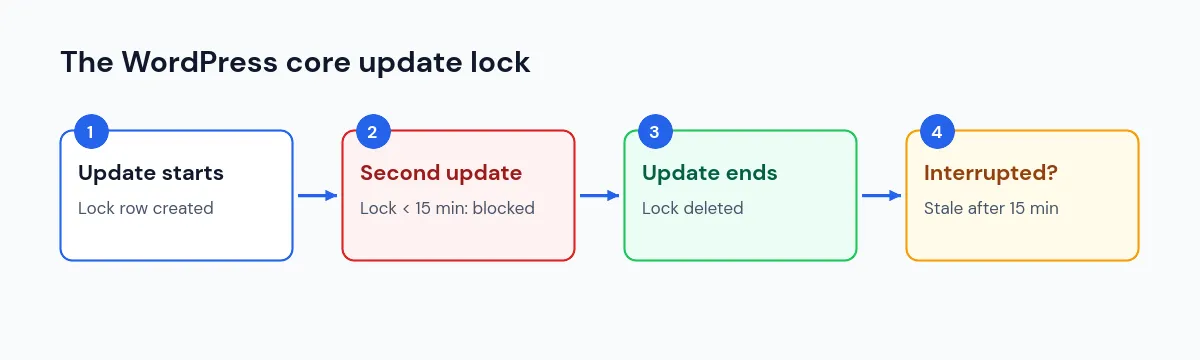
When a core update starts, WordPress’s Core_Upgrader calls WP_Upgrader::create_lock( 'core_updater', 15 * MINUTE_IN_SECONDS ). The lock is a row in the options table named core_updater.lock, holding the time it was created. While that row exists and is less than 15 minutes old, any other core update stops with “Another update is currently in progress.” When the update finishes, WordPress deletes the row. We confirmed these details in WordPress core’s upgrader code.
If the update is interrupted, for example by a timeout, a server restart or a closed connection, the row can stay behind. After 15 minutes WordPress considers it stale, removes it and takes a new lock.
Automatic background updates use a separate lock called auto_updater.lock. A background update that is running can still make a manual update wait.
Step 1: Make sure no update is actually running
- Check whether someone else is updating the site, or whether your host runs updates for you. Many managed hosts update WordPress automatically.
- Load the site’s front end. If it shows “Briefly unavailable for scheduled maintenance”, an update is in progress or was interrupted; see our guide to briefly unavailable for scheduled maintenance.
- Check Dashboard → Updates to see whether WordPress already shows the new version.
If an update is running, let it finish. Interrupting it can leave WordPress half-updated.
Step 2: Wait 15 minutes
The simplest fix is to wait. After 15 minutes WordPress treats the lock as stale and clears it on the next update attempt. Return to Dashboard → Updates and try again.
Step 3: Remove a stale lock manually
Only do this if you are sure no update is running.
With WP-CLI (over SSH, in the WordPress folder):
wp option get core_updater.lock
wp option delete core_updater.lock
The first command shows the lock’s timestamp. The second removes it.
With phpMyAdmin:
- Back up the database first. Our backup guide explains how.
- Open the
optionstable (for examplewp_options). - Search for
option_nameequal tocore_updater.lock. - Delete that single row. Do not delete anything else.
Then go back to Dashboard → Updates and run the update again.
Never delete the lock while an update is running. Two updates writing the same files at once can break the site, leaving you to restore from a backup.
If the update fails again
If the update starts but stops part-way again, the lock was a symptom. Look for the real cause:
- Time limits. Updates can exceed PHP’s time limit on slow servers. See maximum execution time exceeded.
- File permissions or disk space. WordPress must be able to write to its own files. See could not create directory.
- Memory. See allowed memory size exhausted.
If you have SSH access, wp core update runs the update from the command line, without browser or web server timeouts, and prints clearer errors.
When to contact your host
Contact your host if your plan includes managed updates, if the lock keeps coming back, or if the update keeps failing. They can tell you whether their own update system is running and check server logs from the time of the failure.
Frequently asked questions
Is it safe to delete core_updater.lock?
Yes, as long as no update is running. It only holds a timestamp, and WordPress removes it itself after a successful update.
Does this lock affect plugin updates?
The core_updater lock is for WordPress core updates. Plugin and theme updates have their own checks, so you can usually still update plugins while it exists.
Will the site be down while I wait?
No. The lock only blocks new core updates. Unless an update was interrupted while the maintenance file was active, the site keeps working.
Summary
“Another update is currently in progress” means WordPress found a core_updater.lock option less than 15 minutes old. Check that no update is really running, wait 15 minutes, or delete the lock with WP-CLI or phpMyAdmin after a backup. If updates keep failing, fix the underlying time, permission or memory problem.