403 Forbidden Error in WordPress: Find What Is Blocking Access
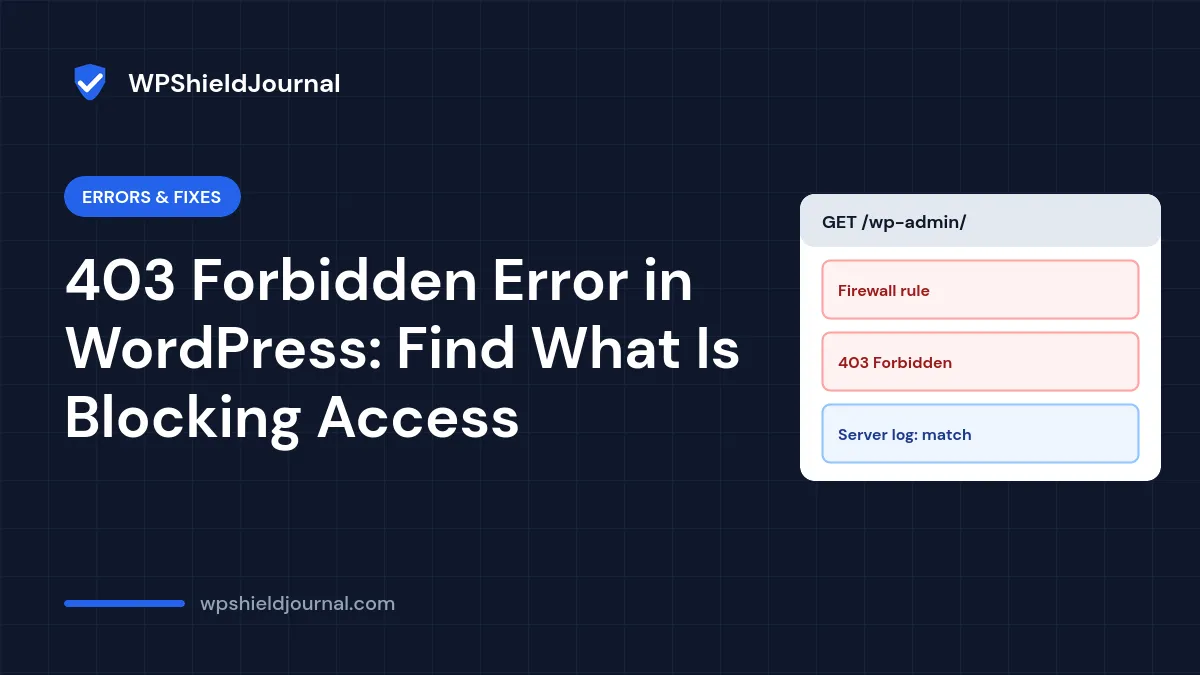
A 403 Forbidden error means the server understood the request but refused to serve it. In WordPress it can block the whole site, only /wp-admin/, only the login page, or a single URL. The refusal can come from file permissions, an .htaccess rule, a security plugin, your host’s firewall or a CDN. The quickest way to fix a 403 Forbidden error in WordPress is to work out which of those layers is saying no.
Quick answer: note exactly which URLs return 403 and whether the error page looks like your host’s, your CDN’s or a security plugin’s. Then check, in order: a security plugin or firewall block, rules in .htaccess, and file permissions (folders 755, files 644). Your host’s logs show which rule blocked the request.
Step 1: Narrow down where the 403 happens
| Where you see it | Most likely layer |
|---|---|
| Every page, including the homepage | Permissions on the site folder, .htaccess, or a host block on your IP |
Only /wp-admin/ or /wp-login.php | Security plugin, host firewall, or an .htaccess login restriction |
| Only one page or action, such as saving a post | A firewall rule triggered by the request content |
| Only for you, not on mobile data | Your IP address is blocked |
A folder address such as /wp-content/uploads/ | Normal: directory listing is disabled |
Test from another network, for example your phone with Wi-Fi off. If the site works there, your IP is blocked; ask your host or check your security plugin’s block list.
Step 2: Identify who sent the 403
The error page itself is a clue:
- A page branded by Cloudflare or another CDN came from the CDN’s firewall.
- A plain server page mentioning Apache, LiteSpeed or nginx came from your server.
- A page with a security plugin’s name or logo came from that plugin.
In your browser’s developer tools (Network tab), click the failed request and check the server response header and any header naming a firewall. Note the time; your host can match it against their logs.
Step 3: Check security plugins and firewalls
Security plugins and server firewalls block requests that look like attacks, and sometimes block legitimate ones: an editor saving code, a login from a new country, or too many requests in a short time.
- Check your security plugin’s log or blocked IP list for your IP or the URL.
- If you cannot reach the dashboard, deactivate the plugin by renaming its folder in
wp-content/plugins/through SFTP or your host’s file manager, then test. Rename it back afterwards and adjust its settings rather than leaving it off. - If the block came from the host or a CDN, ask them which rule matched. Ask for that rule to be adjusted for your site, not for the whole firewall to be turned off.
Our brute-force login guide covers login protections that commonly cause 403s on wp-login.php.
Step 4: Check .htaccess
On Apache and LiteSpeed servers, .htaccess in the site’s root folder can deny access. Rules added by plugins, hosts or earlier hardening attempts are a common cause.
- Download a copy of
.htaccess. - Rename it on the server to
.htaccess-old. - Load the site. If the 403 is gone, the file was the cause.
- Go to Settings → Permalinks and click Save Changes to create a fresh WordPress section, or restore the default block shown in our 404 after migration guide.
- Add back any custom rules from the old file one at a time, testing after each.
Renaming .htaccess also removes rules you may rely on, such as HTTPS redirects or caching rules. Keep the old file and restore the parts you need.
Step 5: Check file and folder permissions
The web server must be able to read your files. WordPress’s file permissions documentation says directories should be 755 or 750 and files 644 or 640, with wp-config.php at 440 or 400.
In your host’s file manager or an SFTP client, check the site’s root folder, wp-admin, wp-includes and wp-content. Permissions such as 700 on a folder or 600 on index.php can cause a 403. Correct them, but never use 777.
If permissions look right but files belong to a different user, for example after a migration, ask your host to reset ownership. Our could not create directory guide explains why ownership matters.
Step 6: Check for a missing index file
If the homepage returns 403, check that index.php exists in the site’s root folder. Without it, the server may refuse to list the folder and return 403. If index.php is missing or was emptied, restore it from a clean copy of WordPress of the same version.
A missing or modified core file can also be a sign of compromise. If files changed without explanation, see our guide to signs of a hacked WordPress site.
When to contact your host
Contact your host when the 403 page is the server’s own page and you cannot find the cause, when your IP is blocked at server level, or when the block comes from their firewall. Give them the URL, your IP address and the exact time.
Frequently asked questions
Is a 403 on /wp-content/uploads/ a problem?
No. When a folder has no index file, many servers return 403 instead of listing its files. That is intended and protects your uploads from being browsed.
Can a CDN cause a 403 even when the server is fine?
Yes. A CDN’s firewall, bot protection or country block can refuse requests before they reach your server. Check the CDN’s firewall events for the request.
Does a 403 hurt SEO?
If search engines get a 403 on pages that should be public, those pages can drop out of search results. Check the Pages report in Google Search Console after fixing it.
Summary
To fix a 403 Forbidden error in WordPress, find which URLs fail and who sent the error page. Then check security plugins and firewall rules, test without .htaccess, correct permissions to 755 for folders and 644 for files, and confirm index.php exists. Your host’s logs can show exactly which rule refused the request.