Sorry, You Are Not Allowed to Access This Page: WordPress Fix
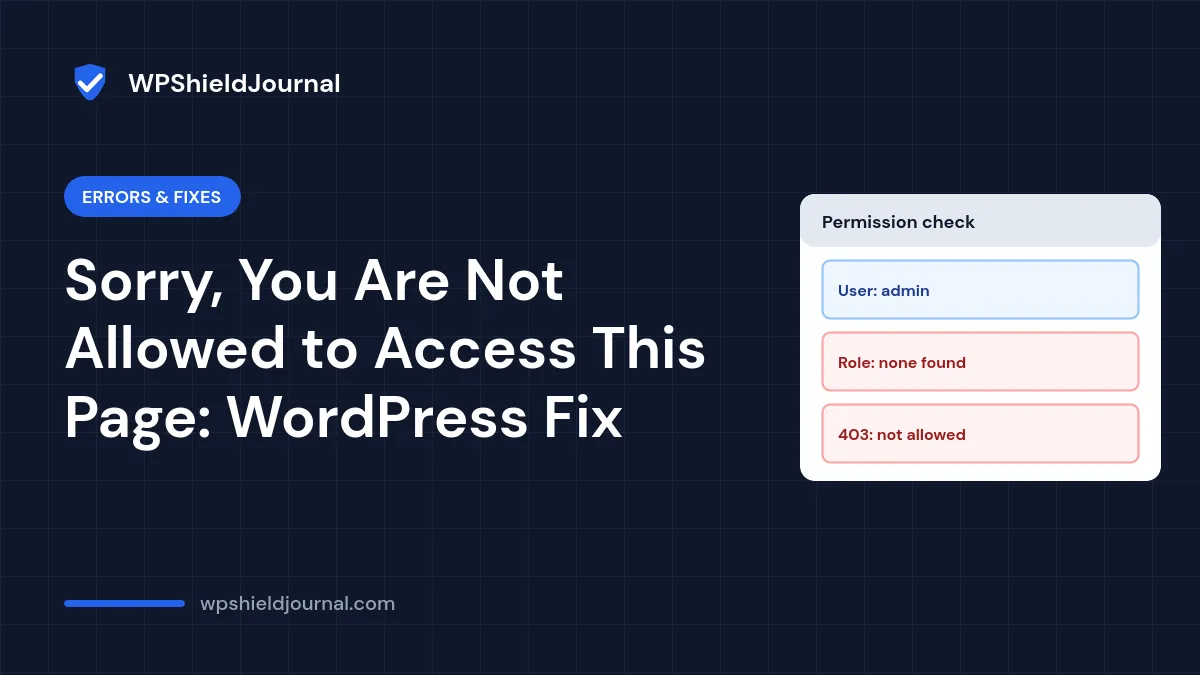
You log in, click a link in the dashboard and WordPress stops with a plain page: “Sorry, you are not allowed to access this page.” Sometimes it is one page; sometimes it is the whole dashboard, even for the site owner. The message means WordPress checked your account’s permissions for that admin page and the check failed. This guide shows how to work out which of the common causes applies and fix it without making your site less secure.
Quick answer: if only one page fails, it is usually an old link to a plugin page that no longer exists. If every admin page fails for an administrator, check the user’s role. After a migration, the most common cause is a changed database table prefix that left the role data under the old prefix.
Where the message comes from
WordPress builds the admin menu and then checks whether the current user may open the requested page. If not, core calls wp_die() with “Sorry, you are not allowed to access this page.” and a 403 status. We confirmed this in wp-admin/includes/menu.php, where the check uses user_can_access_admin_page().
So the cause is always one of two things: the page does not exist for you, or your account lacks the capability the page needs.
| Symptom | Most likely cause |
|---|---|
| One bookmarked or plugin page fails | The page belongs to a deactivated or updated plugin |
| One feature fails for an editor or author | Their role does not include that capability |
| The whole dashboard fails for an administrator after a migration | Table prefix changed |
| The whole dashboard fails with no migration | Role data damaged, or a plugin or malware changed it |
Step 1: Check whether it is just one page
- Go to
/wp-admin/(the main dashboard). If it loads, your account works. - Look at the address of the failing page. Addresses like
admin.php?page=some-plugin-settingsbelong to a plugin. - Check Plugins to see whether that plugin is active and up to date. Plugins sometimes rename or remove settings pages after an update, which breaks old bookmarks.
If the plugin is deactivated or the page has moved, nothing is wrong with your account. Use the plugin’s current menu entry instead of the bookmark.
Step 2: Check the user’s role
If the dashboard loads but some sections are missing, open Users → Profile while logged in as an administrator and check the user’s Role. Editors, authors and contributors cannot open plugin, theme or settings screens, by design.
If you have WP-CLI access, this shows the roles of a user (replace 1 with the user ID):
wp user get 1 --field=rolesIf an administrator account shows no role or the wrong role and you have another working administrator, fix it under Users. With WP-CLI you can set it directly:
wp user set-role 1 administratorBefore restoring administrator rights, make sure the account is genuinely yours. If an account you do not recognise has administrator rights, or yours was changed without your knowledge, treat it as a possible compromise and follow our unknown admin user guide.
Step 3: After a migration, check the table prefix
WordPress stores each user’s role in the usermeta table under a key that includes the database table prefix, for example wp_capabilities and wp_user_level. The list of roles itself is stored in the options table as wp_user_roles. Core builds these names from the current prefix, so if $table_prefix in wp-config.php changes but those keys keep the old prefix, WordPress finds no role for anyone and denies access.
To check:
- Open
wp-config.phpand note$table_prefix, for exampleabc_. - In phpMyAdmin or your host’s database tool, open the
usermetatable and look for keys ending incapabilities. - If the tables are named
abc_usersandabc_usermetabut the keys arewp_capabilitiesandwp_user_level, the prefix was changed without updating them.
Take a full database backup before running any SQL. Test on a staging copy if you can. The queries below assume the new prefix is abc_ and the old one was wp_; replace both with your own values.
UPDATE abc_usermeta SET meta_key = REPLACE(meta_key, 'wp_', 'abc_') WHERE meta_key IN ('wp_capabilities', 'wp_user_level', 'wp_user-settings', 'wp_user-settings-time', 'wp_dashboard_quick_press_last_post_id');
UPDATE abc_options SET option_name = 'abc_user_roles' WHERE option_name = 'wp_user_roles';
Log out, log in again and test the dashboard. If you are not comfortable editing the database, ask your host or developer to make this change.
The opposite situation, where the table prefix in wp-config.php does not match the tables at all, shows the installation screen instead. That case is covered in our database connection guide.
Step 4: If there was no migration
If the prefix matches and the role still looks wrong:
- A security or membership plugin may be restricting the dashboard. Rename its folder in
wp-content/plugins/through SFTP or your host’s file manager to deactivate it, then try again. Our plugin conflict guide explains the safe order. - Role data may be damaged. The
user_rolesoption can be broken by a faulty plugin. Restoring it from a recent backup is safer than editing it by hand. - Malware may have changed accounts. If you see unfamiliar administrators or changed emails, follow our guide to check whether your site is hacked.
When to contact your host or a developer
Ask for help if the database tables do not match what you expect, if you have no working administrator account and no database access, or if you suspect a compromise. Restoring a backup made before the problem started is often the quickest safe fix.
Frequently asked questions
Can I just give every user the administrator role?
No. Roles limit the damage a compromised account can do. Give each person the lowest role that lets them do their work.
Why did this start after I changed the table prefix for security?
Changing the prefix also requires updating the prefixed keys described in Step 3. Without that, WordPress cannot find any user’s role. A changed prefix adds little real protection, so it is rarely worth the risk on an existing site.
I can’t log in at all. Is this the same problem?
No. If the login form itself fails or loops, see our guide to login problems after migration or reset the password as described in reset a WordPress admin password.
Summary
“Sorry, you are not allowed to access this page” means a permission check failed. Check whether only one plugin page is affected, confirm the user’s role, and after a migration make sure the capabilities, user_level and user_roles keys use the current table prefix. Back up before any database change.