WordPress Staging Site: Test Changes Safely Before They Go Live
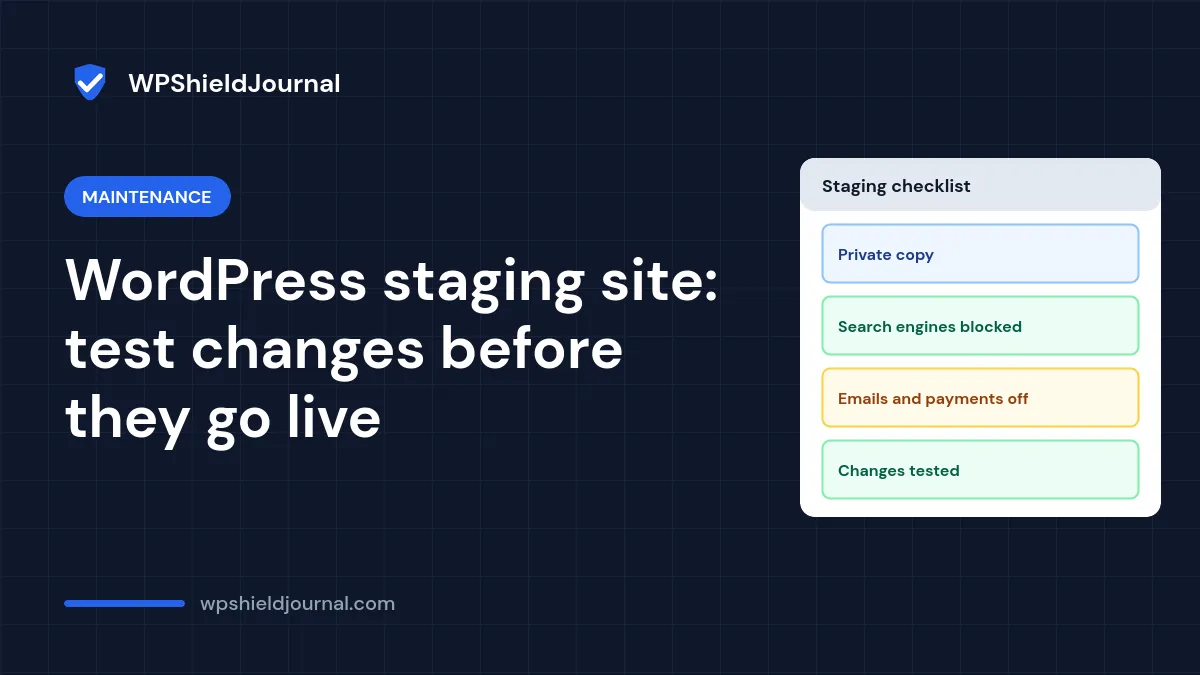
A WordPress staging site is a private copy of your live site where you can try plugin updates, a new PHP version or design changes without visitors seeing anything break. Most of our troubleshooting guides say “test this on staging first”; this guide explains how to create a staging copy, how to stop it leaking into search results or sending real emails, and how to move tested changes to the live site safely.
Quick answer: use your host’s staging tool if it has one; it copies files and the database for you. Otherwise copy the site to a subdomain, update the URLs with WP-CLI’s search-replace, then password-protect it, block indexing, and stop emails and payments. Test there, then repeat the tested change on the live site after taking a backup.
When you need a staging site
- Before a major WordPress, plugin or theme update, especially on a shop or membership site.
- Before switching to a new PHP version; our guide to upgrading the WordPress PHP version uses staging for exactly this.
- When tracking down a fault that needs plugins switched off, such as a plugin conflict.
- Before a redesign or a change of theme.
For a one-line setting change on a small blog, a fresh backup may be enough. The more people use the site, and the more data it stores, the more staging is worth it.
Option 1: Use your host’s staging tool
Many hosts include a one-click staging feature in their control panel. Hostinger, for example, documents a staging tool in hPanel. These tools copy the files and database, change the URLs and usually block search engines for you. Read your host’s documentation for what “push to live” copies: some tools overwrite the whole live database, which is risky on sites that change every day (see below).
Option 2: Create a staging copy yourself
This works on any host where you can create a subdomain and a database. The steps are similar to a migration, so our guide to moving WordPress to a new host gives more detail on copying files and the database.
- Back up the live site first. Our guide on how to back up a WordPress site explains what to include.
- Create a subdomain, for example
staging.example.com, and a new, empty database and database user in your hosting panel. - Copy the files of the live site into the subdomain’s folder.
- Copy the database: export it from the live site and import it into the new database (with phpMyAdmin, or
wp db exportandwp db import). - **Edit
wp-config.phpon staging** soDB_NAME,DB_USERandDB_PASSWORDpoint to the new database. Never let staging use the live database. - Replace the URLs in the staging database. Run this in the staging folder, first with
--dry-runto see what would change:
wp search-replace 'https://example.com' 'https://staging.example.com' --skip-columns=guid --dry-run
wp search-replace 'https://example.com' 'https://staging.example.com' --skip-columns=guid
The WP-CLI documentation notes that search-replace “intelligently handles PHP serialized data”, which a plain SQL find-and-replace does not. Skipping the guid column follows WP-CLI’s own example.
Lock the staging site down
A staging copy contains real content and often real customer data, so treat it like the live site.
- Password-protect it. Use your host’s directory privacy or HTTP authentication feature. This keeps visitors and search engines out.
- Discourage search engines under Settings → Reading. This only asks search engines not to index the site, so use it together with a password, not instead of one.
- Mark it as staging by adding this to
wp-config.php:
define( 'WP_ENVIRONMENT_TYPE', 'staging' );WordPress has supported this setting since version 5.5, and plugins can read it with wp_get_environment_type() to change their behaviour on non-production sites.
- Stop real emails. A copied shop or form plugin can email real customers. Use your mail plugin’s option to disable sending, or a plugin that catches outgoing mail, before you click around. See our guide to WordPress email delivery for how WordPress sends mail.
- Switch payments to test mode and disable webhooks or API keys that connect to live services (payment gateways, CRMs, shipping).
- Disable scheduled jobs that act on the outside world, such as newsletter sends, backup uploads to the live site’s storage, or social media posting.
If you protect staging with HTTP authentication, WordPress’s loopback test passes your login on only when you are browsing with it. Site Health may still report loopback request errors on staging that do not exist on live.
Test your change on staging
- Make the change: update the plugin, switch PHP version or apply the design change.
- Test the pages and actions that matter most: the home page, a post, the contact form, the checkout or login.
- Turn on the WordPress debug log and look for new warnings or errors.
- Write down exactly what you changed, in order. You will repeat these steps on live.
Apply the tested change to the live site
The safest way to go live is usually to repeat the tested change on the live site: run the same plugin update, switch the same PHP version, or apply the same settings, after taking a fresh backup. If something goes wrong, our guide to rolling back a plugin update covers the most common fix.
For larger changes, such as a new theme or many new pages, copying from staging can be quicker:
- Files only (theme or plugin folders) are generally safe to copy over, as long as the plugin versions match what you tested.
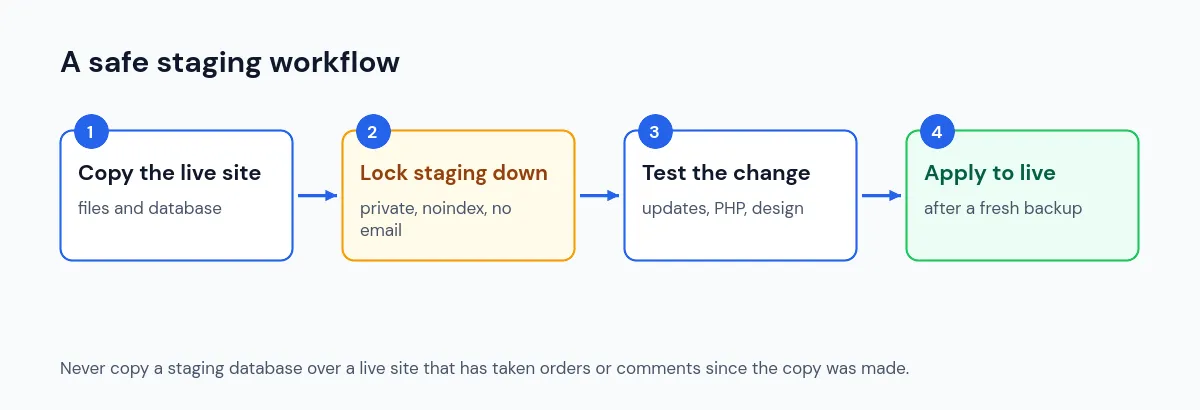
- The database is the risky part. Copying the staging database over live replaces everything that happened on live since you made the copy.
Do not overwrite a live database that has taken orders, form entries, comments or new user sign-ups since the staging copy was made. Those records would be lost. On busy sites, recreate database changes by hand on live, or use a host or plugin tool that can merge selected tables, and test that process on staging first.
After going live, clear every cache layer and check the site in a private window. Our guide to changes not showing after clearing cache helps if the live site still looks old.
Frequently asked questions
Will a staging site hurt my SEO?
Not if search engines cannot reach it. Password protection is the reliable way to ensure that; the Reading setting alone is a request, not a lock.
Do I need to keep the staging site?
No. Many people create a fresh copy before each major change, because an old staging site drifts out of date. If you keep one, update it like the live site and keep it password-protected, or delete it.
Can I use a local copy instead?
Yes. A local development tool on your computer works for testing themes and plugins. It is less reliable for testing server-specific problems such as PHP settings, caching or email, because your computer is not configured like your host.
Summary
A WordPress staging site lets you test updates, PHP changes and redesigns without risking the live site. Use your host’s staging tool or make a copy on a subdomain, replace URLs with WP-CLI, then lock it down: password, noindex, WP_ENVIRONMENT_TYPE, no real emails or payments. Test, write down the steps, and repeat them on live after a fresh backup. Never overwrite a live database that has new orders or content.